Security

The Security page holds the security settings that apply to your whole workspace:
- Network access control: only let people into your dashboard and the public API from your office network or from certain countries.
- Data retention: delete old chats, leads and analytics on a schedule, and clear visitor details after a while.
- SIEM webhook: send every security event to your security team's tools as it happens.
- Blocked visitors: see who you blocked from chatting, and unblock them.
For example, a bank lets its staff open the dashboard only from the office network, deletes chats after 90 days, and sends every sign-in to its security monitoring system.
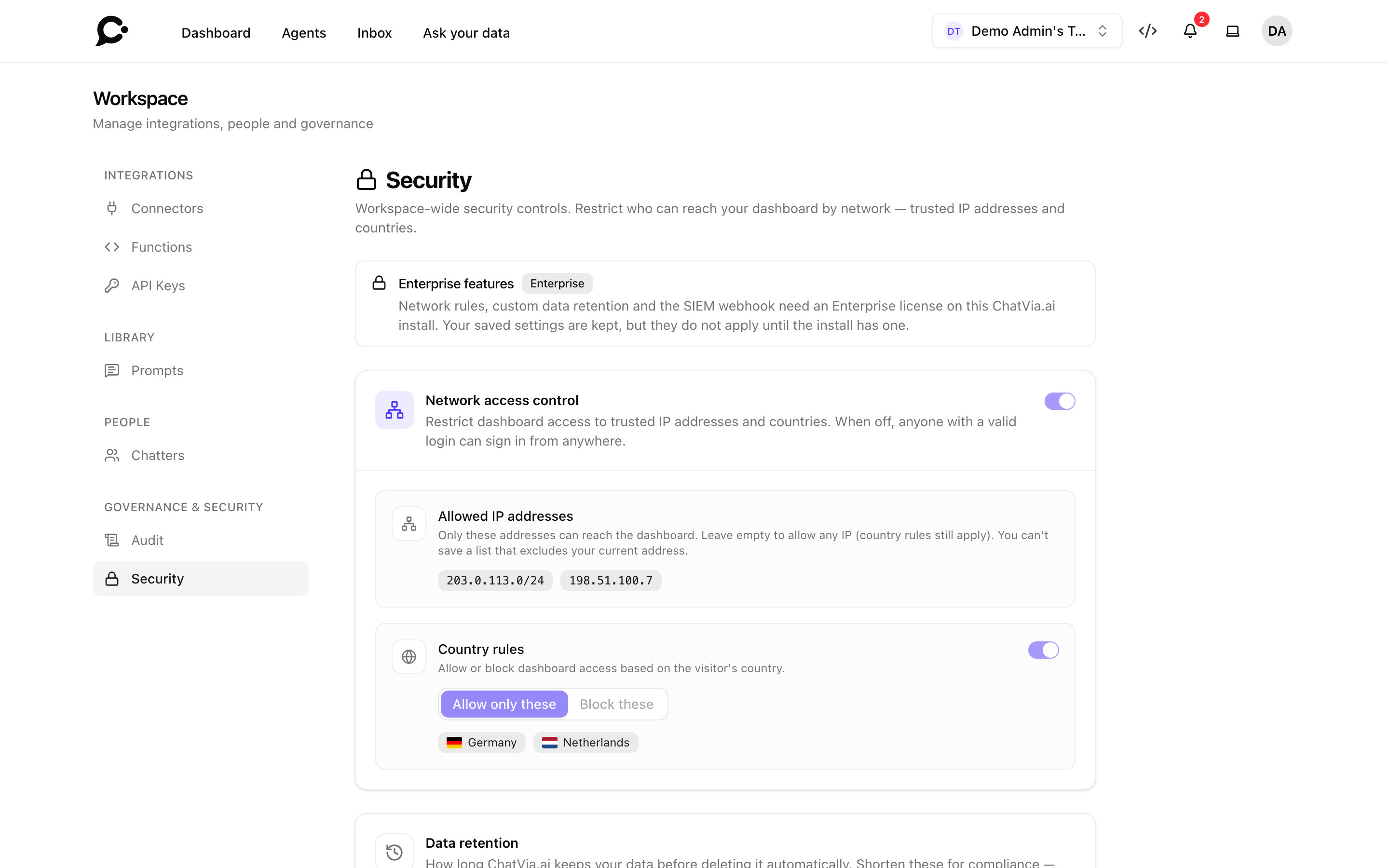
Open it with your avatar, then Workspace, then Security under Governance & Security. The workspace owner always sees it. A teammate needs the Security permission in their role. See Teams & roles.
Enterprise
Network access control, Data retention and the SIEM webhook need an Enterprise license on your Chatvia install. Without one, the page says the feature is unavailable and asks you to contact your administrator. The settings can't be changed, and settings saved earlier are kept but don't apply. Blocked visitors works without a license. See What Enterprise unlocks.
The first three cards are saved together: change what you need, then click Save changes at the bottom. Every change is recorded in the security log, and the people with the Security permission get a notification.
Network access control
Network access control decides from where people may open your dashboard and call the public API. When it is off, anyone with a valid sign-in or API key can use them from anywhere.
It applies to everyone who works in your workspace, the owner included. It also applies to the public API that your developers call with API keys: a call from an address or country that is not allowed is refused, even with a valid key. So if a server of yours calls the API, add its address too. It does not apply to your agents' chats, so visitors can still chat from anywhere.
To turn it on, click the Network access control switch. Two settings appear.
Allowed IP addresses
An IP address is the number that identifies a network on the internet, such as 203.0.113.4. Your office network usually has one fixed address. Ask your IT team for it.
- Click Manage allowed IPs.
- Type an address and click Add address. You can also add a whole range of addresses in CIDR form, such as
203.0.113.0/24, which covers203.0.113.0to203.0.113.255. - Click Done, then Save changes.
Only these addresses can then reach the dashboard and the API. Leave the list empty to allow any address. The country rules still apply.
Country rules
- Turn on Country rules.
- Pick Allow only these (only people in these countries get in) or Block these (people in these countries are kept out).
- Click Manage countries, search for a country and add it. Click Done.
- Click Save changes.
The country comes from the visitor's IP address. Chatvia finds it through Cloudflare or through an IP2Location key that the admin of your Chatvia server sets up. See Platform settings. When Chatvia can't tell the country, it lets the person in, so a lookup failure never locks your team out.
You can't lock yourself out
Chatvia refuses to save rules that would block you, right now, from where you are. If your current address is not in the allowed list, or your current country would be blocked, you see a red message that names the problem, and nothing is saved. Add your address or country first, or change the rule.
Someone else whose address or country is not allowed gets the message "Access from your network is not permitted by this workspace." when they open the dashboard. An API call from there gets the same message with the status 403.
Turn country rules off first
The Network access control switch turns the IP list off and hides the country rules, but saved country rules keep working. To stop all network rules, first turn off Country rules, then turn off Network access control, then click Save changes.
Data retention
Data retention decides how long Chatvia keeps your data before it deletes it on its own. Shorter times help you meet privacy rules, such as GDPR, and keep less personal data. The deleting runs once a night.
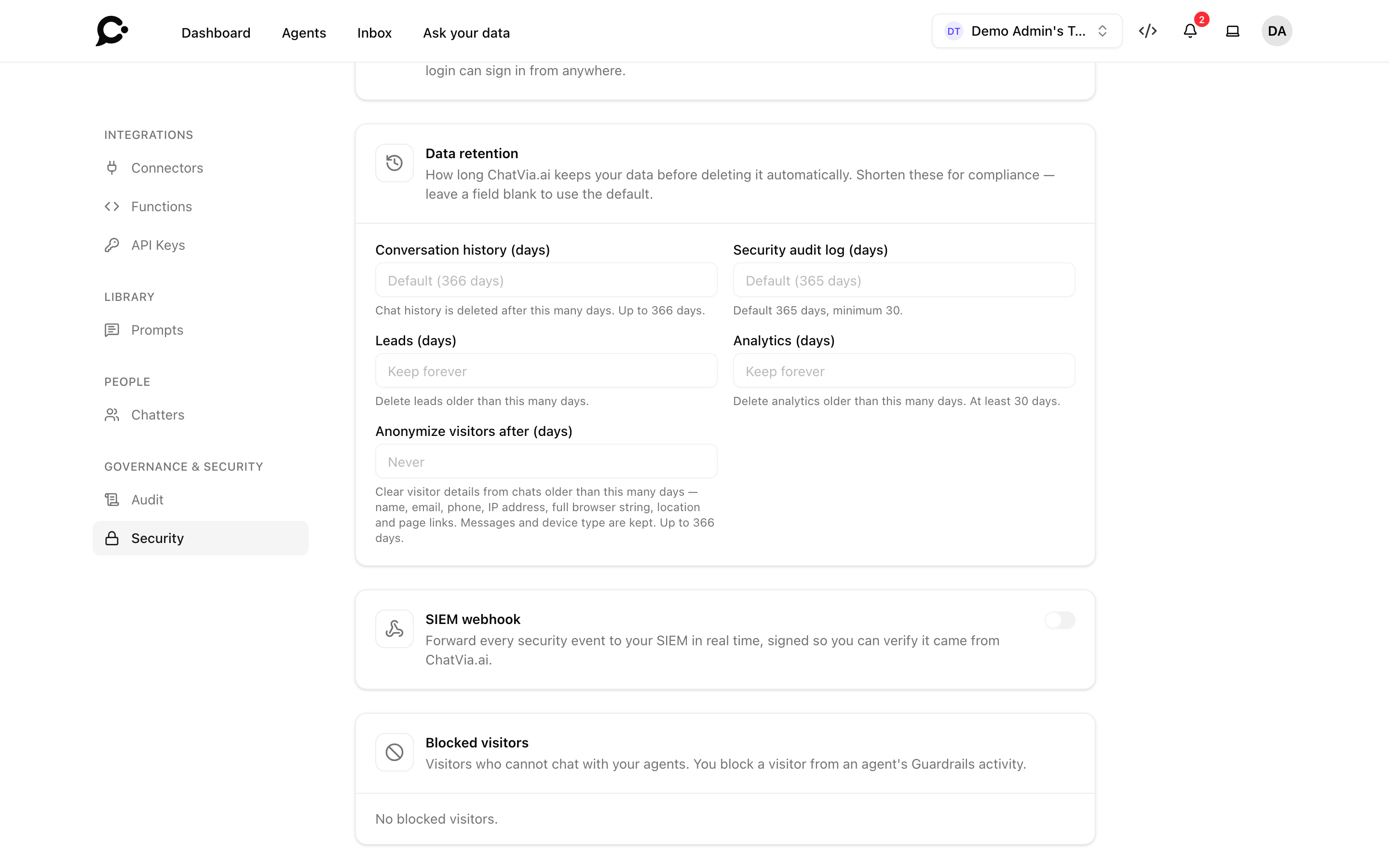
| Field | What it does | Empty means | Allowed values |
|---|---|---|---|
| Conversation history (days) | Chats older than this are deleted. | The install's setting, shown as Default in the field. | From 1 day up to the install's setting. |
| Security audit log (days) | Entries of the security log older than this are deleted. | 365 days, unless the admin changed it. | From 30 days up to the default. |
| Leads (days) | Leads older than this are deleted. | Keep forever | From 1 to 3650 days. |
| Analytics (days) | Analytics older than this are deleted. | Keep forever | From 30 to 3650 days. |
| Anonymize visitors after (days) | Visitor details are cleared from chats older than this: name, email, phone, IP address, full browser string, location and page links. The messages and the device type are kept. | Never | From 1 day up to the conversation history. |
You can only shorten the time the admin of your Chatvia server set for conversations and the security log, never make it longer. See Workspaces settings and Security settings.
Deleted data can't be brought back. Export what you want to keep first, for example your leads. See Leads.
SIEM webhook
A SIEM is a tool security teams use to collect and watch security events from all their systems, such as Splunk, Microsoft Sentinel or Datadog. A webhook is a message one system sends to another when something happens. With the SIEM webhook on, Chatvia sends each event of your security log to your SIEM within moments.
- Ask your security team for the address that receives events.
- Turn on SIEM webhook.
- Enter the Endpoint URL. It must start with
https://and be reachable from the internet. - Enter a Signing secret: a long random text that you share with your security team. Chatvia uses it to sign each event, so your SIEM can check that the event really came from Chatvia.
- Click Save changes.
To change the secret later, type a new one. Leave the field empty to keep the current secret. Chatvia never shows a saved secret again.
For your security team
Each event is a POST request with a JSON body:
{
  "event": "auth.login",
  "delivery_id": "9b1f0c3e-…",
  "outcome": "success",
  "workspace_id": 12,
  "timestamp": "2026-10-25T09:14:03+00:00",
  "actor": { "id": 7, "name": "Sam Lee", "email": "[email protected]", "ip": "203.0.113.4" },
  "target": { "type": "…", "id": "…", "label": "…" },
  "metadata": {}
}- The
X-Chatvia-Eventheader holds the event name. - The
X-Chatvia-Signatureheader holdssha256=followed by the HMAC-SHA256 of the raw body, made with the signing secret. Compare it with your own HMAC of the body before you trust the event. delivery_idstays the same when a delivery is retried, so you can drop repeats.- Answer with a
2xxstatus code. Any other answer, a redirect included, counts as a failure. Chatvia waits up to 10 seconds and never follows redirects.
When a delivery fails, Chatvia tries again two more times: after 10 seconds, then after 1 more minute. After 15 events in a row could not be delivered, Chatvia turns the webhook off by itself. That change is recorded in the security log as Audit webhook auto-disabled, and you get a notification. Fix the endpoint, then turn the webhook on again.
Blocked visitors
This card lists the visitors who can't chat with your agents. You block a visitor from an agent's Guardrails activity, for example after they tried to trick the agent.
Each entry shows the visitor, their browser and system, the agent, who blocked them, the reason, and until when: a date, or Until unblocked. Click Unblock to let them chat again. It applies at once, without Save changes.
Good to know
- Changes apply at once. The network rules work on the next page someone opens or the next API call.
- The rules are for the dashboard and the API. Your agents' chats are not affected.
- One page for the whole workspace. These settings are the same for every team in the workspace.