Account security

Your account settings have four pages that protect how you sign in: Password, Two-factor, Passkeys and Social accounts. Each person sets these for their own account. They don't change anything for your colleagues.
For example, a store manager who signs in from the shop floor turns on two-factor authentication, so a stolen password alone is not enough to get into the dashboard. She also adds a passkey on her laptop, so day to day she signs in with her fingerprint.
Open them with your avatar, then Account. The pages are in the side menu.
Password
- Open Account → Password.
- Enter your Current password.
- Enter your New password and type it again in Confirm password.
- Click Update password.
On a live install, a password must be at least 12 characters long and use upper and lower case letters, numbers and symbols. Chatvia also refuses passwords that appear in known data leaks.
When you change your password, Chatvia signs you out everywhere else: other browsers on the dashboard, and any Hosted Chat where you are signed in. The browser you used stays signed in. Remember me stops working on your other devices, so you sign in there again. Your API keys keep working: delete a key on its own page if you think it leaked.
If you forgot your current password, sign out and use Forgot password? on the sign-in page. See Signing in.
Two-factor authentication
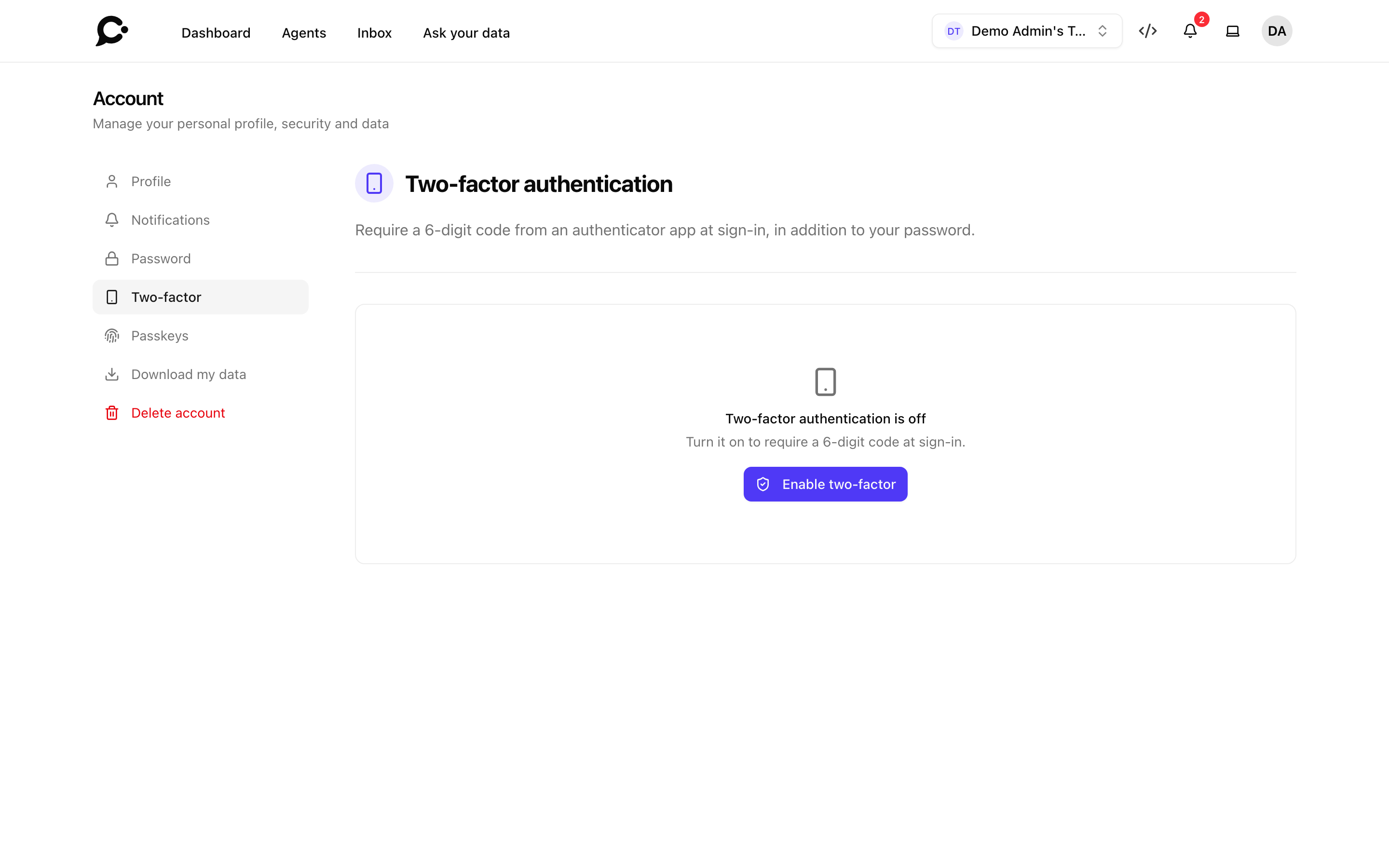
Two-factor authentication (2FA) asks for a second proof after your password: a 6-digit code from an authenticator app on your phone, such as Google Authenticator, Microsoft Authenticator or 1Password. The code changes every 30 seconds, so someone who learns your password still can't get in.
Turn it on
- Open Account → Two-factor and click Enable two-factor.
- Enter your password when asked.
- Under Finish setup, scan the QR code with your authenticator app. If you can't scan it, type the secret shown under Or enter this secret manually into the app.
- Enter the 6-digit code the app shows in Confirmation code and click Confirm.
- Your Recovery codes appear. Save them somewhere safe, such as your password manager. Each one can get you in once if you lose your phone.
Until you click Confirm, two-factor is not on yet. Click Cancel setup to stop.
From then on, Chatvia asks for a code each time you sign in with your password, a magic link or a social account.
Recovery codes
- Click Show recovery codes to see them again.
- Click Regenerate codes to get new ones. The old codes stop working. Do this when you used several codes, or when you think someone saw them.
To use one, click Use a recovery code on the sign-in code page and type it in.
Turn it off
Click Disable two-factor, enter your password, and confirm. Your account is then protected only by your password.
Lost your phone and your codes?
Without your authenticator app and without a recovery code, you can't finish signing in. Ask the admin of your Chatvia server for help. For a workspace owner, they can turn two-factor off in the admin panel with Turn off two-step sign-in, so you can sign in and set it up again. See Workspaces.
Passkeys
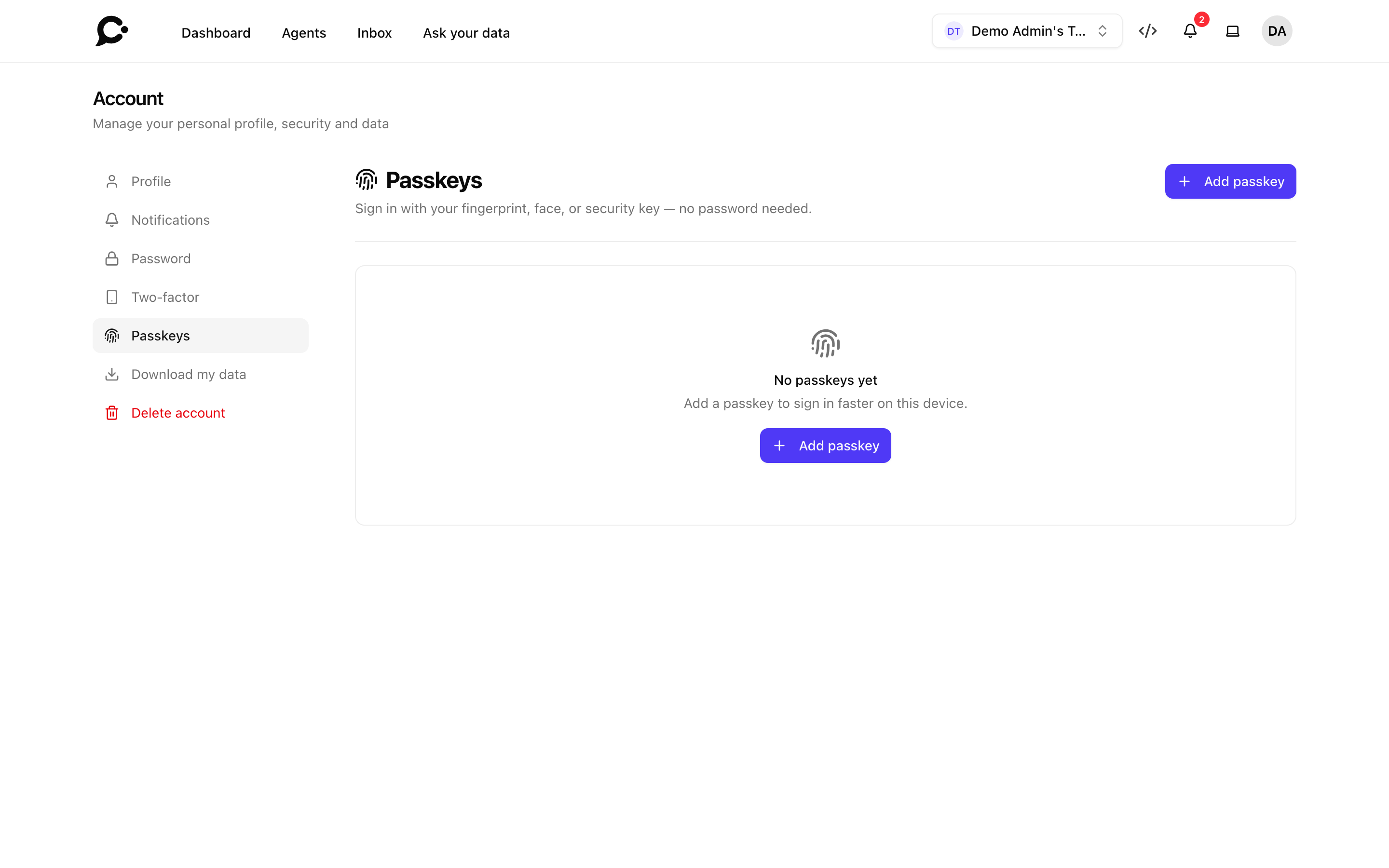
A passkey lets you sign in with your fingerprint, your face, your phone or a security key (a small USB device), instead of typing a password. It is stored safely on your device and can't be phished.
Add a passkey
- Open Account → Passkeys and click Add passkey.
- Enter your password when asked.
- Give the passkey a name you will recognise, such as "MacBook Pro" or "YubiKey", and click Register passkey.
- Follow your browser's prompt, for example touch your fingerprint reader.
Add one passkey for each device you use.
The list shows each passkey with when it was Created and Last used. To sign in with a passkey, click Passkey on the sign-in page.
Remove a passkey
Click the bin icon next to it, enter your password, and confirm. That device can no longer sign you in. Remove a passkey when you lose or sell the device.
Social accounts
Link your Google, Microsoft, GitHub or Slack account, so you can sign in with one click from the sign-in page.
This page only shows when the admin of your Chatvia server has set up at least one of these services. Only the services the admin set up are listed, plus any you linked earlier. See Sign-in settings.
- Open Account → Social accounts.
- Click Connect next to a service.
- Sign in to that service and allow access. You come back to the page, which shows Connected since and the date.
To unlink one, click Disconnect and confirm. You can't sign in with that service until you connect it again.
You don't always need to connect first. If you sign in with a service that uses the same email address as your Chatvia account, Chatvia links them by itself. It doesn't when the service says the email address is not verified.
A social account can be linked to one Chatvia account only. If it is already linked to someone else, you see an error.
Good to know
- Every change asks for your password. Turning two-factor on or off, new recovery codes, and adding or removing a passkey all ask for your password first, so someone at your unlocked computer can't change them.
- Sign-ins are watched. You get a notification when someone signs in to your account from a new device. See Notifications.
- Chatters have their own sign-in. These pages are for people who use the dashboard. See Signing in.