Ask your data

Ask your data is a chat about your own workspace. You ask a question in plain words, and it answers with the numbers, often with a chart. You don't need to know where the numbers live or build a report.
For example, a shop owner asks "Which channel is busiest?" and gets a short answer ("The Chat Widget, with 62% of conversations this month") and a pie chart of all channels.
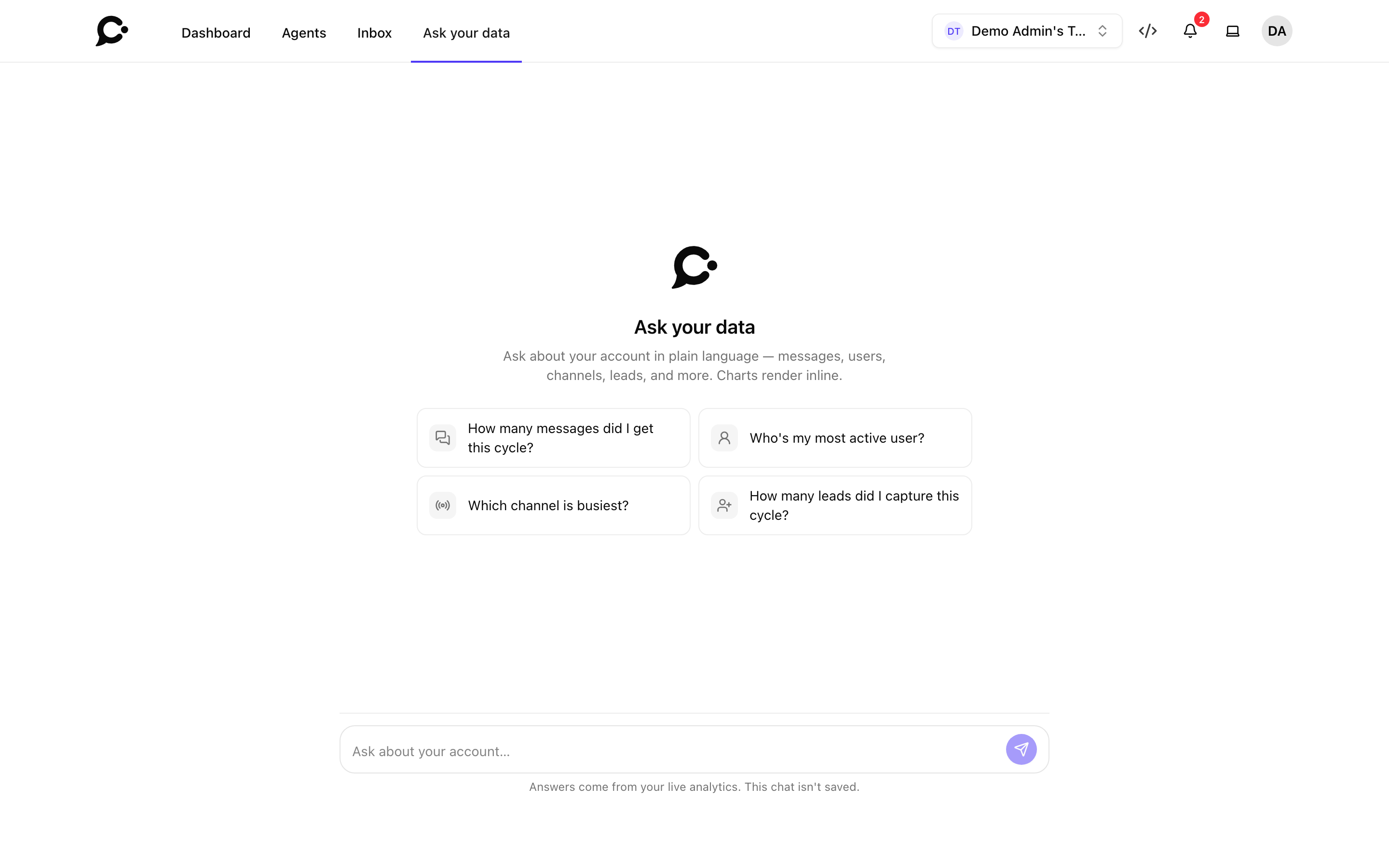
Only the workspace owner can use it, because it shows numbers for the whole workspace, including the names of the people who chat most. Teammates don't see it in the top bar.
How to use it
- Click Ask your data in the top bar.
- Type a question in the box at the bottom, or click one of the suggested questions:
- How many messages did I get this cycle?
- Who's my most active user?
- Which channel is busiest?
- How many leads did I capture this cycle?
- Press Enter to send. Press Shift + Enter for a new line.
- Read the answer. Charts are interactive: point at them to see the values.
- Ask a follow-up, such as "And last month?". It remembers the earlier questions in the same chat.
What you can ask about
It answers questions about your workspace's activity:
- Messages: how many, sent and received, and the trend per day.
- Conversations: how many, how long, and the busiest day.
- People: the most active chatters and visitors, and how many are new.
- Channels and agents: which ones get the most conversations.
- Places and devices: top countries, browsers, devices and systems.
- Busy times: the busiest hour and weekday.
- Satisfaction: thumbs up and down, mood, and how often an agent could not answer.
- Reply speed: average and slowest reply times.
- Topics: what visitors ask about most.
- Leads: how many were captured, and how many turned into customers.
- Handoffs: how often a chat went to a person, and how many wait now.
- AI use: how many tokens were used, by which AI model, and which tools and sources the agents used.
You can name a period: today, the last 7 days, the last 30 days, this month, last month or all time. Without one, it uses this month.
Good to know
- Nothing is saved. The chat disappears when you reload the page or leave it. Copy any answer you want to keep.
- It only reads. It can't change your agents, delete data or send messages.
- It only sees your workspace. It can't see other workspaces on the same install.
- It remembers the last 20 messages of the current chat. In a very long chat, start again for a new topic.
- Which AI model answers is set by the admin of your Chatvia server: it uses the Default model for new agents. See AI models settings.
- Answers can be wrong. It reads your live numbers, but the AI writes the summary. For an exact figure you rely on, check it in the agent's Analytics.
- There is a limit of 30 questions a minute.