Dashboard

The Dashboard is the first page you see after you sign in. It shows your whole workspace in four numbers and one chart, so you can tell at a glance how busy your agents are.
For example, a support lead opens it on Monday morning and sees that agents sent 2,100 replies this month, that 41 visitors chatted in the last 24 hours, and that Sunday was quiet.
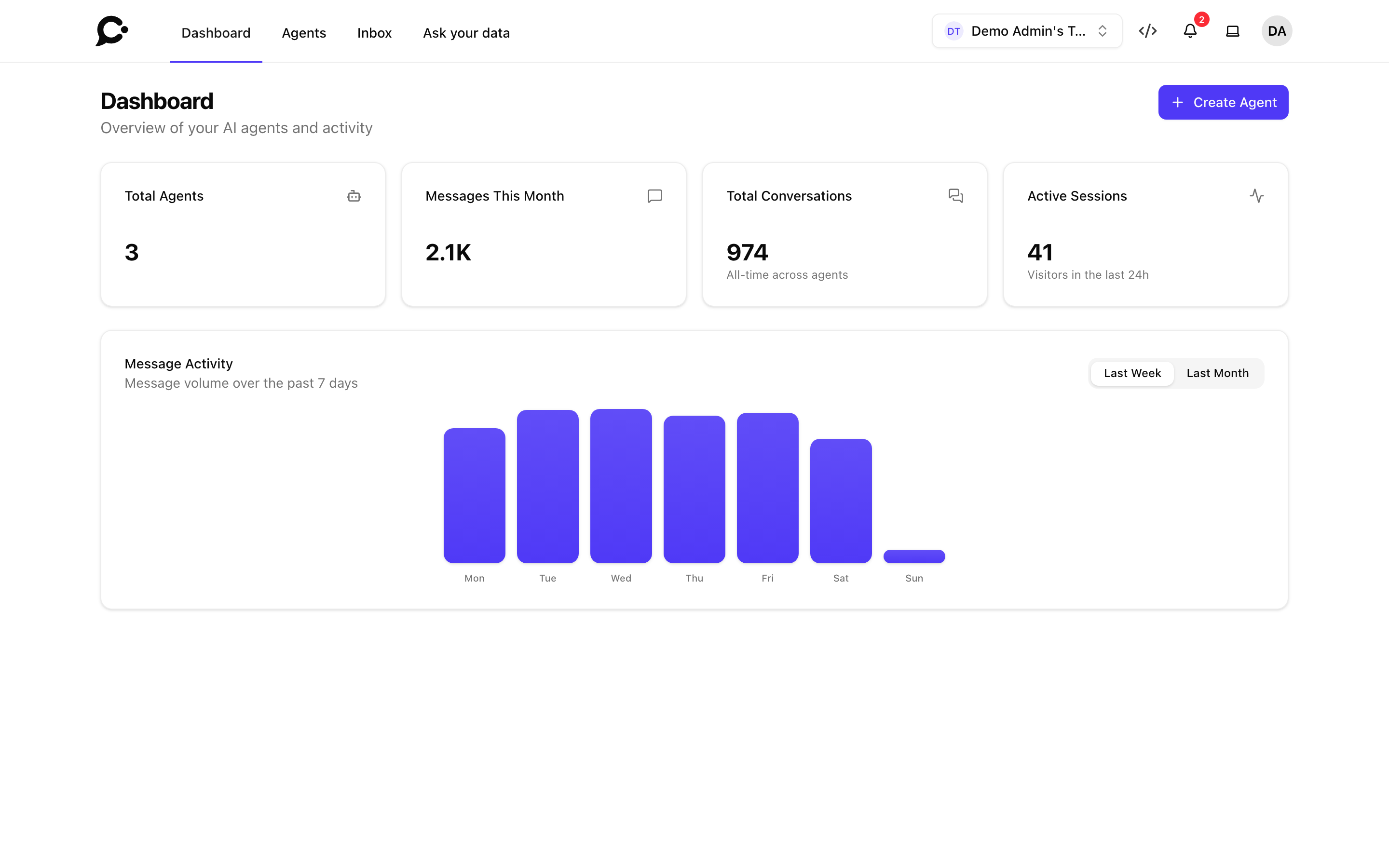
Open it with Dashboard in the top bar.
The numbers
| Card | What it shows |
|---|---|
| Total Agents | How many agents your workspace has. |
| Messages This Month | How many replies your agents sent since the first day of this month. |
| Total Conversations | Every conversation your agents ever had, across all agents. |
| Active Sessions | How many different visitors sent a message in the last 24 hours. |
The numbers are for the whole workspace. A teammate sees the same numbers as the owner, even for agents their role does not let them open.
Large numbers are shortened: 2.1K means about 2,100, and 1.5M about 1.5 million.
When your workspace has a message limit
If the admin of your Chatvia server gave your workspace a monthly message limit, the Messages This Month card also shows how much of it you used, for example "1,200 of 5,000 used", with a bar and the share in percent. In that case the number counts exactly what the limit counts, which also includes the answers to eval tests. See Message limits.
Message Activity
The chart shows how many replies your agents sent each day.
- Last Week: the past 7 days, one bar per weekday.
- Last Month: the past 30 days, one bar per day of the month.
Point at a bar to see the exact number of messages for that day.
Create Agent
The workspace owner sees a Create Agent button in the top right corner. It opens the same form as on the Agents page. See Creating an agent. Teammates do not see the button.
Good to know
- The numbers can be a few minutes old. To keep the page fast, Chatvia reuses the numbers for about 5 minutes. A chat that just ended may show up a little later. The agent count and the message limit are always current.
- Deleted agents still count in the history. Conversations and visitors of an agent you deleted stay in Total Conversations and Active Sessions.
- For more detail per agent, open an agent's Analytics. See Analytics. To ask your own questions about the numbers, use Ask your data.