Hosted Chat

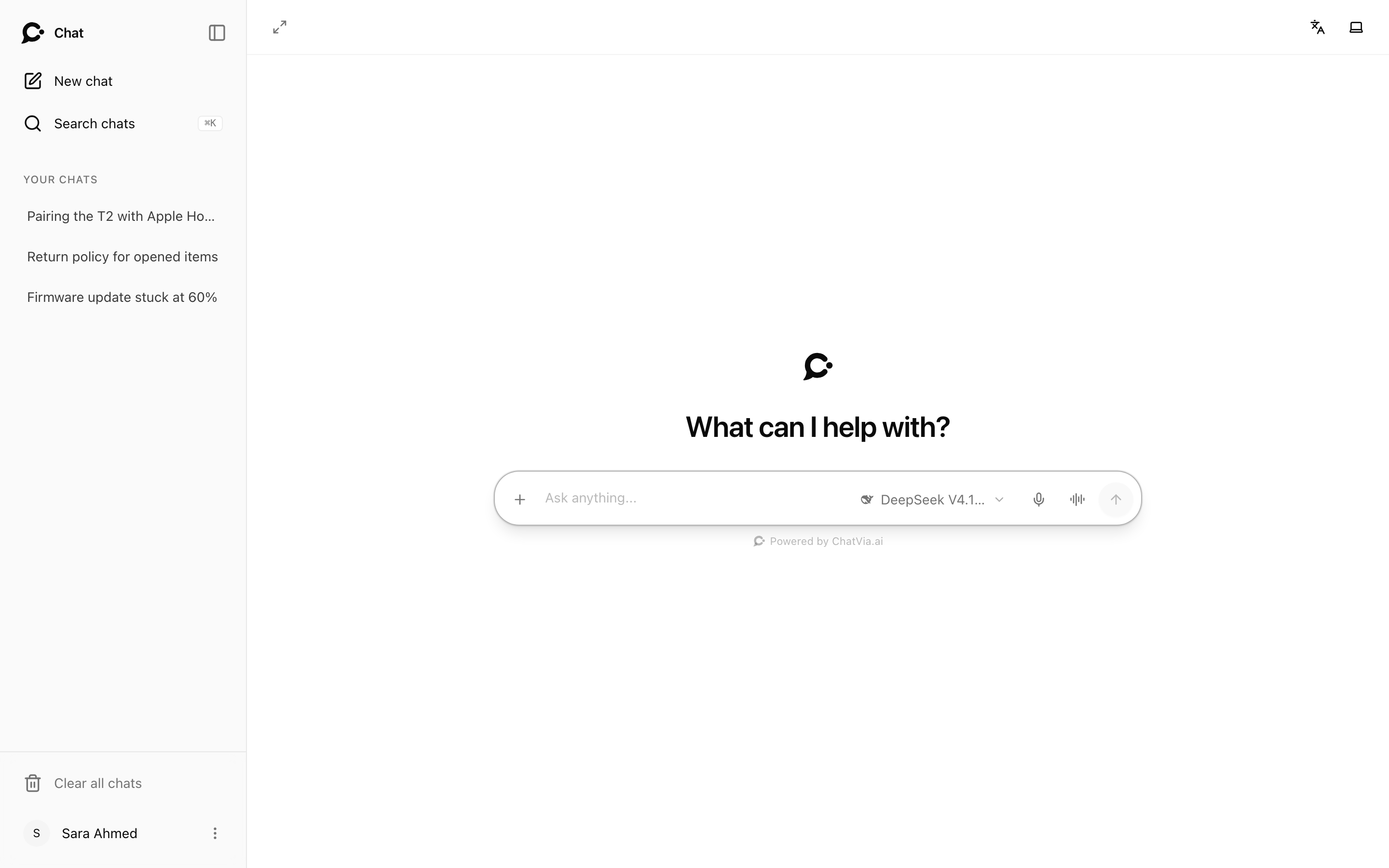
The Hosted Chat is a full chat page for one agent, at its own link. It looks like ChatGPT: your chats on the left, the conversation in the middle, and a message box at the bottom. You don't need a website to use it. Share the link, and people can chat.
For example, an accounting firm builds a "Tax questions" agent for its clients. It sends clients the link https://chat.example.com/chat/tax. Clients sign in, ask questions, upload a PDF of a letter from the tax office, and come back next week to the same chat.
This page explains what the people who chat (your chatters) see and can do. To put the chat inside your own page, see Full-page embed.
Find the link
- Open the agent and click Deploy in its sidebar.
- In the Hosted Chat card, copy the Agent URL, or click Open to try it.
The link looks like https://chat.example.com/chat/YOUR_AGENT_ID. Here https://chat.example.com stands for your Chatvia address. The agent's short name works too, like /chat/support.
With a license key, the chat can also live at a domain of your own, such as https://help.yourshop.com. See Custom domain.
The switch on the card turns the Hosted Chat on or off. When it is off, the link shows a "not found" page.
Who can open it
Who may chat is set on the agent's Security → Identity page. See Agent security.
- Public agent: anyone with the link can chat, with no account. Their chats are kept in that browser.
- Protected agent: people must sign in first. New agents start protected.
Sign in
On a protected agent, the link opens a sign-in page with the agent's name.
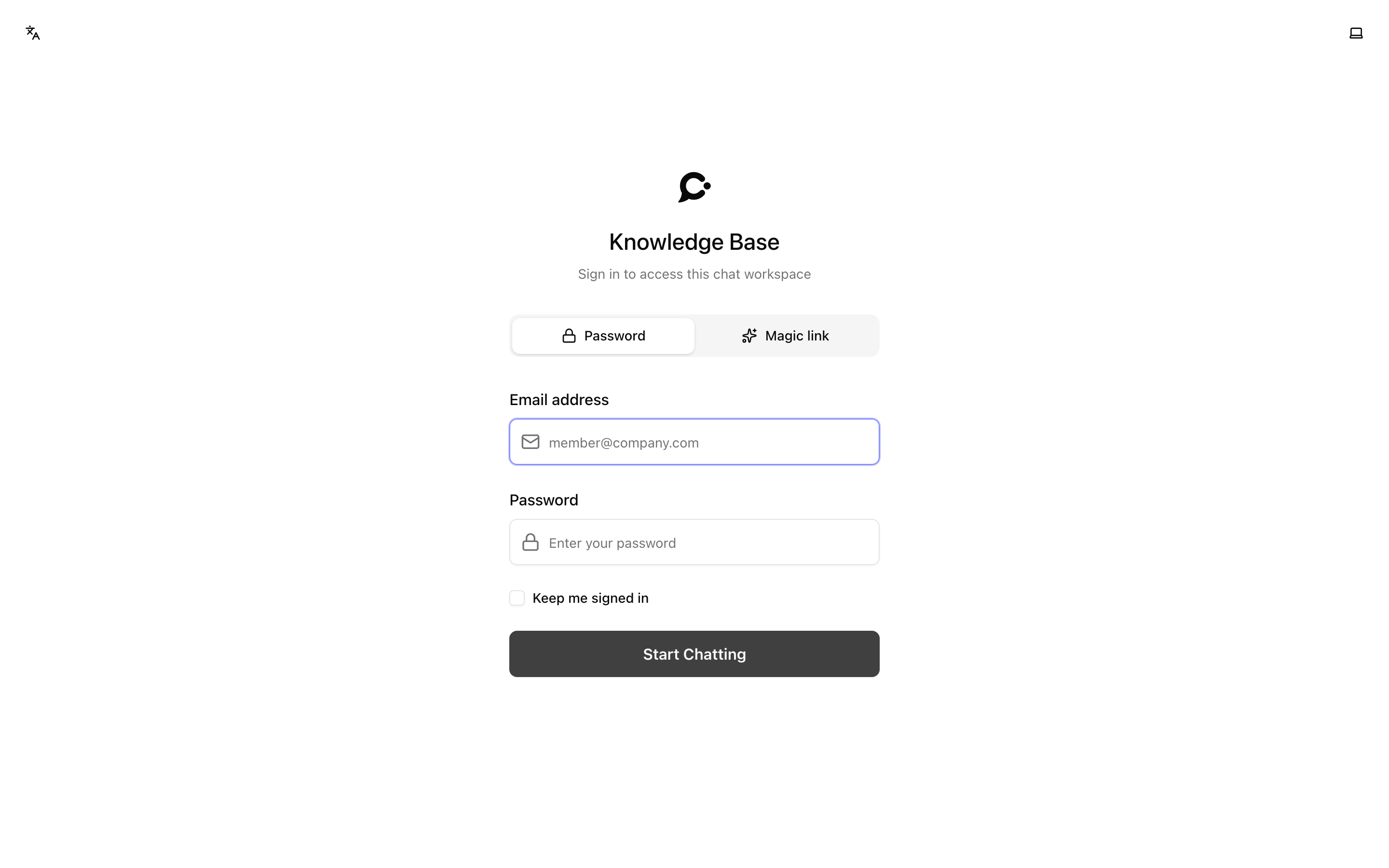
There are two ways to sign in:
- Password: type your Email address and Password, then click Start Chatting. Tick Keep me signed in to stay signed in after you close the browser.
- Magic link: type your Email address and click Send me a sign-in link. An email arrives with a link that signs you in. It works once and only for 15 minutes. This also helps when you forgot your password.
Who can sign in:
- Chatters who were given access to this agent. You add them on the agent's Chatters page or the workspace Chatters page.
- Teammates who can reach the agent in the dashboard. They use the magic link. If their account has two-factor sign-in, they are asked for their code too.
Your own app can also sign people in for them, with a signed link. See Protected agents.
For safety, the page always says "If you have access to this chat, a sign-in link is on its way.", even when the email is not known. If no email arrives, ask the person who gave you the link to check your access.
Start a chat
- Type your question in the message box and press Enter. Or click one of the conversation starters under the box, if the agent has them.
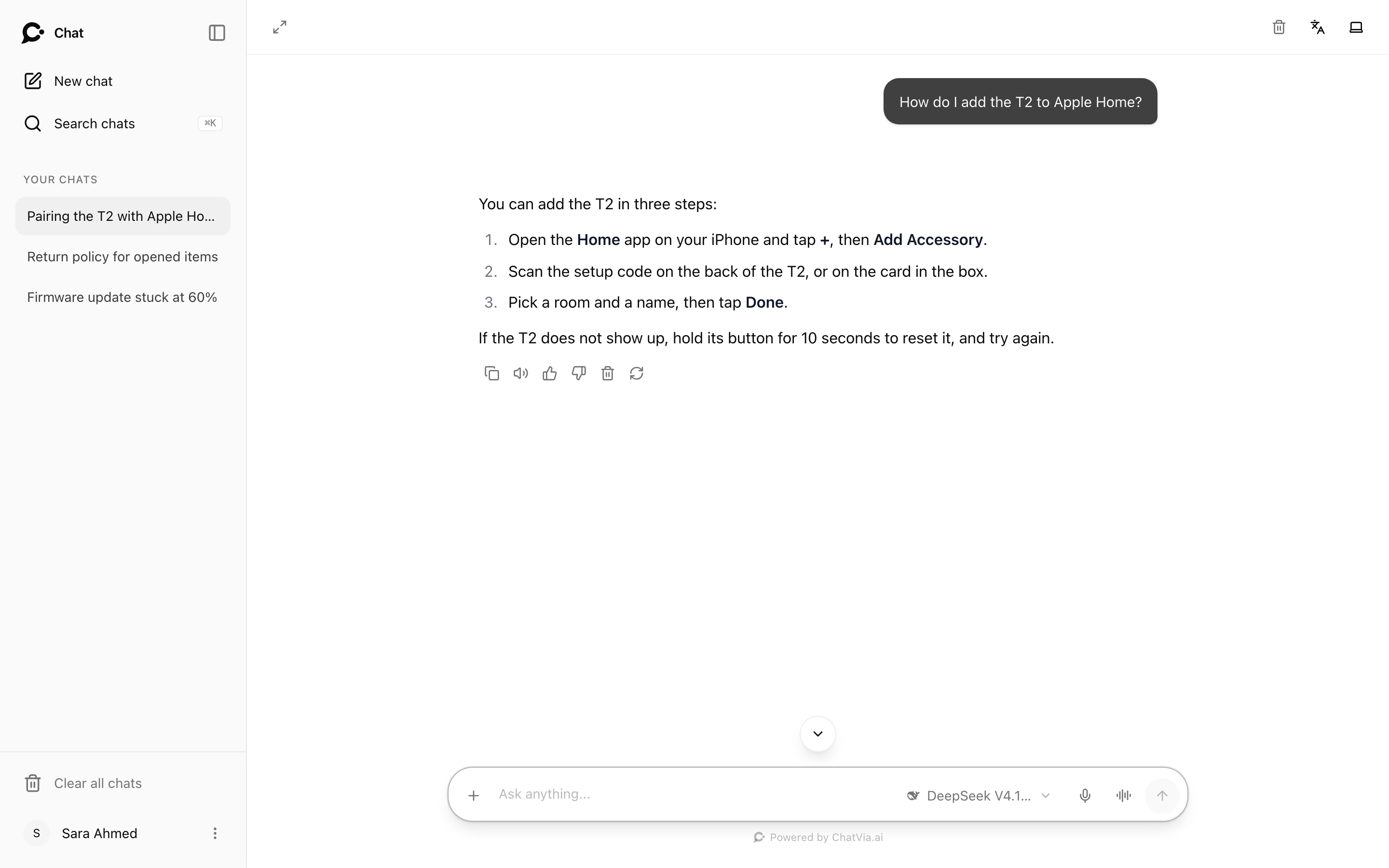
- The answer appears word by word while the agent writes it. Click the stop button to stop it early. The part already written is kept. If you reload the page or close the tab, the agent still finishes the answer, and it is there when you come back.
- Keep asking. The agent remembers the earlier messages of the same chat.
The first message creates the chat, and Chatvia gives it a short title from what you asked.
Your chats
The sidebar on the left lists Your chats, newest first.
- New chat starts a fresh conversation.
- Search chats finds a chat by its title or by words in its messages. The shortcut is ⌘K on a Mac, Ctrl+K elsewhere.
- Click the ⋮ button next to a chat to Rename or Delete it.
- Clear all chats at the bottom deletes every chat after you confirm.
- The trash button at the top right deletes the chat you have open.
- The button at the top left hides and shows the sidebar. The shortcut is ⌘B or Ctrl+B.
Deleting a chat erases it for good, also from the agent's chat log. It can't be undone.
When you are signed in, your chats follow your account. Sign in on another device, or after you signed out, and you get your latest chat back.
The message box
Next to the message box you can find these buttons. Which ones show depends on the agent's settings and on your Chatvia server. See Setup → Settings.
| Button | What it does |
|---|---|
| + (Attach a PDF) | Attach a PDF or an image (PNG, JPEG, WebP or GIF) and ask about it. |
| Model name | Pick which AI model writes the answer (Answer with). Shows only when the agent offers more than one model. |
| Microphone (Start voice input) | Speak instead of typing. Your words are written into the box. Check them, then send. |
| Sound wave (Talk with voice) | Start a live spoken conversation with the agent. |
| Arrow (Send message) | Send. While an answer is being written, it turns into Stop generating. |
Attach a file
Click + and pick a file. These limits apply to each chat:
- One file per chat.
- Up to 25 MB.
- A PDF of up to 10 pages, without a password.
The agent reads the file together with your question. To take a file away again, remove it from your message. The agent then no longer sees it in later replies.
Talk with voice
Click Talk with voice to talk with the agent out loud, like a phone call. Your browser asks for the microphone the first time.
- The screen shows Listening, Thinking… or Speaking, so you know whose turn it is.
- Turn microphone off mutes you. End call hangs up.
- The agent answers from its knowledge, and it can use tools that need no approval.
When the call ends, both sides of it are saved as a normal chat, with a title. You can read it in the sidebar. Each spoken answer counts as one message toward message limits.
What you can do with a message
Hover a message to see its buttons.
On the agent's answers:
- Copy message.
- Read aloud: hear the answer spoken. Click again to Stop reading. Links are read as their words, and code and charts are skipped. Reading aloud does not count as a message.
- Good response and Bad response: tell the agent's owner how it did. After Bad response you can write What was wrong? (optional) and click Send, or Skip. The agent's owner can turn this box off in Setup → Settings → Feedback.
- Regenerate response: get a new answer to the same question. When the agent offers several models, you can choose Try again with another model. The logo after the buttons shows which model wrote the answer.
- Delete: removes the answer and your question before it.
On your own messages:
- Copy message.
- Edit message: change your question and click Send. The answer after it is written again.
- Delete: removes your question and its answer.
Sources under an answer
The agent's owner decides whether answers show the knowledge they came from. If they do, you see either a button under the answer that lists the sources, or small numbers after sentences that open the source they came from. See Setup → Sources.
Actions that need your approval
Some agents can act in other systems, for example create a ticket or cancel an order. When an action can change something, the answer pauses and shows a Needs approval card. Click Show details to see exactly what will be sent, then Approve or Deny. Nothing happens until you choose. An unanswered request expires after 24 hours.
Only signed-in chatters see these actions. When a visitor is not signed in, the agent can't use tools that need approval, so nobody can approve an action without an account. The Hosted Chat is the only surface with these buttons. See Functions and MCP connectors.
Forms in the chat
An agent can show a short form inside the chat, for example to ask for your name and email so a person can call you back. Fill it in and click Submit. See Leads.
Your account
When you are signed in, your name is at the bottom of the sidebar. Click it to open the menu:
- Profile (chatters only): change your Name, Email, password or photo, then click Save Changes. To set a new password, type your Current Password too.
- My Agents: every agent you may use. Pick one and click Switch to to open its chat. One sign-in works for all of them.
- Log out.
Language and theme
The buttons at the top right switch the language of the chat and between light and dark mode, when the agent's owner turned them on. The expand button at the top left makes the chat fill the window. The owner sets these under Setup → Hosted Chat tab → Behavior. See Setup → Behavior.
When you can't send
- "You've reached your message limit": you used all the messages you may send this month. "You can send messages again next month." See Message limits.
- The sign-in page shows again: your session ended or your access was taken away. Sign in again, or ask the agent's owner.
- "This conversation no longer exists.": the chat was deleted, for example in another tab.
Good to know
- The Hosted Chat runs on its own sign-in, apart from the dashboard. Being signed in to the dashboard does not sign you in to the chat.
- When the agent's owner turned off Store conversations, chats are not saved. You see your messages during your visit, and they are gone after. See Setup → Chat log.
- The same agent can also run as a Chat Widget or a Command Bar on your website.