Notifications

Notifications are short messages that tell you when something needs your attention: a visitor wants to talk to a person, a file finished training, a new lead came in, or someone signed in to your account from a new device.
For example, a support agent works in another tab. A visitor asks for a person, the dashboard plays a sound and shows a desktop alert, and one click opens the chat in the Inbox.
The bell
The bell in the top bar shows how many notifications you haven't read yet. It rings when a new one comes in. Click it to see the latest ones:
- Click a notification to open the page it is about. It is marked as read.
- Point at a notification and click its check mark to mark it as read without opening it.
- Mark all as read marks every notification as read.
- Clear all removes them all from your list.
- The gear opens your notification settings.
- View all notifications opens the notification center.
The notification center
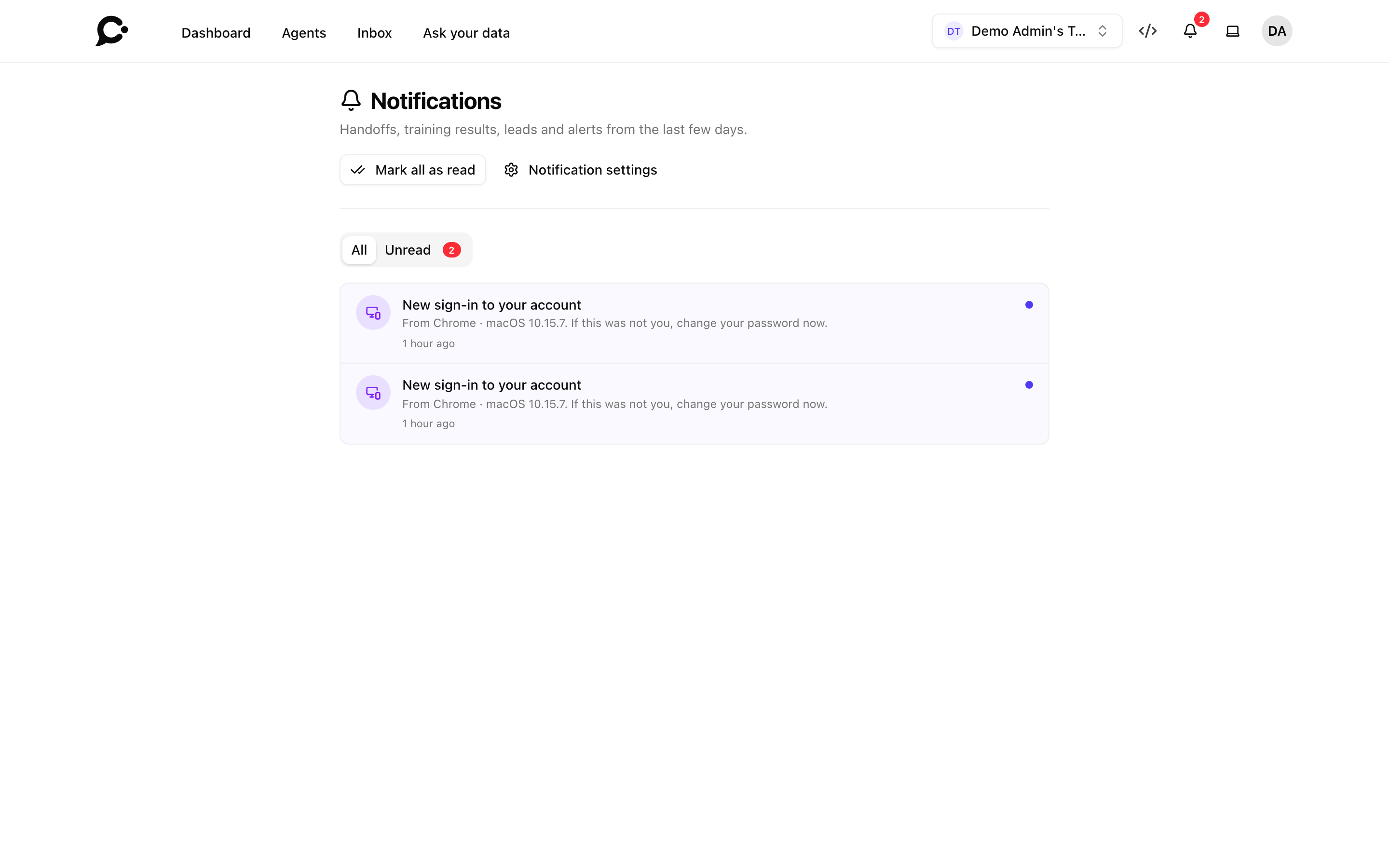
The notification center shows every notification you got in the last few days. Open it from the bell with View all notifications.
- All and Unread switch between every notification and only the ones you haven't read.
- Mark all as read marks them all as read.
- Notification settings opens your settings.
- Load more shows older ones.
When the same thing happens several times, Chatvia groups it into one notification, for example "3 sources finished training".
Notifications are kept for 7 days, read or not, then removed. The admin of your Chatvia server can change this. See Workspaces settings.
What you get notified about
| Category | Notifications |
|---|---|
| Handoffs | A visitor wants to talk to a person. |
| Security | An attack was blocked on an agent. A safety check could not run. A new sign-in to your account. Security settings were changed (for example a new API token, the IP allowlist or data retention). The audit webhook was turned off. For admins of the Chatvia server: an AI model is no longer available. |
| Training | A file, text or website finished training, or failed. |
| Leads | A visitor filled in one of your forms. |
| Usage | Your workspace used 80% of its monthly messages, or all of them. An agent reached its limit of messages a minute. |
| Reports | An eval run finished or stopped, evals found a problem, or your data export is ready. |
You only get a notification when your role lets you open the page it is about. For example, a teammate whose role can't see an agent's leads gets no lead notifications for that agent. Notifications about the workspace's security settings go to people whose role has the Security permission.
Choose what reaches you
Each person picks their own settings. They don't change what your colleagues get.
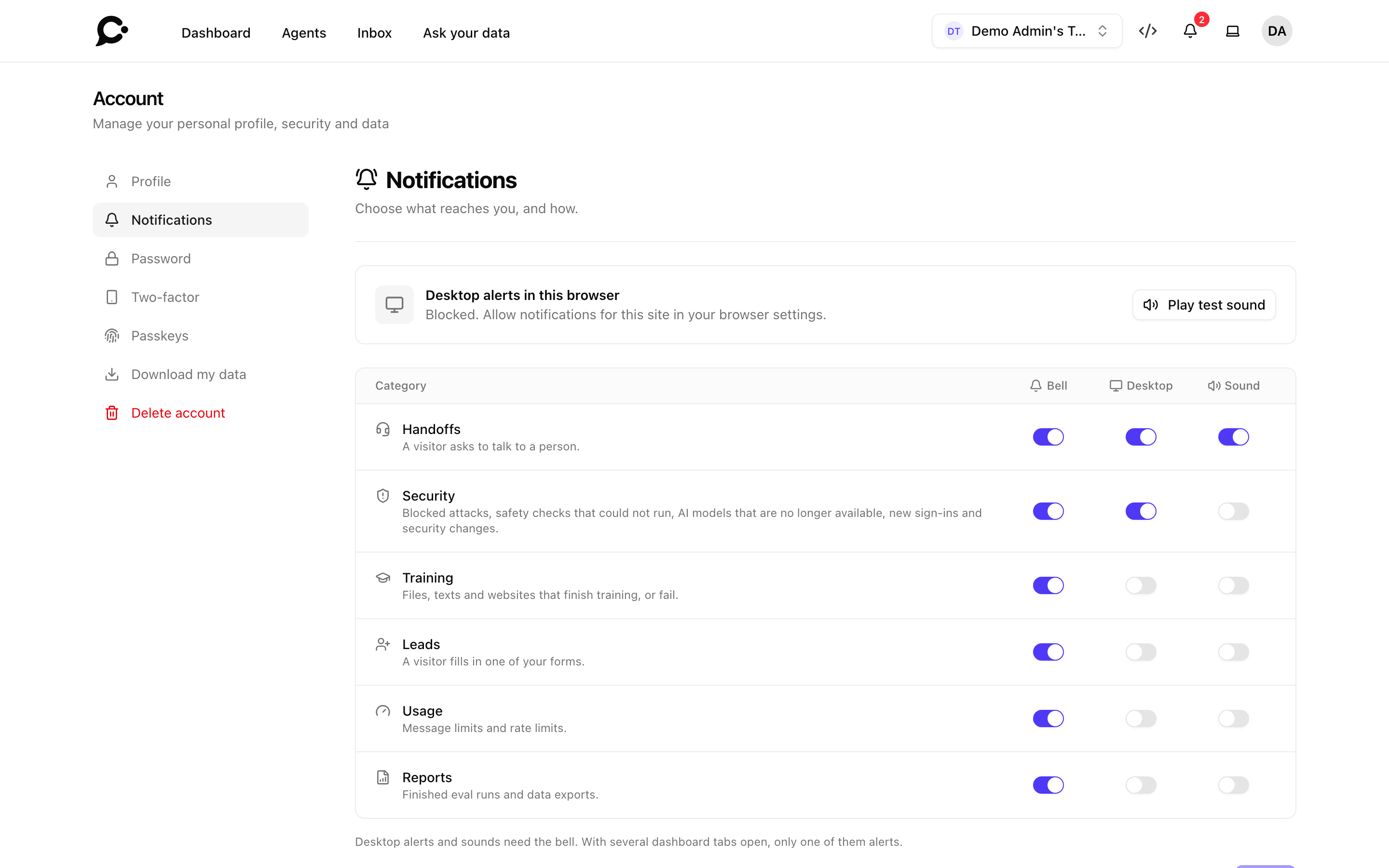
- Click your avatar, then Account, then Notifications. You can also click the gear in the bell.
- For each category, turn on or off:
- Bell: the notification shows in the bell and the notification center.
- Desktop: your computer shows an alert when the dashboard is not the window in front.
- Sound: the dashboard plays a sound.
- Click Save.
The defaults are:
| Category | Bell | Desktop | Sound |
|---|---|---|---|
| Handoffs | on | on | on |
| Security | on | on | off |
| Training, Leads, Usage, Reports | on | off | off |
Desktop and Sound need Bell. When you turn Bell off for a category, its desktop alert and sound turn off too.
Allow desktop alerts in your browser
Your browser must allow alerts from the dashboard. The Desktop alerts in this browser card on the same page tells you where you stand:
- Not allowed yet: click Allow in this browser and accept the browser's question.
- Blocked: you said no earlier. Allow notifications for this site in your browser's settings, then reload the page.
- Allowed: you are set.
Click Play test sound to check that you can hear the sound. You allow alerts once per browser, so do it again on another computer.
Good to know
- Alerts need an open dashboard. Chatvia shows desktop alerts and plays sounds only while a dashboard tab is open in your browser.
- Several tabs, one alert. With the dashboard open in several tabs, only one of them alerts.
- Clearing is for you only. Clear all empties your own list. Your colleagues keep theirs.