Chatters

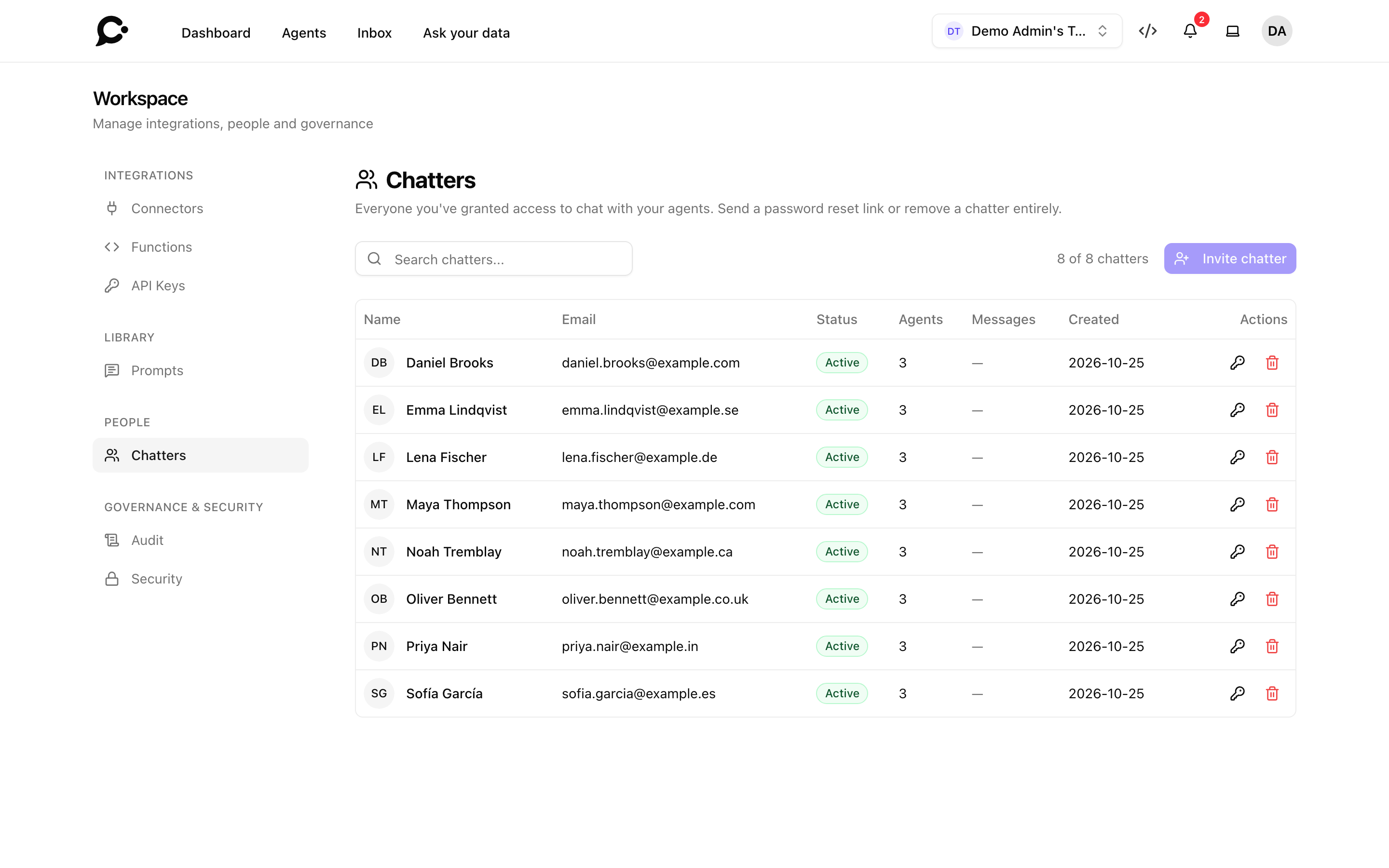
A chatter is a person you allow to chat with one or more of your protected agents. Chatters sign in to the chat, but they never see your dashboard. The Chatters page lists every chatter of your workspace in one place, so you can invite people, choose which agents they may use, limit how much they chat, and remove them.
For example, a software company has a private support agent for paying customers. The support lead invites each new customer as a chatter of that agent. When a customer cancels, the lead deactivates their chatter account, and they can no longer sign in.
A protected agent is an agent that only signed-in people can talk to. New agents are protected. You can only invite chatters to protected agents. See Identity verification.
Open the page
Click your avatar, then Workspace, then Chatters under People.
The workspace owner always sees it. A teammate needs the Members permission in their role. To manage the chatters of just one agent, open that agent's Chatters page instead.
The list
| Column | What it shows |
|---|---|
| Name | The chatter's name. |
| Their email address, or No email. | |
| Status | Pending until they accept the invitation, then Active. Deactivated when you turned their access off. |
| Agents | How many agents they may chat with. |
| Messages | Messages used this month out of their limit, such as 12 / 100. A dash when they have no limit. It turns red when the limit is reached. |
| Created | When the chatter was added. |
Type in Search chatters... to find someone.
Invite a chatter
- Click Invite chatter. The button is greyed out until your workspace has at least one protected agent.
- Enter their Email address.
- Under Agents, pick the agents they may chat with. At least one is required.
- Click Send invite.
Chatvia emails them a sign-up link. The dialog also shows the Sign-up link, so you can copy it and send it yourself, for example in your own app. The link works for 7 days. Click Invite another to invite the next person, or Done.
The chatter opens the link, picks a name and a password, and lands in the chat. They show as Pending until then.
Instead of a password, the chatter can click Sign in with Google or Sign in with Slack. They must use the account with the same email address the invitation was sent to. The buttons only show when your install has Google or Slack sign-in set up, and the provider's app needs the Chat invitation redirect URL too. See Sign-in for chatters.
Manage one chatter
Click a chatter in the list. A panel opens with their ID and the date they joined. Click Copy chatter ID if your developers need it, for example for sign-in tokens. The panel has four tabs:
| Tab | What you can do |
|---|---|
| Limits | Set a Monthly message limit for this chatter and click Save. Leave it empty, or click Remove limit, for no limit. See Message limits. |
| Agents | Turn each agent on or off for this chatter. Changes apply at once. |
| Status | Turn on Deactivate chatter to stop them from signing in or sending messages. Add a reason if you like. Only your team sees it. Click Save changes. Turn it off again to give access back. |
| Actions | Send password reset link emails them a link to choose a new password. You never see the new password. Remove chatter deletes them. |
The two buttons at the end of each row in the list also send a password reset link and remove a chatter.
Deactivate or remove?
- Deactivate when you may want them back. Their account and chats stay, and you can turn access on again.
- Remove when they should be gone for good. The chatter is deleted along with their access to every agent in your workspace. This can't be undone.
How chatters sign in
Chatters sign in on the agent's Hosted Chat page. They can use their email and password, or ask for a Magic link: a one-time sign-in link sent to their email, which also helps when they forgot their password. Keep me signed in keeps them signed in on that device. See Signing in.
Once signed in, a chatter with access to several agents can switch between them from the My Agents list in the chat.
If your own app already knows who your users are, your developers can sign chatters in for them, without a second password. See Identity verification.
Good to know
- Teammates are not chatters. People who work in the dashboard are added from Manage Teams. See Teams & roles.
- Chatters can also be managed with the API, under Chatters in the API reference at
yoursite.com/docs/api.