Knowledge settings

An agent knows nothing about your business by itself. It learns from the sources people in each workspace add to it: files such as a price list or a manual, pages of your website, and texts they type in. Chatvia then prepares these sources for search, which is called training. This page decides, for the whole install, what people may add as sources, whether they can import websites, and an optional AI step that makes sources easier to search. Open it in Settings → Knowledge.
The defaults allow every file type and leave the AI step off. If you never open this page, people can upload any supported file that your services can read. The one thing you need to set up yourself is the web scraper, if you want it.
How the text is cut into small parts is on Splitting, and how agents search it is on Search.
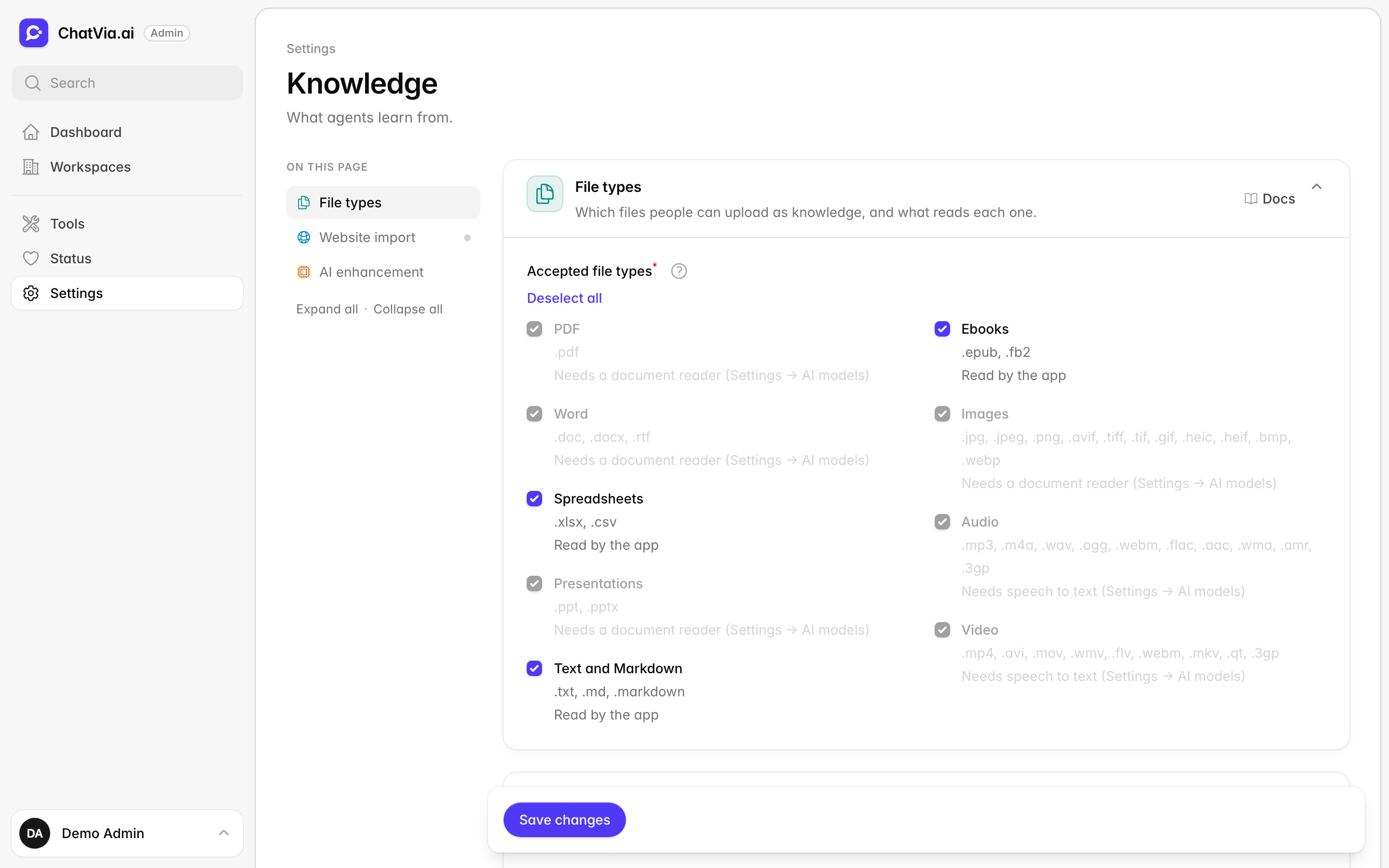
File types
This card decides which kinds of files people may upload as knowledge. It also shows what reads each kind, because some files need an outside service before Chatvia can get their text out. For example, a scanned PDF is really a picture of text, so a document reader has to read it first. Turn a type off if you don't want people to upload it, for example videos on a small server.
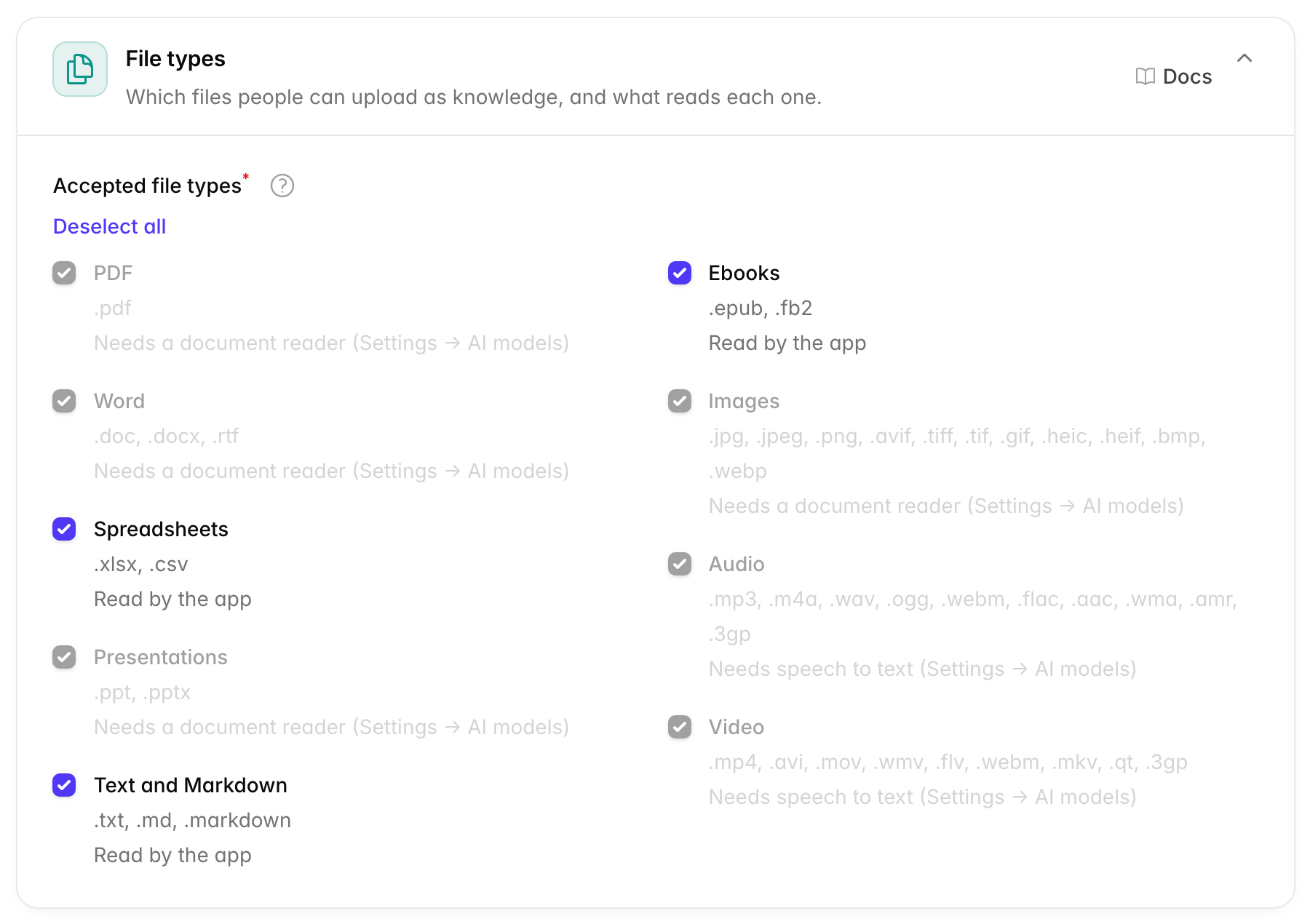
Accepted file types is a list of checkboxes. All of them are on by default.
| Type | Extensions |
|---|---|
| Word | .doc, .docx, .rtf |
| Spreadsheets | .xlsx, .csv |
| Presentations | .ppt, .pptx |
| Text and Markdown | .txt, .md, .markdown |
| Ebooks | .epub, .fb2 |
| Images | .jpg, .jpeg, .png, .avif, .tiff, .tif, .gif, .heic, .heif, .bmp, .webp |
| Audio | .mp3, .m4a, .wav, .ogg, .webm, .flac, .aac, .wma, .amr, .3gp |
| Video | .mp4, .avi, .mov, .wmv, .flv, .webm, .mkv, .qt, .3gp |
Under each type, the card says what reads it right now: a document reader, a speech to text service, or the app itself. Some types need a service first:
- PDF, Word, Presentations and Images need a document reader (Mistral OCR or Azure Document Intelligence), picked in AI models → Documents.
- Audio and Video need speech to text, a service that writes down the words spoken in a recording, picked in AI models → Speech to text.
A type that needs a service you have not set up is greyed out. If it was on before, it stays on, and works again once the service is set up.
Some formats are read by a program on the server. If that program is
missing, the card says so under the type, for example that .doc needs
catdoc. See Settings → Platform → Programs.
Turning a type off keeps the files already uploaded. People just can't upload new ones of that type. At least one type must stay on.
When to change it. Leave every type on unless you have a reason. Turn Audio and Video off if recordings are too slow or costly to process on your install. If a type is greyed out and you want it, set up the service it needs first.
Web scraper
Many businesses already have their answers on their website: an FAQ, a help centre, product pages. The web scraper lets people add those pages as knowledge by entering the address, instead of copying text by hand. Chatvia uses an outside service, Firecrawl, to visit the pages and read their text, including pages that build their content with JavaScript (pages that fill in their text only after they open in a browser). Without a Firecrawl key, websites can't be added as sources.
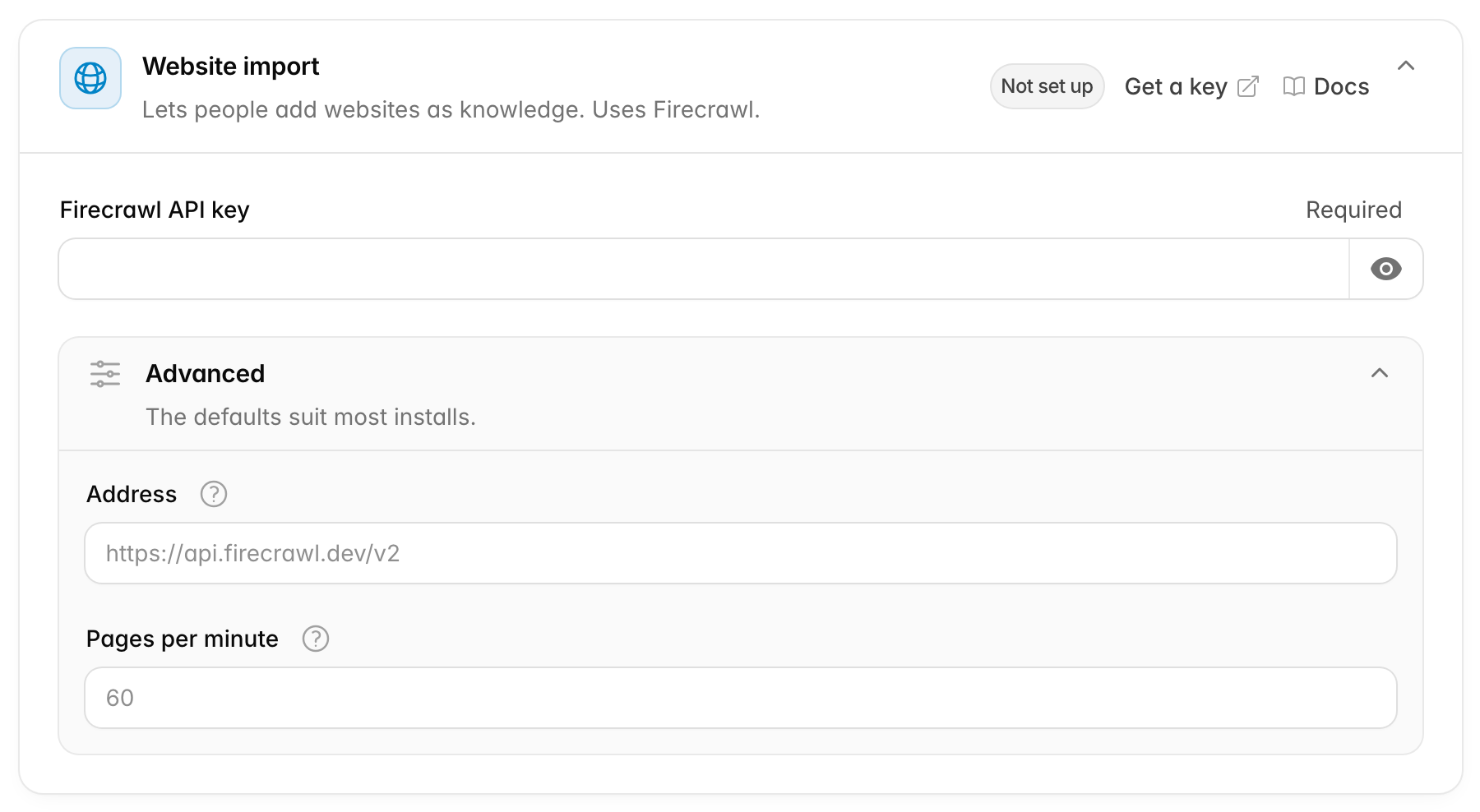
Firecrawl API key: the key of your Firecrawl account. An API key is a secret code that lets Chatvia use your Firecrawl account. It is write-only: once saved, the field stays empty and says Saved.
To get a key:
- Press Get a key in the card's header. It opens firecrawl.dev/app/api-keys.
- Sign in, or create a Firecrawl account.
- Copy your API key.
- Paste it into Firecrawl API key and press Save changes.
Advanced:
| Option | What it does | Default |
|---|---|---|
| Address | The Firecrawl API address. Leave it as it is unless you run your own Firecrawl server. | https://api.firecrawl.dev/v2 |
| Pages per minute | The most website pages read in a minute. Set it a little below the limit of your Firecrawl plan, so Firecrawl does not refuse requests. 0 means no limit. | 60 |
Every Firecrawl plan has a rate limit: the most pages it will read for you in a minute. Above it, Firecrawl refuses the extra requests. Pages per minute keeps Chatvia under it.
When to change it. Add a key if people want to import websites. Lower Pages per minute if big website scrapes fail partway, or raise it if you moved to a bigger Firecrawl plan.
AI enhancement
When a visitor asks a question, Chatvia searches your sources for the parts that answer it. A part written as "Orders ship within 2 working days" may not look much like the question "How long until my package arrives?". AI enhancement helps close that gap. While sources are trained, an AI model reads each chunk (a small part of a source, see chunk) and writes a short summary of it and the questions it likely answers, such as "How long does delivery take?". Both are searched with the chunk, so agents find the right part more often. It is optional, and it costs extra AI calls. See AI enhancement.
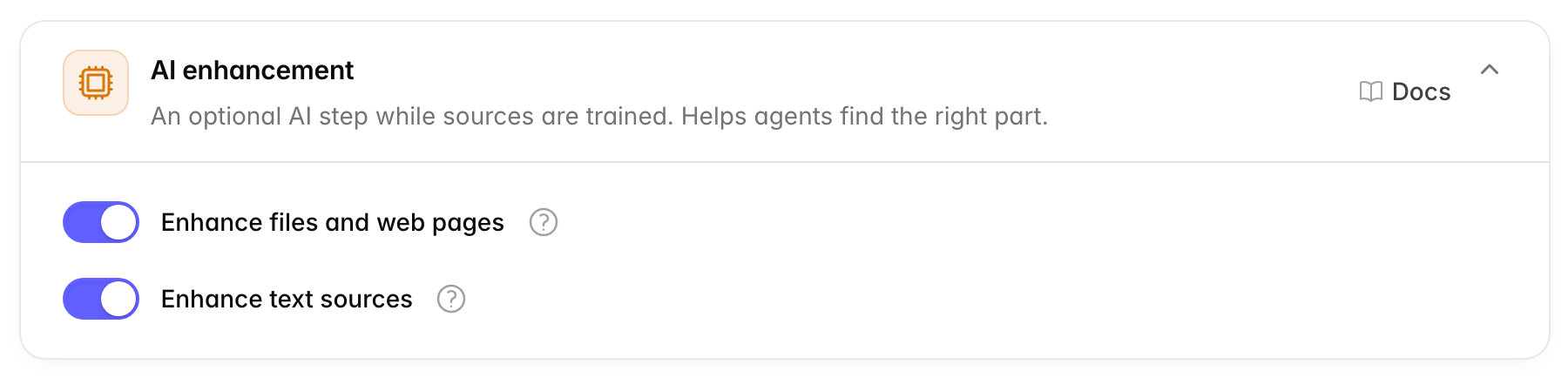
AI enhancement is slower and uses more tokens
Each part of a file or web page makes one AI call, so a 100-page PDF file makes about 100 calls. Your AI provider charges for the tokens of each call, and training takes longer. With it off, training is faster and uses fewer tokens, but agents find answers less accurately. You first made this choice in the setup wizard.
| Option | What it does | Default |
|---|---|---|
| Enhance files and web pages | Adds a summary and likely questions to each part of your files and web pages. For documents, it also describes the pictures and turns tables into text. Makes one AI call per part, so large files make many calls. | Off |
| Enhance text sources | Does the same for texts people paste in. They are short, so it costs little. | Off |
With both off, training makes no calls to a chat model and is faster. Search still works, but it finds the right part less often.
The same switches decide whether a source also gets a summary of the whole of it, and whether pictures are described. The models for those are set in AI models → Documents. The model for the enhancement itself is AI enhancement, in AI models → Models for app tasks.
A change applies to sources the next time they are trained.
When to change it. Keep both on for the best answers. Turn Enhance files and web pages off if people upload very large files and the AI cost or the training time is too high. You can pick a cheaper model for it in Models for app tasks instead.