Agent chatters

A chatter is a person who chats with your agents, like a customer or an employee, as opposed to a teammate who manages them in the dashboard. On a protected agent, only chatters who were given access can use it. The agent's Chatters page is where you decide who that is.
For example, a training company runs a protected "Course assistant" agent. When a new student enrolls, a teammate invites them on this page, and the student can sign in to the chat right away. When the course ends, one click takes their access away again.
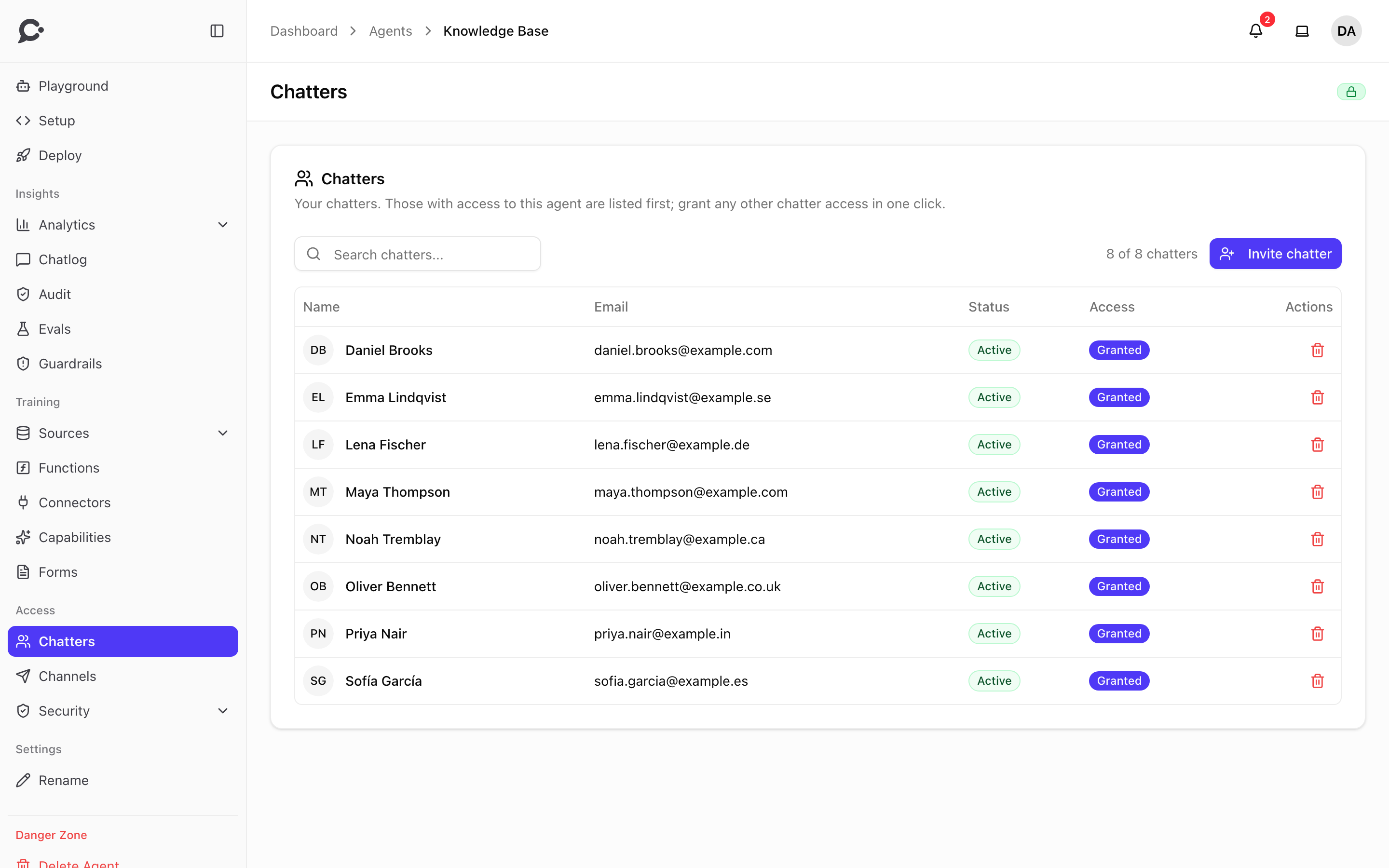
Open an agent and click Chatters in the sidebar, under Access.
Only for protected agents
On a public agent anyone can chat, so access per chatter does not apply. The page then only says This agent is public. To use chatters, turn off Make agent public on the agent's Security → Identity page.
The list
The page lists every chatter in your workspace, not only the ones with access to this agent. Those with access come first. For each chatter you see:
| Column | What it shows |
|---|---|
| Name and Email | Who they are. |
| Status | Active once they have signed up, Pending while their invitation is not accepted yet. |
| Access | Granted when they can use this agent, No access when they cannot. |
| Actions | Grant, or the bin button to revoke access. |
Use the search box to find someone by name or email.
Invite a new chatter
- Click Invite chatter.
- Type their Email address and click Send invite.
- Chatvia emails them a sign-up link. The dialog also shows the Sign-up link and when it expires, so you can copy it and send it another way.
- Click Done, or Invite another.
A new chatter gets access to this agent straight away. They show as Pending until they finish signing up.
Give an existing chatter access
Click Grant on their row. They can use this agent at once, with the same sign-in they already have. One chatter can have access to several agents, and switch between them with My Agents in the Hosted Chat. See Agent surfaces.
Take access away
- Click the bin button on their row.
- Confirm with Revoke.
They lose access to this agent immediately. They stay in your workspace and keep access to any other agents, and you can grant access again at any time.
A chatter's details
Click a row to open their details. You see their chatter ID with Copy chatter ID (your developers need it to sign chatters in, see Identity verification), when they joined, and their access to this agent.
For a chatter who has not accepted yet, the details show their personal sign-up link and when it expires. Click Resend invitation to send a fresh link. If the link has expired, the button says Generate new link instead.
The details also have Grant access or Revoke access. To change anything else about a chatter, like turning their account off, follow the link to the workspace's chatters page.
Permissions
This page needs the Agent Members permission. See Teams & roles.