Analytics

Per-agent analytics show your team what customers are asking, how they feel, and how each agent is performing. Open an agent and look under Analytics on the sidebar.
The five views
The Analytics group on the sidebar has five pages:
- Chats: volume, response times, tokens, feedback and countries.
- Sentiment: positive, neutral and negative breakdown of messages.
- Tone: neutral, frustrated, urgent, confused or satisfied.
- Topics: what conversations are about.
- Sources: which knowledge sources, functions and MCP servers the agent actually uses.
Needs a license key
The Chats page works on every install. Sentiment, Tone, Topics and Sources need a license key on your Chatvia install. Without one, these pages show a lock. Your conversations are still analyzed, so the history is there once you add a key. See What needs a key.
Sentiment, tone and topics are on by default. Each one costs extra AI calls, so you can turn it off under Setup → Settings → Analytics (see The Setup page). When one is off, its page has an Enable now button. They need Store conversations on too: without stored messages there is nothing to analyze, and the page tells you to turn the chat log on first.
Chats
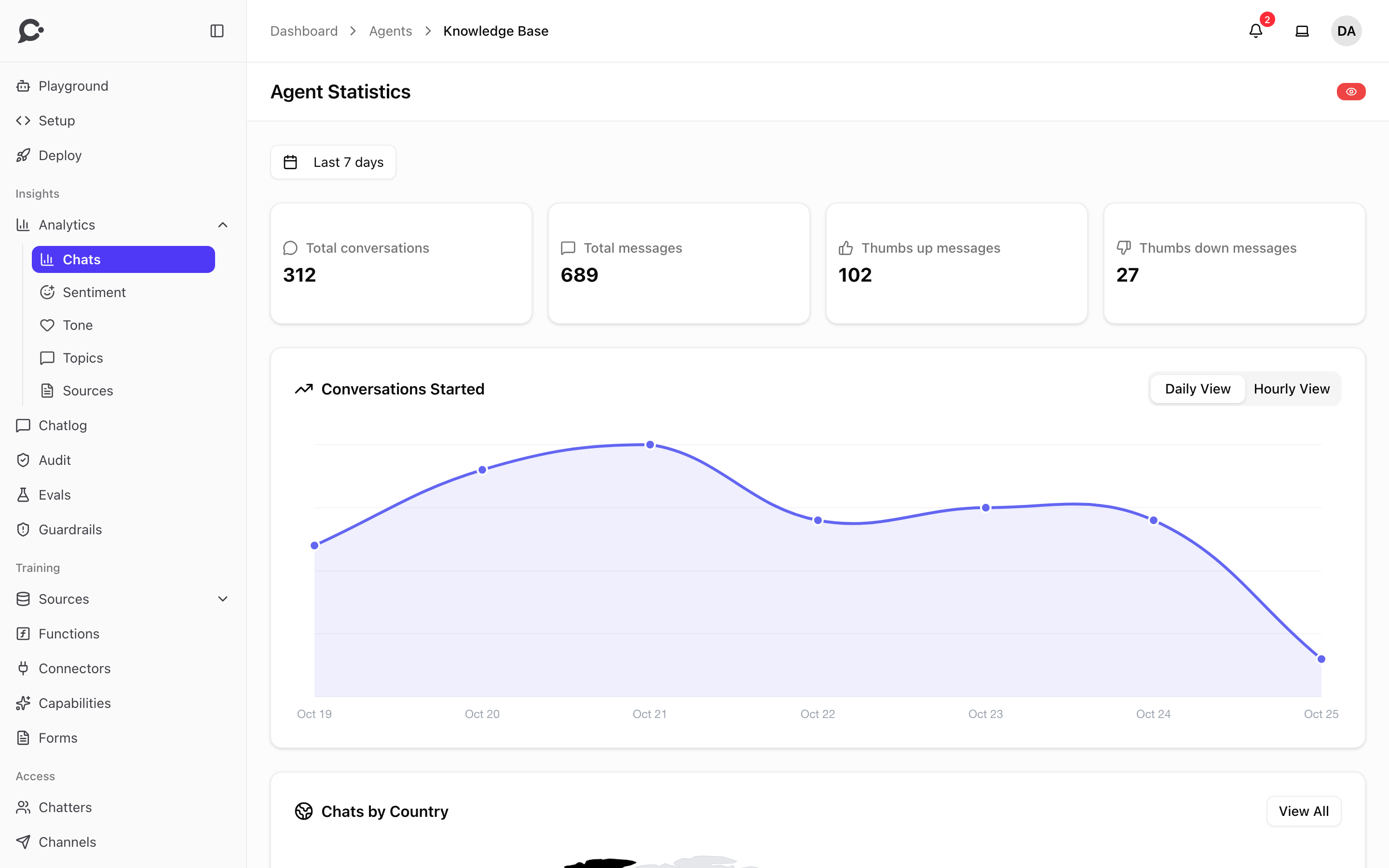
The headline numbers, for a date range you pick: today, yesterday, last 7 or 30 days, this or last month, last 3 or 12 months, or a custom range.
- Total conversations and total messages.
- Thumbs up and thumbs down messages.
- Conversations started: a chart by day or by hour, with the peak hour and the busiest day.
- Activity by day of week and by hour.
- Chats by country: a world map and a full list.
- Performance & usage: avg response time, first response time, avg session duration, avg messages per chat, unique sessions, total tokens and avg tokens per message.
Spikes are usually traffic: a new embed, a viral mention, a fresh rollout to your team. Dips can be a broken surface, a message limit that was reached, or a model outage.
Sentiment
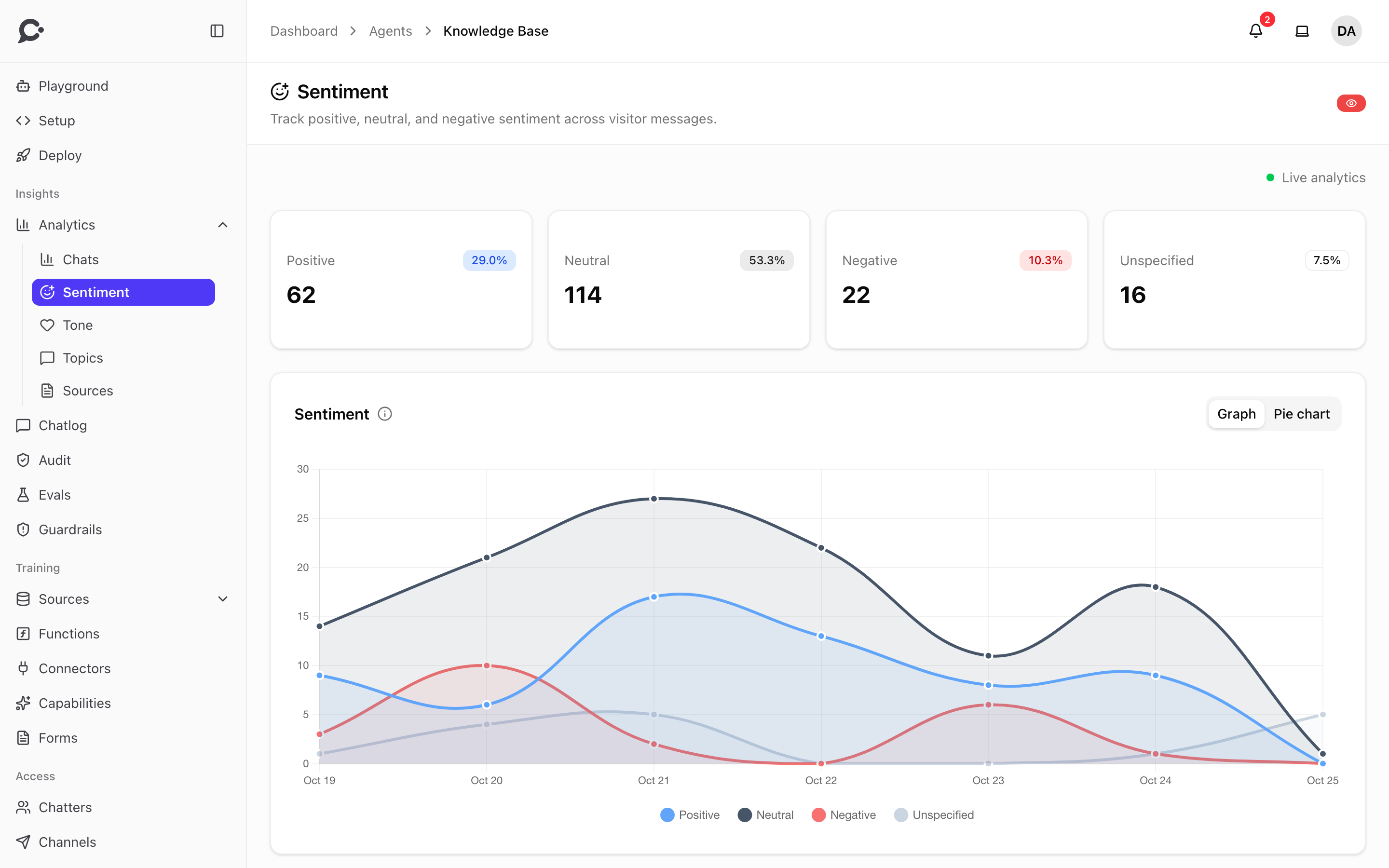
Each chatter message is classified as positive, neutral, or negative soon after it is sent. The page shows the counts per day as a graph, and the totals as a pie chart. Messages that have not been checked yet show as Unspecified.
To see how the mood moved inside one conversation, open it in the Chatlog and use the Pulse tab.
Tone
Same shape as sentiment, but for chatter tone: neutral, frustrated, urgent, confused or satisfied. Surfaces things like:
- Spikes in frustrated tone after a release.
- Urgent messages piling up on a support agent.
Topics
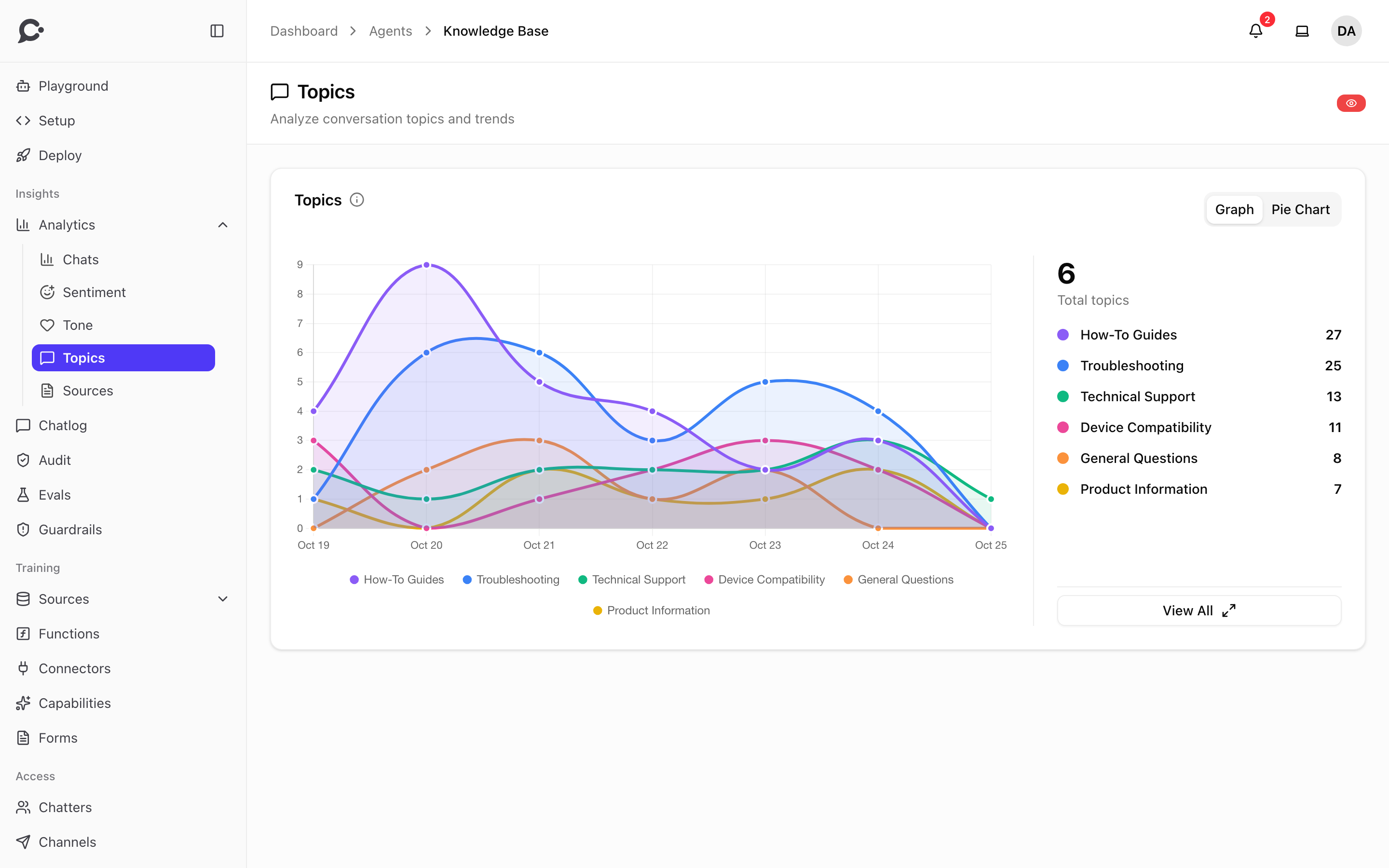
Chatvia sorts conversations into topics. A conversation can belong to several topics. The page shows how many conversations each topic has, as a Graph or a Pie Chart.
A new agent starts with every topic your workspace has: Chatvia's built-in topics plus the ones your team created. You decide which of them this agent uses.
Manage the agent's topics
- On the Topics page, click View All under the list of topics. The Manage Topics dialog opens.
- Search for a topic. Topics this agent uses are marked Active.
- Click Remove to stop using a topic for this agent, or Add to use one again.
- To create a topic, click Add New Topic, type a Topic Name and a Description, and click Create & Add.
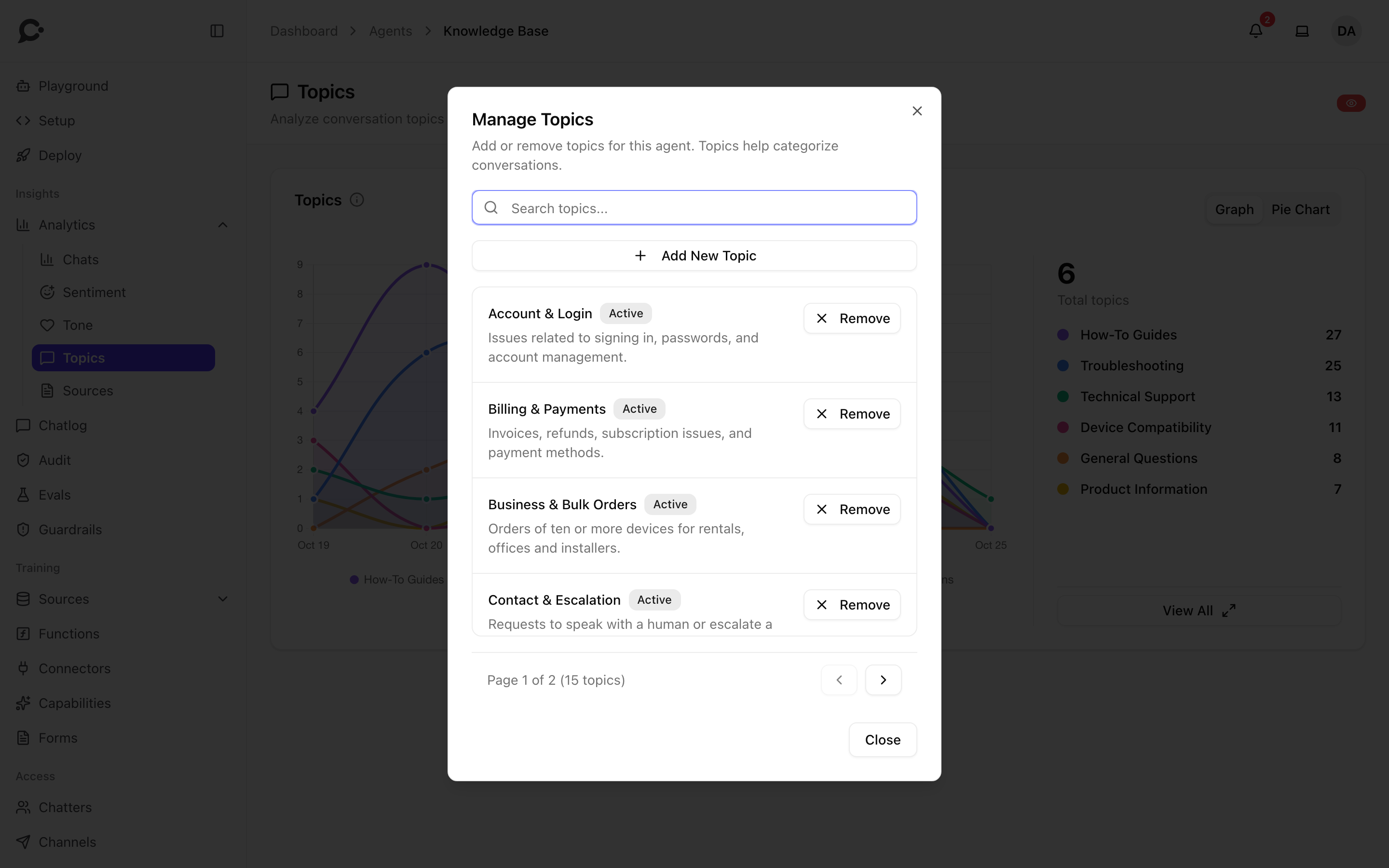
Write the description the way you would explain the topic to a new colleague, for example "Invoices, refunds, subscription issues and payment methods." The AI uses it to decide which conversations belong there.
Managing topics needs the Manage topics permission.
Suggested topics
Chatvia spots new themes in recent conversations that are not in your topics yet, and lists them under Suggested topics with how many conversations mention them. Click Add to start tracking one. Click Dismiss to hide it: it is not suggested again, but you can still create it yourself later.
Use your own topics for product reporting
If your team wants stable analytics ("how many billing questions per week?"), define a Billing topic with a clear description and let the agent classify against it.
Sources
The Usage Insights page shows which sources, functions, and MCP servers this agent actually uses, each with a count and when it was last used. Your team can use this to:
- Spot dead weight: sources that are never retrieved are not earning their storage. Consider deleting.
- Find gaps: if chatters are asking about a feature and no source surfaces, the workspace is missing content.
- Prioritize improvement: the most-retrieved sources are your most-read. Make them excellent.
Country
The Chats page shows where chatters are, by country (derived from the chatter's IP). In the Chatlog you can also filter conversations by country. Useful for multi-market agents: see whether your DE traffic and your US traffic ask different things.
How accurate are these classifications?
Sentiment and tone are classified by an AI model on each chatter message, in the background. Topics are assigned once per conversation, about 6 hours after it starts. Accuracy is good but not perfect. Don't make business decisions based on a single conversation. Use the aggregated trends.
Privacy
Analytics aggregates derived metadata, not message content. Your workspace can delete older analytics automatically: set Data retention → Analytics (days) in the workspace Security settings. Custom data retention needs an Enterprise license.