Signing in

This page explains how people get into Chatvia: creating a workspace, signing in to the dashboard, getting back in after a forgotten password, joining a workspace by invitation, and how chatters sign in to a chat.
Create a workspace
If sign-up is open on your Chatvia install, anyone can create a workspace.
- Go to the sign-in page and click Create an account, or open
/registeron your Chatvia address. - Enter your Name, Email address, a Password and Confirm password.
- Click Create account.
- Open the email Chatvia sends you and click the link to confirm your email address. You need to do this before you can use the dashboard. If the email did not arrive, click Resend verification email.
You are now the owner of a new workspace.
The admin of your Chatvia server decides whether sign-up is open. When it is closed, there is no Create an account link, and new people can only join by invitation. See Workspaces settings.
Sign in to the dashboard
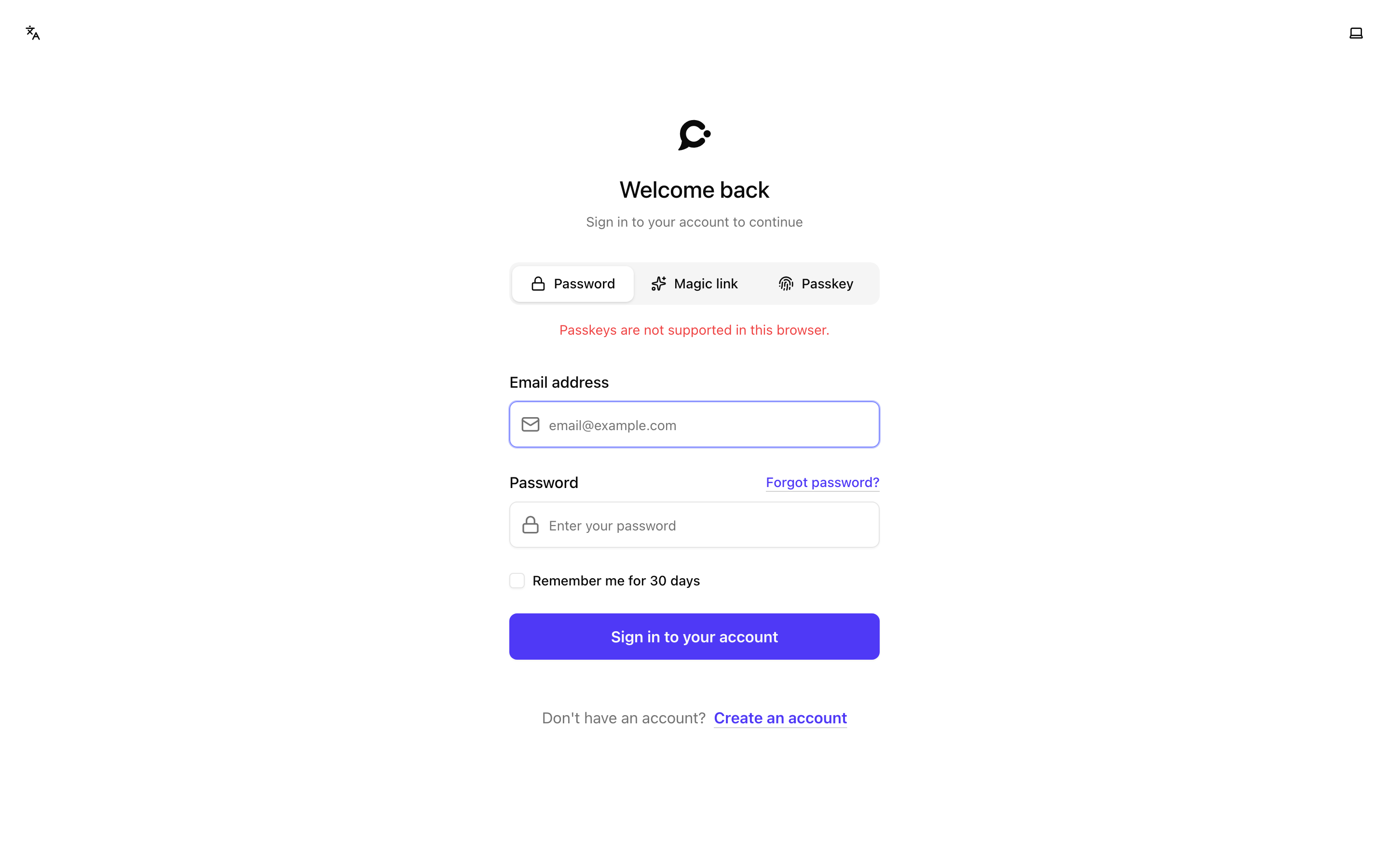
The sign-in page offers several ways in.
With your password
- Enter your Email address and Password.
- Tick Remember me for 30 days on your own computer, so you don't have to sign in again for a month. Leave it off on a shared computer.
- Click Sign in to your account.
With a magic link
A magic link is a sign-in link Chatvia emails to you, so you don't need your password.
- Open the Magic link tab.
- Enter your Email address and click Send me a sign-in link.
- Open the email and click the link.
The link works once, for 15 minutes. For your privacy, the page says the same thing whether or not the email has an account.
With a passkey
A passkey lets you sign in with your fingerprint, your face or a security key, instead of a password. Click Passkey and follow your browser's prompt. Your browser may also offer your passkey as soon as you click the email field. You first add a passkey in your account settings. See Account security.
With Google, Microsoft, GitHub or Slack
Under Or continue with, click the service you use. These buttons only show for the services the admin of your Chatvia server set up. See Sign-in settings.
This only signs you in to an account that already exists: one you linked to that service, or one with the same email address. If there is none, you see "No account found!". To sign up, use the form instead.
If the account with that email address was never confirmed, Chatvia confirms it now. Someone else could have created it with your address, so Chatvia also removes its password and any other way in that was set up on it: other linked services, passkeys and two-factor authentication. To sign in with a password later, use Forgot password? to choose one. A magic link does the same for an account that was never confirmed.
Two-factor authentication
If you turned on two-factor authentication, Chatvia asks for a 6-digit code from your authenticator app after you sign in with a password, a magic link or Google, Microsoft, GitHub or Slack. If you don't have your phone, click Use a recovery code. See Account security.
Bot check
If the admin turned on the bot check, a small check from Cloudflare runs on the form before you can sign in. Sometimes it asks you to tick a box. It keeps automated programs from guessing passwords. See Security settings.
Forgot your password
- On the sign-in page, click Forgot password?.
- Enter your Email address and click Send password reset link.
- Open the email, click the link, and choose a new password.
Resetting your password signs you out on every other device, on the dashboard and in Hosted Chat.
You can also use a magic link to get in, then change your password in Account → Password.
Join a workspace by invitation
When a workspace owner adds you to a team, you get an email invitation. Open the link in it.
- New to Chatvia: enter your name, choose a password, accept the terms if the page shows them, and click Create Account & Join Team.
- You already have an account: enter your password and click Login & Join Team.
An invitation works for 7 days. After that, the page says the invitation expired. Ask the owner to send it again. See Teams & roles.
Chatters
Chatters sign in on the Hosted Chat page of a protected agent, not on the dashboard sign-in page. The page uses the agent's colours.
- Password: they enter their Email address and Password and click Start Chatting. Keep me signed in keeps them signed in on that device.
- Magic link: they enter their email and click Send me a sign-in link. This also helps when they forgot their password.
When a chatter changes or resets their password, their other chat sessions end, and they sign in again on those devices.
If someone opens a sign-in link (a magic link, or a link from your app) while the chat is already signed in to another account, the chat asks "Continue as …?" first. It switches only when they click Continue. Stay signed in as … keeps the current account.
A chatter gets their account from an invitation. They open the link, enter their name and a password, and click Create account & start chatting. They can also sign up with a social account that uses the same email address as the invitation.
If your own app already signs in your users, your developers can sign them in to the chat for you. See Identity verification.
Good to know
- New device, new notification. When someone signs in to your account from a new device, you get a notification "New sign-in to your account". If it was not you, change your password right away.
- Failed sign-ins are recorded in your workspace's security log.
- Signing out: click your avatar, then Log out.