Hosting

Chatvia runs on a server you control, most often a VPS (a virtual private server). Shared web hosting does not work: Chatvia needs programs that run all the time next to the web server. See Where to install.
This page explains what size of server to rent, and which plan to pick at each hosting provider.
What size you need
The same server size works for both ways to install:
- With Docker: the installer downloads a ready-made image, so nothing is built on the server. Use a server with Ubuntu 26.04 LTS. See Install.
- Complete installation: everything is installed directly on Ubuntu 24.04 LTS or newer. Building the frontend takes up to 3 GB of memory for a few seconds. See Install on Ubuntu.
Start with:
- 2 CPU cores and 4 GB of memory. Enough to try Chatvia and to run it for a small team.
- 20 GB of disk or more. Your knowledge files, the database and the backups grow with use.
With less than 6 GB of memory, the complete installation needs swap to build the frontend. The installer offers to add it. Say yes.
Move up to 4 CPU cores and 8 GB of memory when you go to production or when Chatvia starts to feel slow. After the server grows, size PostgreSQL and the queue workers again. See Tune PostgreSQL and Size the queue workers.
Hetzner
Hetzner Cloud has the CPX plans (shared AMD processors).
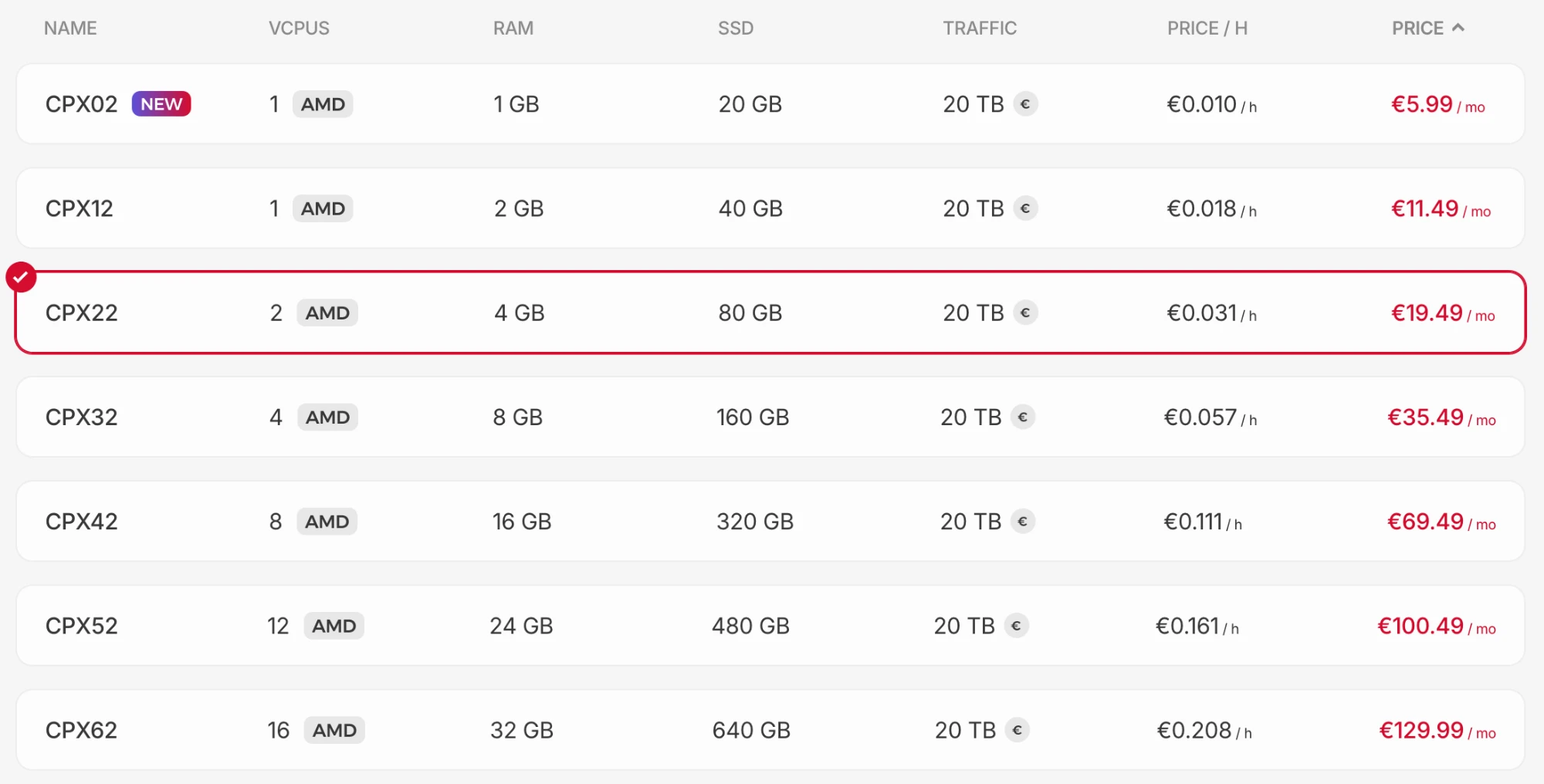
- CPX22 (2 CPU cores, 4 GB, 80 GB disk): start here, with Docker or the complete installation.
- CPX32 (4 CPU cores, 8 GB, 160 GB disk): for production. The complete installation needs no swap.
- CPX02 and CPX12 are too small for Chatvia.
- CPX42 and bigger: only for heavy traffic or a lot of knowledge.
You can move to a bigger plan later in the Hetzner console, under the server's Rescale tab. The server is turned off while it changes.
DigitalOcean
On DigitalOcean, create a Basic Droplet (shared CPU).
- 2 vCPUs, 4 GB, 80 GB disk: start here.
- 4 vCPUs, 8 GB, 160 GB disk: for production.
Move to a bigger plan later with Resize on the Droplet's page. Choose CPU and RAM only to keep the disk size, so you can go back down later.
AWS
Amazon Lightsail is the simple way to run one server on AWS, with a fixed monthly price. Pick a Linux/Unix instance with the OS Only blueprint.
- General purpose, 4 GB (2 vCPUs, 80 GB disk): start here.
- General purpose, 8 GB (2 vCPUs, 160 GB disk): for production.
A Lightsail instance cannot change its plan. To move up, take a snapshot and create a bigger instance from it.
Amazon EC2 gives you more choice, and more settings:
- t3.medium (2 vCPUs, 4 GB): start here.
- t3.large (2 vCPUs, 8 GB): for production.
EC2 gives a new instance only 8 GB of disk. Set the root volume to 20 GB or more when you create it.
Other providers
Any provider with a VPS of the right size works. These plans match the start and production sizes:
| Provider | Start (2 vCPUs, 4 GB) | Production (8 GB) |
|---|---|---|
| Vultr | Cloud Compute, Regular, 2 vCPUs / 4 GB | Cloud Compute, Regular, 4 vCPUs / 8 GB |
| Akamai (Linode) | Shared CPU, Linode 4 GB | Shared CPU, Linode 8 GB |
| Google Cloud | e2-medium | e2-standard-2 |
| Microsoft Azure | B2s | B2ms |
Google Cloud gives a new server 10 GB of disk. Set it to 20 GB or more when you create it.
After you create the server
At every provider:
- Choose the Ubuntu 26.04 LTS image.
- Add your SSH key, so you sign in without a password.
- Open port 22 (SSH) and ports 80 and 443 (the web) in the provider's firewall.
- Point your domain's DNS record at the server's IP address, for example
chat.example.com. - Sign in over SSH and run the installer:
curl -fsSL https://chatvia.ai/install.sh | bashPrices change and differ by location. Check them on each provider's site.