Evals

Evals (short for evaluations) are tests for your agent. You write down questions your customers ask, and what a good answer must contain. Chatvia then asks the agent each question and grades the answers. The agent answers with the same knowledge, tools and model it uses with real visitors.
Use evals to catch a change that makes the agent worse before your customers do. For example, a bike shop has a case "What is your return policy?" that must mention "30 days". After someone edits the persona or replaces the returns PDF, a run shows at once whether the answer still says 30 days.
Open an agent and click Evals in the sidebar, under Insights.
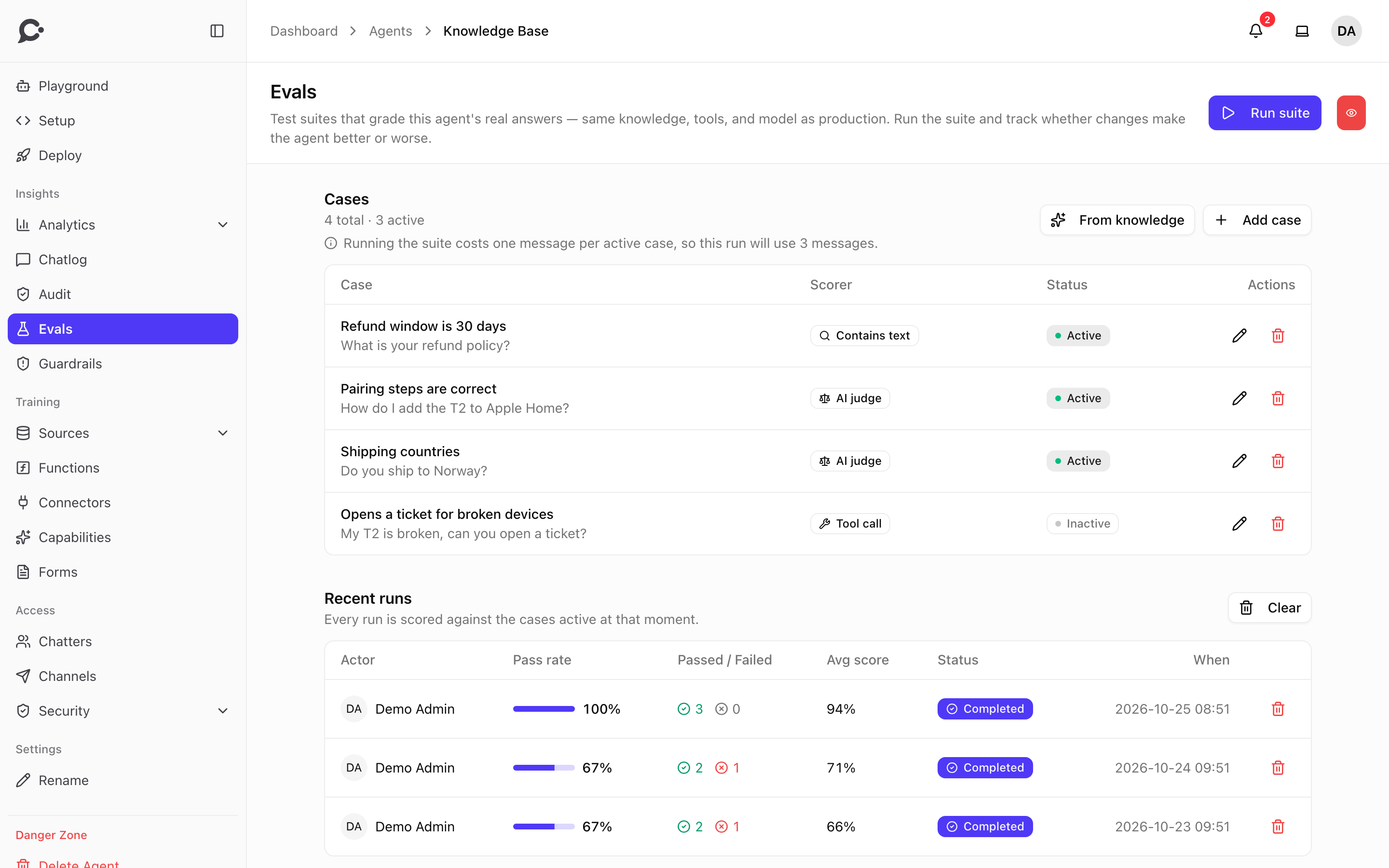
The page has three parts: Cases, Recent runs and Safety net.
Cases
A case is one test: a question and a way to grade the answer. The heading shows how many cases there are and how many are active. Only active cases are part of a run.
Add a case by hand
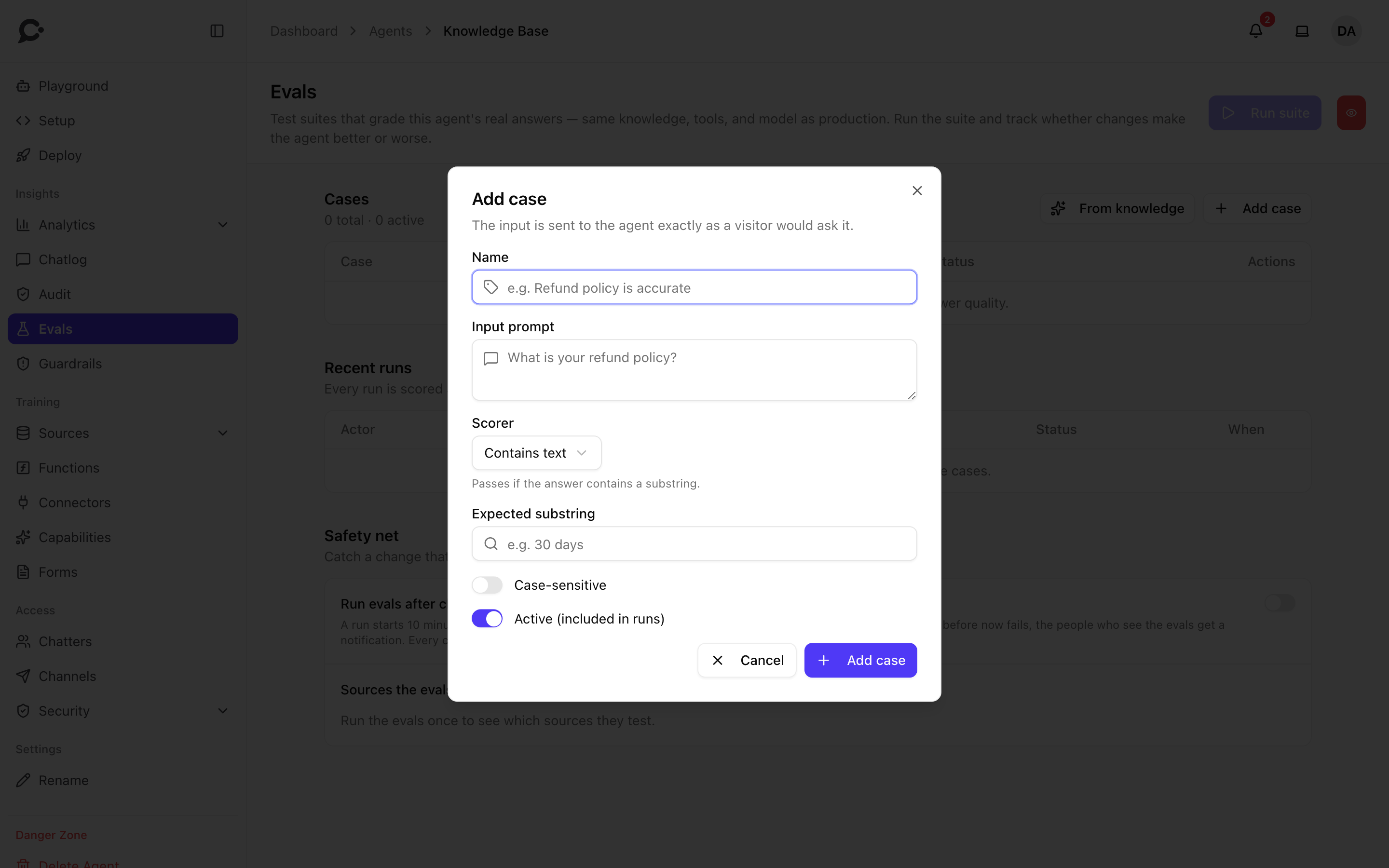
- Click Add case.
- Give it a Name you will recognize, for example "Refund policy is accurate".
- Type the Input prompt: the question, worded exactly as a visitor would ask it.
- Pick a Scorer, the way the answer is graded (see the table below), and fill in its fields.
- Leave Active (included in runs) ticked.
- Click Add case.
| Scorer | Passes when | What you fill in |
|---|---|---|
| Contains text | The answer contains a piece of text. | Expected substring, for example 30 days. Tick Case-sensitive to match capitals exactly. |
| Regex match | The answer matches a regular expression (a text pattern). | Pattern, for example /\b30 days\b/i. |
| Exact match | The answer is exactly the expected answer. | Expected answer. |
| JSON shape | The answer is valid JSON with the keys you list. For agents that answer in JSON. | Required keys, separated by commas. |
| AI judge | An AI model reads the answer and decides that it meets your criteria. | Grading criteria, for example "The answer must say refunds are possible within 30 days of purchase." Optionally a Reference answer. |
| Tool call | The agent chooses to call the tool you expect. The tool is not run. | Expected tool, for example send_email, and optionally Expected arguments as a JSON object. Extra arguments are ignored. |
| Citations | Each passage the answer cites really supports the sentence it is cited for. Passes when 80% of the citations hold. For agents that show numbered citations. | Nothing extra. |
Contains text is the simplest and cheapest. AI judge is the best fit when the wording can vary but the facts must be right.
To change a case, click its pencil. To leave a case out of runs without deleting it, edit it and untick Active. Deleting a case does not change past results.
Add cases from your knowledge
Writing cases by hand takes time. Chatvia can suggest questions from what the agent already knows.
- Click From knowledge.
- Search or scroll the list. It shows questions from your Q&A pairs first, then questions found in the agent's files, web pages and texts. Questions that are already a case are marked Added.
- Tick the questions you want and click Add cases.
Each becomes an AI judge case. The judge checks that the answer agrees with the source text the question came from.
The list is empty when the agent's sources were trained without questions. Click Generate with AI to get some: the AI reads a random sample of the agent's knowledge and writes five questions a visitor might ask, marked AI and ticked for you. Click again for five more from another part of the knowledge. These questions use the model for quick tasks set in the admin panel, and cost nothing from your message limit.
From the chat log
When you fix a wrong answer with Revise in the chat log, tick Also add as an eval case. Later runs then check that the agent keeps giving the corrected answer.
Run the suite
Click Run suite at the top of the page. Every active case is sent to the agent, and the run appears under Recent runs, where its numbers fill in as cases are scored.
Each case counts as a message
A run costs one message per active case. The note under Cases tells you how many before you start. Messages count toward your message limit.
Run suite is greyed out while there are no active cases, or while a run is still going.
Read the results
Recent runs shows who started each run, the pass rate, how many cases passed and failed, the average score and when it ran. Each run is scored against the cases that were active at that moment.
Click a run to open it. The top shows the Pass rate, the Avg. score and the Tokens the run used. The table lists each case with its result, score, scorer, how long the answer took and its tokens. Click a case to see:
- Agent answer: what the agent replied.
- Rationale: why the AI judge passed or failed it.
- Tools used and Sources retrieved: what the agent used for this answer.
A case that fails tells you where to look. If the right sources were retrieved but the answer is wrong, check the persona or the model. If the sources are wrong or missing, improve your knowledge.
To delete one run, click its bin. Clear deletes all runs of this agent. Cases are not affected.
Safety net
Run evals after changes
Off by default. When on, a run starts by itself 10 minutes after someone changes the agent's model, instructions, Q&A or knowledge. If a case that passed before now fails, everyone who can see the evals gets a notification.
Every automatic run costs one message per active case, like a manual run.
Sources the evals test
After a run, this shows how many of the agent's sources the cases reached, and lists the sources no case reaches yet. Click Add cases from knowledge to cover them.
Permissions
View evals lets a teammate see the cases and runs. Manage evals lets them add and edit cases, start runs and change the safety net. See Teams & roles.