Workspaces settings

A workspace is the space where one team works in Chatvia. It holds the team's agents, their knowledge and their chats, and it has an owner and often a few teammates. This page sets the rules for every workspace on your install: who may create one, how many agent replies a new one gets each month, whether an owner can download their data or delete their account, whether new people get a guided tour of the dashboard, and how long conversations and notifications are kept.
Open it in the admin panel under Settings → Workspaces. The person who runs the install sets it, usually once, and again when they open or close sign-up or want limits for the people who use the install. If you never touch it, anyone can sign up, new workspaces have no message limit, owners can download their data and delete their account, everyone gets the dashboard tour, conversations are kept for 366 days and notifications for 7 days.
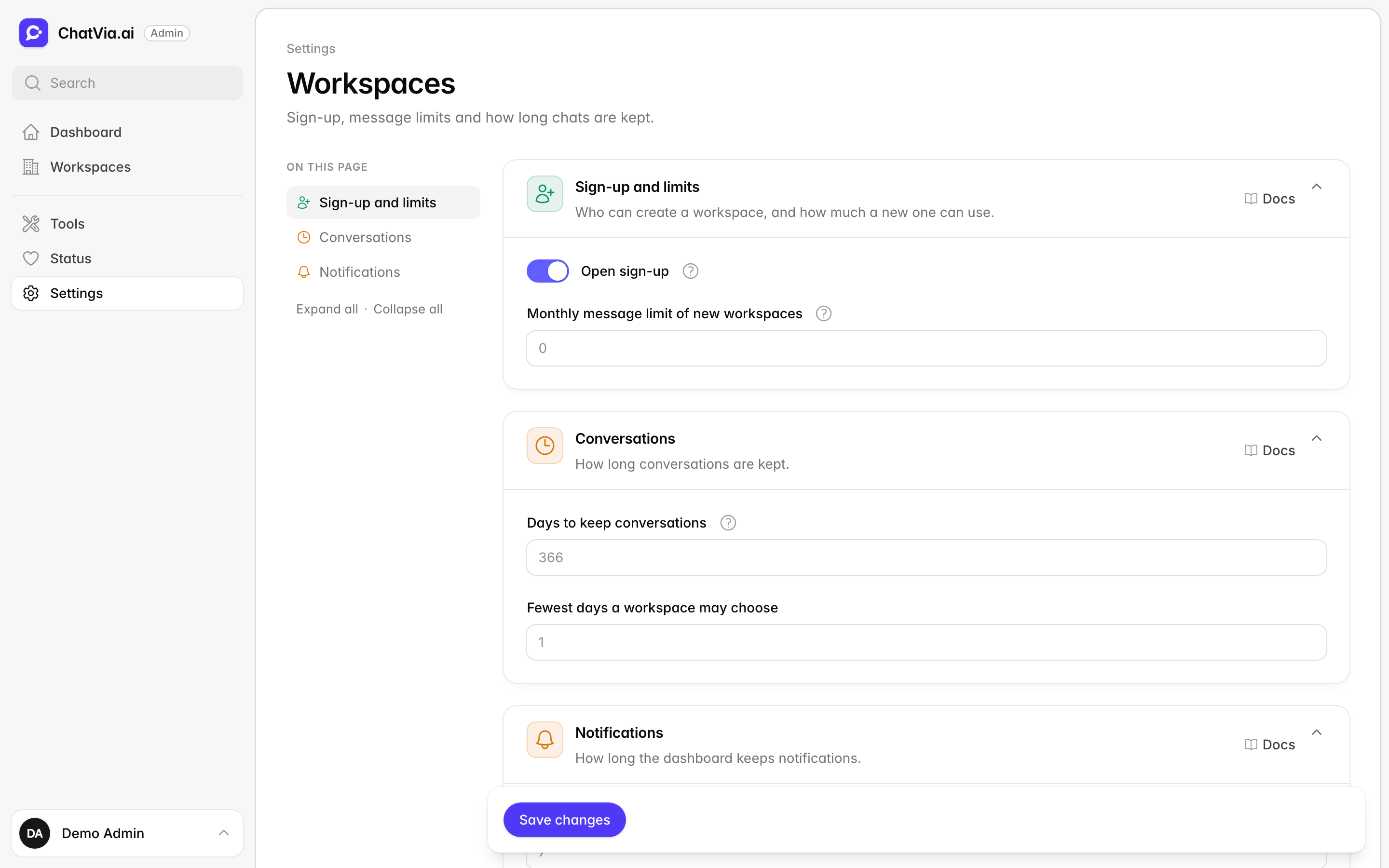
A blank number field uses its default, which the field shows in grey. A change applies from the next request, which means the next time someone opens a page or sends a message.
Sign-up and limits
Who can create a workspace, and how much a new one can use.
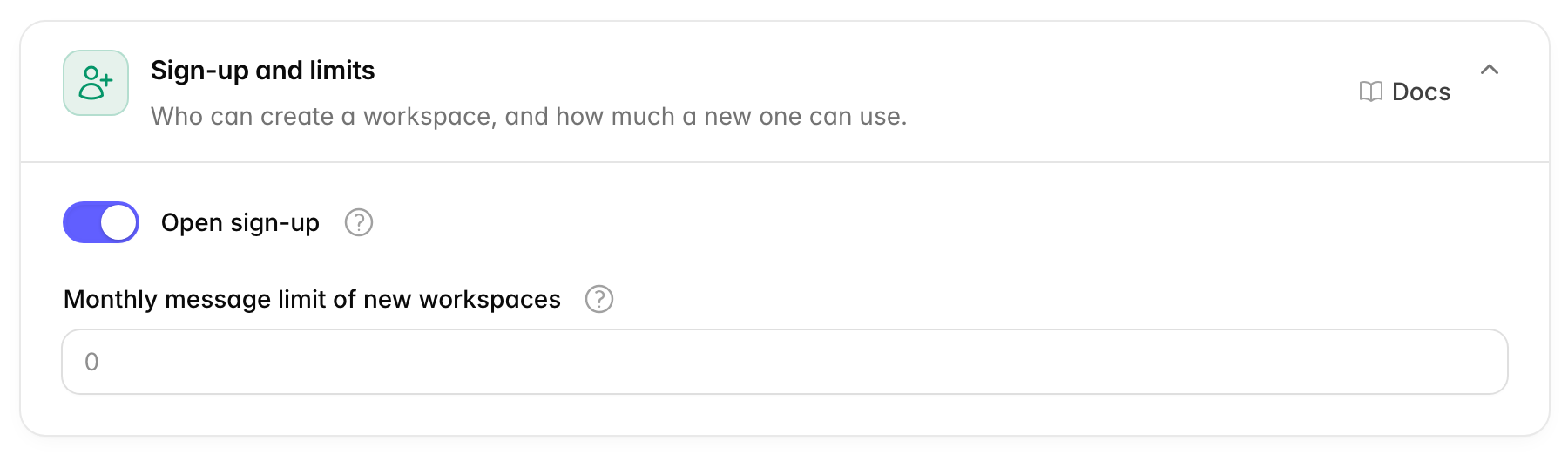
Sign-up is the page where a new person creates their own workspace, without an invitation. A message limit caps how many replies the agents of one workspace may send in a month. Each reply is answered by an AI model, and your AI provider bills you for it, so a limit keeps one busy workspace from running up your bill. For example, if you run Chatvia for your clients, you might open sign-up and give every new workspace 2,000 replies a month.
Open sign-up
Open sign-up lets anyone create a workspace on the sign-up page at /register. It is on by default. Turn it off to close that page. You can still invite teammates to a workspace while sign-up is closed.
Without a license key, the install holds one workspace. Once it exists, sign-up closes, even when Open sign-up is on, and the card says so. Invite people to that workspace instead. With a license key, there is no limit on workspaces.
People who sign up must confirm their email address before they can use the dashboard. So check that email sending works (Settings → Email) before you open sign-up. If you only want your own accounts on the install, turn it off once they exist.
Monthly message limit of new workspaces
Monthly message limit of new workspaces is how many agent replies a new workspace gets each month. The default is 0, which means no limit. The limit is given to a workspace when someone creates it on the sign-up page. Changing this number does not change the workspaces that already exist. To change the limit of one workspace, open it under Workspaces and click Set message limit.
When to change it: close sign-up when the install is only for your own company or your own clients. Set a limit when strangers can sign up, or when you want each workspace to stay within a budget.
Owner account
What a workspace owner can do with their own account in the dashboard.
The owner of a workspace has two pages in their account settings that act on the whole workspace: Download my data gives them a ZIP file of the workspace's data, and Delete account deletes the workspace and everything in it. See Your data and deleting your account for how the owner uses them. Teammates never see these pages.
| Option | Default | What it does |
|---|---|---|
| Let owners download their data | On | Shows Download my data in the owner's account settings. |
| Let owners delete their account | On | Shows Delete account in the owner's account settings. |
When an option is off, its page is gone from the account settings, and its address shows a "not found" page. Nothing is deleted when you turn an option off. You can still do both yourself: open the workspace under Workspaces, click More, then Export data or Delete workspace. When you export a workspace's data, the owner still gets an email with a download link, even while Let owners download their data is off.
When to change it: turn them off when you run Chatvia for your clients and want them to ask you before they take their data or close their workspace, for example because a contract says so. Keep Let owners download their data on if the GDPR applies to you and you want people to get their data without waiting for you.
Onboarding
The guided tour new people get in the dashboard.
The tour helps someone who has never used the dashboard. On their first visit, a welcome window explains how the tour works and lets them start it or say Not now. The tour then points at the main parts of the page one by one: the agents, the inbox, the notification bell and their menu. Next it asks them to create their first agent and shows them that agent's setup page: its settings, the live preview, knowledge sources, the Playground and Deploy.
Each person gets the tour once, owners and teammates alike. They can close it at any step. They can take it again with Take the tour in their menu.
Show the dashboard tour
Show the dashboard tour is on by default. Turn it off to hide the tour and the Take the tour menu entry for everyone. Turning it back on later does not show the tour again to people who already finished or closed it.
When to change it: turn it off when you train your people yourself, or when you run the install for a team that already knows the dashboard.
Conversations
How long conversations are kept.
A conversation is one chat between a visitor and an agent, with all its messages. Keeping old conversations lets your team read past chats and see what visitors ask. Keeping them forever means you store what people wrote much longer than you need, and privacy laws such as the GDPR ask you to keep personal data only as long as you need it. How long data is kept before it is deleted is called retention.
| Option | Default | What it does |
|---|---|---|
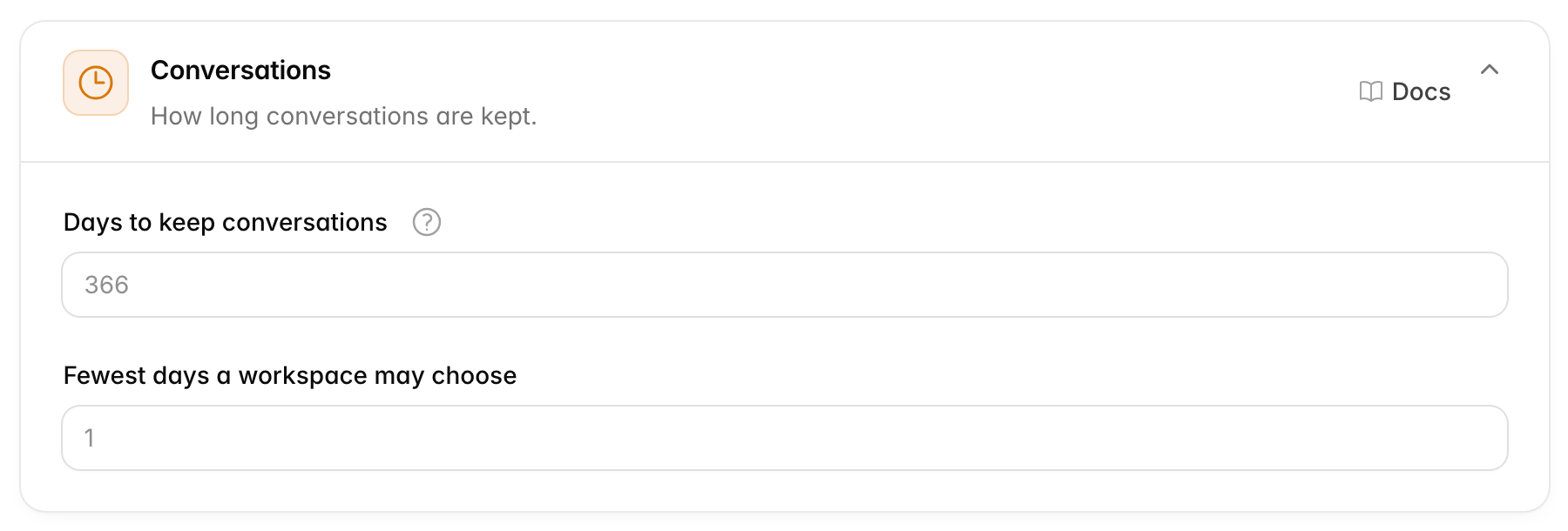
| Days to keep conversations | 366 |
A conversation with no new message for this many days is deleted. The clean-up runs every night. |
| Fewest days a workspace may choose | 1 |
The lowest number of days a workspace can pick for its own conversations. |
A workspace can keep its conversations for fewer days than the install, in its Security settings under Data retention. It can never keep them longer. Choosing fewer days is an Enterprise feature, so it only works with an Enterprise key (see License keys).
Fewest days a workspace may choose cannot be more than Days to keep conversations. The page refuses to save if it is.
Lowering the number deletes old chats
If you lower Days to keep conversations, the next nightly clean-up deletes every conversation that is now too old, in every workspace. This cannot be undone.
When to change it: lower Days to keep conversations if your privacy policy promises a shorter time, for example 90 days. Raise Fewest days a workspace may choose if you never want a workspace to delete its chats faster than that, for example because you need them for support records.
Notifications
How long the dashboard keeps notifications.
Notifications are the short messages behind the bell in the dashboard, such as a new lead, a visitor who asks for a person, or a knowledge source that finished training. Old ones pile up, so Chatvia deletes them after a while.
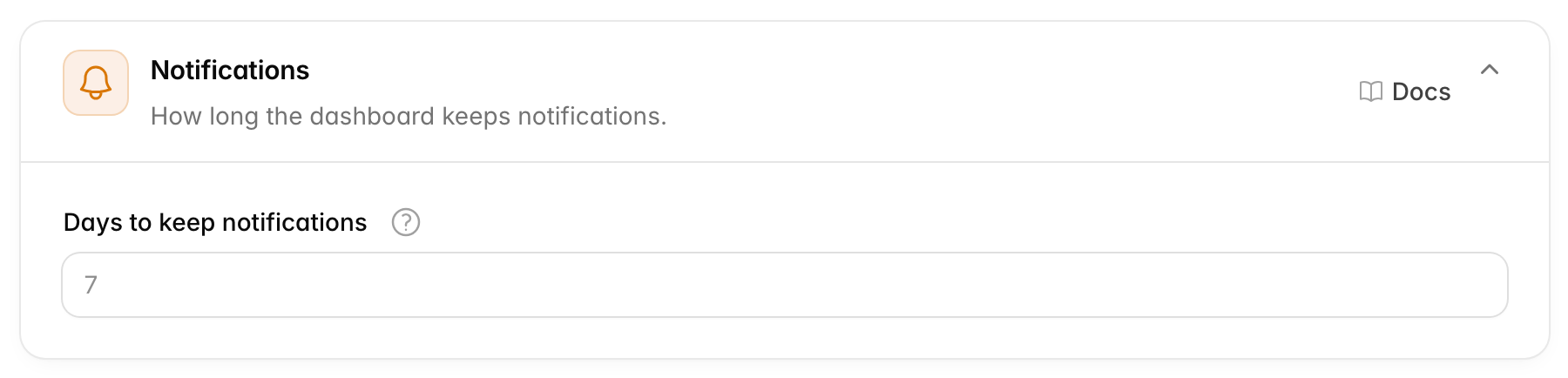
Days to keep notifications is how long a notification stays in the dashboard's notification center, read or not. The default is 7 days, and the most you can enter is 365. Older notifications are deleted every night.
When to change it: raise it if your team often comes back after a week away and wants to see what happened. The default suits most teams.
Related
- Message limits: what the workspace limit counts, and what happens when it is reached.
- Workspaces: change the limit of one workspace.
- Chat logs: how retention looks to a workspace.
- Behind the scenes: the nightly clean-up jobs.