Dashboard

The dashboard is the first page of the admin panel, the page you see right after you sign in. It gives you the big picture of your whole install: how much every workspace chats, how many new workspaces, agents and leads there are, and which workspaces and agents are the busiest. It also tells you at a glance whether every service is running. Open it with Dashboard in the sidebar.
Anyone who looks after the install can use it, for example to report monthly numbers or to spot a workspace that suddenly chats a lot. It changes nothing, so you can look as much as you like. A workspace is the space where one team builds its agents and reads its chats. Each workspace has its own dashboard too, with only its own numbers. This page adds them all up.
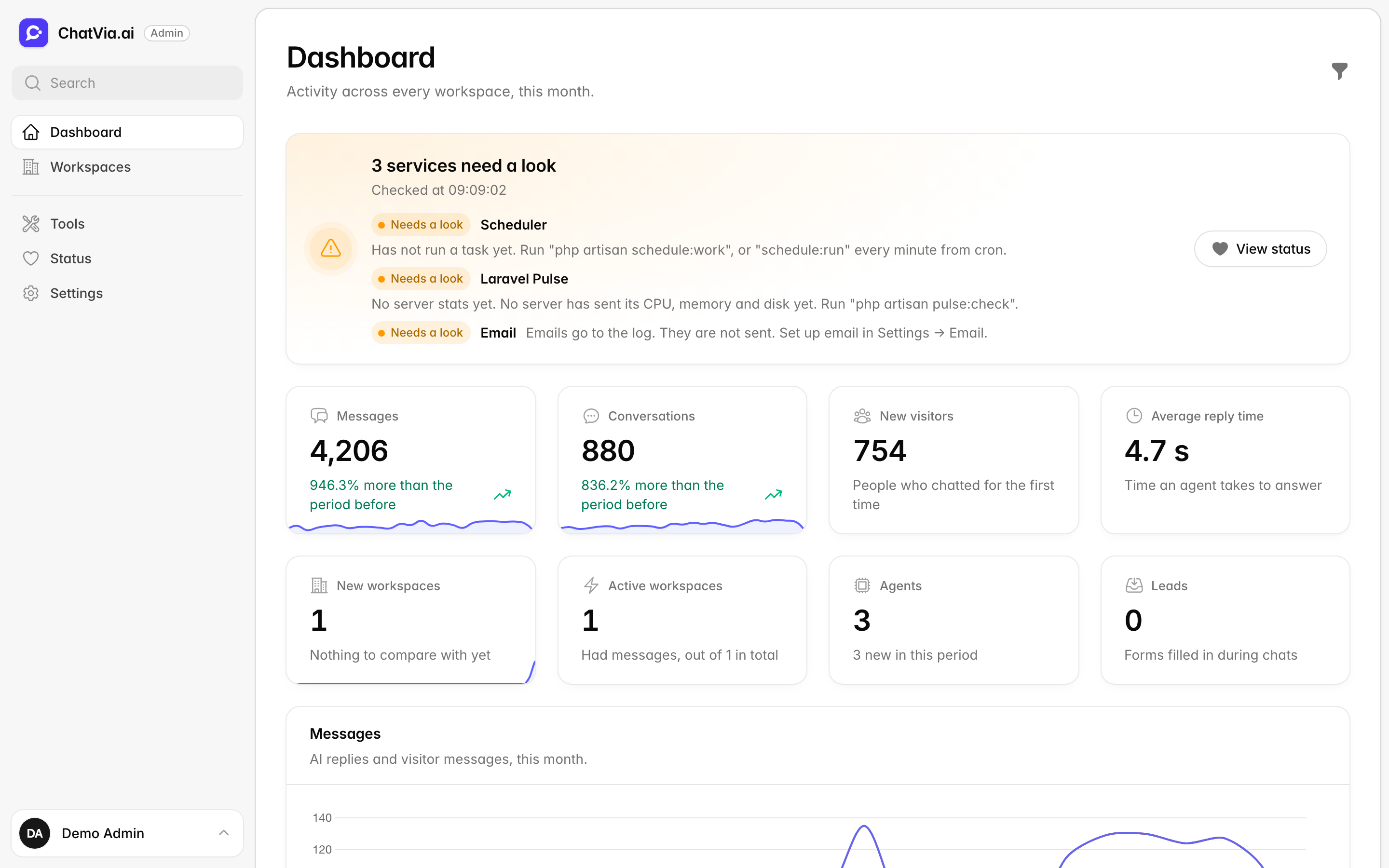
The line under the title says what you are looking at: every workspace or one of them, and for which period.
Filters
Filters narrow down what the dashboard counts. You can look at one week instead of the whole month, or at one workspace instead of all of them. For example, pick Last month to get the numbers for a monthly report.
Click the funnel button at the top right to open the filters.
| Filter | What it does |
|---|---|
| Period | Today, Last 7 days, Last 30 days, This month (the default), Last month, All time or Custom range. |
| From and To | Shown for Custom range. Pick both dates. Until both are set, the dashboard shows this month. Dates in the wrong order are swapped. |
| Workspace | Shows one workspace instead of all of them. Search by the workspace's name or its owner's email. Leave it empty for All workspaces. |
The filters are kept in the page address, so a reload or a shared link shows the same view.
Service status
Chatvia depends on several services to work. Some run on your server, such as the database that stores everything. Others are outside services it calls over the internet, such as the AI that writes the replies. If one of them stops, agents may stop answering. The banner at the top of the dashboard warns you, so you notice before your customers do.
The banner says whether every service that the Status page checks is running. It opens with "Checking…", checks the services on this server first, then the AI and other outside services. Those include the AI models that write replies and the embedding service, which turns your documents into numbers so agents can search them by meaning.
- All systems operational: everything answers.
- 1 service needs a look, or more: something works, but with a catch.
- 1 service is down, or more: something does not work.
When something is wrong, the banner lists it, with a link to the Status page for the details. Changing the filters does not check again. Reload the page to check again.
Numbers
The cards in the top rows count what happened in the period you picked. Some of them also compare it with the period before, so you see at once whether things grow or shrink. For example, with This month picked, Messages compares this month with last month.
| Number | What it counts |
|---|---|
| Messages | Messages in the period, with the change from the period before. |
| Conversations | Conversations in the period, with the change from the period before. |
| New visitors | People who chatted for the first time. |
| Average reply time | The time an agent takes to answer. |
| New workspaces | Workspaces created in the period, with the change from the period before. |
| Active workspaces | Workspaces that had messages, out of all workspaces on the install. |
| Agents | All agents, and how many are new in the period. |
| Leads | Forms filled in during chats. |
A message is one line in a chat, from a visitor or an agent. A conversation is a whole chat, from the first message to the last. A lead is a visitor who left their details, such as a name and email, in a form during a chat.
"Nothing to compare with yet" means there is no data for the period before.
Charts and tables
Below the numbers, charts show how things change over time, and tables show who is busiest. A channel is the place where a chat happens, such as the Chat Widget on a website or WhatsApp.
- Messages: AI replies and visitor messages over the period, by hour, day or month depending on how long the period is.
- Conversations by channel: where conversations started, such as the hosted chat, the Chat Widget or WhatsApp. The busiest channel comes first.
- Growth: new workspaces and new agents over the period.
- Busiest workspaces: the ten workspaces with the most messages, with their conversations and agents. Click a row to open the workspace.
- Busiest agents: the ten agents with the most messages, with the workspace each belongs to.
When you pick one workspace
Picking one workspace turns the dashboard into a report about that workspace alone. This helps when one customer asks how their agents are doing.
With the Workspace filter set, the dashboard shows only that workspace. New workspaces, Active workspaces, Growth and Busiest workspaces are left out, as they only make sense across workspaces. The Open in dashboard action on a workspace's page opens this view.
Related
- Workspaces: one workspace's numbers, agents and teammates.
- Status: every check behind the banner.
- Analytics: the analytics each workspace sees in its own dashboard.