Chat logs

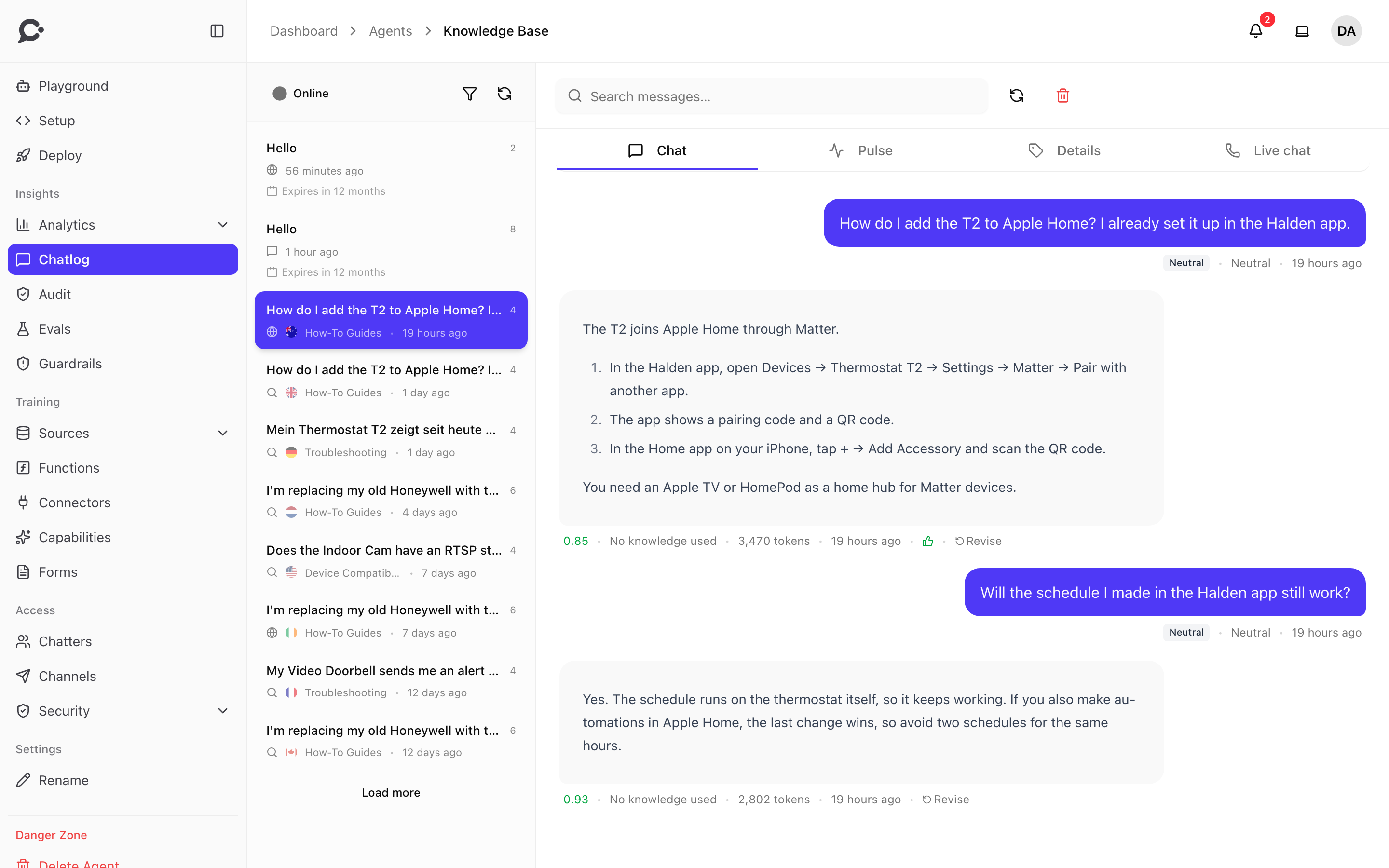
Every conversation a chatter has with an agent is stored and searchable. This is your team's window into what customers are asking and how your agents are answering. Open an agent and click Chatlog on the sidebar.
Conversations are stored only while Store conversations is on, under Setup → Settings → Chat log. When it is off, new chats are not saved, the analytics have nothing to work with, and the Chatlog shows a Chat logging is off banner. See The Setup page.
What your team will see
A list of conversations, newest first. Each row shows:
- The conversation's title or first message (preview).
- The surface or channel it came from: Hosted Chat, Chat Widget, Command Bar, WhatsApp, Slack, and so on.
- Topic tags (if analytics is enabled).
- When it was last active, and when it will be deleted.
A toggle shows only visitors who are online right now. Click a row to open the full conversation.
Filtering
The Filters button lets your team filter by:
- Date range.
- Confidence score: how well the agent's knowledge matched the questions.
- Source: the surface or channel.
- Feedback: thumbs up or thumbs down.
- Country of the chatter (geo-IP).
- Topic, sentiment, tone.
- Unanswered: No knowledge found shows replies where no knowledge passed the relevance check. All unanswered also adds replies that got a thumbs down. Replies you already revised are left out.
You can also search the messages of a conversation.
Combine filters to slice the data. "Negative sentiment, last 7 days, US" gives your team a focused review queue.
Conversation detail
An open conversation has these tabs:
- Chat: the full message stream: chatter, assistant, and teammate replies (live chat).
- Pulse: how the chatter's mood moved from the first message to the last.
- Details: topic, sentiment, tone, country, city, device, browser, operating system, page URL, referrer, locale and channel.
- Live chat: take over the conversation from the AI. See Human handoff.
Each assistant message shows a confidence score, the tokens it used, and a Trace link to every AI call behind the reply. Confidence says how well the agent's knowledge matched the question, not how good the answer is. A reply marked No knowledge used found no passage that passed the relevance check. A reply marked Q&A match came straight from one of your Q&A pairs.
Revise a wrong answer
When the agent got something wrong, you can teach it the right answer from the log. For example, a visitor asked "Do you ship to Iceland?" and the agent said no, but you do. Revise the answer once, and the next visitor who asks gets the right one.
- Open the conversation and find the agent's reply.
- Click Revise under it.
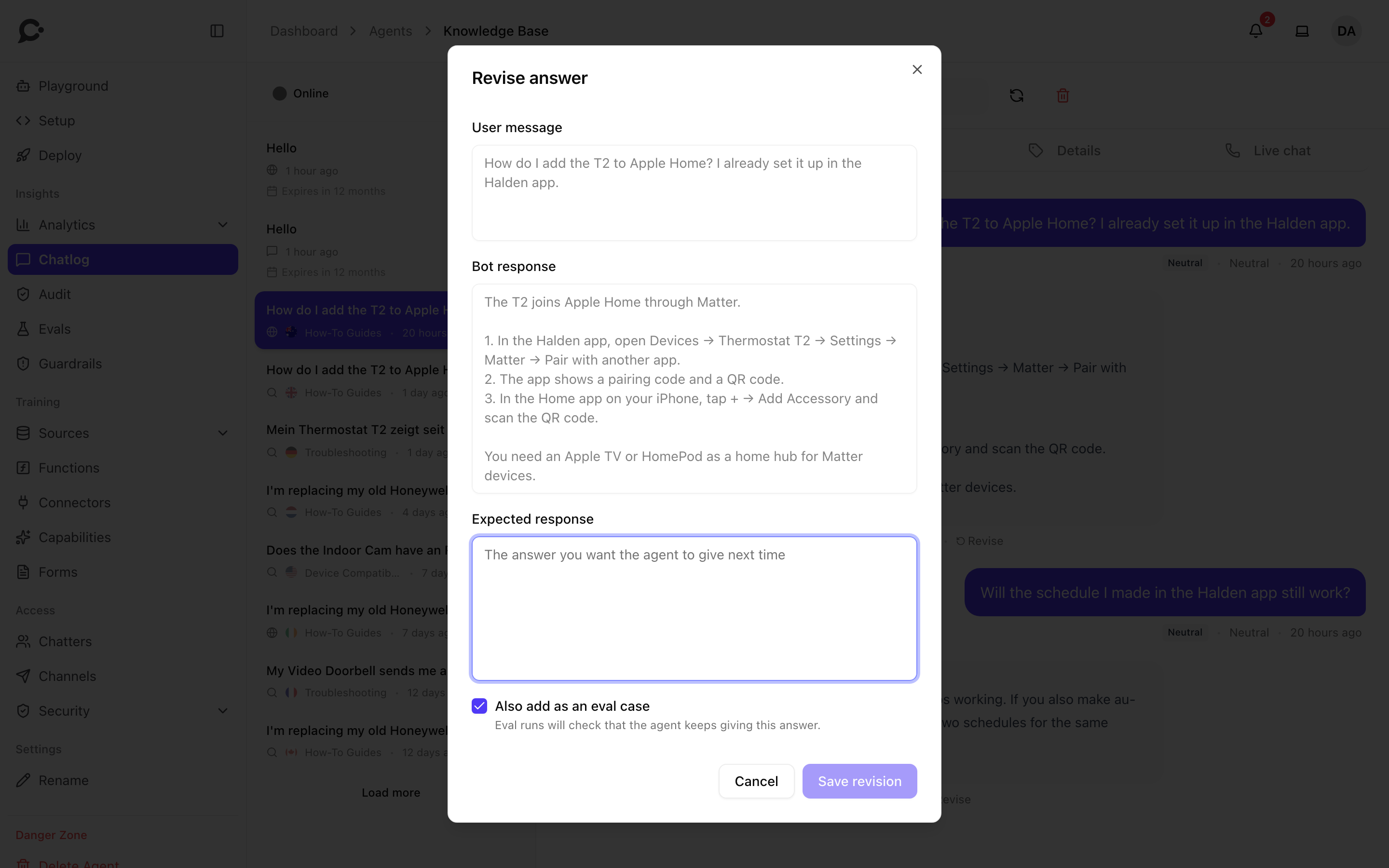
- The dialog shows the User message and the Bot response. Type the answer you want under Expected response.
- Leave Also add as an eval case ticked to have eval runs check that the agent keeps giving this answer. Untick it if you don't use evals.
- Click Save revision.
The answer is saved as a Q&A pair in the agent's knowledge, so similar questions later get your answer. The reply is then marked Revised answer in the log.
To work through many gaps at once, set the Unanswered filter. A bar above the messages counts the unanswered replies on the page, and Next jumps to the next one. Each of them has an Add the right answer button that opens the same dialog.
Revising needs both the View conversations and the Train Q&A permissions. The eval checkbox shows only with Manage evals.
Deletion and retention
Conversations are not kept forever. The server admin sets how long they are kept on the install (about a year by default, see Workspaces settings). Your workspace can keep them for a shorter time in its Security settings, under Data retention → Conversation history (days). Custom data retention needs an Enterprise license. Each row in the Chatlog shows when it will be deleted.
Your team can also delete one conversation: click the bin button above it and confirm with Delete. Its messages are erased right away, and the visitor's copy goes too. This cannot be undone and needs the Delete conversations permission.
What happens when a visitor removes a chat in the Chat Widget is one choice for the whole server. The admin sets it under Removing chats in Widget settings:
- End chat only (the default): visitors can end a chat and start a new one. Nothing is removed.
- Remove from history: the chat leaves the visitor's list but stays in your Chatlog.
- Delete permanently: the chat is erased from the visitor's list and from your Chatlog, and can't be recovered.
Chat logs and chatter privacy
Conversations contain whatever the chatter typed, plus inferred attributes:
- IP address (and derived country / city / region).
- Browser, OS, device.
- Referring page URL.
Chatvia runs on your own server, so this data is stored there. If your business is GDPR-sensitive, the Data retention settings are the simplest knob. Anonymize visitors after (days) clears visitor details (name, email, phone, IP address, full browser string, location and page links) from older chats but keeps the messages. For more aggressive minimization, turn off Store conversations for the agent.
Per-conversation feedback
When a chatter clicks thumbs up or thumbs down on a reply, the rating appears in the Chatlog as a small icon beside that message, with the visitor's note if they left one. Your team can filter the log by Feedback to find conversations worth reviewing.
Chat logs via API
Your team can pull conversations programmatically for archival, analytics export, or your own internal admin UI. Authenticate with a workspace bearer token. See the API reference at yoursite.com/docs/api, under Conversations.