Inbox

The Inbox shows the people chatting with your agents right now, across all your agents, in one list. From there you can read a chat as it happens and step in to answer yourself.
For example, a support lead keeps the Inbox open during the day. When a visitor on the website asks for a person, the chat jumps to the top of the list with a red Waiting badge. The lead opens it, types a reply, and takes over from the AI.
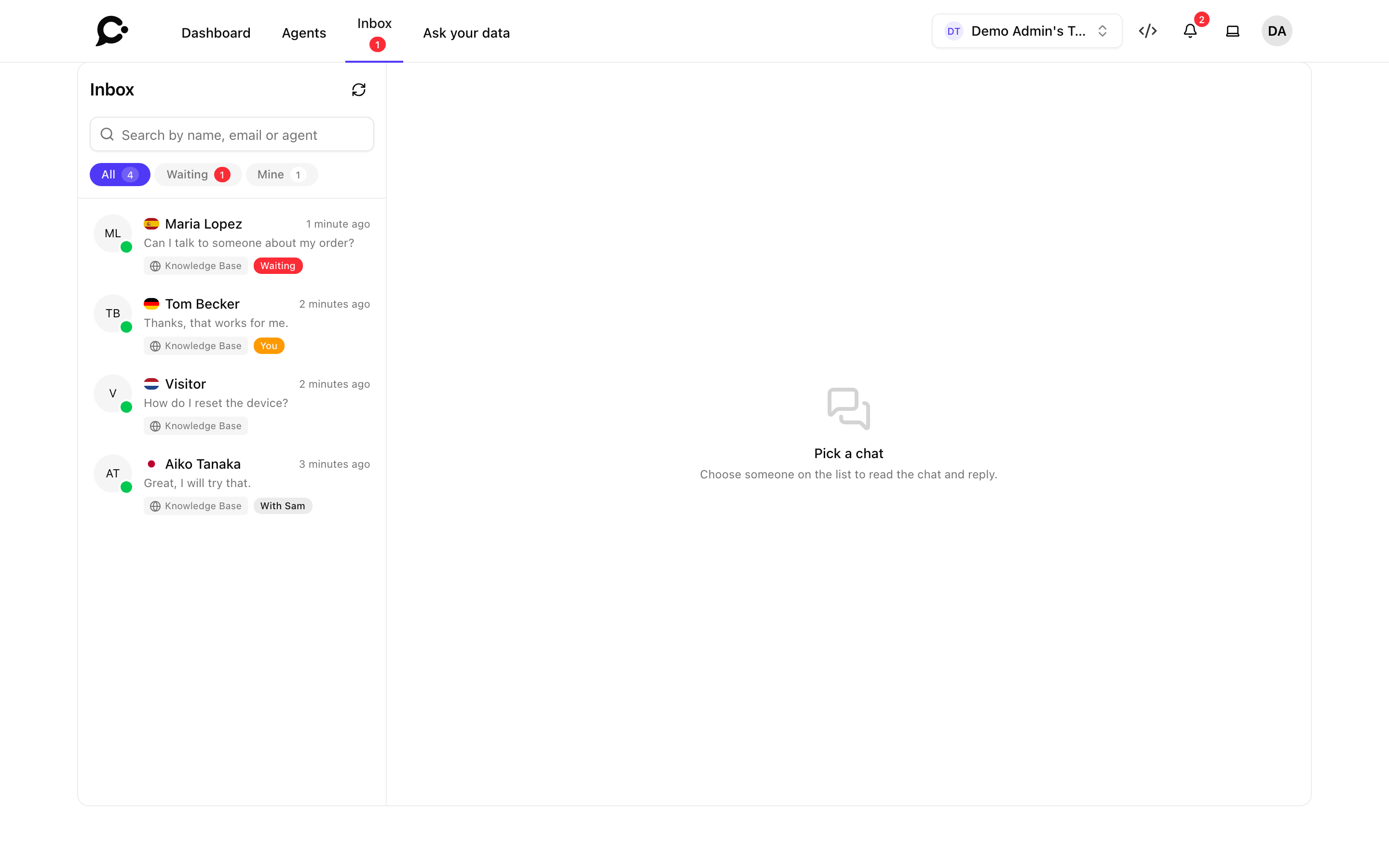
Open it with Inbox in the top bar. A red number next to Inbox shows how many people are waiting for a person.
You see the Inbox when your role can read conversations (the View conversations permission) on at least one agent. The list only holds chats of the agents your role can open. See Teams & roles.
What the list shows
A chat is in the list when:
- the visitor was active in the last 3 minutes, or
- the visitor asked for a person in the last 24 hours and nobody has joined yet, or
- you are the one replying in it.
The order is: chats waiting for a person first, then the chats you are in, then everyone else, newest activity first. The list holds up to 100 chats.
Each row shows the visitor's name (or Visitor when they are not known), their country flag, a green dot when they are online, the last message, the agent, and the channel icon. A badge tells you who has the chat:
| Badge | Meaning |
|---|---|
| Waiting | The visitor asked for a person and nobody has joined yet. |
| You | You took over this chat. |
| With {name} | A colleague took over this chat. |
| No badge | The AI is answering. |
The list refreshes by itself every 15 seconds while the page is open, and right away when a visitor asks for a person. Click the refresh button next to Inbox to refresh it now.
Find a chat
- Use the filters under the search box:
- All: everyone in the list.
- Waiting: people waiting for a person.
- Mine: chats you are in.
- Type in Search by name, email or agent to narrow the list.
Read and reply
- Click a chat in the list. The chat opens on the right, with the visitor's status (Online or Offline) and email. You see when they are typing.
- To see older messages, click Show earlier messages.
- Type in the reply box at the bottom and send. Sending your first message takes the chat over from the AI. There is no separate button for that. The AI stops answering this visitor and your messages show under your name.
- When you are done, click Give back to AI. The AI answers the visitor's next message again.
To see the whole conversation with its details, click the Open in Chat Log button in the chat's header. See Chat logs.
If the visitor is offline when you reply, you still take over the chat. They see your reply when they come back.
When you can only read
Sometimes the reply box is replaced by a note, and you can read the chat but not reply:
| Note | Why |
|---|---|
| "{name} is replying in this chat." | A colleague already took it over. Only one person replies at a time. |
| "Live replies work in the Chat Widget only." | The chat is on Hosted Chat, the Command Bar or a messaging app. |
| "You can read this chat, but you cannot join it." | Live Chat is off for this agent, or your role does not have the Take over permission. |
Good to know
- Leaving the page does not give the chat back. A chat you took over stays yours until you click Give back to AI, or the visitor ends it with End Chat in the widget.
- Get told when someone waits. Turn on desktop alerts and sound for Handoffs in your notification settings, so you don't have to watch the Inbox. See Notifications.
- How handoff works for the visitor, and how a chat can be sent to a person automatically, is explained in Human handoff.