Workspaces

A workspace is the space where one team works in Chatvia. It holds the team's agents, their knowledge, their chats and their teammates. One person owns it, usually the one who signed up. A shop, a support team or one of your clients each gets a workspace of its own, and they cannot see each other's. This is what makes Chatvia multi-tenant: one install serves many customers, and each one's data stays in its own workspace.
The Workspaces page lists every workspace on the install, with its owner. From a workspace's page you can see its numbers, agents and teammates, and act on it: rename it, set its message limit and its generation limit, help its owner sign in, switch it off, or delete it. Open it with Workspaces in the admin panel's sidebar. You need it when an owner asks for help, when a workspace uses too much, or when you want to see who uses your install. Workspaces run on their own, so you do not need to visit this page unless something comes up.
The list
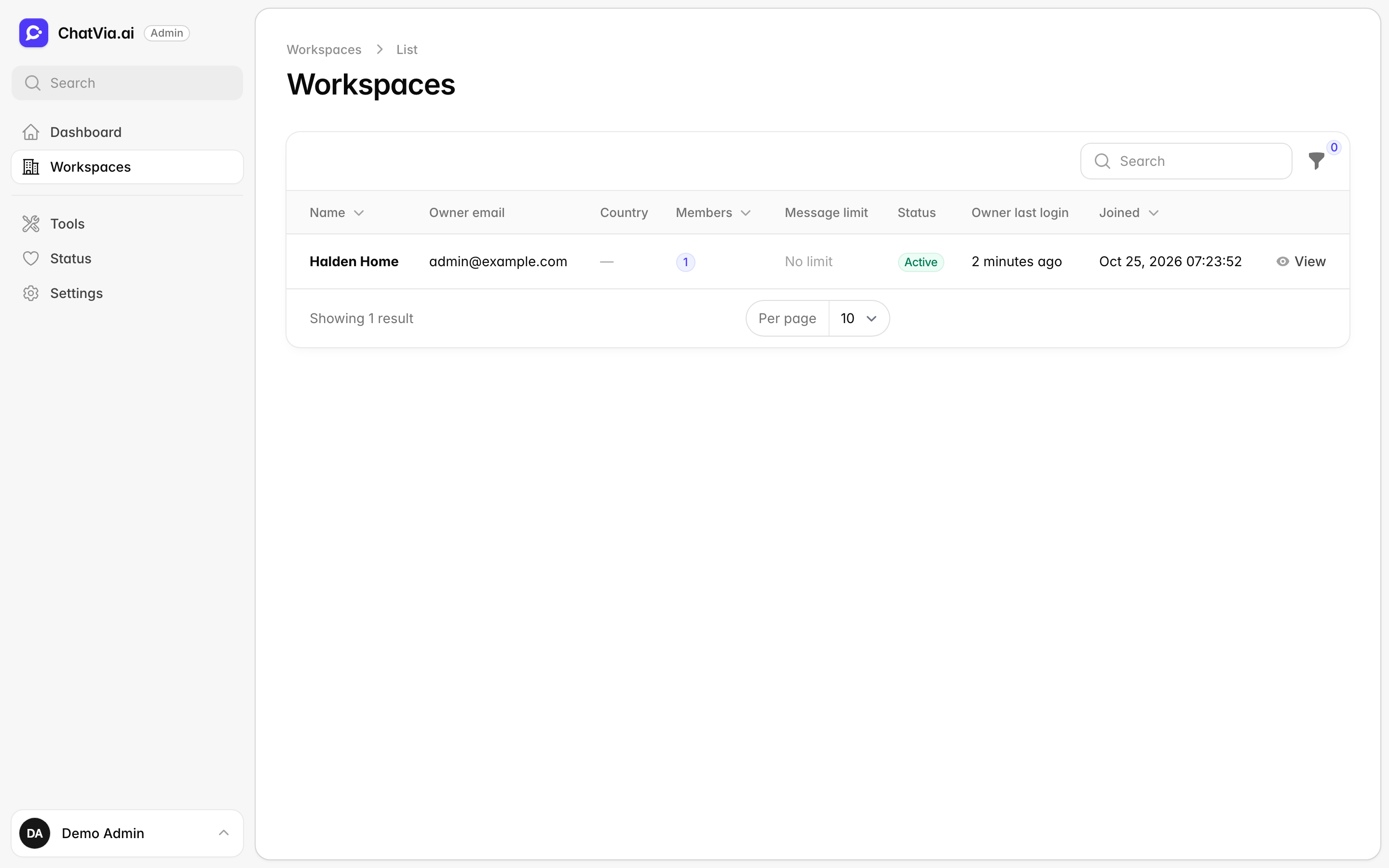
The list is the phone book of your install: one row per workspace, with who owns it and how active it is.
| Column | What it shows |
|---|---|
| Name | The workspace's name. |
| Owner email | The email the owner signs in with. |
| Country | Where the owner signed up from, when it is known. |
| Members | How many people belong to the workspace. |
| Message limit | The monthly limit on agent replies, or No limit. |
| Status | Active, Deactivated or Being deleted. |
| Owner last login | When the owner last signed in, or Never. |
| Joined | When the workspace was created. |
The newest workspaces come first. Search finds a workspace by its name or its owner's email. The Status filter shows All workspaces, Deactivated only or Active only.
Click View on a row to open the workspace's page.
A workspace's page
A workspace's page shows everything about one workspace in one place. You can look without changing anything. The tabs only show information, and the buttons at the top are the only way to change the workspace.
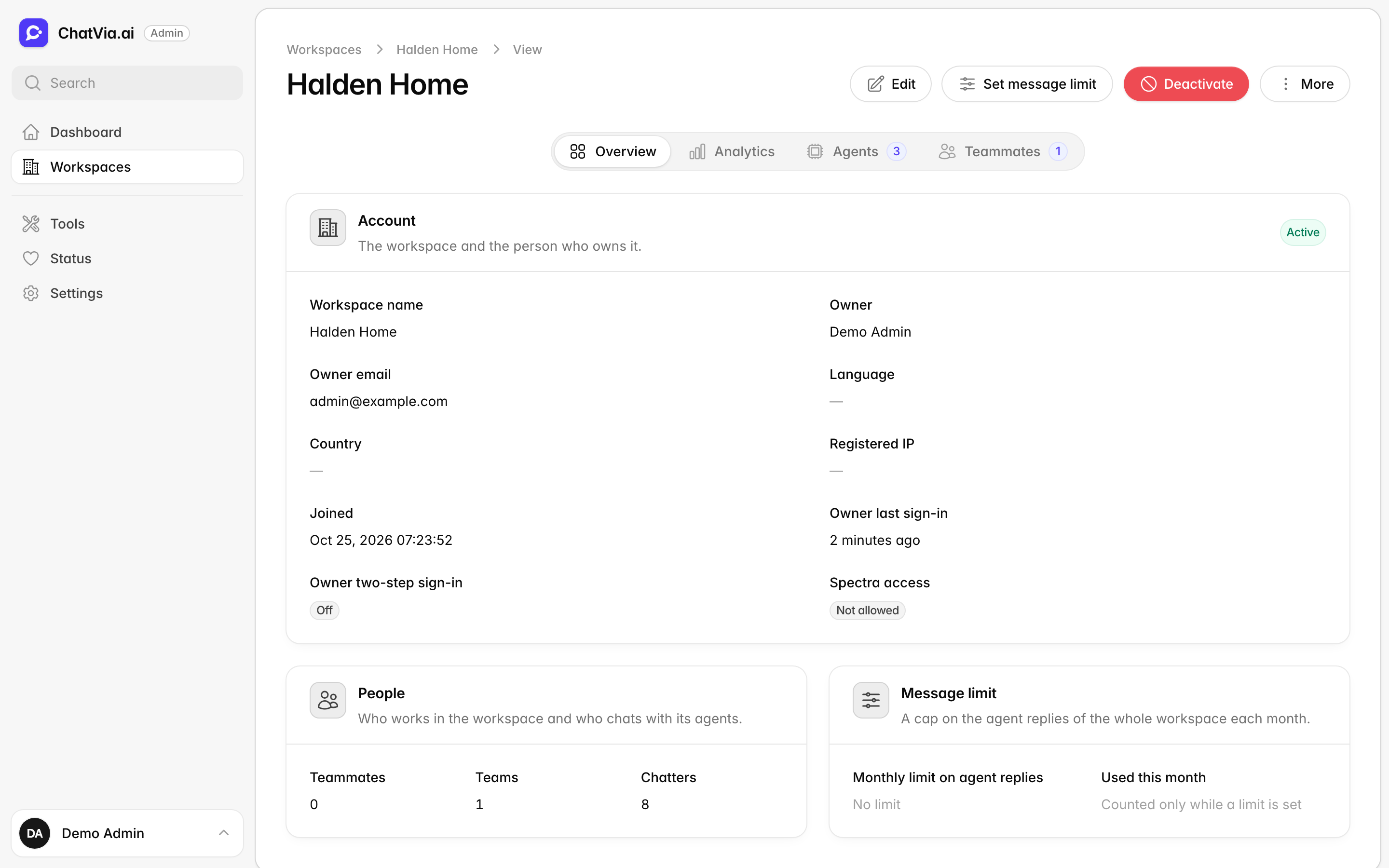
The page has four tabs. It opens on Overview.
Overview
Who the workspace is, and how much of its message limit and generation limit it has used.
- Account: the workspace name, the owner and their email, the owner's language and country, the IP address they signed up from, when the workspace joined, and when the owner last signed in. An IP address is the number that identifies a device on the internet, a bit like a return address. It also shows whether the owner uses two-step sign-in, and whether the workspace's owner may open Spectra (Spectra access). For a workspace that is switched off, Why it is switched off shows the reason. The badge in the card header shows the status.
- People: how many teammates, teams and chatters the workspace has. Teammates are the staff who build agents and answer chats. Chatters are people the workspace invited to talk to its agents, such as customers, without access to the dashboard.
- Message limit: the Monthly limit on agent replies, how many were Used this month, and the day The count restarts on. The count runs only while a limit is set.
- Generation limit: the Monthly limit on pictures and audio files and how many were Made this month, then the Monthly limit on videos and the Videos made this month. The counts run only while a limit is set.
Analytics
How busy the workspace was this month.
This month's numbers: messages, conversations, new visitors, tool calls, leads, the average reply time and the agents. A tool call is when an agent uses one of its tools during a chat, such as a form or a web search. The Message limit number shows how much of the limit is used, and warns when it is reached. Below them, a chart shows the messages of the last 30 days. The tab loads when you first open it.
Agents
The agents the workspace has built.
Every agent of the workspace: its name and chat address, its access (Public or Protected), its model, where it answers (Answers on), how many knowledge sources it has, its conversations and messages this month, when it was last active, and when it was created. Public means anyone can chat with the agent. Protected means only people who sign in can, such as invited chatters. The model is the AI model that writes the agent's replies. This tab is read-only.
Teammates
The people who work in the workspace.
Every staff account of the workspace, the owner first: name and email, role (Owner or Teammate), teams, last sign-in, status and two-step sign-in. This tab is read-only.
Change a workspace
The buttons at the top of a workspace's page act on it. You use them when an owner needs help, or when a workspace breaks the rules of your install. Each one opens a dialog first, where you fill in or confirm what happens.
Edit
Fix the workspace's name or its owner's details, for example when the owner changed their email address.
Edit changes the Workspace name, the Owner name and the Owner email. The owner signs in with that email. A new email must be confirmed again by the owner before they can use the dashboard.
Set message limit
A message limit caps how many replies the workspace's agents may send in a month. Each reply costs money at your AI provider, so a limit keeps one workspace from running up your bill. For example, you might give a client on a small plan 1,000 replies a month.
Set message limit sets Agent replies per month for this workspace. Leave the field empty for no limit. The count of this month is kept when you change the limit, so a lower limit can stop the agents right away.
New workspaces start with the limit set in Settings → Workspaces. See Message limits for what is counted and what happens when the limit is reached.
Set generation limit
A generation limit caps how many pictures, audio files and videos the workspace's agents may make in a month, when chatters ask for them in the hosted chat. A picture costs much more than a reply, so this limit is separate from the message limit. A video costs much more than a picture, so videos have a limit of their own. For example, you might give a client 200 pictures and audio files and 10 videos a month.
Set generation limit has two fields:
- Pictures and audio files per month: the most pictures and audio files together.
- Videos per month: the most videos.
Leave a field empty for no limit on that kind, which is how every workspace starts. The count of this month is kept when you change a limit, so a lower limit can stop new files right away. A file that fails to be made is not counted. Both counts restart on the first day of each month.
When a limit is reached, the agent tells the chatter it cannot make more of that kind this month, and still answers in text. Each reply still counts as one message against the message limit. Image, audio or video generation must also be on for the install (see AI models).
Deactivate and Reactivate
Deactivating is like locking the door of a workspace without throwing anything away. Use it when a client stops paying, or when a workspace is misused.
Deactivate switches the workspace off. Enter a Reason. Only staff see it. The owner, every teammate and every chatter are signed out and cannot sign in again. The agents stop answering on every surface and channel, and voice calls end. Nothing is deleted.
Reactivate switches it back on. Everyone can sign in again, and the agents answer again.
More actions
The More menu holds the rest: help for an owner who cannot sign in, a copy of the workspace's data, access to Spectra, and deleting the workspace.
| Action | What it does |
|---|---|
| Open in dashboard | Opens the admin panel dashboard filtered to this workspace. |
| Export data | Prepares a ZIP of the workspace's data in the background. The owner gets an email with a download link when it is ready. Only one export can wait at a time. |
| Allow Spectra access | Lets the workspace's owner open Spectra, the log of AI calls. Teammates cannot. Spectra shows every AI call on the install, from every workspace, not just their own. Allow it only for an owner you trust with that. Take back Spectra access removes it again. Nothing already recorded is removed. |
| Email a password reset link | Sends the owner the same email as "Forgot password" on the sign-in page. The current password keeps working until they choose a new one. |
| Set a new password | For an owner who gets no email. The current password stops working at once, and every place they are signed in is signed out. Give them the new one in a safe way. Two-step sign-in, if it is on, still applies. |
| Turn off two-step sign-in | For an owner who lost their authenticator app and their recovery codes. They sign in with their password only, until they turn it on again. Their passkeys stay. |
| Delete workspace | Removes the workspace for good. |
Allow Spectra access shows only while Spectra is part of the install. Turn off two-step sign-in shows only while the owner uses it.
A few words from the table:
- A ZIP is one file that packs many files together, so they download in one go.
- Spectra is the tool that logs every call Chatvia makes to an AI service, with its cost. See Observability settings.
- Two-step sign-in asks for a code from an app on the owner's phone, the authenticator app, after the password. Recovery codes are spare one-time codes for when the phone is lost. A passkey signs in with the phone's or computer's fingerprint, face or PIN instead of a password.
Delete a workspace
Deleting removes a workspace and everything in it, for good. Use it only when you are sure nobody needs the data. If you are not sure, deactivate it instead, or export its data first.
Delete workspace asks you to type the workspace's name to confirm. Everyone is signed out at once. Then its agents, knowledge, chats, chatters, teammates and files are removed in the background. The owner gets no email. This cannot be undone. While it runs, the workspace's status is Being deleted.
Your own workspace
Deactivate and Delete workspace are greyed out for a workspace that an admin belongs to. Switching it off would lock that admin out of the admin panel.
Related
- Message limits: what the workspace limit counts.
- Workspaces settings: sign-up, the limit of new workspaces, and how long conversations are kept.
- Observability settings: what Spectra records.
- Manage your install: reset passwords from the command line.