Leads

A lead is contact information a customer shared with one of your agents, usually a name and email, sometimes also phone, company, or location. Customers share it by filling in a form that the agent shows inside the chat. Every form submission is a lead.
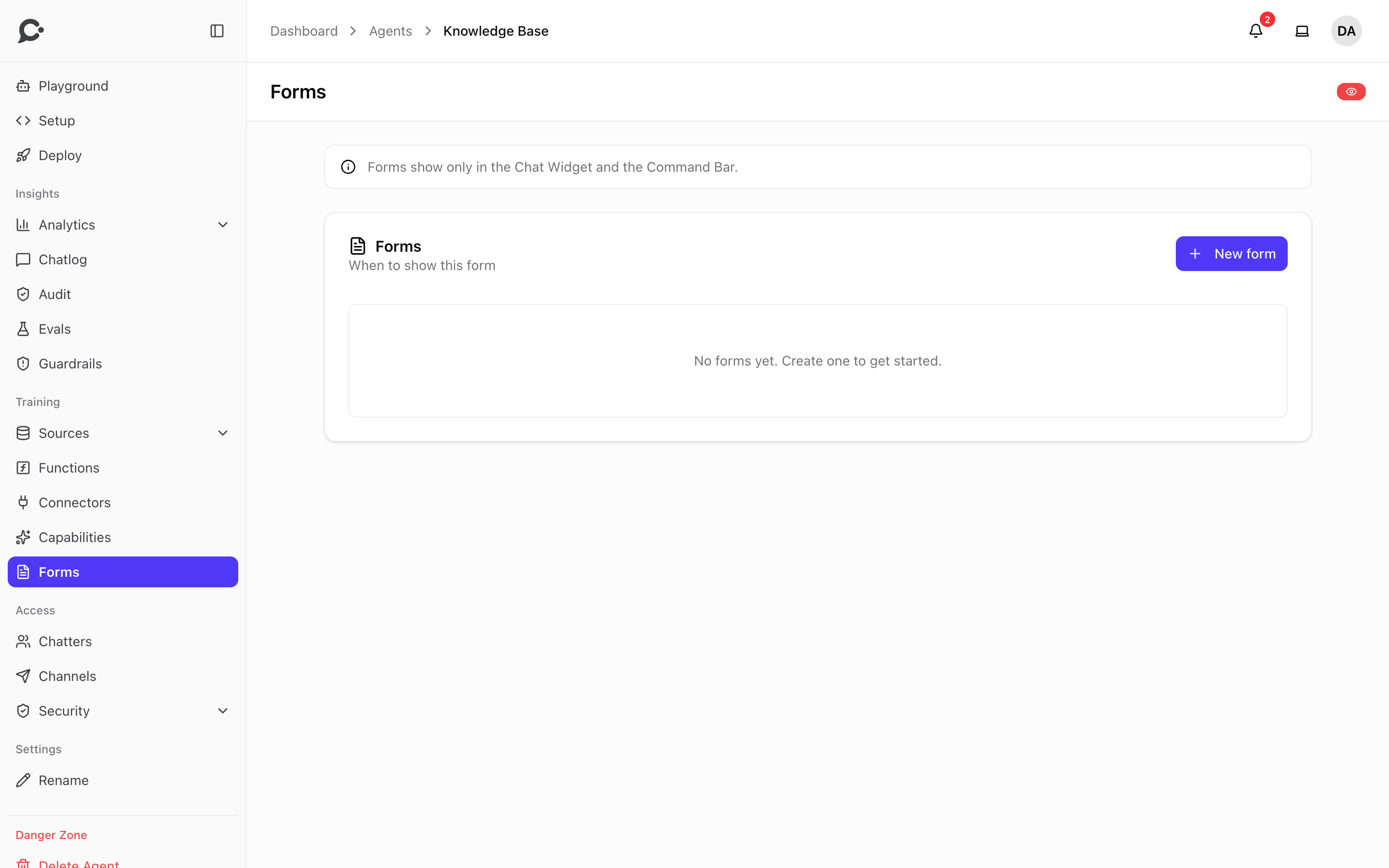
Forms show inside the chat on Hosted Chat, the Chat Widget and the Command Bar. Messaging channels (WhatsApp, Slack, and so on) can't show a form, so there the agent keeps helping in words.
Needs a license key
Forms and leads need a license key on your Chatvia install. Without one, forms don't show in chats and leads are locked, but they are kept. See What needs a key.
Creating a form
Open an agent and click Forms on the sidebar. Click New form:
| Field | Notes |
|---|---|
| Form name | For example "Get a quote". Shown as the form's title. |
| Form type | Lead capture, Qualification, Booking or Generic. |
| When to show this form | Describe the moment, for example "when the visitor wants a quote, a demo, or to be contacted". The agent uses it to decide when to show the form. Rewrite using AI can improve it. |
| Description | Shown to the visitor under the form title. |
| Fields | Each field has a label, a type, a Required switch and Maps to. |
| Success message | What the customer sees after submitting. |
| Active | Only active forms are shown. |
A Preview shows the form as the customer will see it.
The field types are short text, email, phone, number, long text, dropdown, single choice, checkbox, multiple choice and date.
Maps to tags a field as a standard contact field: name, email, phone, job title, company, location or message. Mapped fields fill the lead's details. Leave it as "—" to capture the answer without tagging it.
Saving a new form also turns on the Forms capability for the agent, which is what lets it show forms at all. If you turn that capability off on the agent's Capabilities page, the agent stops showing forms, even though they still exist. Creating and editing forms needs the Manage Connectors permission.
The form appears inline in the chat, so customers don't navigate anywhere. If they don't fill it in, the chat continues without a lead. The agent doesn't show a form again once the visitor has sent it in the same session.
Meeting bookings
When the agent's Calendar capability books a meeting, the booking is saved as a lead too. The agent gets a form called Meeting bookings the first time it shows a calendar. Its leads hold the visitor's name, email, the meeting type, the start time, the visitor's time zone and any notes.
The Calendar capability manages this form, so you cannot edit or delete it. You can open its Submissions, export them and delete leads, like any other form. New bookings also send the usual new-lead notification.
Where leads show up
A submitted lead lands in two places:
- Submissions of its form: open Forms, then the form's Submissions. A searchable list your team can work from. Click a row to see the lead's details.
- Conversations in the Chatlog: a conversation with a lead is marked Lead.
Lead details
The lead details show the answers to the form's fields, plus:
| Field | Notes |
|---|---|
| Custom fields | Answers to fields that don't map to a contact field. |
| Page URL | Captured from the host page. |
| Referrer URL | Captured from document.referrer. |
| IP address, locale | Captured automatically. |
| Browser, OS, device | From the user agent, which is kept too. |
Exporting leads
The Export CSV button on a form's Submissions page downloads its submissions as CSV. Useful for piping into your CRM nightly.
For real-time delivery, wire up a function called create_crm_lead that the agent calls when it captures one, or pull from the API on a cron. Functions are workspace-level, so one CRM connector covers every agent your team runs.
Notifications
When a new lead comes in, everyone who may see the agent's leads gets a notification: "New lead from {form}". Each person chooses how they hear about it in their account settings, under Notifications → Leads: the bell in the dashboard, a desktop alert, and a sound.
Deleting leads
Delete a single lead from its row on the Submissions page. Deleting a lead leaves the underlying conversation intact. The lead disappears, the chat doesn't.
Deleting leads needs the Lead settings permission. A teammate who can only view leads does not see the delete button. Downloading the CSV needs the Export leads permission.
Deleting a form deletes its leads too. The dashboard tells you how many before you confirm.
Your workspace can also delete old leads automatically: set Data retention → Leads (days) in the workspace Security settings. Custom data retention needs an Enterprise license.
Leads on protected agents
If the agent uses identity verification, the chatter is already known, so a lead form usually isn't necessary. Your team can still use one to collect richer attributes (phone, company).
Leads via API
The API lists a form's submissions and exports them as CSV. See the API reference at yoursite.com/docs/api, under Forms.