Setup wizard

A wizard is a set of screens that walks you through a task one step at a time. The setup wizard gets a new install ready to use: it checks the server, then asks for an AI provider, the models, and the optional services. It opens the first time an admin signs in to the admin panel at /admin. Until the setup is finished or skipped, every page of the admin panel leads to it.
The person who installed Chatvia goes through it once. It asks for a few accounts at outside services, so have them at hand, at least an account at an AI provider such as OpenAI. You can change everything you choose here later, under Settings, so nothing here is final.
Each key is checked when you click Next, before the next step opens. Your choices are saved when you click Finish setup on the last step. The one exception is a license key: it is saved as soon as it is activated, on the License step. Keys are stored encrypted, which means scrambled so only the app can read them, and they are never shown again.
Each step starts on the safe choice, such as a Disable card or This server, unless that service is already set up. A service you leave on its Disable choice is turned off.
Step 1: Server
What Chatvia runs on.
Chatvia needs a few helper programs running next to it on the server, the computer your install runs on. There is the database that stores everything, Redis for fast short-term memory, Horizon for the background jobs, the scheduler for timed tasks, and Reverb for live updates in the browser. This step checks that they all answer before you go on. The Status page explains each one.
Services checks the services Chatvia needs beside the web server, live, as on the Status page: PostgreSQL, Redis, Laravel Horizon, the scheduler, Laravel Reverb and models.dev. The line above the cards says whether everything runs. Fix a service that is down, then check again.
If you click Next while a service is down, the wizard asks first: Continue with a service down? Chatvia does not work fully while a service is down. Agents may not answer, and sources are not trained. You can go on with Continue anyway and fix it later, or click Fix it first.
Keyword search
When a visitor asks a question, an agent searches your knowledge in two ways at once: by meaning, and by the exact words of the question. The second way is keyword search. pg_textsearch is an add-on for the database that does keyword search better. It uses a method called BM25, which gives rare words more weight than common ones.
Keyword search shows only while the database does not use pg_textsearch. Chatvia finds answers by meaning and by the words of the question. pg_textsearch ranks the words better than PostgreSQL's built-in search, most of all without a reranker. The box tells you what to do next:
- Install pg_textsearch (recommended): install it from its releases page. The Docker setup and
install.shinclude it. Then load it, as below. A managed cloud database often cannot load it. Then go on: the built-in search works. - Load pg_textsearch when PostgreSQL starts: add
shared_preload_libraries = 'pg_textsearch'topostgresql.conf, the database's settings file, restart PostgreSQL, then press Check again. - Turn on pg_textsearch: the database has it loaded. Click Turn on pg_textsearch. This also rebuilds the search indexes.
- pg_textsearch is installed, but not used: the
SEARCH_LEXICAL_DRIVERsetting in.envkeeps the built-in search. The.envfile is the settings file on the server that the app reads when it starts. Remove the setting, then runphp artisan chatvia:search:lexical-indexes.
See How search works for the difference.
Step 2: License
Free or licensed.
Chatvia is free to use, with no limits on agents, teams or replies. A free install has one workspace. It has no API, no voice conversations, no Live Chat, no capabilities and no forms, and it shows a small "Powered by ChatVia.ai" line under every chat. A license key turns these on and lets you hide that line. Buying one also supports the development of Chatvia. See License keys for the plans and prices. Buy a license opens chatvia.ai/license.
License key takes the key from the email you got when you bought it. Paste the whole key. When you click Next, the key is activated for your install's domain at chatvia.ai and saved at once. If chatvia.ai refuses the key, the wizard stays on this step and says why. The field is optional: leave it blank to go on without a key. You can add a key later on the License page.
A key works for one domain at a time. While your install runs at an address only your own computer opens, such as localhost, it is best to add the key once Chatvia runs at its real address. You can still add it here: the key is then activated for that address. Before you move Chatvia to its real address, remove the key on the License page, so it is free for the new domain.
When a valid key is saved already, the box shows its type and who it is licensed to, and no field is shown.
Remove license shows while a key is saved. It asks first, then removes the key: the free limits come back, and the steps after this one lock what needs a license. The key is freed at chatvia.ai, so you can use it on another install, or paste it here again.
The steps after this one unlock what your license allows. Without a key, Voice conversations on the Voice step is locked on Disable voice conversations, as a free install has none. Once a key is activated, you can pick it.
Step 3: AI provider
The main AI provider. Your agents use its models to answer.
An AI provider is a company that runs AI models and lets apps use them for a fee, such as OpenAI, Anthropic or Mistral. Chatvia does not come with its own AI. It sends each question to your provider and pays with your account. To connect, you give Chatvia an API key: a long secret code from the provider's website that lets Chatvia use your account, like a password made for an app.
This is just the one to start with: you can add more later in Settings → AI providers.
Pick a provider card. Each card lists what its key gives, such as chat, embeddings or speech to text. Then paste its key in the API key field. Get a key opens the provider's page where you create one. Azure OpenAI also asks for an Endpoint, the address of your Azure service.
To use a model server of your own, pick Your own server: vLLM, Ollama, LM Studio or another service with an OpenAI-compatible API. These are programs that run AI models on your own computer or server, so no question leaves your network. OpenAI-compatible means they accept requests in the same format as OpenAI. Fill in:
- Name: how the server is listed, such as "Ollama on the office server".
- Address: the address of its OpenAI-compatible API, usually ending in
/v1. - API key (optional): leave it empty when your server has no key.
Next checks the key by reading the provider's list of models.
Step 4: Models
What agents answer with. The box at the top says which provider you are connected to. Each section has a Test button that tries your choice. Next tests the whole step (see Testing the models).
An AI model is the "brain" that writes the text. One provider offers many models. Big models write better answers but cost more and take longer. Small ones are fast and cheap. Providers bill by the token, a small piece of text of about three quarters of a word, so a cheaper model saves money on every reply.
Chat models
The models agents can use. Each agent picks one, and new agents start with the default.
- Models agents can use: pick one or more from the provider's list. The suggested ones call tools well. A tool is something an agent can do besides talking, such as showing a form or searching the web. If you pick a model that cannot call tools, a warning says that agents that use it answer without their tools.
- Default for new agents: shown when you pick more than one model.
- Model for quick tasks: the model for guardrails, follow-up questions, titles and other small jobs that run around each reply. Guardrails are safety checks on what visitors write and what agents answer. A small, fast model keeps replies quick and cheap. Empty uses the chat model. Click a task's name to see what it does.
- Describe images and Model for image descriptions: a model that reads images describes the pictures in your documents, so search can find what they show. Off leaves the pictures out. The text is still read.
- Chat file uploads and Model for chat file uploads: lets chatters attach files in a chat. Only models that read both PDF files and images are listed. Off means chatters cannot attach files.
When the provider has no model list, such as some servers of your own, type the model's name in Model instead, exactly as your provider writes it.
You can add more models later in Settings → AI models.
Embeddings
An embedding is a list of numbers that stands for the meaning of a piece of text. Texts that mean the same thing get similar numbers, even when they use other words. So when a visitor asks "how do I send it back?", the agent can still find your page about returns. The list of numbers is called a vector.
Embeddings turn your documents, and each question, into vectors, so agents find the right part. The section starts on your provider's own embedding service when it has one that fits. You can pick another service. It may need its own key. Then pick or type the Embedding model. The test makes a test embedding.
If sources are already trained, the box says Embeddings are already set up, and the wizard keeps the service and model the sources were trained with.
Reranker
A reranker works like a librarian. Search brings back a pile of possible answers, and the reranker reads each one against the question and puts the best ones on top.
A reranker scores what search finds, and your tools, against each question, so agents use only the relevant ones.
| Choice | What it is |
|---|---|
| Cohere | Cohere Rerank, on Cohere's own API. |
| OpenRouter | The rerankers of Cohere, Voyage and Qwen, with one key. The Model list comes from OpenRouter. |
| Your own server | vLLM, Infinity or another server with the common /rerank API. Fill in its Address, the Model and, only if it asks for one, an API key (optional). |
| Disable reranker | Search uses a basic similarity check instead, and finds the right part less often. |
When OpenRouter is your main provider, the reranker starts on OpenRouter, as the same key covers it. The test tries the reranker with a test question.
Testing the models
When you click Next, a window opens: Testing the models. It tests what you chose on this step, with the keys you entered, in three parts:
- Chat models: each chat model you picked is asked to answer.
- Embeddings: the embedding model makes a test embedding.
- Reranker: the reranker scores a test question. This part is left out when you pick Disable reranker.
Each line shows a tick when it works, or a cross with the reason when it does not. A warning means the provider was busy (too many requests right now). A busy chat model does not stop you.
- When every line works, click Continue to go to the next step.
- When something does not work, Continue stays off. Click Back to models, then change or remove what failed (for a chat model, use Manage models), and click Next again.
If you already tested everything with the Test buttons and nothing changed since, Next goes on without the window.
Step 5: Ingestion
Documents and websites.
Ingestion means taking in your material so agents can learn from it. Agents answer from the knowledge you give them, such as your price list as a PDF, or the pages of your website. This step picks the services that read those files and websites, and whether AI enhances what agents learn.
Document reader reads PDF, Word, slides and images, with their tables, so agents can learn from them. Reading the text out of a scan or a photo is called OCR (optical character recognition).
| Choice | What it does |
|---|---|
| Mistral OCR | Reads scans, images and tables, also the pictures inside Word and PowerPoint files. Each file is sent to Mistral. |
| Azure Document Intelligence | Reads scans, images and tables, but not the pictures inside Word and PowerPoint files. Each file is sent to Azure. Also asks for your resource's Endpoint. Use the standard tier (S0): the free one reads only 2 pages of each file. |
| Disable document reader | PDF, Word, PowerPoint and image files are not read, so they cannot be uploaded. Only text, Markdown, Excel, CSV and ebook files are read. |
If you pick Disable document reader, Next asks you to confirm: Continue without one, or Choose a reader.
Web scraper lets agents learn from a website. Firecrawl finds the pages of a site and reads each one, also pages built with JavaScript. Pick Firecrawl and paste your Firecrawl API key, or pick Disable web scraper. Without it, people cannot add websites as knowledge. Files, texts and Q&A still work. Firecrawl is paid per page read. You can also run your own Firecrawl server, set up later in Settings → Knowledge.
AI enhancement
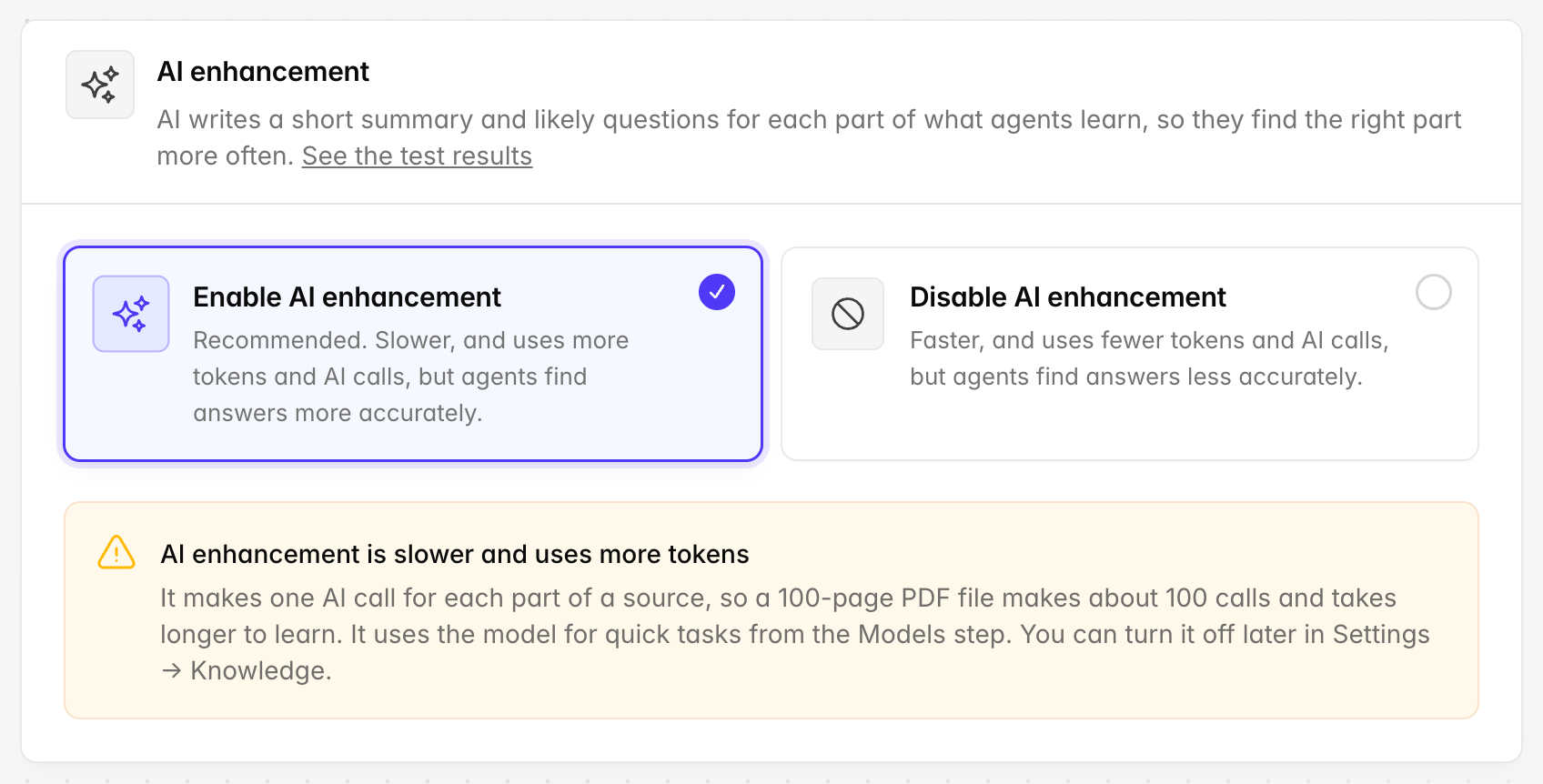
AI enhancement helps agents find the right part of what they learn. While agents learn a file, a web page or a text, AI writes a short summary and the likely questions for each part of it, and a summary of each whole file. A question then matches the right part more often, even when it uses other words than the text.
| Choice | What it does |
|---|---|
| Enable AI enhancement | Recommended. Slower, and uses more tokens and AI calls, but agents find answers more accurately. |
| Disable AI enhancement | The default. Faster, and uses fewer tokens and AI calls, but agents find answers less accurately. Files and websites are ready sooner. |
AI enhancement is slower and uses more tokens
Your AI provider charges by tokens, so AI enhancement costs more. It makes one AI call for each part of a source, so a 100-page PDF file makes about 100 calls. Learning also takes longer, so files and websites are ready later. It uses the model for quick tasks from the Models step. Large files cost the most. Texts are short, so they cost little.
While Enable AI enhancement is picked, the step shows the same warning under the two cards. With Disable AI enhancement, the warning is hidden, and search uses the text of your sources as it is.
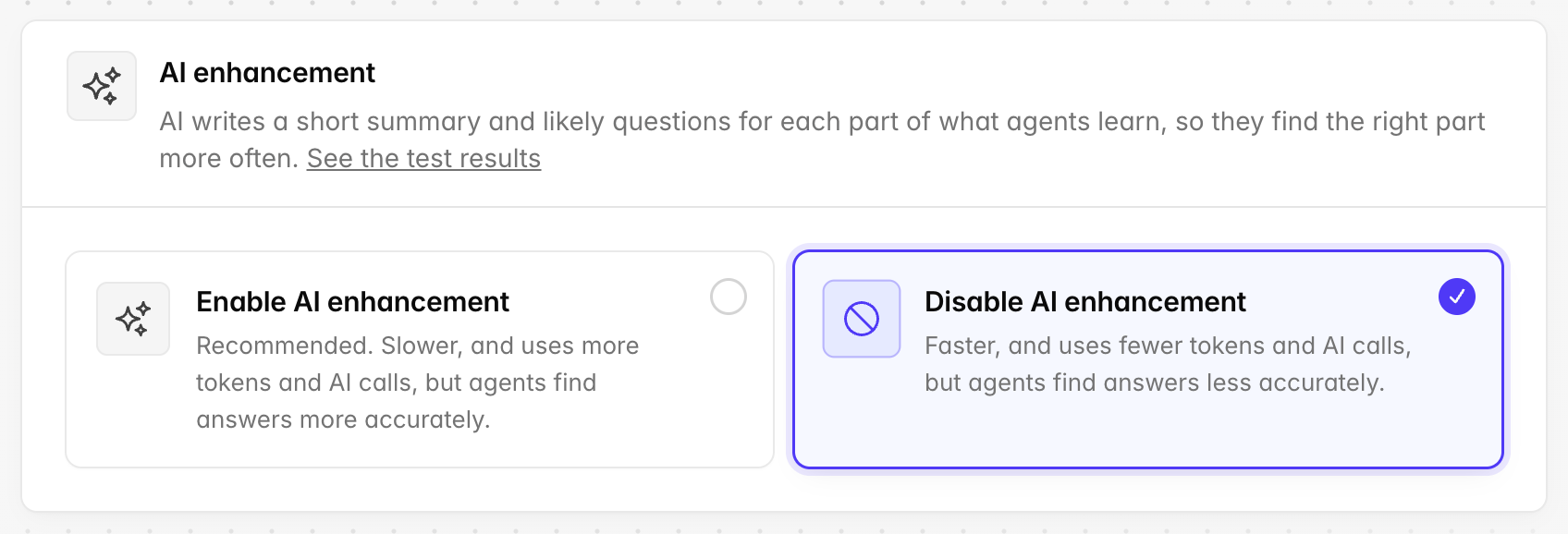
Which one to pick. Pick Enable AI enhancement if good answers matter more than the AI cost. Pick Disable AI enhancement if people upload very large files and you want them ready sooner, at a lower cost. You can also turn it on and pick a cheaper model for it later. To see how much it helps in our tests, read How much it helps.
This choice turns the enhancement of files and web pages, of texts, and the summary of each source on or off together. Later you can turn them on or off one by one in Settings → Knowledge and Settings → AI models. A change applies to what agents learn after it.
Step 6: Voice
Speech to text and live calls.
Some visitors prefer to talk instead of type, and some of your knowledge may be in recordings, such as a webinar or a training video. This step picks the services that turn speech into text, and that let visitors talk with an agent out loud.
Speech to text turns speech into text. Agents can then learn from audio and video files, and voice messages become text. Pick a provider that offers it, such as OpenAI or Scaleway AI, or pick Disable speech to text. Without it, people cannot upload audio or video files, and voice messages stay audio.
Voice conversations lets visitors talk with an agent in a live call, in the hosted chat and the Chat Widget. The agent listens, answers out loud and uses its tools. It uses the OpenAI Realtime API, so it needs an OpenAI key, also when your agents answer with another provider. Each agent still turns calls on in its own setup, and a call costs much more than a typed chat. Disable voice conversations hides the call button. You can turn calls on later in Settings → AI models.
Voice conversations need a license key. Without one, the section says Voice conversations need a license, links to Buy a license, and stays on Disable voice conversations. Add a key on Step 2: License to pick it.
When a service runs on a provider whose key you typed in an earlier step, it uses that key, and does not ask again.
Step 7: Storage
Where knowledge files, chat attachments, public images and backups are kept.
Every file people upload has to be kept somewhere. The simplest place is the server's own disk. The other choice is S3-compatible storage, an online file store you rent, such as Amazon S3. It keeps your files safe even if the server breaks.
The step has three parts. Each one is either This server or an S3-compatible bucket, the folder you create at the storage service.
- Private files: knowledge files, chat attachments and generated images and videos. This server (the default) needs no account and is fine for one server. S3-compatible private bucket works with AWS S3, Scaleway Object Storage, Cloudflare R2, MinIO and others. Keep this bucket private.
- Public images: profile photos and agent logos. This server (the default) is fine for one server. S3-compatible public bucket also asks for its Public URL, and the bucket must let anyone read its files.
- Backups: This server (the default), S3-compatible private bucket, which keeps the backups safe if this server breaks, or Same as the private bucket, which fills in the private bucket's fields and locks them.
Each part picks its own place. So you can keep the private files on this server and still send the backups to a bucket.
Each bucket has its own connection: Endpoint (leave it empty for AWS S3), Region, Access key ID, Secret access key and Use path-style addresses (for MinIO and some other servers). So each bucket may sit with another service or account. When they are all with the same service, copy the same values into each part.
See Storage settings for how to make a bucket public at each service.
Next checks each bucket with a test file. For the public bucket it also loads the file from the public URL.
Choose before people add files
Switching later moves no files. So pick the storage before people upload anything.
Step 8: Mailer
Sending email: sign-up verification, password resets and invitations.
Chatvia does not send email by itself. It hands each email to a mail service, like dropping a letter at the post office. You can use your own mail server through SMTP, the common language of mail servers, or a mail service such as Amazon SES or Postmark.
Pick a service in Send email with: an SMTP server, Amazon SES, Mailgun, Postmark, Resend or Cloudflare Email. Fill in its fields, then the Sender address and the Sender name. The sender name starts as the app name. If you change the app name on the Final step, the sender name follows, unless you changed it yourself.
With Disable email, nobody receives emails. People cannot verify a sign-up, reset a password, or accept an invitation. You can set up email later in Settings → Email.
Step 9: Observability
A log of every AI call.
Observability means being able to see what happens inside the app. Here it means Spectra, a logbook of every question Chatvia sends to an AI service. It helps you see what your agents cost and why an answer went wrong.
Spectra keeps a log of every call Chatvia makes to an AI service: which model answered, how many tokens it used, what it cost and how long it took. The log stays on your server, in a database of its own, and only admins can open it. The step shows where to open it: /spectra on your install, such as https://chat.example.com/spectra.
- Record AI calls with Spectra (recommended): it also saves the prompts and replies, so you can read a whole call. A prompt is the text sent to the AI.
- Disable Spectra: no AI call is logged.
Choose what Spectra saves, and for how many days, later in Settings → Observability. If the server's .env file has SPECTRA_ENABLED=false, a warning says Spectra cannot record, whatever you choose.
Step 10: Final
Name it and sign in.
What would you like to name your app?
The name people see in browser tabs, the dashboard, the admin panel and emails.
App name starts as ChatVia.ai. Type your own name, for example "Acme Support", up to 60 characters. It shows in the title of each browser tab, next to the logo in the admin panel, in the dashboard's welcome tour, and in the emails your install sends. The Sender name on the Mailer step follows it, unless you changed that field yourself. The name is needed to finish. You can change it later in Settings → Platform.
Finish setup
Below the name, the step says Congratulations and shows the address of your workspace's sign-in page, such as https://chat.example.com/login. Everything you did not set in the wizard keeps its default value, and you can change it later under Settings.
Click Finish setup. Chatvia saves your choices, adds its built-in tools (charts, forms, weather, currency, web search) to the tool catalog, and opens the admin panel. A message says which model new agents answer with. Then open the sign-in link to go to your workspace and create your first agent.
Skip the setup
You can leave the wizard and come back later, for example when you are still waiting for an AI provider account. Chatvia then runs, but agents cannot answer yet.
Skip the setup for now, next to Back and Next on every step, lets you leave the wizard without finishing it. A dialog lists what is still missing: an AI provider for chat, a chat model for the agents, or an embedding service. Until they are set up, agents cannot answer, sources cannot be trained and search does not work. Click Skip anyway to go on.
After you skip, the Settings page shows a Finish the setup button. It opens the wizard again. Once the setup is finished, the wizard does not open again, and you change everything under Settings.
Related
- Installation: where the setup fits in the install.
- Status: the same checks as the Server step, at any time.
- How search works: embeddings, rerankers and keyword search.
- Knowledge settings: AI enhancement, one switch at a time.