File sources

Upload your team's documents. Chatvia extracts the text and indexes it so the agent can answer questions grounded in your business content: SOPs, contracts, manuals, runbooks, onboarding decks, price lists.
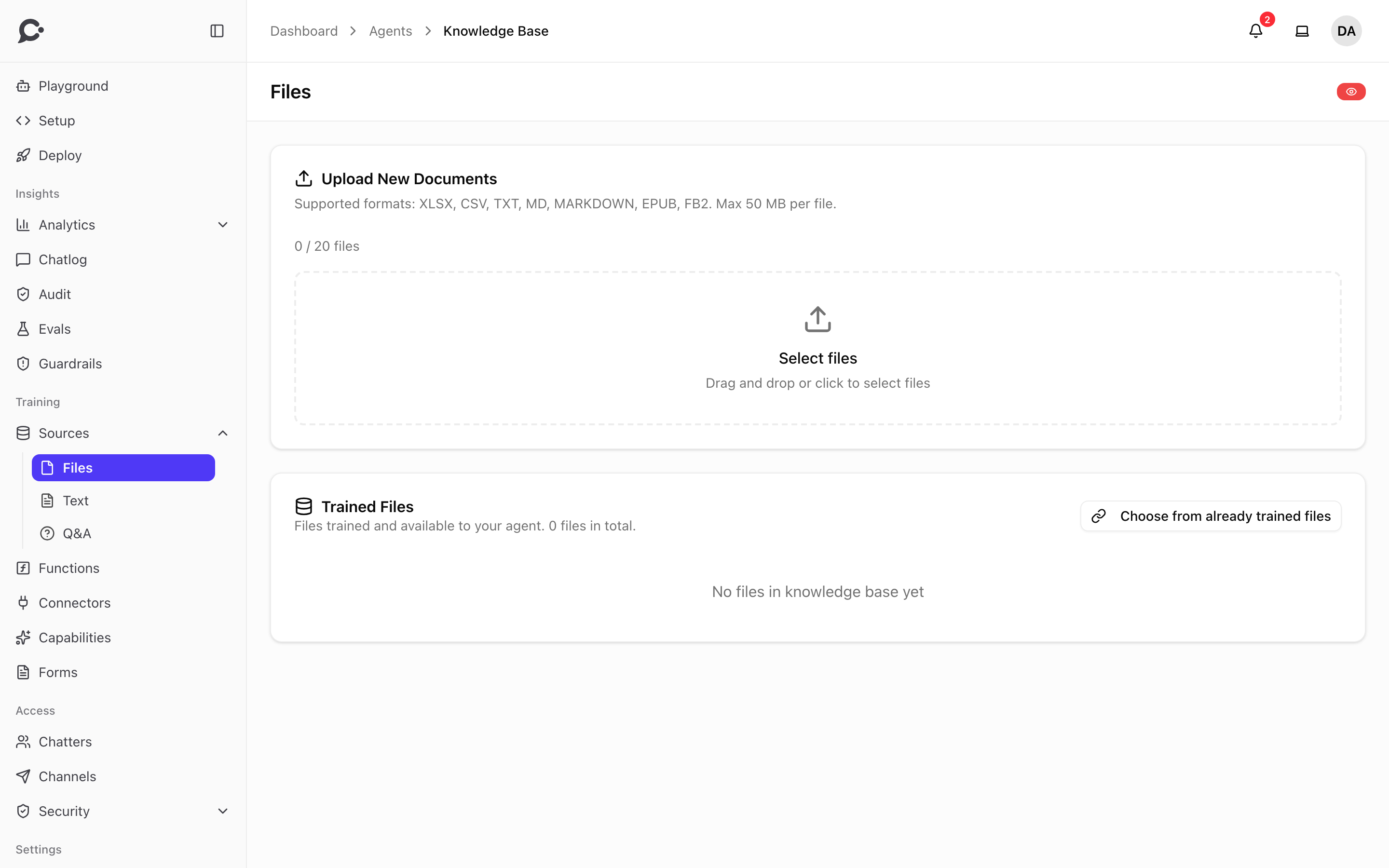
To add one, open the agent, click Sources under Training in its sidebar, then click Files.
Supported formats
| Category | Formats |
|---|---|
| Documents | PDF, DOC, DOCX, RTF, TXT, Markdown (MD) |
| Spreadsheets | XLSX, CSV |
| Presentations | PPT, PPTX |
| Ebooks | EPUB, FB2 |
| Images | JPG, PNG, GIF, BMP, TIFF, WEBP, AVIF, HEIC. Text is extracted via OCR. |
Audio and video have their own pages under Sources. See Audio and Video.
The admin of your Chatvia server decides which of these types are turned on, in Knowledge settings. PDF, Word, presentations and images need a document reader, set in AI models. The uploader lists the formats your server accepts right now. A few formats also need a program on the server, such as .doc files. When it is missing, the upload is refused with "This server can't read .doc files. Save the file as a PDF or .docx and upload it again." See From source to knowledge.
Limits:
- Documents, ebooks and images: up to 50 MB per file. Long contracts and multi-hundred-page manuals are fine.
- Image OCR: works best on screenshots and scans. Photos of complex layouts are hit-or-miss.
Uploading
Drag files onto the dropzone or click to pick. You can upload up to 20 files at once, so your team can bulk-upload a whole policy folder. Each file becomes its own source.
Some files are refused at upload:
- A PDF locked with a password. Remove the password and upload it again.
- A file your workspace has already uploaded.
After the upload, the files wait as Ready to Train. Click Train to start. While processing, your team will see:
- A progress indicator while the file uploads.
- A spinner while the background ingestion job parses, chunks, and embeds.
- A green check when the source is ready.
If a file fails (unsupported variant, no extractable text), it shows a red icon. Hover it to see that processing failed. Fix the file, then upload it again with Replace with a new version.
Markdown sources
Upload Markdown (.md and .markdown) files on the Files page like any other document. Chatvia splits them at their headings, so each block stays about one topic and the agent gets cleaner context. The admin can change how Markdown is split in Splitting settings. Use Markdown for hand-written content such as style guides, engineering wikis and onboarding handbooks.
Audio and video
Recordings are turned into text first, then indexed like any other text. Upload them on the Audio or Video page under Sources. The Audio page can also record a voice note from your microphone. See Audio sources and Video sources.
Metadata
Every file source shows:
- Original filename, type and size, and the date it was added.
- A summary, when the admin turned on AI enhancement. Click View file summary to see its key topics, writing style, target audience, complexity and reading time.
Chatvia also counts how often each source is used in answers. Analytics → Sources shows the most used ones.
Reusing a file from another agent
A file belongs to your workspace, so several agents can use it. In Trained Files, click Choose from already trained files and pick a file another agent already trained. It is added to this agent right away, without training again. Replacing or deleting it later affects every agent that uses it, unless you only remove it from this agent.
Personal data warning
After training, Chatvia looks through each file for numbers a knowledge base should almost never hold: credit card numbers, bank account numbers (IBAN) and US Social Security Numbers. When it finds some, the file shows a warning icon. Hover it to see "May hold personal data" and what was found. Visitors could be shown that data in answers. Chatvia never changes the file, so it is your call: replace the file with a clean version, or delete it. Email addresses and phone numbers are not flagged, since support content is full of them.
Replacing a file
When your team patches a typo or restructures a document, click Replace with a new version on the file and pick the new file. The file keeps its place in every agent that uses it, and its retrieval counts. The old chunks are removed and the new version trains right away.
Deleting
Delete removes the source, its chunks, and the underlying file. Past conversations that referenced it stay intact (they're stored verbatim), but new questions won't be able to retrieve from it. If other agents use the same file, you can choose to only remove it from this agent.
Files via API
Your team can add and delete file sources from its own systems. A file added through the API waits as Ready to Train until a teammate clicks Train in the dashboard. See Sources in the API reference.