AI providers settings

Chatvia does not contain an AI of its own. When an agent writes a reply, reads a PDF or turns speech into text, Chatvia asks an outside AI service to do it, such as OpenAI, Mistral or Anthropic. These companies are called AI providers. They run the AI on their own computers and bill your account with them for what you use.
This page is where you connect those providers. You do it by pasting an API key for each one: a long secret code from your account at the provider that lets Chatvia use that account, much like a password made for a program. You enter each key once, and Chatvia uses it for everything that provider does here: its chat models, embeddings, speech, document reading and reranking. Open it in Settings → AI providers.
You need at least one provider before agents can answer. Usually the admin sets it up once, in the setup wizard or here, and comes back only to add a provider, replace a key or remove one.
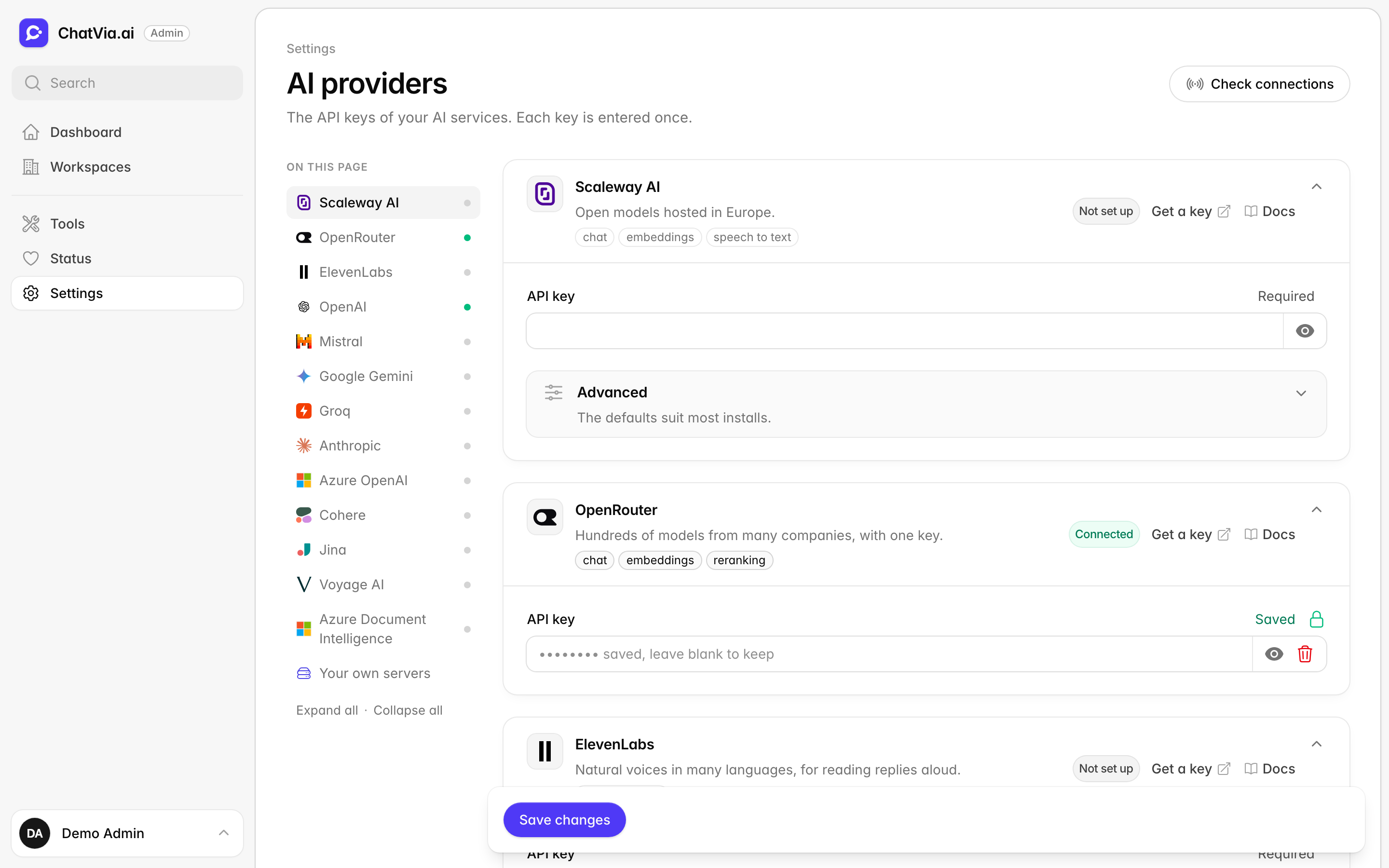
A key only connects the provider. It is like opening an account at a supplier: nothing is ordered yet. What runs on it is picked on the AI models page. Chat models, for example, are added there from a connected provider's list.
The Check connections button at the top checks every saved key again, and tells you for each provider whether it is connected.
Provider keys
Each company below has its own card. They all work the same way, so this part explains the parts once, then each card says what that provider is good for.
Which providers do you need? One provider that runs chat models is enough to start. A few things only some providers can do, such as live voice calls (OpenAI only) or reading scanned documents (Mistral or Azure Document Intelligence). Add a provider when you want what it offers. You pay each provider for what you use there.
Every provider card has the same parts:
- API key: the provider's key. It is write-only: once saved, the field stays empty and says Saved, so nobody can read it off your screen. Leave it empty to keep the key, type a new one to replace it, or press the trash button to remove it.
- Get a key: a link in the card's header that opens the page of the provider's console (its website for customers) where you create keys.
- Under the description, small labels list what the provider can do here (chat, embeddings, speech to text, voice conversations, text to speech, documents, reranking, image generation, audio generation, video generation). The ones in use right now are marked. Each of these is explained on the AI models page.
- The header shows Connected once the key is saved, Not set up before, or what is still missing.
A new key is checked before it is saved. Chatvia reads the provider's model list, or makes a small test call. If the provider refuses the key, it is not saved and the field says why. If the provider can't be reached, the key is saved with a warning, so you can check again later.
To get a key from any provider:
- Press Get a key on the provider's card. It opens the provider's console in a new tab.
- Sign in, or create an account there. Most providers also need a payment method or credits before the key works.
- Create a new API key and copy it. Many consoles show a new key only once.
- Paste it into API key and press Save changes.
When you remove a saved key, the window first tells you what uses it. Agents that answer with that provider's models stop answering until a key is added again.
Some cards have an Address field in their closed Advanced part. It is the provider's API address, the internet address Chatvia sends its requests to. Change it only to go through a proxy (a go-between server some companies require) or to use another region.
Scaleway AI
Scaleway is a European cloud company. It runs open models hosted in Europe, which can matter if you want your data handled there. It can run chat models, embeddings and speech to text. The default embedding service, Qwen3 on Scaleway AI, runs on this key, so a new install usually needs it unless you pick another embedding service. (Embeddings are what let agents search your documents by meaning. See embedding.)
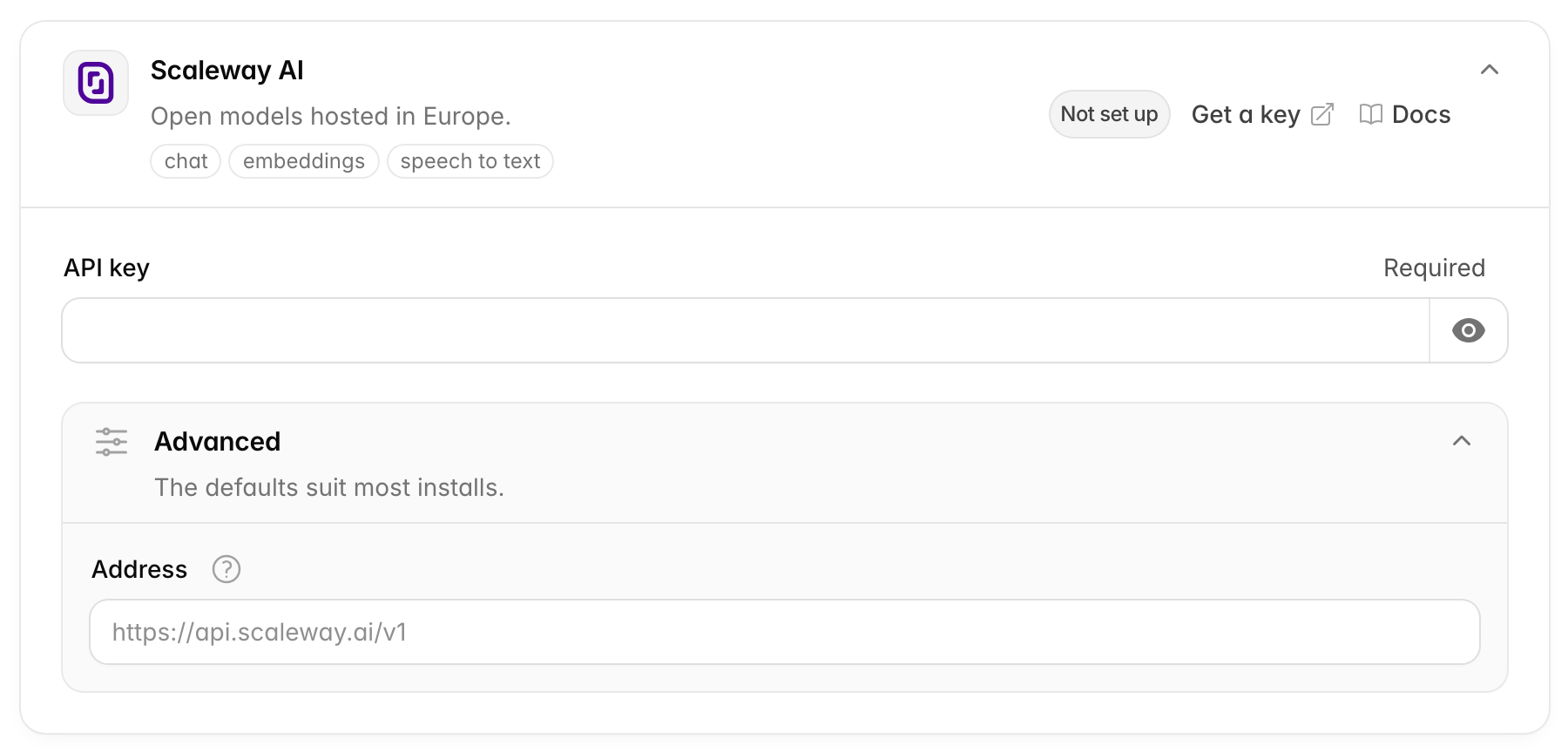
- Get a key opens console.scaleway.com/iam/api-keys.
- Address (Advanced): default
https://api.scaleway.ai/v1. To bill a specific Scaleway project, usehttps://api.scaleway.ai/{project-id}/v1.
OpenRouter
OpenRouter is a single doorway to hundreds of models from many companies, with one key and one bill. It suits you if you want to try many models without opening an account at each company. It can run chat models, embeddings, reranking (the careful second check of search results, see reranker) and image generation. Until you pick a reranker yourself, Chatvia uses OpenRouter's when this key is saved. Image generation stays off until you pick it in AI models.
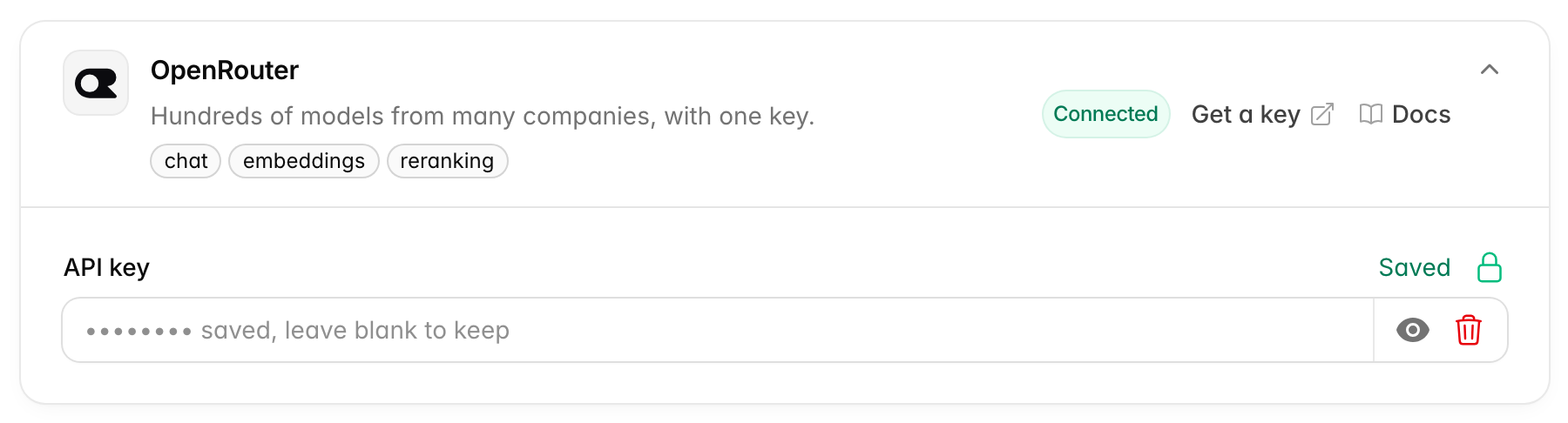
- Get a key opens openrouter.ai/settings/keys.
- It has no Address field.
ElevenLabs
ElevenLabs makes natural-sounding voices in many languages. Chatvia uses it to read replies aloud (text to speech), to make audio files in the chat (audio generation), and to make videos with Google's Veo 3.1 and ByteDance's Seedance models (video generation, which needs its Pro plan). Add it if you want agents to speak with a lifelike voice.
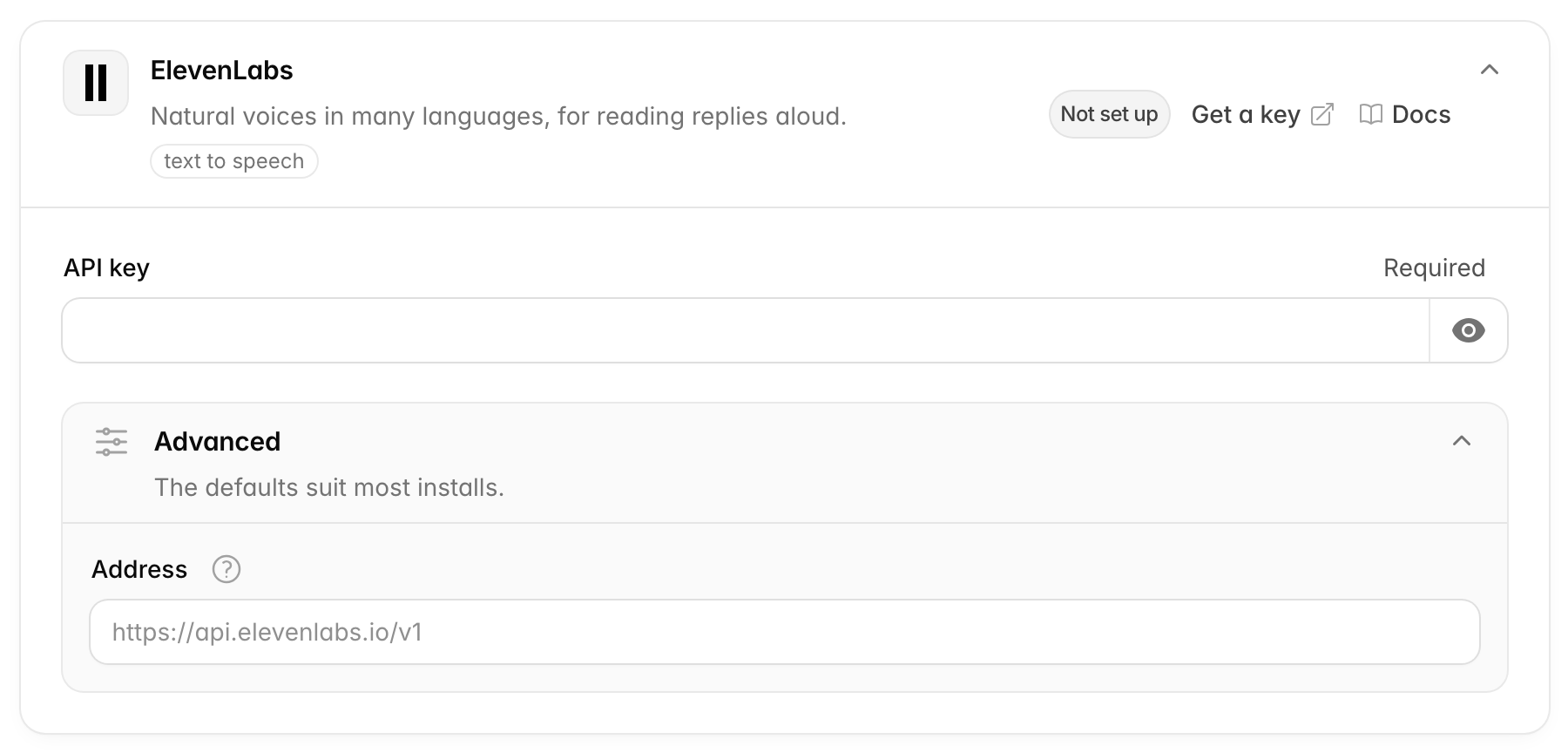
- Get a key opens elevenlabs.io/app/settings/api-keys.
- Address (Advanced): default
https://api.elevenlabs.io/v1.
OpenAI
OpenAI is the company behind ChatGPT and the GPT models. It can run chat models, embeddings, speech to text, voice conversations, text to speech, image generation and audio generation. Voice conversations (live spoken calls, where a visitor talks with an agent like on the phone) only run on OpenAI, so you need this key for them.
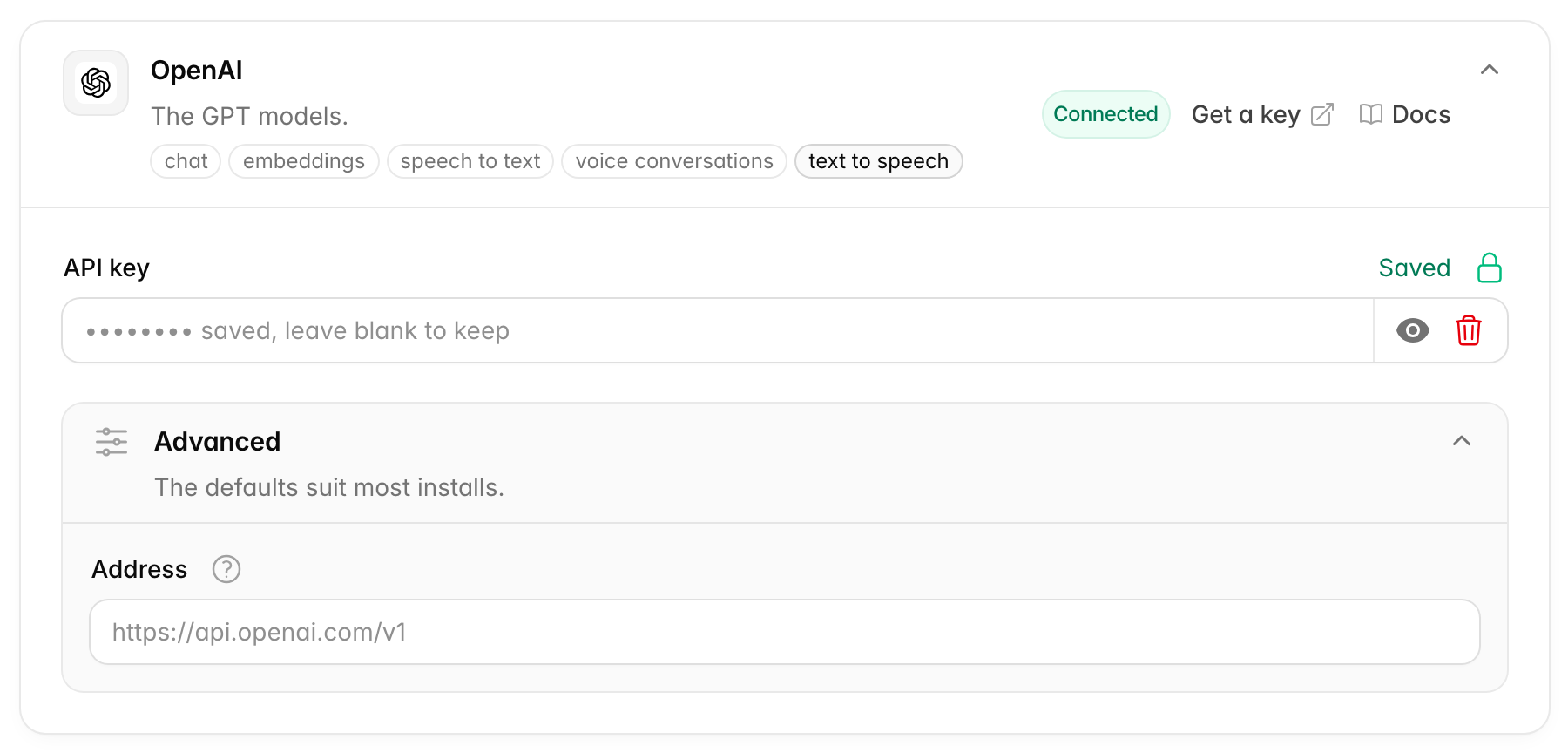
- Get a key opens platform.openai.com/api-keys.
- Address (Advanced): default
https://api.openai.com/v1.
Mistral
Mistral is a French AI company. Besides its own chat models, it reads documents and PDFs, even scanned ones, with Mistral OCR. OCR means reading the text in a picture of a page. It can run chat models, embeddings, and document reading. It is one way to let people upload PDFs, Word files, slides or images as knowledge.
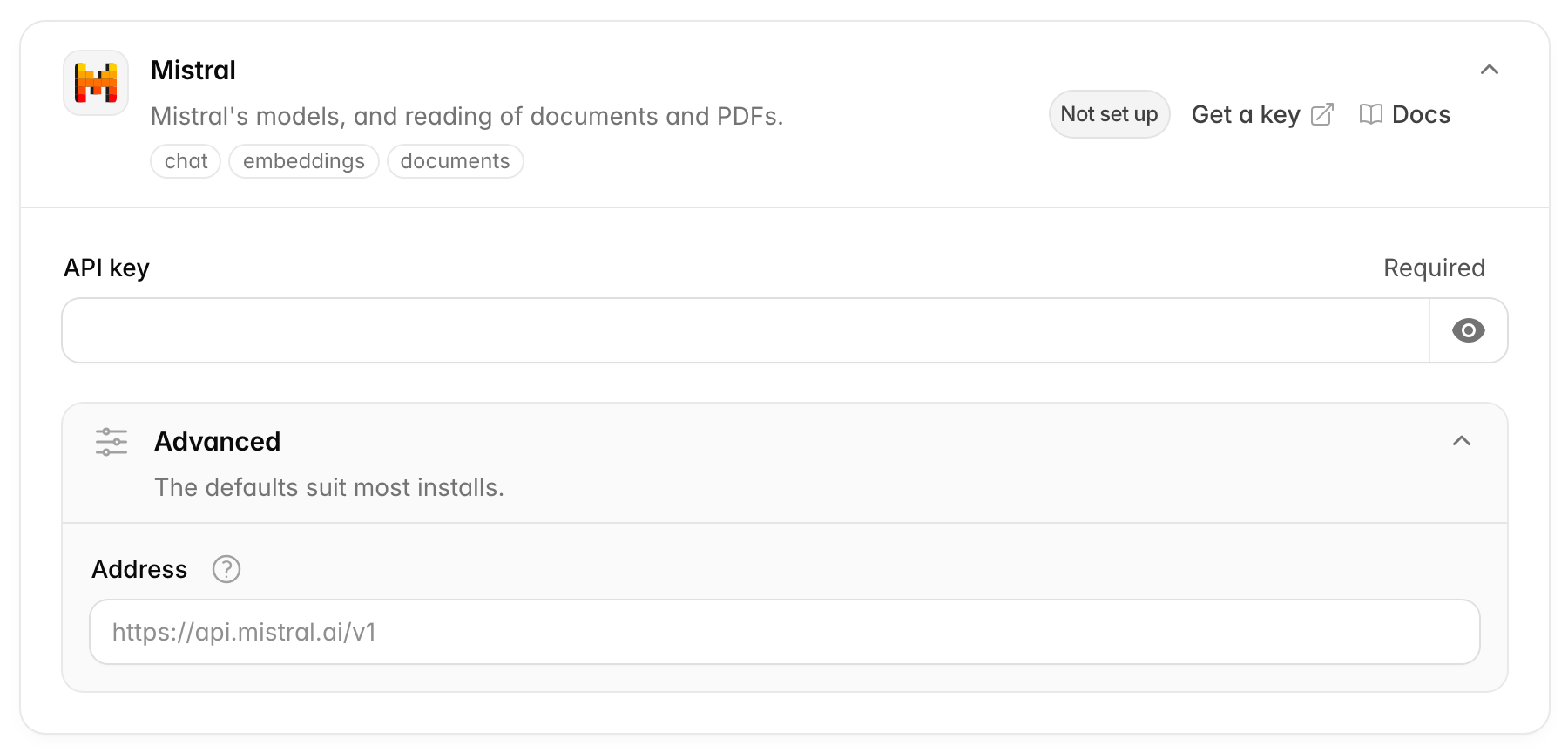
- Get a key opens console.mistral.ai/api-keys.
- Address (Advanced): default
https://api.mistral.ai/v1.
Google Gemini
Gemini is Google's family of AI models. It can run chat models, embeddings, image generation (its Nano Banana models) and video generation (Gemini Omni Flash, and Veo 3 while Google still serves it).
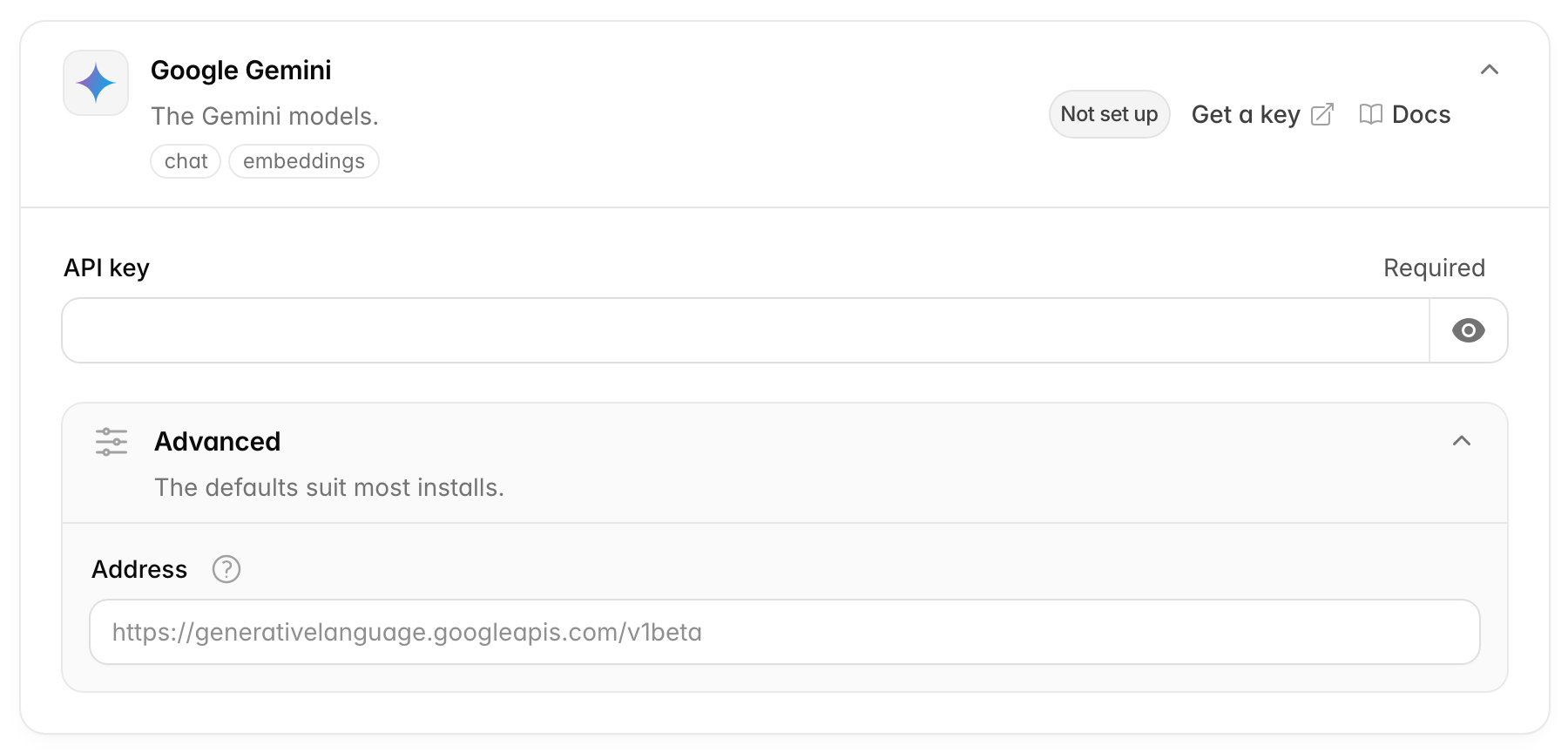
- Get a key opens aistudio.google.com/apikey.
- Address (Advanced): default
https://generativelanguage.googleapis.com/v1beta.
Groq
Groq runs open models with very fast answers. It runs chat models only. Pick it when reply speed matters most.
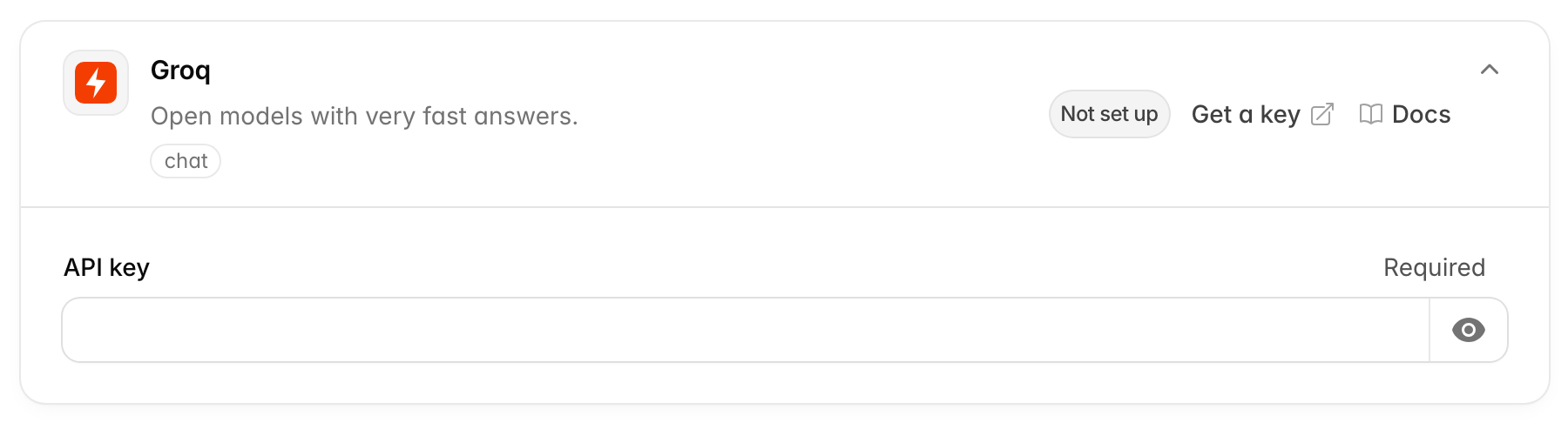
- Get a key opens console.groq.com/keys.
- It has no Address field.
Anthropic
Anthropic is the company behind the Claude models. It runs chat models only.
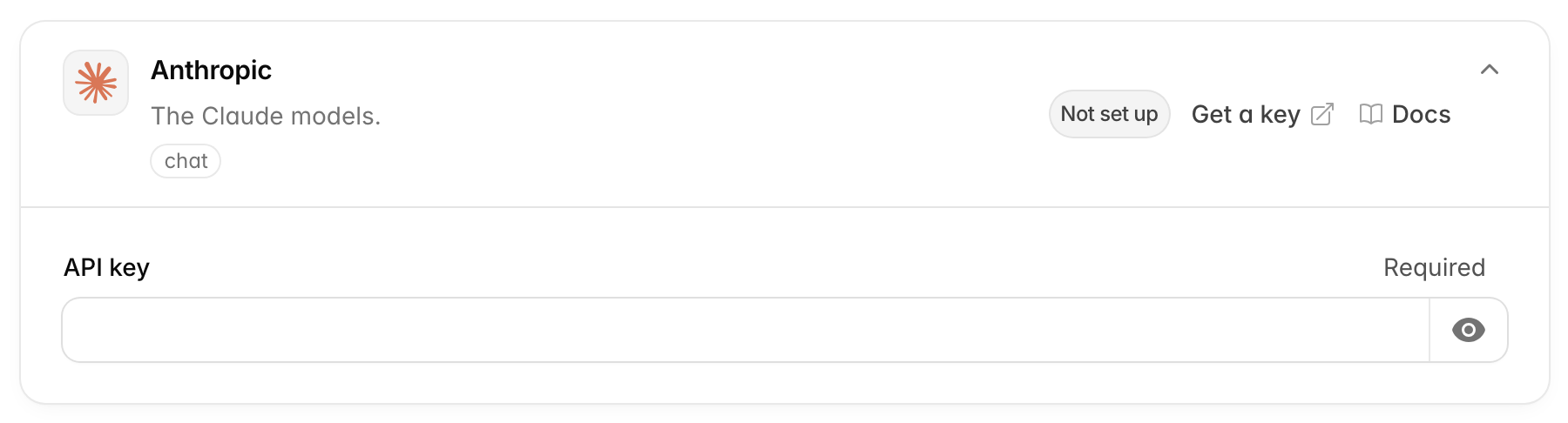
- Get a key opens console.anthropic.com/settings/keys.
- It has no Address field.
Azure OpenAI
Microsoft offers the GPT models, and others, inside its Azure cloud. You run them in your own Azure account, called a resource. Companies pick this when they already use Azure or their rules say data must stay with Microsoft. It runs chat models only.
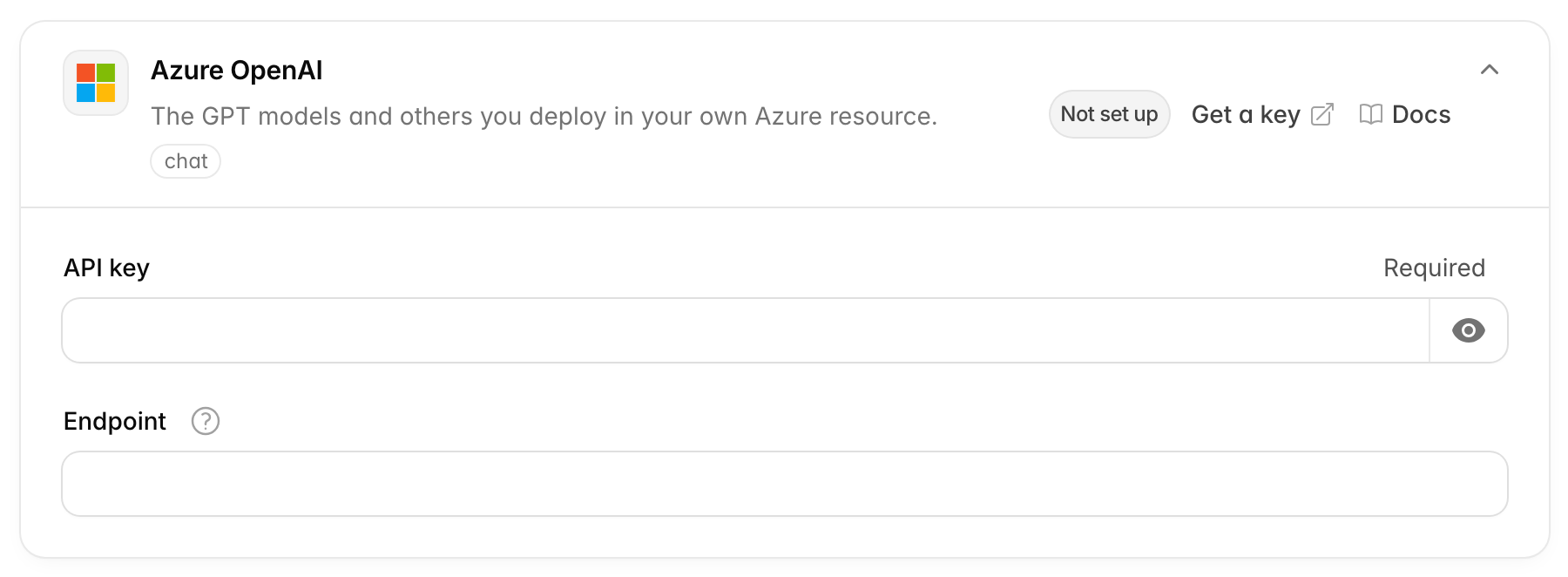
This card needs two values, and is only connected when both are saved:
- API key: a key of your Azure OpenAI resource.
- Endpoint: your resource's own internet address, from the Azure portal
or Microsoft Foundry, such as
https://my-resource.openai.azure.com.
To get them:
- Press Get a key. It opens the Azure OpenAI list in the Azure portal.
- Create a resource, or open the one you have.
- Open its Keys and Endpoint page. Copy a key into API key and the endpoint into Endpoint.
- Deploy the models you want in your resource. In Azure, "deploying" a model means switching it on in your resource under a name you choose.
Azure does not list its models the way other providers do. When you add an
Azure model in Settings → AI models, you type its deployment name, as
Azure shows it under Deployments. Name each deployment after its model (for
example gpt-4.1), so Chatvia knows what the model can do.
Cohere
Cohere makes AI for business search. Here it does embeddings and reranking. Cohere Rerank is one of the rerankers you can pick in Settings → AI models.
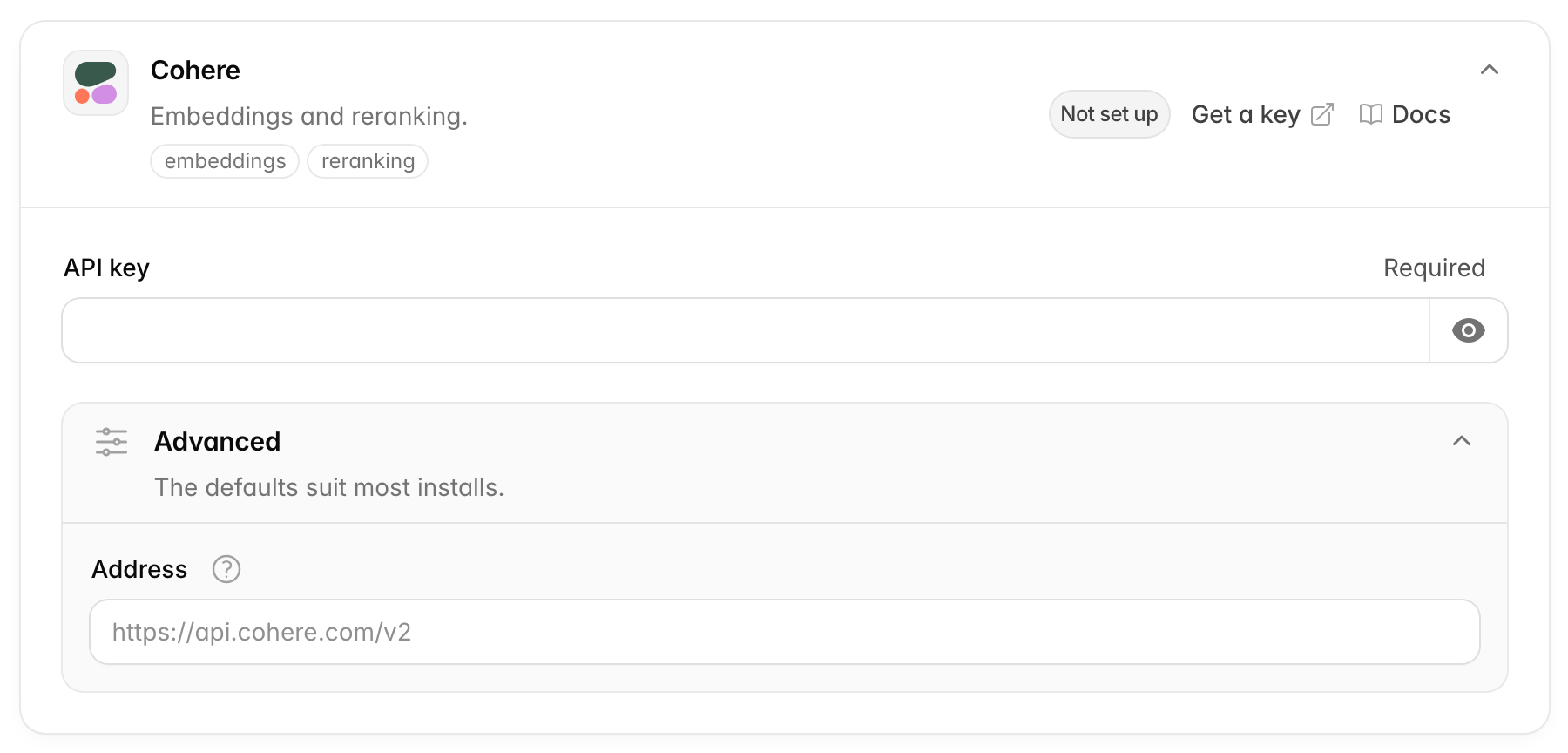
- Get a key opens dashboard.cohere.com/api-keys.
- Address (Advanced): default
https://api.cohere.com/v2.
Jina
Jina makes embedding models, which turn text into numbers so agents can search it by meaning. That is all it does here.
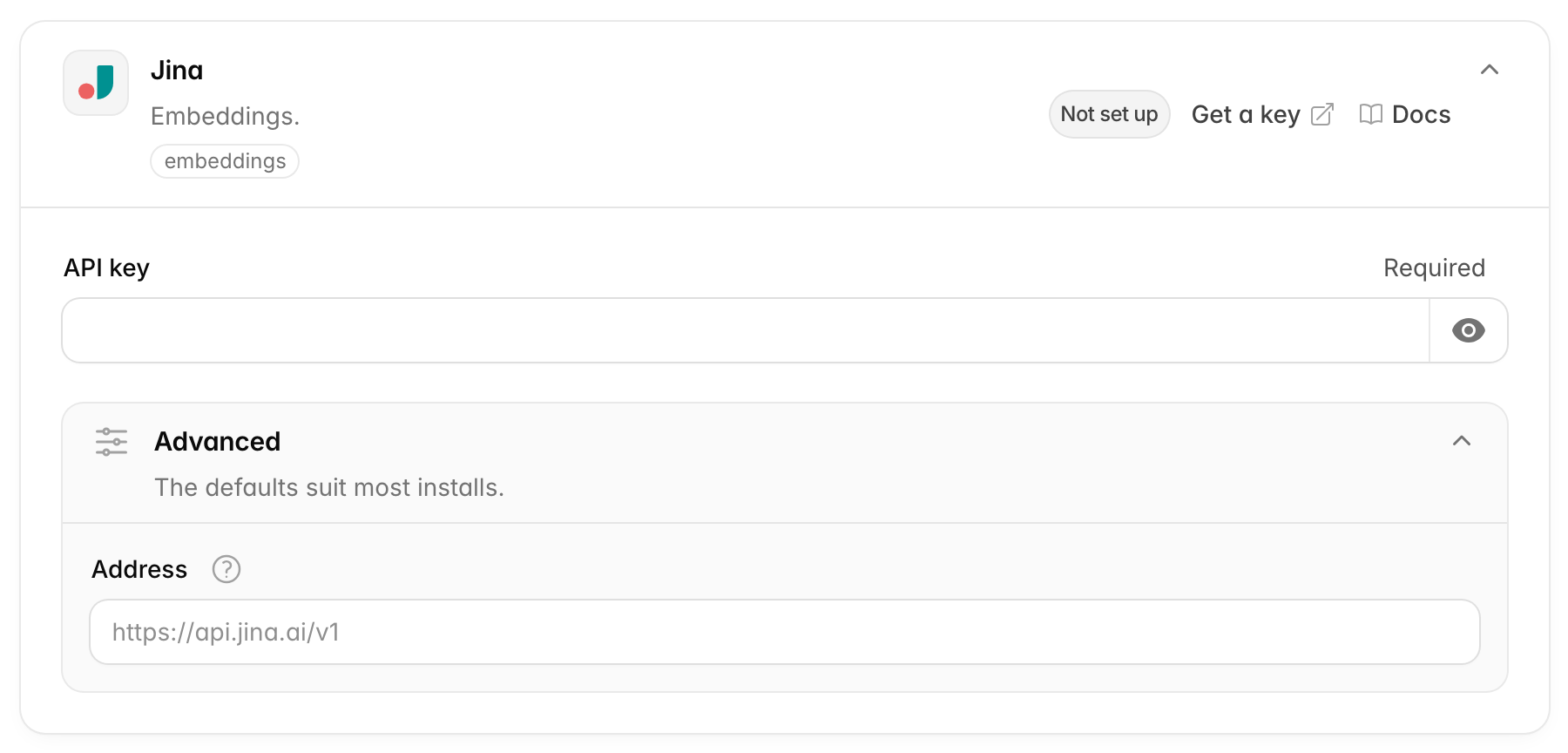
- Get a key opens jina.ai/api-dashboard/key-manager.
- Address (Advanced): default
https://api.jina.ai/v1.
Voyage AI
Voyage AI makes embedding models built for search. That is all it does here.
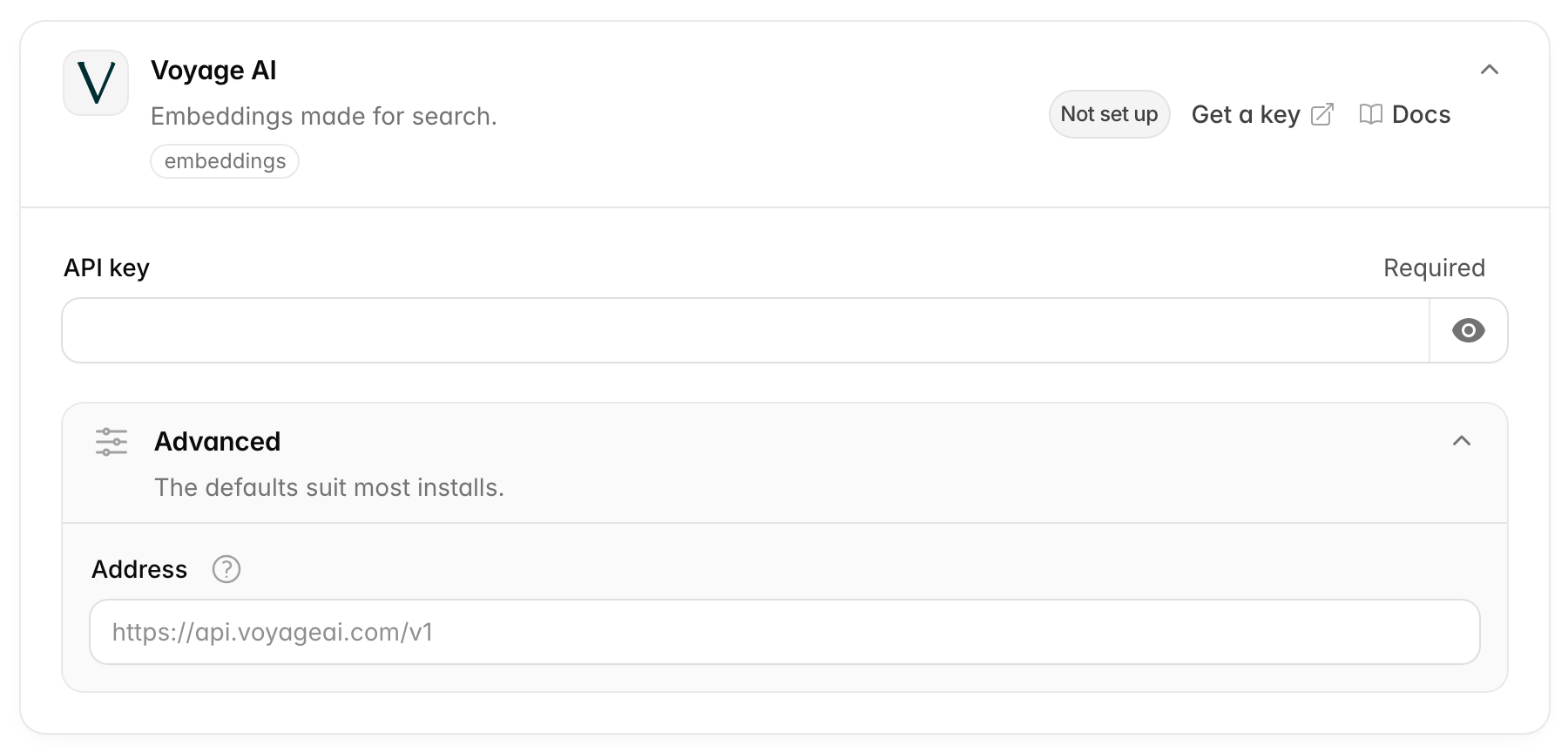
- Get a key opens dashboard.voyageai.com/organization/api-keys.
- Address (Advanced): default
https://api.voyageai.com/v1.
Azure Document Intelligence
Microsoft's service for reading documents. It reads PDFs, Word, PowerPoint and images, even scanned ones, and keeps their tables. It is one of the two document readers you can pick in Settings → AI models → Documents. The other is Mistral OCR. Without a document reader, people can't add PDFs, Word files, slides or images as knowledge.
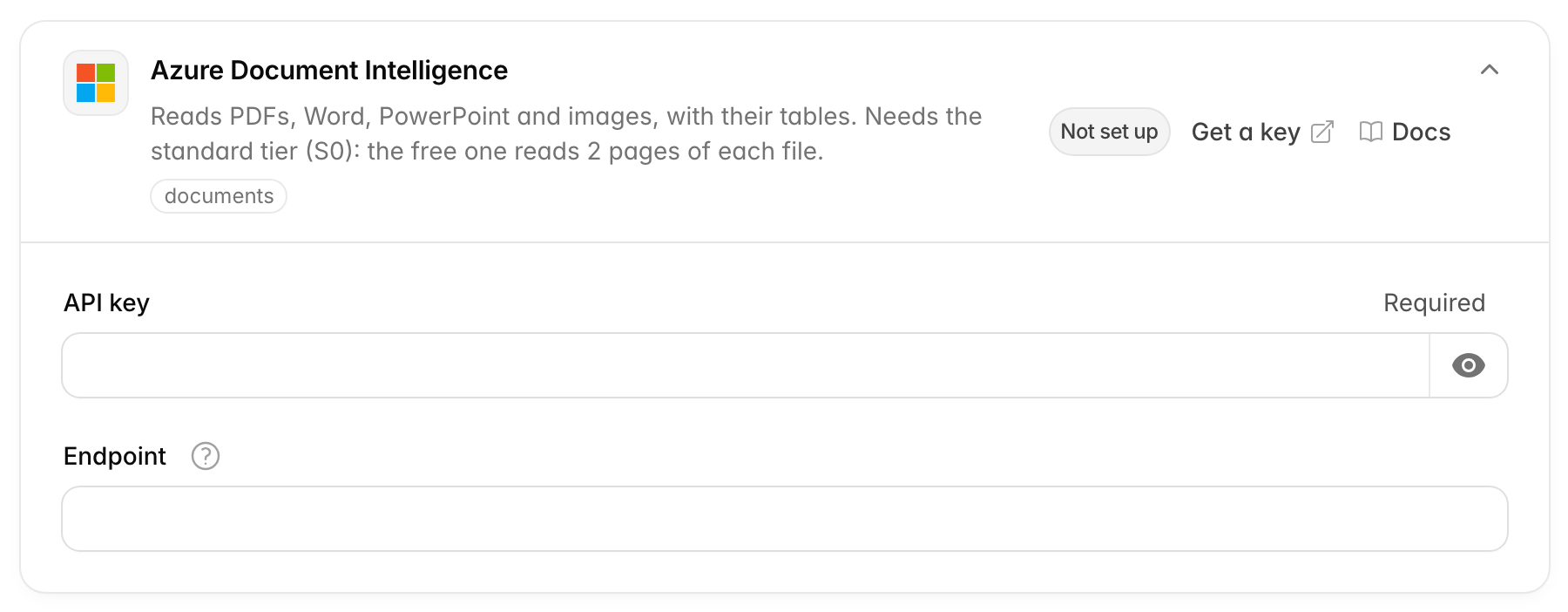
This card needs two values, and is only connected when both are saved:
- API key: a key of your Document Intelligence resource.
- Endpoint: your resource's own internet address, from the Azure portal,
such as
https://my-resource.cognitiveservices.azure.com.
To get them:
- Press Get a key. It opens the Document Intelligence list in the Azure portal.
- Create a resource, or open the one you have. Pick the standard pricing tier (S0).
- Open its Keys and Endpoint page. Copy a key into API key and the endpoint into Endpoint.
Use the standard tier
The free tier (F0) reads only the first 2 pages of each file, and files up to 4 MB. Chatvia saves the key, but warns you when the resource is on the free tier. Use the standard tier (S0) for real documents.
Kling
Kling makes videos from a description, with sound. That is all it does here: it is one of the services you can pick in Settings → AI models → Video generation.
- Get a key opens the Kling developer console. Create a new API key there and copy it at once: Kling shows it only once. The account needs credits or a resource pack before videos work.
- Address (Advanced): default
https://api-singapore.klingai.com, for servers outside China.
BytePlus ModelArk
BytePlus ModelArk is the cloud of ByteDance. Chatvia uses it for the Seedance video models. That is all it does here.
- Get a key opens the API keys page of the ModelArk console.
- Before videos work, buy a prepaid resource pack for the Seedance model you picked, in the same console. A pack works for one model only.
- Address (Advanced): default
https://ark.ap-southeast.bytepluses.com/api/v3. For Volcengine Ark in China, usehttps://ark.cn-beijing.volces.com/api/v3with a Volcengine key.
Runway
Runway makes videos with its own Gen-4.5 model, and serves other video models too, such as Google's Veo 3.1, Kling and Seedance. That is all it does here.
- Get a key opens the Runway developer portal. Create a key for your organization there, and add credits: each second of video costs credits.
fal.ai {#falai}
fal.ai runs many image and video models, open ones too, with one key and one bill. Chatvia uses it for image generation (FLUX.2, Qwen-Image, Nano Banana and others) and video generation (Wan 2.2, Veo 3.1, Kling).
- Get a key opens fal.ai/dashboard/keys. The account needs credits before the key works.
Your own servers
Instead of paying a provider, you can run AI models on a computer of your own, with free programs such as Ollama, LM Studio or vLLM. The replies are then written on your own machines. This card connects such servers. It works with any server that has an OpenAI-compatible API, which means it accepts requests in the same format as OpenAI does, so Chatvia can talk to it the same way. Use it to run chat models on your own hardware.
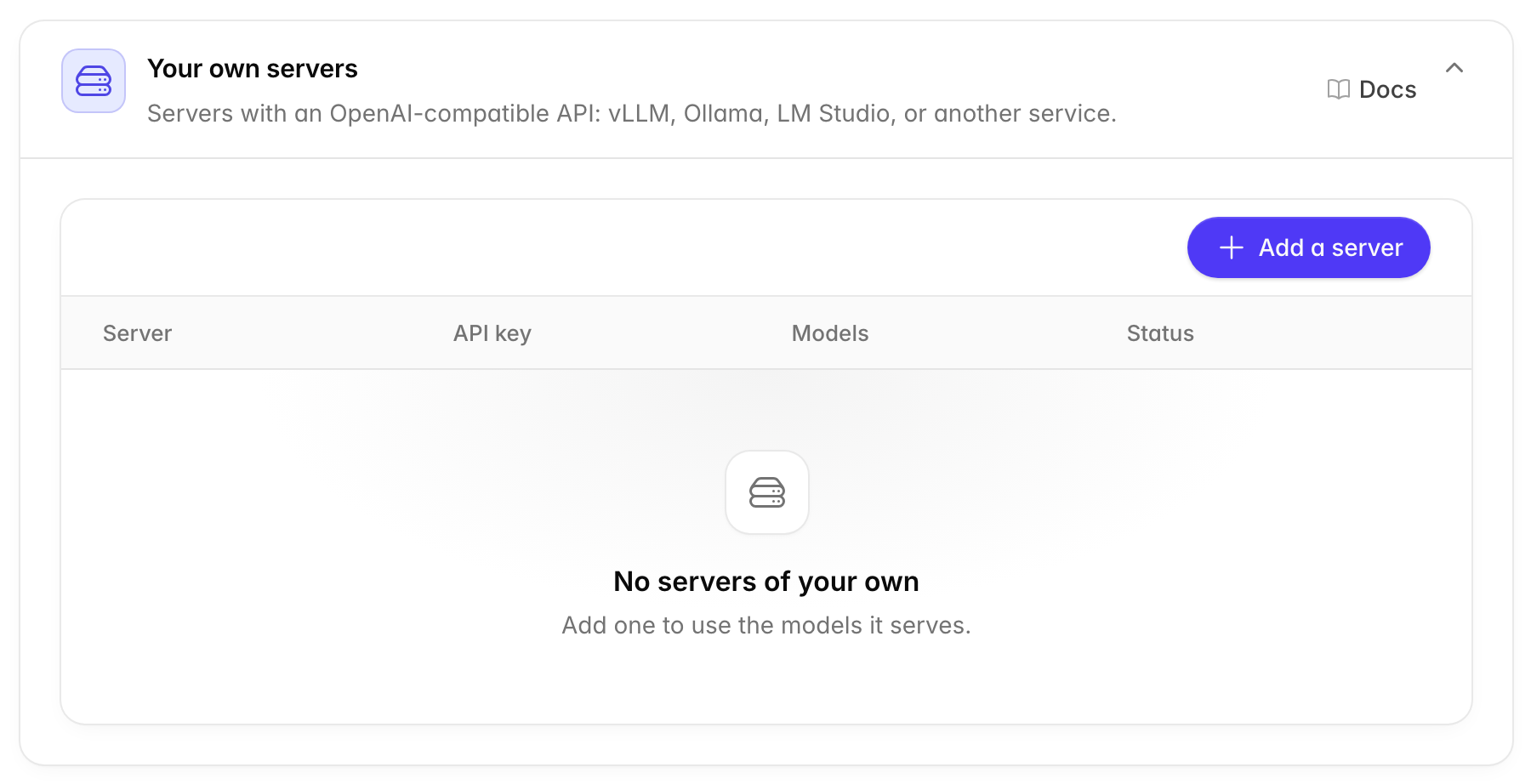
The card lists your servers with their address, whether an API key is saved, how many of their models agents can use, and their status.
Press Add a server and fill in:
| Field | What it is |
|---|---|
| Name | How the server shows in lists, such as "Ollama on the office server". |
| Address | The server's API address. It usually ends in /v1, such as http://localhost:11434/v1. |
| API key | Only if your server needs one. Leave it empty otherwise. |
| Extra headers (Advanced) | Extra details sent with every request. Fill these in only if your server asks for them. |
Chatvia reads the server's model list before it saves. If the server refuses the key or can't be reached, the server is not saved. The address must be one the Chatvia server can reach.
Then add its models in Settings → AI models → Chat, with Add a model.
- Edit changes the name, address, key or headers. Leave the key empty to keep the saved one.
- Remove takes its models off the list agents can use. If agents answer with one of them, you pick the model they use from then on.
When to use it. Only if you or your team already run such a server, or your rules say chats must not go to an outside company. Running good models yourself needs a strong computer, usually with a powerful graphics card.