MCP connectors

Connectors are how your agents talk to the rest of your business stack. They expose third-party tools through the Model Context Protocol (MCP), an open standard for exposing structured tools to LLMs. Think GitHub, Slack, Linear, Notion, Stripe, Atlassian (Jira and Confluence), plus any custom MCP server.
Connectors are set up once at the workspace level (Workspace → Integrations → Connectors) by a teammate, then attached to the agents that need them. The same GitHub connection can power a support agent, an engineering agent, and an internal ops agent without re-authenticating.
Functions vs. connectors
If you already read about functions, here's the difference:
| Functions | Connectors | |
|---|---|---|
| Origin | Your team writes the webhook | Existing MCP server (catalog or custom) |
| Protocol | Plain HTTP + JSON | MCP over HTTP (streamable HTTP or SSE) |
| Tool surface | One tool per function | Many tools per connector |
| Auth | Bearer token, custom header, HMAC signature, or none | OAuth, bearer token, or none |
| Best for | Your own internal APIs | Third-party SaaS your agent should read or write |
You can use both in one agent.
Adding a catalog connector
Open Workspace → Integrations → Connectors and pick from Available connectors: GitHub, Slack, Linear, Notion, Stripe, Atlassian, Google Drive, HubSpot, Zendesk, and more.
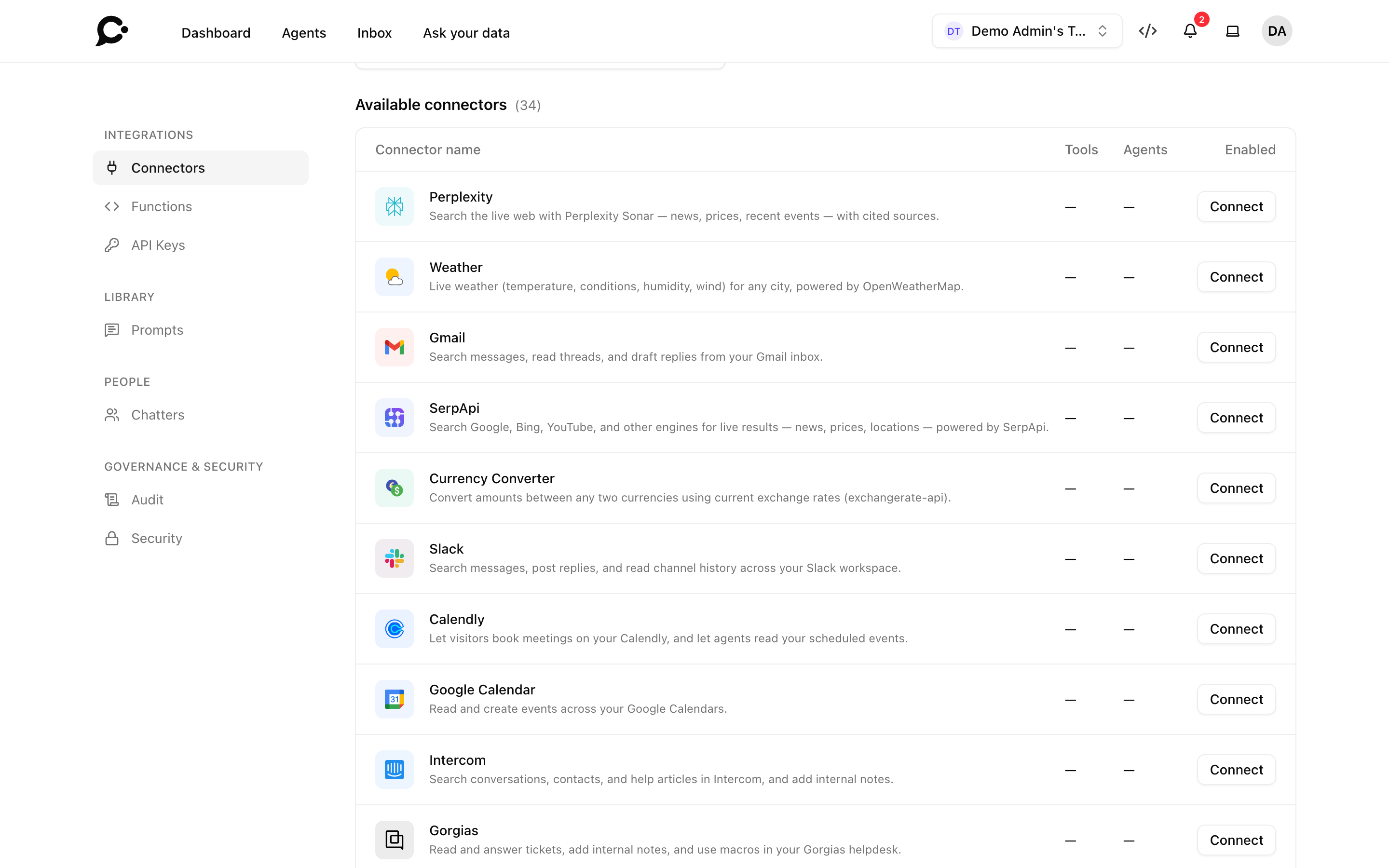
For OAuth-based connectors (Slack, GitHub, Atlassian, Stripe, Notion, Linear…), clicking Connect takes you to the service to sign in and approve access. You then come back to the Connectors page, and the connector shows under Enabled connectors.
Some OAuth connectors (GitHub, Slack, Gmail, Google Calendar, Google Drive, HubSpot, Box, Asana and Front) need an OAuth app that the admin of your Chatvia server registers once. Until then, connecting them fails. See Connector settings. Salesforce asks for your own org's Consumer Key instead.
For token-based connectors (Zendesk, Perplexity, Weather, Currency Converter, SerpApi), you are asked for an API key or token.
Adding a custom MCP server
If a tool your team needs isn't in the catalog, click Add connector and supply:
- Display name: the label your team sees.
- MCP server URL: your MCP endpoint.
- Authentication: OAuth (auto), Bearer token, or None. With OAuth, Chatvia finds the server's sign-in and runs it for you.
- Bearer token: only when you picked a bearer token.
Chatvia asks the server for its list of tools and stores it. Click Refresh tools on the connector to read the list again. The connector shows up under Custom connectors.
Tool selection and per-tool permissions
Each connector exposes one or more tools, such as slack.send_message or github.create_issue. Open a connector and go to its Tools tab. Tools are split into Read-only tools and Write/delete tools. Every tool has a tri-state permission. You set it on the connector, so it applies to every agent the connector is attached to:
- Always allow: the agent can call the tool freely. Use this for safe reads. Read-only tools start here.
- Needs approval: the agent can request the tool, but the reply pauses until the person chatting approves or denies the call. Use this for writes, money movement, or destructive actions. Write/delete tools start here.
- Blocked: the tool is hidden from the model. Use this to narrow the surface (e.g. Slack-read-only).
Use Set all to give every tool in a section the same permission.
The turn simply waits for the answer. The person chatting sees what the tool will do, with Approve and Deny buttons. A request that nobody answers expires after 24 hours.
Only the Hosted Chat can ask for approval
The Approve and Deny buttons exist only in the Hosted Chat. In the Chat Widget, the Command Bar, messaging apps and the API, tools set to Needs approval are left out, so the agent can't use them there. Set a tool to Always allow if the agent must use it on those surfaces.
Only signed-in chatters can approve
A tool that needs approval runs with your connector's sign-in. So only a person who is signed in can approve it: a chatter with an account, or someone from your team. A visitor who is not signed in never gets these tools, in typed chat or in a voice call. The agent tells them it can't do that here. On a public agent, ask visitors to sign in if they need these actions.
Attaching to agents
Connectors live at the workspace level. A new connector is not attached to any agent. Attach it per agent from:
- Workspace → Integrations → Connectors, on the connector's Agents tab, or
- the agent's Training → Connectors page, with the Enabled switch.
An agent only sees the tools you've allowed on a connector you've attached.
When you attach a connector to an agent, Always on starts switched on. The agent then gets that connector's tools with every message. Turn Always on off on the agent's Connectors page to let smart tool discovery pick only the tools that fit each message. Always on works well when the agent has only a few connectors. If it has many, turn it off and let smart tool discovery choose: sending too many tools makes replies slower and the agent more likely to pick the wrong one.
How the model invokes a tool
The flow is the same as for functions:
- A chatter asks a question.
- Chatvia picks the agent's tools that fit the message, and the model sees them (function names + descriptions, MCP tool names + schemas).
- The model emits a tool call.
- Chatvia checks the per-tool permission. If the tool needs approval, the reply pauses and the person chatting is asked to approve it. Only a signed-in chatter or a teammate can approve.
- Once approved (or if the tool is set to Always allow), Chatvia forwards the call to the MCP server (or the function webhook).
- The response is fed back to the model, which composes its reply. The raw response is never sent to the chat window. The chatter only sees the reply, and any chart or form the tool made.
Before a call goes out, Chatvia checks the model's arguments against the tool's input schema. Arguments the schema does not list are removed. A missing required argument, or one of the wrong type, stops the call, and the model is told what to fix.
OAuth token refresh
For OAuth connectors, Chatvia stores both the access token and the refresh token. Before the access token expires, Chatvia refreshes it automatically using the refresh token, so chatters and tools keep working.
If the refresh token itself expires (typically after weeks or months of inactivity), the connector's calls fail and it shows the Last error. A teammate then needs to connect it again.
Removing a connector
Open the connector in Workspace → Integrations → Connectors and click Disconnect. This deletes the stored sign-in and tool list in Chatvia, and detaches the connector from every agent in the workspace. It does not revoke the access at the service itself. You can connect it again any time.
Connectors via API
Your team can list, add and delete custom MCP servers, and attach them to agents, from its own systems. Catalog connectors that sign in with OAuth must be connected in the dashboard. See Connectors in the API reference.
One agent only
Every connector lives at the workspace level. You can't add a connector from an agent's Training → Connectors page. To use a connector with one agent only (say, a private Slack workspace for a single internal agent), connect it in Workspace → Integrations → Connectors and attach it to that agent only.