AI models settings

An AI model is the program that reads text and writes text back, the "brain" behind a reply. Chatvia uses several kinds: chat models write the replies, other models help search your documents, read PDFs, or turn speech into text and back. This page decides which model does each job, out of the providers you connected. Open it in Settings → AI models.
Connect at least one provider in AI providers first. A service whose provider has no key can't be picked here. The setup wizard fills in most of this page for you. After that, you mostly come here to add a new chat model or turn on a feature such as voice calls. If you never touch the rest, Chatvia picks sensible services from the keys you saved.
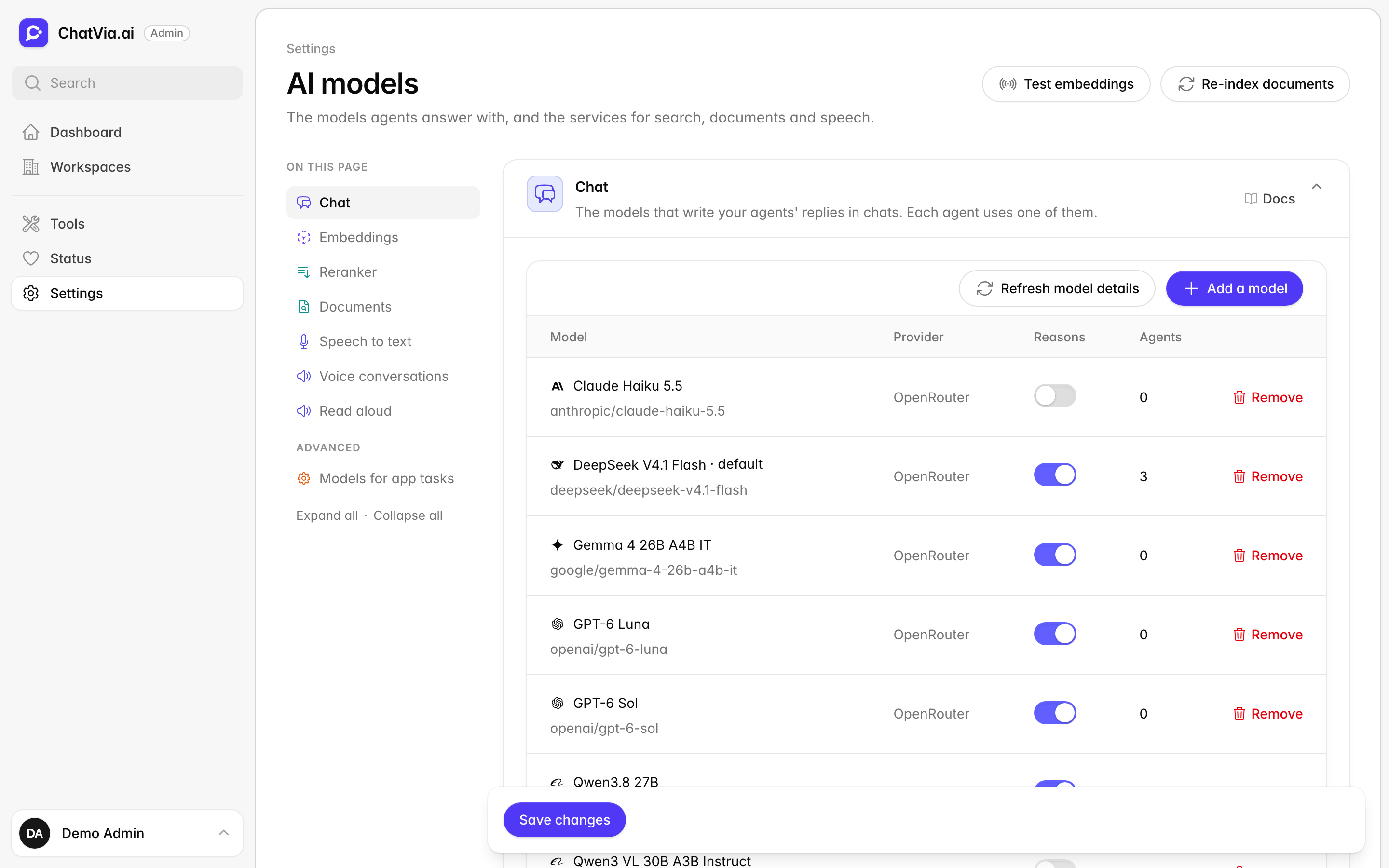
Two buttons sit at the top of the page:
- Test embeddings makes a test call to the embedding service in use, and tells you whether it works with this install. (Embeddings are explained in the Embeddings card below.)
- Re-index documents prepares all your knowledge for search again: it makes the embeddings of every document, Q&A and tool again, in the background. Files are not read again. Use it after the last re-index missed some parts. It can take hours on a big install, and until it ends agents may miss some documents.
Most services on this page (reranker, documents, speech, voice, read aloud, audio generation) show the service in use, with each provider marked (connected) or (not connected). When you pick a new one, Chatvia makes a real call to it as you save. If the call fails, nothing is saved and the field says why.
Chat
These are the models that write your agents' replies. When a visitor asks "Do you ship to Canada?", the chat model reads the question, your agent's instructions and the matching parts of your sources, then writes the answer. Models differ in quality, speed and price, much like junior and senior staff. This card lists the models agents may use. Each agent then uses one of them, picked in the agent's setup.
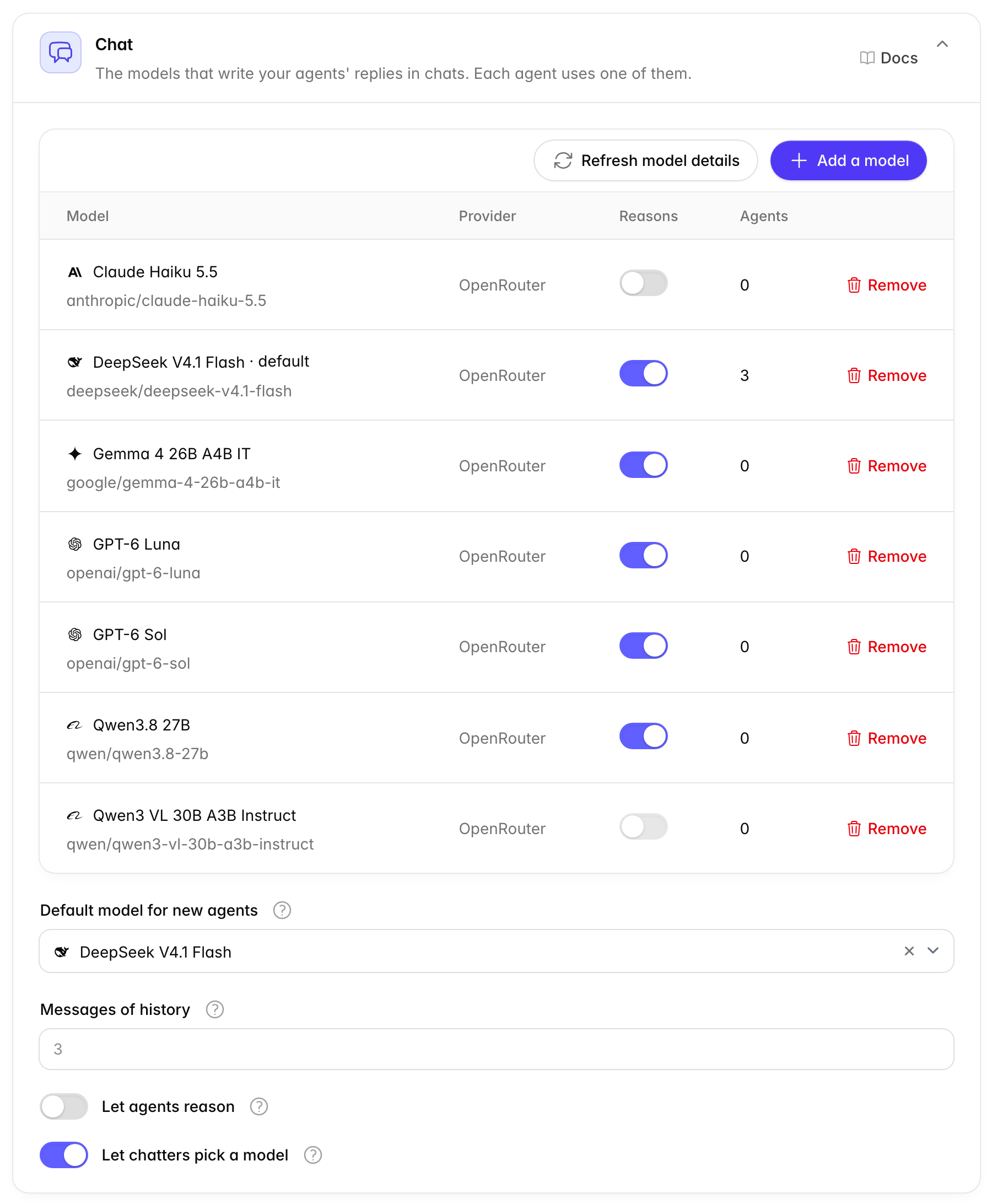
The table lists the models agents can use, with their provider, a Reasons switch and how many agents use each one.
- Add a model: pick a provider, then tick its chat models. Providers without a key are greyed out. For a provider that does not list its models (Azure OpenAI), type the model's name instead. Some models can't call tools. Tools are the actions an agent can take beyond writing, such as looking up an order or booking a meeting. A model that can't call tools is marked: you can still add it, but agents that use it answer without their tools.
- Remove: takes a model off the list. If agents answer with it, you pick the model they use from then on. If agents use it and there is no other model to move them to, add another model first.
- Refresh model details: reads each model's details (such as whether it can reason) from models.dev, a public list of AI models, now, instead of waiting for the daily update.
- Reasons: on, the model may think before it answers, working through the question step by step before it writes, and each agent sets how hard. Off, it thinks as little as it can. The switch is locked off for a model that models.dev says can't reason.
A model its provider stopped serving shows a warning above the table. Agents that use it can't answer until you pick another model for them. The app's own tasks that used it switch to another model by themselves.
| Option | What it does | Default |
|---|---|---|
| Default model for new agents | New agents use this model until you pick another one for them. The analytics assistant uses it too. | The first model on the list |
| Messages of history | How many recent messages an agent reads before each reply, in chats and voice calls. This is the agent's short-term memory of the chat. More helps with follow-up questions, but each reply costs more. From 1 to 50. | 3 |
| Let agents reason | Lets models marked Reasons think before they answer. Each agent sets how hard. Hard questions get better answers, but replies come slower and cost more. While it is off, no agent reasons, whatever it picked. | Off |
| Let chatters pick a model | Lets chatters pick one of several models for each message. Each agent turns this on and picks the models in Setup → Model. | Off |
Providers charge by tokens, the small pieces of text a model reads and writes (about three quarters of an English word each). Everything an agent reads before a reply counts, so more history and reasoning mean more tokens.
When to change it. Add a model when you want to offer a better, faster or cheaper one to your agents. Raise Messages of history if agents forget what was said a few messages ago. Turn on Let agents reason if agents get complex questions wrong and you accept slower replies.
Embeddings
Your agents search your documents by meaning, not just by matching words. To do that, Chatvia turns each part of a document into a list of numbers that describes what it is about. This list is called an embedding, and the numbers in it a vector. Texts about similar things get similar numbers. When a visitor asks "Can I get my money back?", the question gets its own numbers, and Chatvia finds your "Refund policy" page because its numbers are close, even though the two share no word. This card picks the service that makes these embeddings. See Embeddings.
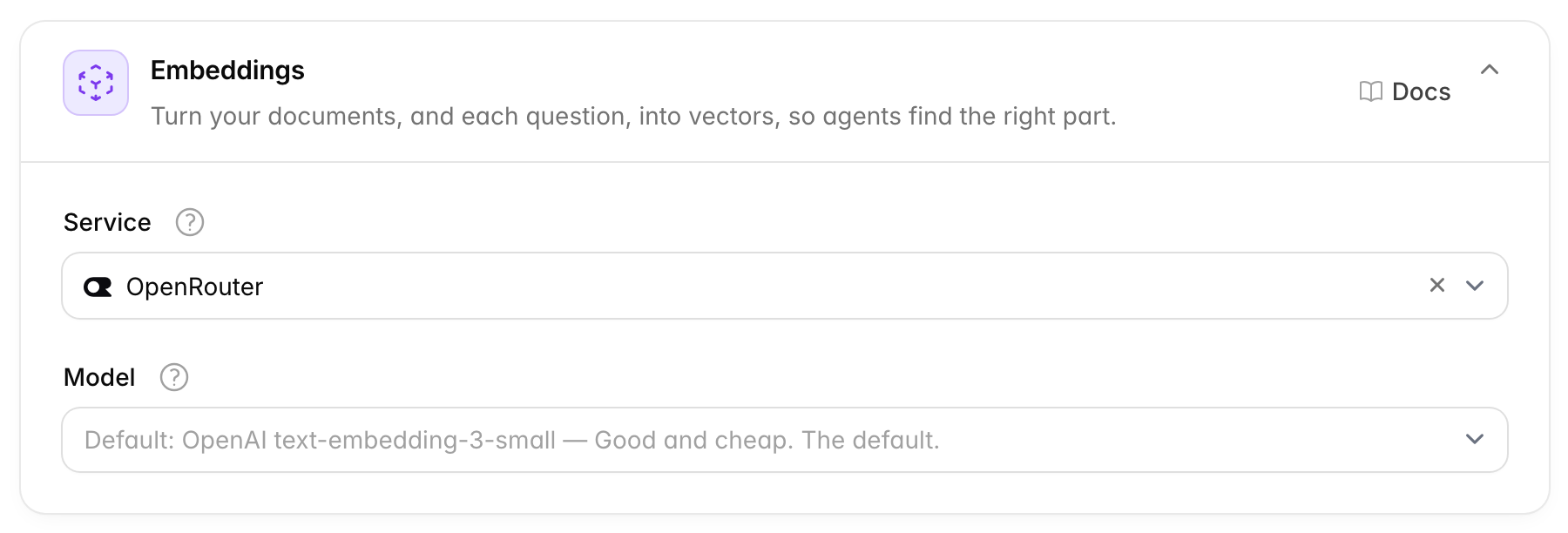
Service picks the embedding service. Its provider must be connected in AI providers. The default is Qwen3 on Scaleway AI, which needs the Scaleway AI key.
Model shows the model of the chosen service. For OpenRouter you pick it from a list, with the recommended models first. For the others you type the model's name exactly as the service lists it.
| Service | Default model |
|---|---|
| Qwen3 on Scaleway AI | qwen3-embedding-8b |
| OpenAI | text-embedding-3-small |
| OpenRouter | openai/text-embedding-3-small |
| Google Gemini | gemini-embedding-001 |
| Cohere | embed-v4.0 |
| Mistral | mistral-embed |
| Jina | jina-embeddings-v3 |
| Voyage AI | voyage-4 |
The size of the stored vectors (how many numbers each list has) is chosen once, when Chatvia is installed. A service or model that can't return that size can't be saved, and the field tells you why.
Changing the embedding model means a re-index
Vectors from two different models can't be compared, just as two maps drawn to different scales can't be laid on top of each other. Once your install has documents, changing the service or the model asks you to confirm first. Then Save and re-index saves the change and makes the embeddings of every document, Q&A and tool again, in the background queue. Files are not read again. With many documents it can take hours, and until it ends agents may miss documents. The card shows how far the re-index got.
If a re-index could not embed every part, often because the embedding service refused too many requests (its rate limit), the card says so. Run Re-index documents again.
When to change it. Pick the service at the start and then leave it. Change it only if you have a reason, such as dropping a provider. A change re-indexes everything.
Reranker
A first search is quick but rough. It returns the parts of your sources that look most like the question, and some of them don't really answer it. A reranker is an AI model that takes a careful second look. It reads the question and each result and scores how well the result answers it, like a librarian who reads the books the catalog found and keeps only the useful ones. It does the same for the agent's tools. So agents use only the results and tools that really fit, and a visitor asking about delivery times doesn't get an answer built from your returns page. See Leave out weak matches.
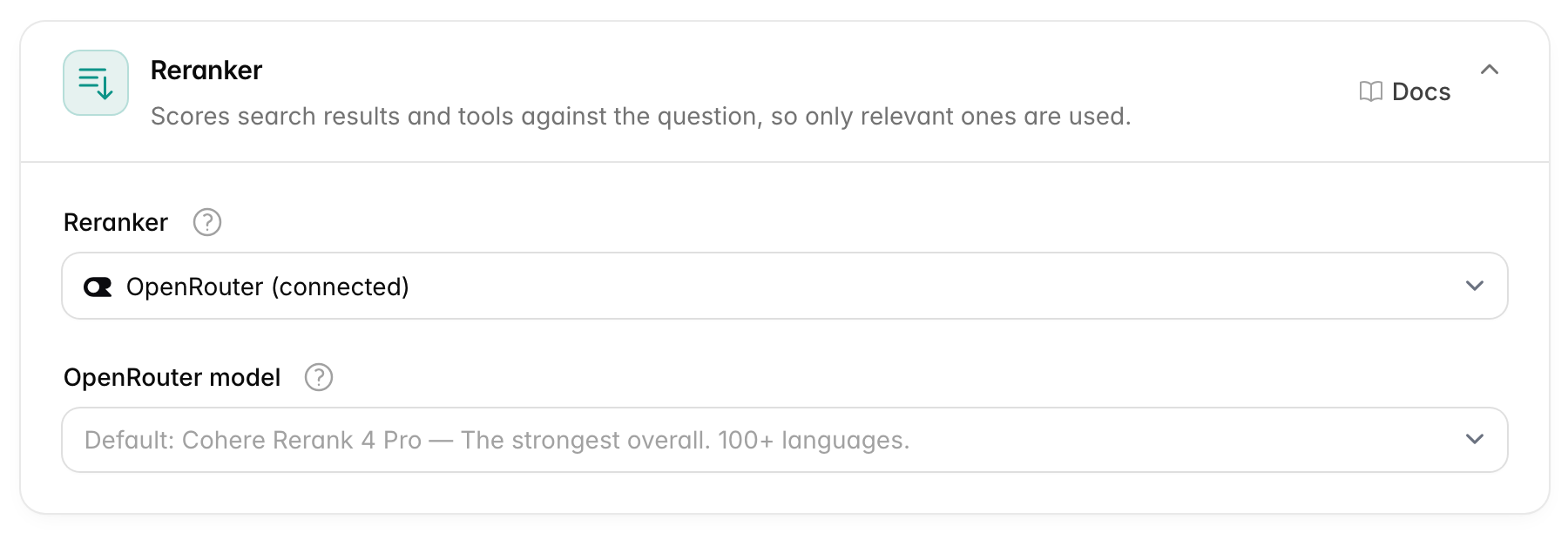
Reranker picks the service:
| Choice | What it is |
|---|---|
| OpenRouter | Uses your OpenRouter key. Pick the OpenRouter model below it, listed strongest first. Default cohere/rerank-4-pro. |
| Cohere Rerank | Uses your Cohere key. Pick the Cohere model below it. Default rerank-v4.0-pro. |
| Self-hosted | A reranking server of your own. |
| Off (a basic similarity check) | No reranker. Chatvia drops weak results by how close their meaning is to the question. This is less precise. |
Until you pick one, Chatvia uses OpenRouter when its key is saved, else Cohere, else no reranker.
Each reranker model scores in its own way, so each one has its own minimum score for what counts as relevant. You can change it in Search → Fine-tuning.
For Self-hosted, fill in:
- Address: the address of your reranking server, such as
http://reranker:8000/v1. It must answer at/rerank, as vLLM and Infinity servers do. - API key: only if your server needs a key.
- Model: the model's name as your server lists it, such as
Qwen/Qwen3-Reranker-4B.
When to change it. A reranker makes answers noticeably more accurate, so use one if you can. Saving an OpenRouter or Cohere key is enough, since Chatvia then picks it by itself. Turn it off only if you can't use either.
Documents
Many businesses keep their knowledge in PDFs, Word files, slide decks or even photos of printed pages. A computer can't read the text in a picture or a scanned page by itself. A document reader does that for it, and keeps the tables in order. This card picks that reader, and the AI steps that run on whole sources and pictures. For example, when you upload a scanned price list, the reader turns it into text your agent can search.
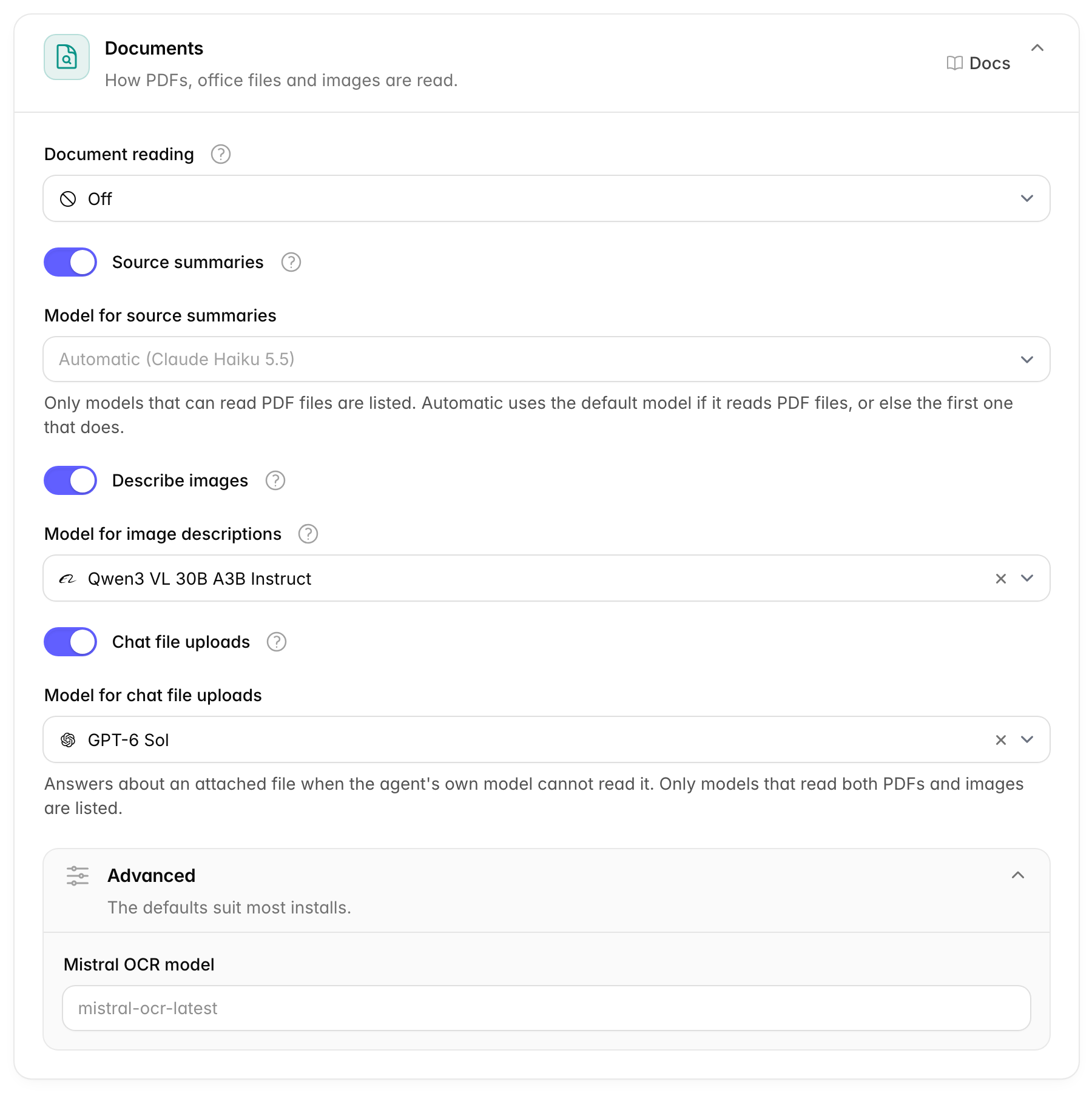
Document reading picks the reader of the text and tables in PDFs, Word files, slides and images, even scanned pages:
- Mistral OCR, with your Mistral key. OCR means reading the text in a picture of a page.
- Azure Document Intelligence, with your Azure key and endpoint.
- Off: those files can't be added as sources.
Until you pick one, Chatvia uses Mistral OCR when the Mistral key is saved, else Azure, else Off.
| Option | What it does | Default |
|---|---|---|
| Source summaries | A model reads each whole source and writes a short summary of it. It only runs while AI enhancement is on in Settings → Knowledge. | On |
| Model for source summaries | Shows while Source summaries is on. Only models that read PDF files are listed. Automatic uses the default model if it reads PDF files, or else the first one that does. With none, sources get no summary. | Automatic |
| Describe images | A model describes the pictures in your documents, so search can find what they show. A product photo becomes "a red waterproof jacket with a hood", which a visitor's question can match. It only runs while AI enhancement is on in Settings → Knowledge. | On |
| Model for image descriptions | Shows while Describe images is on. Only models that read images are listed. With none, pictures are not described. | Same as the model for quick tasks |
| Chat file uploads | Lets chatters attach a PDF or an image and ask about it, such as a photo of a broken part. Each agent must allow uploads too, in Setup → Settings → Composer options. | On |
| Model for chat file uploads | Shows while Chat file uploads is on. Answers about an attached file when the agent's own model can't read it. Only models that read both PDF files and images are listed. Automatic uses the default model if it reads both, or else the first one that does. With none, chatters can't attach files. | Automatic |
Advanced:
- Mistral OCR model: the Mistral model that reads documents. Default
mistral-ocr-latest.
When to change it. Set up a reader if people will upload PDFs, office files or images. Turn off Describe images to save cost if your documents have no useful pictures.
Speech to text
Speech to text turns spoken words into written text. Visitors can then speak a question into the chat instead of typing it, and you can add audio and video files, such as a recorded webinar, as knowledge. Their words are written down so agents can search them.
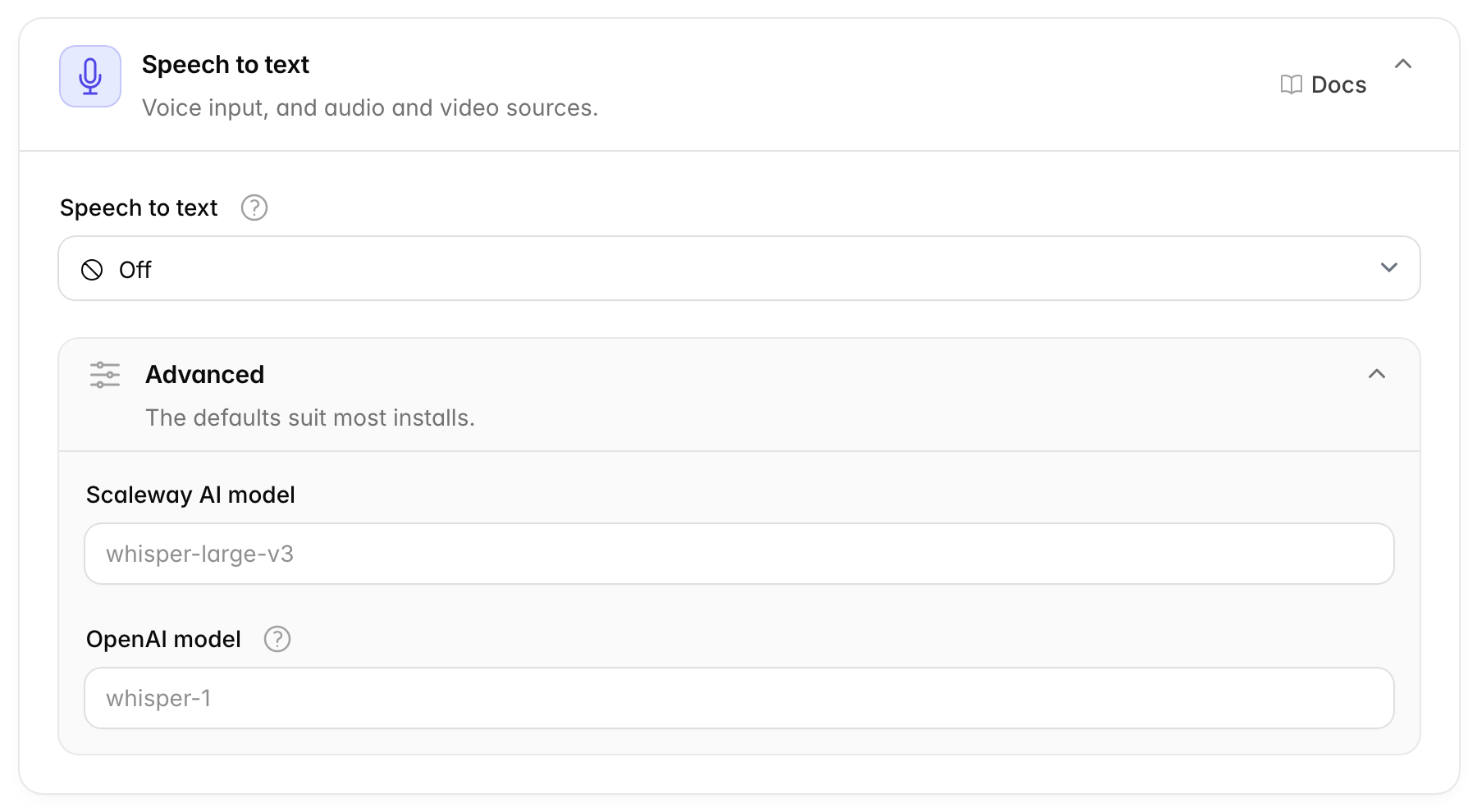
Speech to text picks the service: Scaleway AI Whisper, OpenAI Whisper or Off. Off means audio and video files can't be added as sources. Until you pick one, Chatvia uses Scaleway AI when its key is saved, else OpenAI, else Off.
Advanced:
- Scaleway AI model: default
whisper-large-v3. - OpenAI model: default
whisper-1. You can also usegpt-4o-transcribe. It takes files up to 25 MB, about an hour and a half of audio.
When to change it. Pick a service if you want voice input or audio and video sources. Leave the models as they are.
Voice conversations
Voice conversations are live spoken calls with an agent, in the hosted chat and the chat widget. The visitor presses a button and talks, and the agent answers out loud, like a phone call with your support desk. This card turns calls on for the install and sets the voice and the longest call.
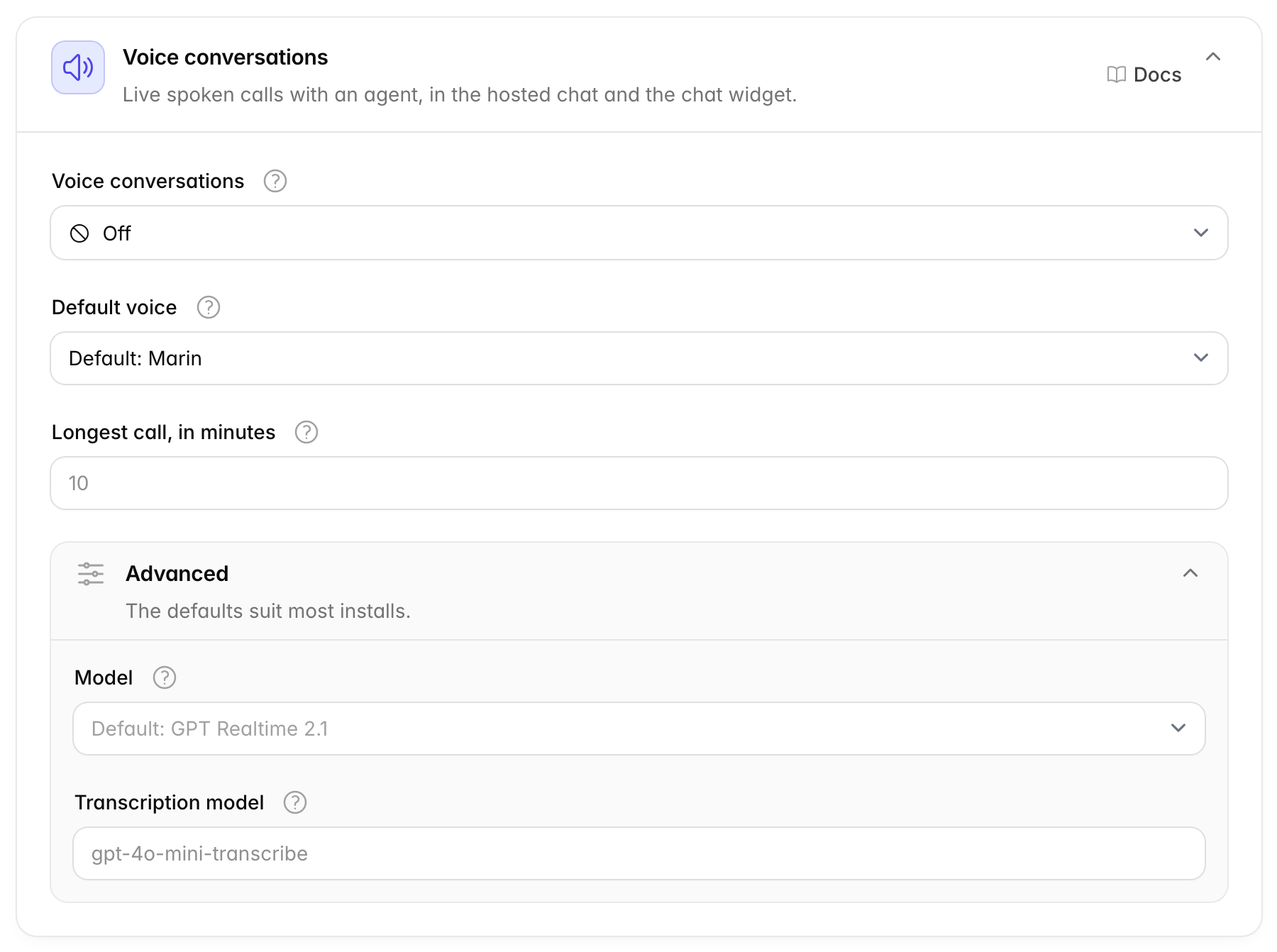
| Option | What it does | Default |
|---|---|---|
| Voice conversations | OpenAI Realtime or Off. Each agent must also turn calls on, in Setup → Settings → Composer options. A call costs much more than a typed chat. | OpenAI Realtime when the OpenAI key is saved, else Off |
| Default voice | Agents speak in this voice unless they have their own. Marin and Cedar sound the most natural. | Marin |
| Longest call, in minutes | When a call gets this long, the agent says goodbye and hangs up. From 1 to 25. | 10 |
Advanced:
- Model: the OpenAI realtime model. Default GPT Realtime 2.1. The mini model costs less, but it follows instructions and uses tools less well.
- Transcription model: writes down what the visitor says, so it shows in
the chat log. Default
gpt-4o-mini-transcribe. Others:gpt-4o-transcribeorwhisper-1.
When to change it. Turn it off if you don't want calls at all. Lower Longest call to keep costs in check.
Read aloud
Read aloud plays an agent's written reply as speech in the hosted chat, for visitors who prefer to listen. Unlike a voice conversation, the visitor still types. Only the reply is spoken. The audio files agents make have a service of their own (see Audio generation), but they use the voices and models of this card.
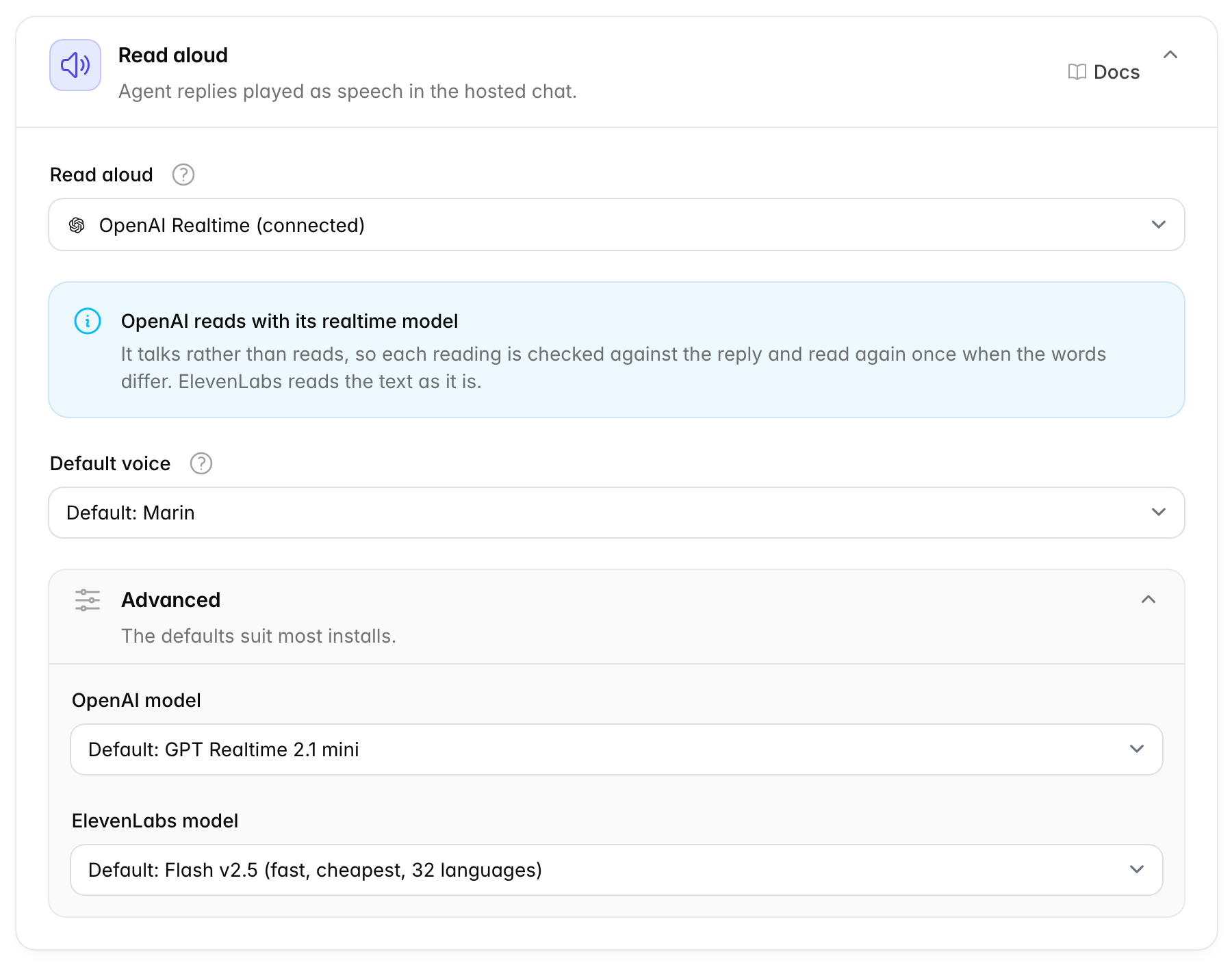
Read aloud picks the service: ElevenLabs, OpenAI Realtime or Off. Until you pick one, Chatvia uses ElevenLabs when its key is saved, else OpenAI, else Off. Each agent must also turn it on, in Setup → Settings → Composer options. Each reply is paid for once, so playing it again is free.
ElevenLabs reads the text as it is. OpenAI uses its realtime model, which talks rather than reads, so each reading is checked against the reply and read again once when the words differ.
Default voice: agents read replies and audio files in this voice unless they have their own. With OpenAI, Marin (the default) and Cedar sound the most natural. With ElevenLabs, pick any voice in your ElevenLabs account, or leave it empty for a ready-made one. The voice of a service shows when Read aloud or Audio generation uses it.
Advanced:
- OpenAI model: default GPT Realtime 2.1 mini. GPT Realtime 2.1 costs more.
- ElevenLabs model: default Flash v2.5 (fast, cheapest, 32 languages). The others are v4 Turbo (fast, 90+ languages), v4 (best quality, 90+ languages) and Multilingual v2 (29 languages).
When to change it. Pick a voice that suits your brand. Change the model only if you need a language the default does not speak, or want better quality.
Image generation
Image generation lets agents make pictures in the hosted chat. When a chatter asks ("draw a logo for my bakery"), the agent writes a description and the picture appears under its reply a moment later. The chat widget, the Command Bar, voice calls and messaging channels don't make pictures.
Needs a license key
Image generation needs a license key on your Chatvia install. Without one, agents can't make pictures. See What needs a key.
It is off by default. A connected key alone does not turn it on, because every picture costs money. Add a model here first. Then each agent must also turn it on, under Capabilities.
The table lists the models that make pictures, with the service each one runs on. They can come from several services at once, for example GPT Image from OpenAI next to FLUX.2 from fal.ai.
- Add a model: pick a service, then tick its models. Services without a key are greyed out. When you add the first model of a service, Chatvia checks its key with a real call. If the call fails, nothing is added and a message says why.
- Remove: takes a model off the list. If it was the default, the next model on the list becomes the default. When you remove the last model, agents stop making pictures until you add one again.
A model whose service lost its key shows Not connected under the service. Pictures from that model fail until you add the key again.
| Option | What it does | Default |
|---|---|---|
| Default model | Pictures are made with this model unless a chatter picks another one. It shows once the table has a model. When it is empty, the first model on the list is used. | The first model on the list |
| Pictures per chat per hour | The most pictures an agent makes in one chat in an hour. A chatter who asks for more is told to wait. From 1 to 100. | 10 |
With two or more models on the list, each agent can let chatters pick one. The agent turns this on under Setup → Model, and chatters then see an Image model menu at the top of the hosted chat, with the default first. See Image and video models. Add only the models you are happy for chatters to use.
When you pick a service in Add a model, a short note under it explains what to know about it:
- OpenAI draws through its Responses API. A small text model hands the description to the image model, so each picture also costs a few text tokens. OpenAI does not keep the pictures.
- OpenRouter works with any model whose output includes images. Prices differ a lot between models, so check a model's price on OpenRouter before you add it.
- Google marks every picture with its SynthID watermark. People can't see it, but tools can find it.
- fal.ai runs many image models, open ones too, with one key. Prices differ between models, so check a model's price on fal.ai before you add it.
The models each service offers, a good first pick first:
- OpenAI: GPT Image 2.5 Flare (fast). The others are GPT Image 2.5 Sunburst (best detail, costs more), GPT Image 2, GPT Image 1.5 and GPT Image 1 mini (cheapest).
- OpenRouter: Gemini Nano Banana 2.1
(
google/gemini-nano-banana-2.1). A few good picks are listed first, then every model on OpenRouter whose output includes images. - Google: Nano Banana 2.1 (fast, good pictures). The others are Nano Banana 2 Lite (fastest, cheapest), Nano Banana Pro (best pictures, costs more) and Nano Banana 2.
- fal.ai: FLUX.2 dev, an open model. The others are Qwen-Image (an open model, good with text in pictures), FLUX.2 pro (costs more), Nano Banana 2 and Nano Banana Pro (Google's models, Pro costs more), Seedream 4.5 (ByteDance) and Recraft V3 (good for logos and designs).
Every picture counts against the workspace's monthly generation limit, when a platform admin set one (see Workspaces). A picture that fails is not counted. The pictures are made in the background, by the Pictures, audio and video queue workers (see Platform).
When chatters may pick the model, each picture shows the name of the model that made it. A picture that is still being made when you remove its model is still finished by its service.
When to change it. Add a model when your agents should draw. Lower Pictures per chat per hour if a few chatters make too many pictures. Add more models when chatters want a different style or quality, and leave out the models that cost too much.
Audio generation
Audio generation lets agents make audio files in the hosted chat. When a chatter asks ("read this paragraph aloud as an MP3", "turn my PDF into audio"), the agent has the text, or the PDF file the chatter attached, read aloud, and the file appears in the chat a moment later, ready to play or download. The chat widget, the Command Bar, voice calls and messaging channels don't make audio files.
Needs a license key
Audio generation needs a license key on your Chatvia install. Without one, agents can't make audio files. See What needs a key.
It is off by default, and apart from Read aloud, so the two can use different services. Pick a service here first. Then each agent must also turn it on, under Capabilities. The voices and models are the ones on the Read aloud card.
| Option | What it does | Default |
|---|---|---|
| Audio generation | The service that reads: ElevenLabs, OpenAI Realtime or Off. A service whose key is not saved in AI providers can't be picked. When you pick one, Chatvia checks its key as you save. | Off |
| Audio files per chat per hour | The most audio files an agent makes in one chat in an hour. A chatter who asks for more is told to wait. From 1 to 100. | 10 |
| Longest text, in characters | The most text one audio file reads, such as an attached PDF. 20,000 characters is about 6 pages, or 20 minutes of audio. A longer text is refused, and the agent offers to read a part or a summary instead. From 1,000 to 50,000. | 20,000 |
ElevenLabs reads the text exactly as it is written and makes MP3 files. OpenAI uses its realtime model, which talks rather than reads, so each reading is checked against the text and read again once when the words differ. Its files are WAV files, which are larger.
To read an attached PDF, Chatvia takes the text from the file on your server, so the agent never copies a long document word by word. A scanned PDF without a text layer can't be read aloud.
Every audio file counts against the workspace's monthly generation limit, when a platform admin set one (see Workspaces). A file that fails is not counted. The files are made in the background, by the Pictures, audio and video queue workers (see Platform).
When to change it. Turn it on when your agents should make audio files. Pick ElevenLabs when the files must match the text word for word. Lower the longest text if long files cost you too much.
Video generation
Video generation lets agents make short videos in the hosted chat. When a chatter asks ("make a short video of our coffee being poured"), the agent writes a description, and the video appears under its reply when it is ready. A video takes a few minutes, so the chat shows a placeholder until then. The chat widget, the Command Bar, voice calls and messaging channels don't make videos.
Needs a license key
Video generation needs a license key on your Chatvia install. Without one, agents can't make videos. See What needs a key.
It is off by default. A connected key alone does not turn it on, because a video costs much more than a picture. Add a model here first. Then each agent must also turn it on, under Capabilities.
The table lists the models that make videos, with the service each one runs on. Like image models, they can come from several services at once.
- Add a model: pick a service, then tick its models. Services without a key are greyed out. When you add the first model of a service, Chatvia checks its key with a real call. If the call fails, nothing is added and a message says why.
- Remove: takes a model off the list. If it was the default, the next model on the list becomes the default. When you remove the last model, agents stop making videos until you add one again.
| Option | What it does | Default |
|---|---|---|
| Default model | Videos are made with this model unless a chatter picks another one. It shows once the table has a model. When it is empty, the first model on the list is used. | The first model on the list |
| Videos per chat per hour | The most videos an agent makes in one chat in an hour. A chatter who asks for more is told to wait. From 1 to 20. | 2 |
| Length, in seconds | How long each video is. Each model makes only some lengths, so the service makes the length nearest to this one. Longer videos cost more. From 2 to 15. | 8 |
| Resolution | How sharp each video is: 720p (HD) or 1080p (Full HD, costs more). A model that does not make 1080p makes 720p. Some models make 1080p only at their longest length, so they make that length. | 720p (HD) |
With two or more models on the list, each agent can let chatters pick one, under Setup → Model. Chatters then see a Video model menu at the top of the hosted chat, with the default first. See Image and video models. When two services offer the same model, such as Google Veo 3.1 Fast on Runway and on fal.ai, the menu adds the service to its name.
When you pick a service in Add a model, a short note under it explains what to know about it:
- Google has moved on from its Veo models on the Gemini API: it shut down the Veo 3.1 previews. Chatvia lists Gemini Omni Flash first, and lists Veo 3 while Google still serves it. For Veo 3.1, add it from ElevenLabs, Runway or fal.ai. Each video carries Google's SynthID watermark, which people can't see but tools can find.
- ElevenLabs needs its Pro plan or above to make videos. Its Seedance models work only after ElevenLabs approves your account for them.
- BytePlus Seedance needs a prepaid resource pack for each model, bought in the BytePlus console, or every video fails. A pack works for one model only.
- Runway takes credits from your Runway organization for each second of video. Add credits in the Runway developer portal.
- Kling and fal.ai: prices differ a lot between models, from a few cents to a few dollars a video, so check the price before you add one.
The models each service offers, a good first pick first:
- Google: Gemini Omni Flash (with sound, 3 to 10 seconds). The others are Veo 3 Fast and Veo 3 (both 8 seconds, deprecated by Google; Veo 3 costs more).
- ElevenLabs: Google Veo 3.1 Fast (with sound, 4 to 8 seconds). The others are Google Veo 3.1 (best, costs more), and Seedance 2.0 Fast (720p only), Seedance 2.0 and Seedance 2.5, which need ElevenLabs' approval.
- Kling: Kling 3.0 Turbo (fast, 3 to 15 seconds). The other is Kling 4.0 (best, up to 30 seconds, costs more).
- BytePlus: Seedance 2.0 Fast (720p, cheaper). The other is Seedance 2.0 (up to 1080p).
- Runway: Gen-4.5 (2 to 10 seconds, 720p). The others are Google Veo 3.1 Fast and Google Veo 3.1 (with sound, the second costs more), Kling 3.0 Pro (1080p) and Seedance 2.0.
- fal.ai: Wan 2.2, an open model (no sound, the cheapest). The others are Google Veo 3.1 Fast, Google Veo 3.1 Lite (cheaper) and Google Veo 3.1 (costs more), all with sound, and Kling 3.0 Pro (with sound).
Every video counts against the workspace's monthly video limit, when a platform admin set one (see Workspaces). Videos have a limit of their own, apart from pictures and audio files, because they cost much more. A video that fails is not counted. A video that is not ready after 15 minutes is shown as failed. Chatvia asks the service every few seconds whether the video is ready, on the Pictures, audio and video queue workers (see Platform). Once saved, the video is deleted from the service where it allows that.
When chatters may pick the model, each video shows the name of the model that made it. The length and resolution above apply to every model. A video that is still being made when you remove its model is still fetched from the service that started it.
When to change it. Add a model when your agents should make videos. Keep Videos per chat per hour low, and set a monthly video limit for each workspace, because videos are the most costly thing an agent makes. Pick 1080p only when the videos must be sharp on large screens. Add only models whose price you accept, since chatters may pick any of them.
Models for app tasks
Besides writing replies, Chatvia uses AI for many small jobs behind the scenes: it gives each conversation a title, checks messages for abuse, works out what a short follow-up like "and the price?" means, and more. These jobs don't need your best (and most expensive) model. This card picks the models behind them. It is under Advanced, and you rarely need to change it after the setup.
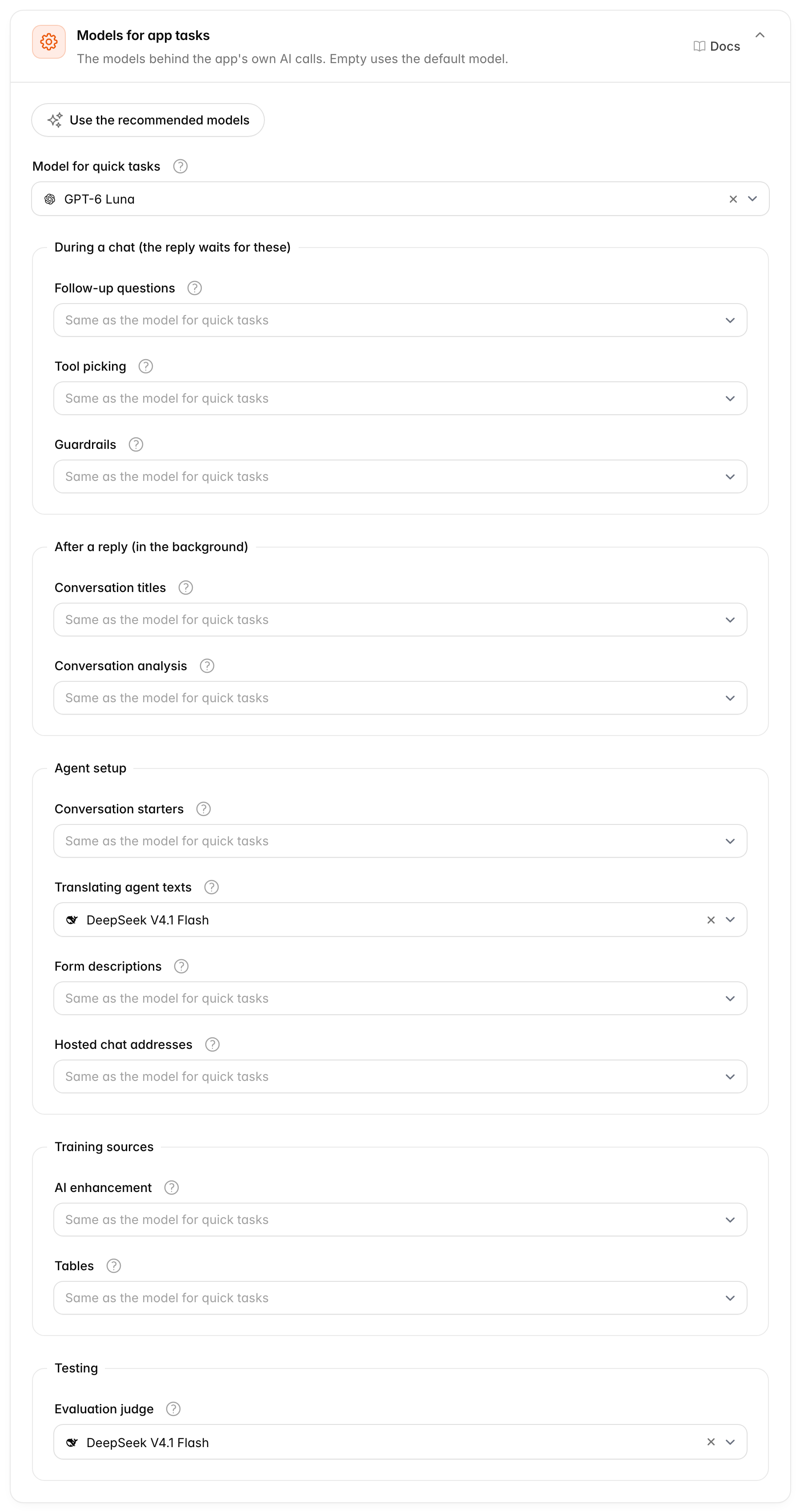
Model for quick tasks does all of these small jobs, unless a task below has its own model. A small, fast model suits them. Empty uses the default model for new agents.
Each task below has its own field. Empty uses the model for quick tasks.
| When it runs | Task | What it does |
|---|---|---|
| During a chat (the reply waits for these) | Follow-up questions | Turns a short follow-up like "and the price?" into a full question for the search. |
| Tool picking | When an agent has tools from several connectors, picks the one a message is about. | |
| Guardrails | Checks messages for tricks, off-topic questions and abuse when an agent has these checks on. See guardrails. | |
| After a reply (in the background) | Conversation titles | Writes a short title for each conversation from its first messages. |
| Conversation analysis | Finds the topics, mood and language of conversations for Analytics. The model must support structured JSON replies (answers in a fixed, machine-readable format). | |
| Agent setup | Conversation starters | Suggests conversation starters for an agent, when asked in its setup. |
| Translating agent texts | Translates an agent's title, welcome message and message box hint into each language when they are saved. | |
| Form descriptions | Rewrites the description of a form, when asked in the form editor. | |
| Hosted chat addresses | Suggests a short web address for an agent's hosted chat. | |
| Training sources | AI enhancement | Writes a summary and likely questions for each part of a file or web page. Large files make many calls. |
| Tables | Turns the tables inside documents into plain text, so search can find what they say. | |
| Testing | Evaluation judge | Scores an agent's answers in evaluations. A stronger model gives fairer scores. |
The three tasks that run during a chat make the reply wait, so a small, fast model suits them best.
Use the recommended models sets this card from the provider of the default model. It picks that provider's small model for quick tasks, and the default model for the evaluation judge and translations. It also picks a model that reads images for image descriptions, or turns image descriptions off when the provider has none. The models you set for single tasks are cleared. The button only shows when the default model's provider has recommended models, so not for Azure OpenAI or a server of your own.
When to change it. If you're unsure, press Use the recommended models. Give one task its own model only when it needs more care, such as a stronger model for the evaluation judge.