Full-page embed

A full-page embed is the ChatGPT-style chat experience hosted inside your business app: a sidebar with conversation history, the message thread, and an input box at the bottom. Useful when chat is the whole feature for your team or customers, not a sidekick.
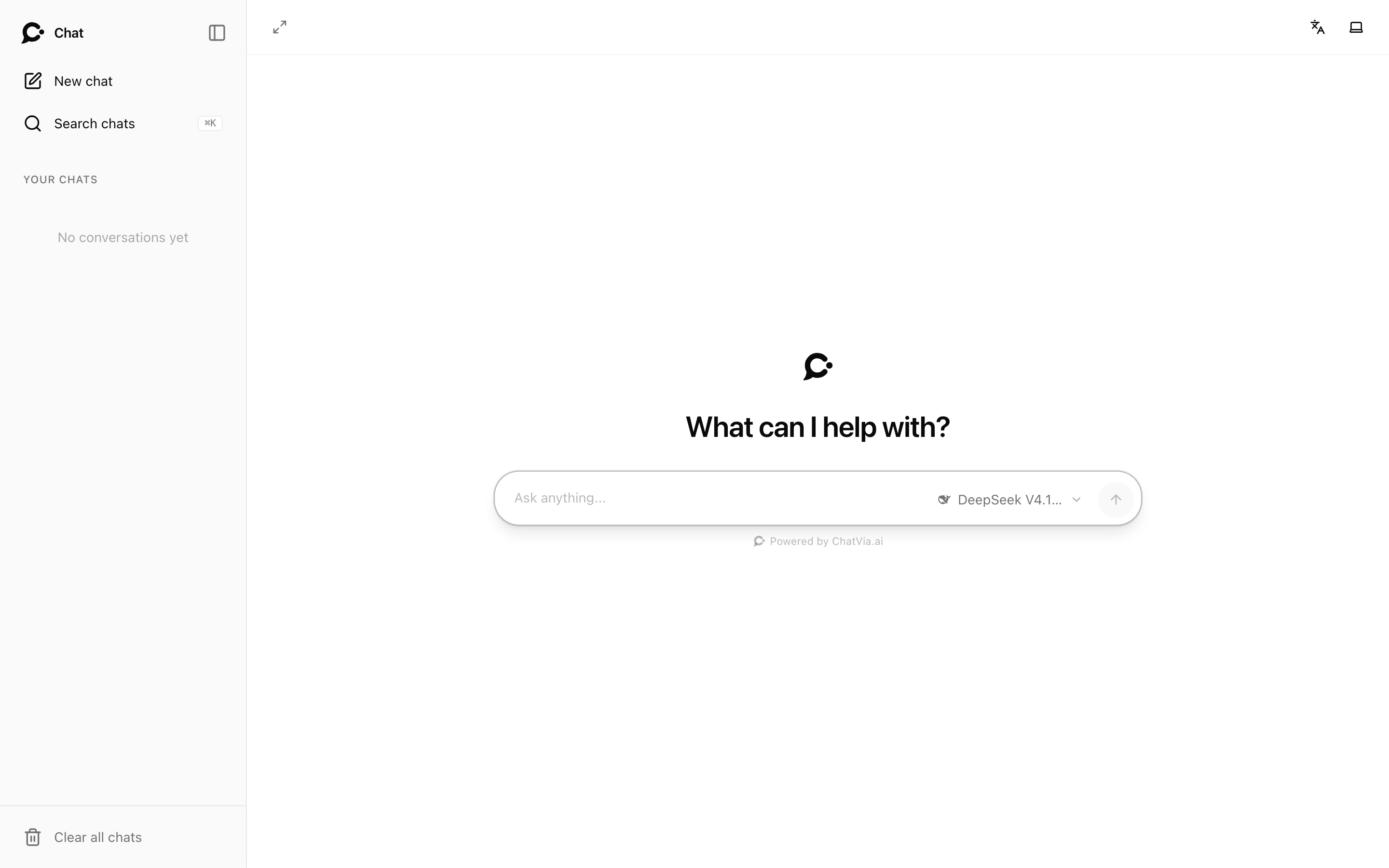
When to use this vs. the widget
| Widget | Full-page | |
|---|---|---|
| Surface | Floating bubble on existing pages | Dedicated page in your app |
| Conversation persistence | localStorage, per-domain | Server-side, per chatter |
| History view | Inside the bubble | Sidebar with all conversations |
| Use cases | Support, sales, marketing widgets | Internal knowledge assistants, in-app help, AI-first products |
If chat is a feature of your product (not just a help overlay), use a full-page embed.
Two delivery options
Option 1: iframe the Hosted Chat surface
Every agent has a Hosted Chat address: https://chat.example.com/chat/YOUR_AGENT_ID. Here https://chat.example.com stands for your install's own address (APP_URL). Hosted Chat is one of the three surfaces of the agent (Hosted Chat, Chat Widget, Command Bar).
The agent's Deploy page builds the iframe code for you, in the Hosted Chat card under Embed in a page. Set the width and height there, or pick a size: Full, Large, Medium or Small. The code looks like this:
<iframe
  src="https://chat.example.com/chat/YOUR_AGENT_ID/embed"
  width="100%"
  height="600px"
  title="Chat with Support"
  frameborder="0"
  allow="microphone"
  allowfullscreen
  loading="lazy"></iframe>
allow="microphone" lets the chat use voice input.
For protected agents, append ?token=THE_TOKEN_YOU_SIGNED. See Protected agents.
Pros: zero setup, works in every framework. Cons: less flexible (Chatvia controls the chrome).
Option 2: link to the Hosted Chat
Don't embed it at all. Link to the agent's Hosted Chat address from your app's menu, or open it in a new tab. Chatters get the whole page, with their chats in the sidebar. See Hosted Chat for what they can do there.
If you want chat to open from inside your page without leaving it, use the Command Bar or the Chat Widget instead.
Configuring the experience
Most settings are configured once, on the agent's Setup page, and apply across all three surfaces (Hosted Chat, Chat Widget, Command Bar). Behavior is per surface: switch the surface tab at the top of Setup to edit it.
- Info: chat title, welcome message, composer placeholder, and the notice under the composer.
- Persona: system instructions or saved prompt.
- Starters: conversation starters.
- Languages: which languages the agent supports.
- Model: the model, how creative it is, how hard it reasons, and the models chatters may pick from.
- Branding: color theme, avatar, logo, privacy policy link.
- Behavior: per surface. For Hosted Chat: default theme, language, language switcher, sidebar, theme switcher and chat expand.
- Settings: file uploads, voice, read aloud, chat log and analytics.
A live preview is shown alongside the editor. Who may open the chat is set on the agent's Security page. The Setup page explains every section.
Authenticated full-page embeds
For internal-tool use cases (teammates only, customers inside a logged-in app), turn the agent protected and sign chatters in:
- Redirect them to
https://chat.example.com/chat/YOUR_AGENT_ID?token=<JWT>from your own session-checking route. - Or pass
data-auth="<JWT>"to the embed script.
Chatvia validates the JWT and serves the chat with the chatter's identity. See Protected agents and Identity verification.
SSO / SAML
If your workspace has integrated SSO with your app, mint a Chatvia JWT immediately after the SSO callback completes. It's just another short-lived token (max 24 hours). Chatvia doesn't need to know about SAML or OIDC. It trusts the signature made with the agent's signing secret.