Quick start

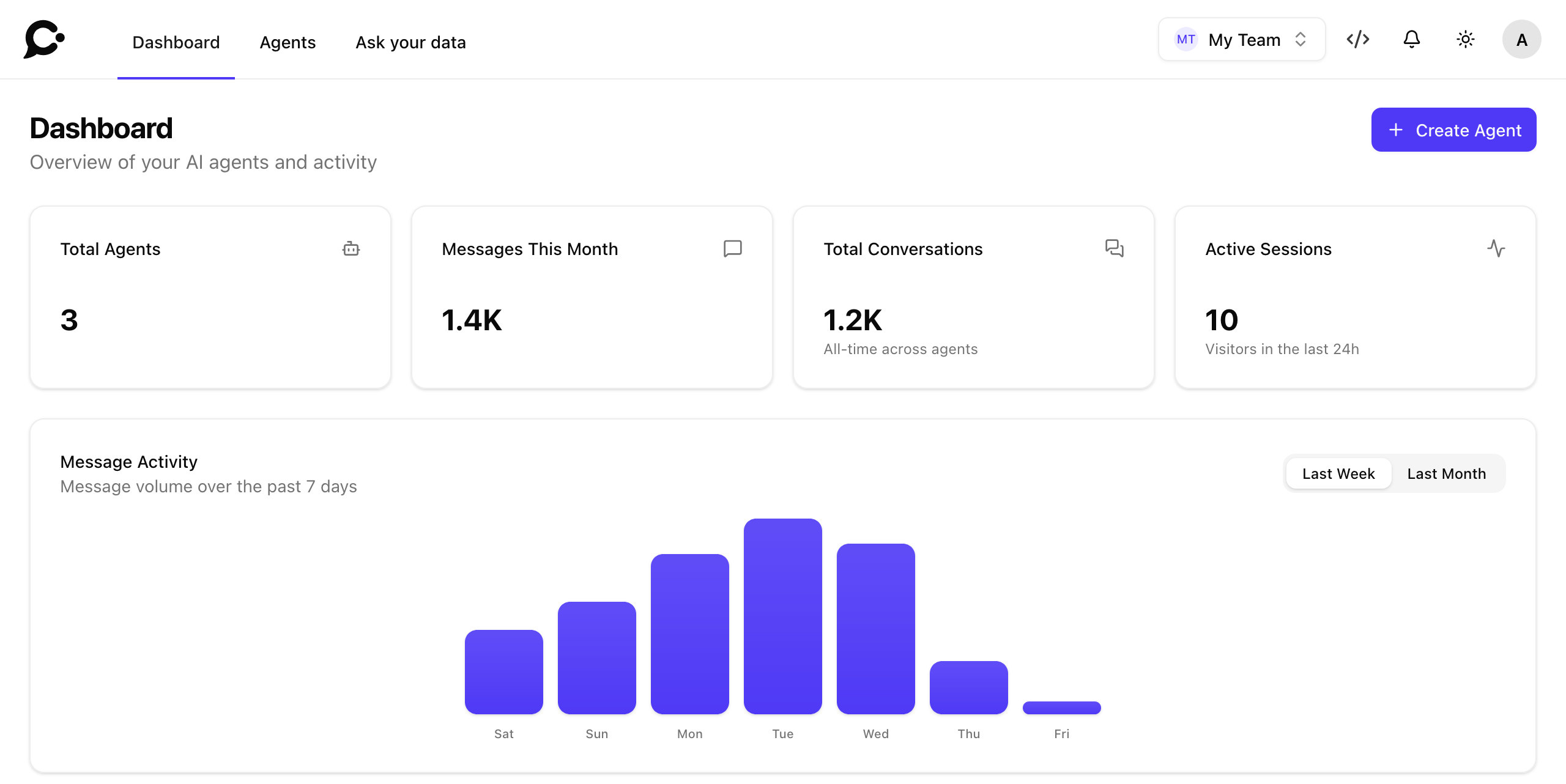
In five minutes your workspace will have a working agent that answers questions from your own content.
1. Sign up
Create a workspace on the sign-up page (/register) and confirm your email address. Without a license key, an install has one workspace, with no limit on agents, teams or replies. A few features need a key, such as the API, voice and Live Chat, and four Enterprise security features that need an Enterprise license key. A new workspace comes with a default team, so you can invite teammates right away. If sign-up is closed, ask the person who runs your Chatvia server for an account.
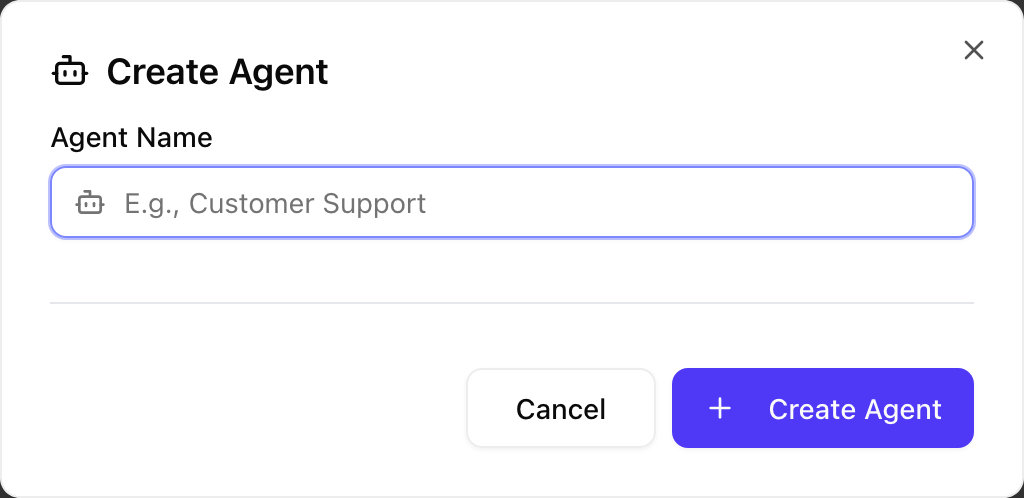
2. Create an agent
From Dashboard → Agents → Create agent, give the agent a name and press Create Agent. That is the only field. Every agent comes with three surfaces (Hosted Chat, Chat Widget and Command Bar), which you set up later in Setup. The chat address is made for you. You can rename the agent at any time with Rename, in the Settings group of the agent's sidebar.
3. Add sources
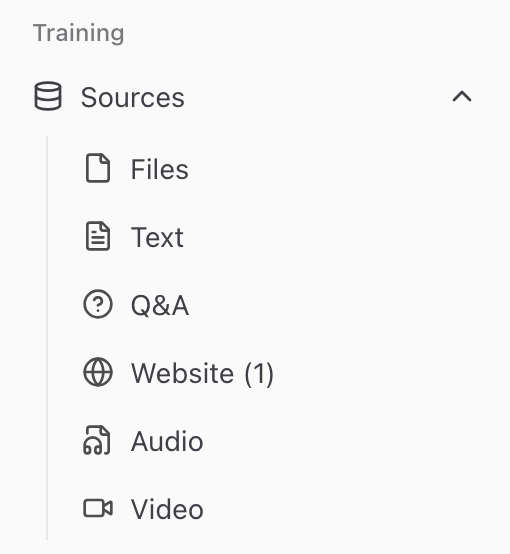
Open the new agent and go to Sources. Sources live with the agent. There is no separate Knowledge Base page. Add at least one source so the agent has something to answer from:
- Files: PDFs, Word docs, Markdown, audio, video.
- Web pages: a URL. Chatvia finds the pages of the site and indexes them.
- Text: paste a snippet (FAQ, policy text, etc.).
- Q&A: question and answer pairs. When a question matches, the agent uses your answer.
Sources are processed in the background. Each source shows its status: Pending while it waits, then Processing (or Training), then Ingested (or Trained) when it is ready, or Failed. The exact words differ a little between the source lists. Your team can keep working while ingestion finishes.
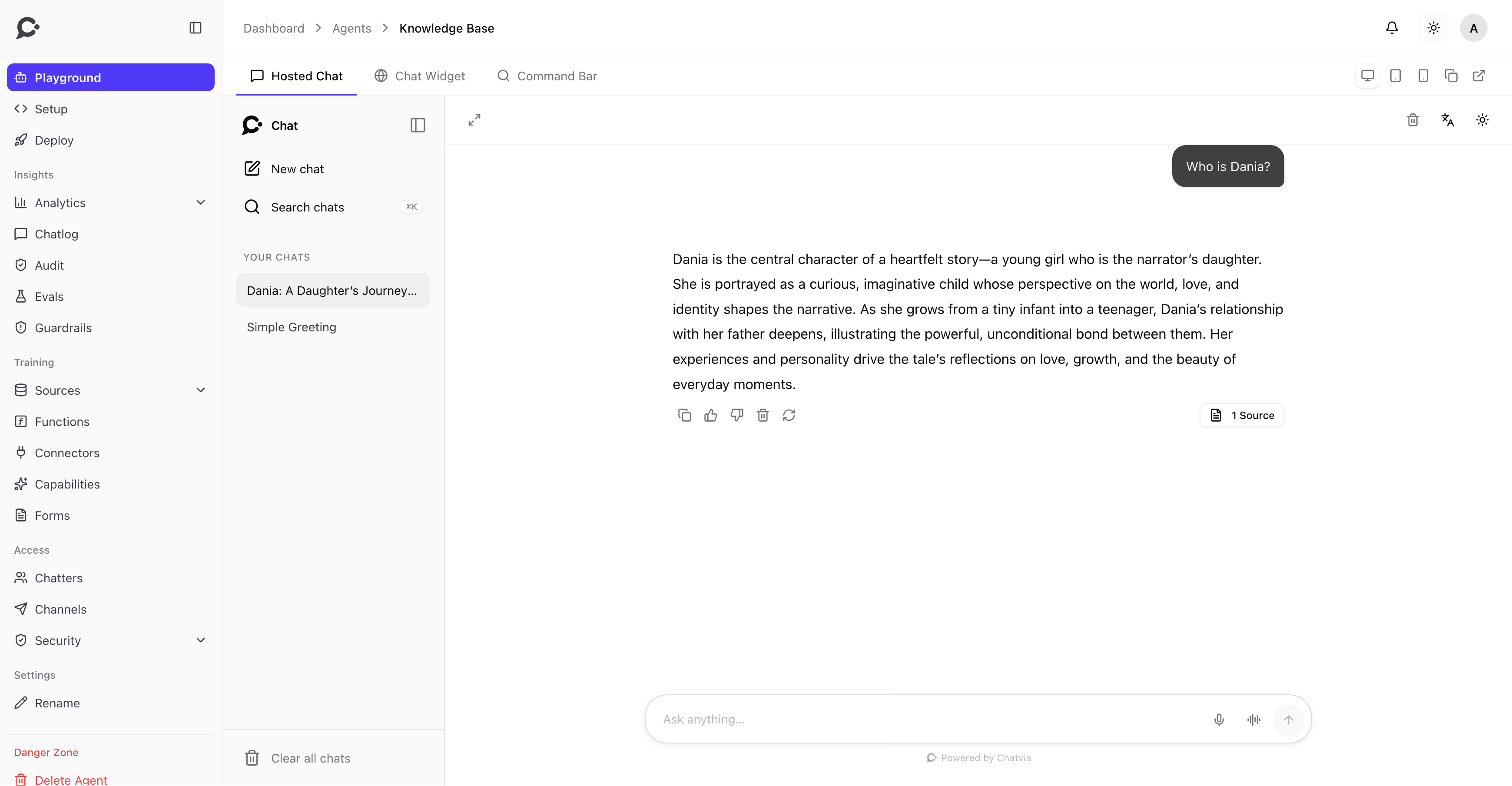
4. Test it in the Playground
Open Playground on the agent's sidebar and ask a question. The playground previews each of the three surfaces, at desktop, tablet or mobile width. To see which parts of your sources an answer used, open the conversation in Chatlog. Each answer lists the passages it used, with their relevance. That helps when you ask "why did it say that?"
5. Put it in front of users
Every agent has three surfaces, plus the public API. Pick the ones that fit:
- Embed the Chat Widget. Open the agent's Deploy page and copy the
<script>snippet from the Chat Widget card. Paste it before</body>on your website or app. See the widget guide. - Share the Hosted Chat. Each agent has its own chat page at
chat.example.com/chat/{agent}(your install's address), or on a domain of its own. You can also put it in an iframe. - Add the Command Bar. A search-style button that opens the chat in a large window, good for help inside your app. Copy its snippet from the Command Bar card on the Deploy page.
- Invite chatters. Give people access to a protected agent from Workspace → People → Chatters, or from the agent's Chatters page.
- Use the public API. Create a key in Workspace → Integrations → API Keys and call the public API, documented at
yoursite.com/docs/api.
Next steps
- Invite teammates and chatters: see Teams & roles.
- Connect your other tools with Workspace → Integrations → Connectors and Workspace → Integrations → Functions.
- Tighten the persona in Persona & instructions.
- Add conversation Starters so chatters see useful prompts on open.
- Sign your own users in with Identity verification.