Observability settings

Observability means being able to see what happens inside the app while it runs, like the gauges on a car's dashboard. This page turns on and off the two tools that watch your install: Pulse, which shows the app's health, and Spectra, a log of every call to an AI service. It also sets what Spectra saves and for how long, and whether Radar keeps the issues you can fix. Open it in the admin panel under Settings → Observability.
You need it to find out why the app is slow, what your agents cost, or why an answer went wrong, and to keep less data about chats. If you never open it, both tools record, Spectra keeps each AI call for 30 days with its prompts and replies, Pulse keeps 7 days of health data, and Radar keeps issues for 30 days.
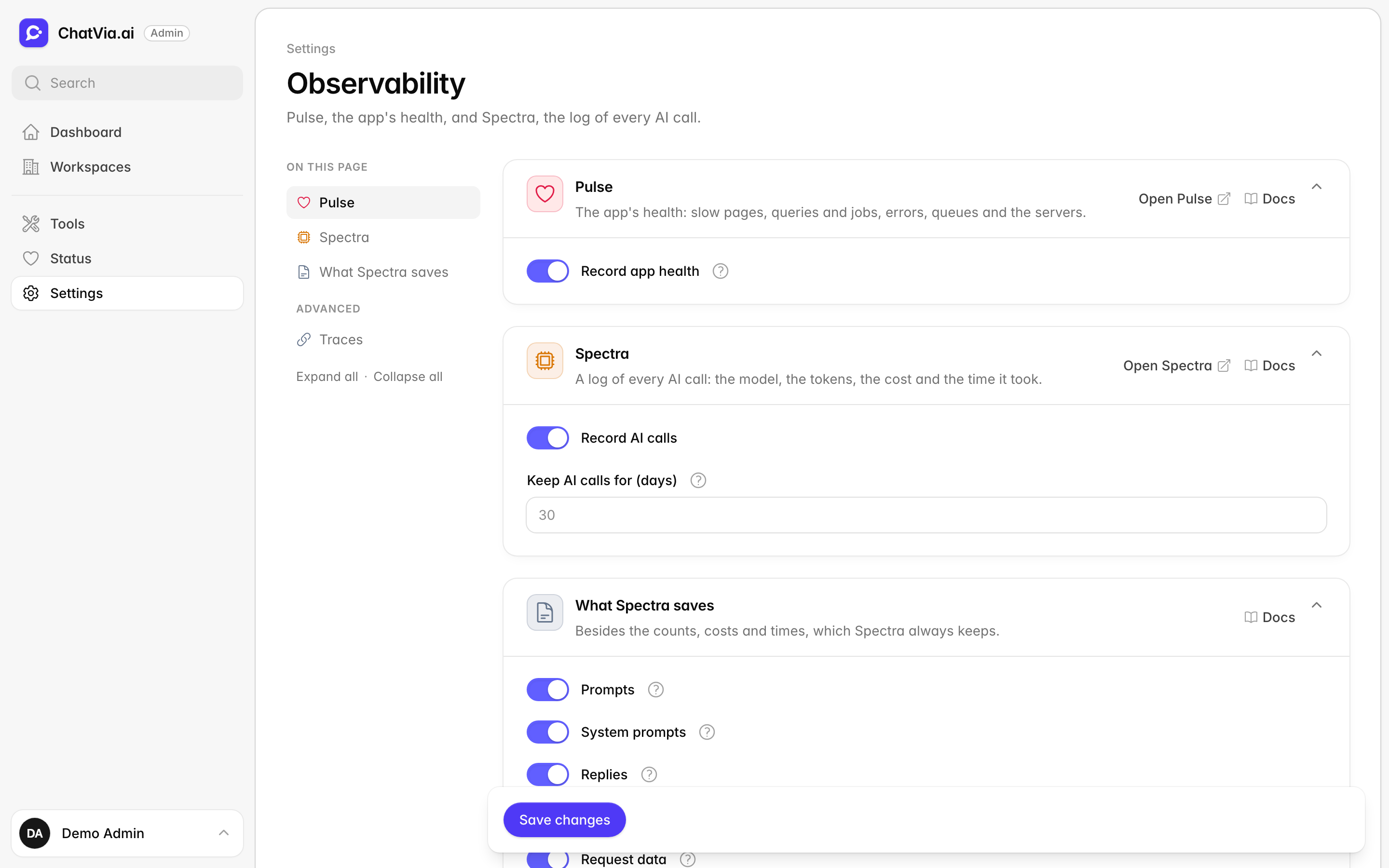
Both tools record from the start. You open them from the links on their cards, or from the Tools page. Turning recording off keeps what was already recorded, and the tools stay open so you can still read it.
Pulse
Laravel Pulse is a free monitoring tool from the makers of Laravel, the framework Chatvia is built on. It watches the app's health, like a fitness tracker for your install. It notes which pages, queries and jobs are slow, which errors happen, how long the queue of background jobs is, and how busy the servers are. When someone says "the chat felt slow yesterday", Pulse shows you whether it was, and what was slow.

Record app health records slow pages, errors, queues and server load, to show in Pulse. It is on by default. Data older than 7 days is deleted. Open Pulse in the card header opens Pulse in a new tab.
The Servers part of Pulse (CPU, memory and disk) needs the php artisan pulse:check process running all the time. A process is a program that keeps running on the server in the background. When you change this switch, Chatvia restarts that process for you, so it follows the new choice.
If the server's .env file has PULSE_ENABLED=false, Pulse is left out of the install. The .env file, or environment file, is a settings file on the server that the app reads when it starts. The switch is then greyed out and the card says Off in .env. Remove that line from .env to use Pulse.
When to change it: leave it on. Turn it off only if your server is very short on resources and you never look at Pulse.
Spectra
Spectra is a free, open-source tool for Laravel apps. It keeps a log of every AI call on your server: which AI model answered, how many tokens it used, what it cost and how long it took.
Each time an agent answers, Chatvia sends a request to an AI service, such as OpenAI, and gets a reply back. That is one AI call. A token is a small piece of text, about three quarters of a word, and AI services bill by the token. So Spectra is where you find out, for example, that one agent costs twice as much as the others, or why an answer went wrong.
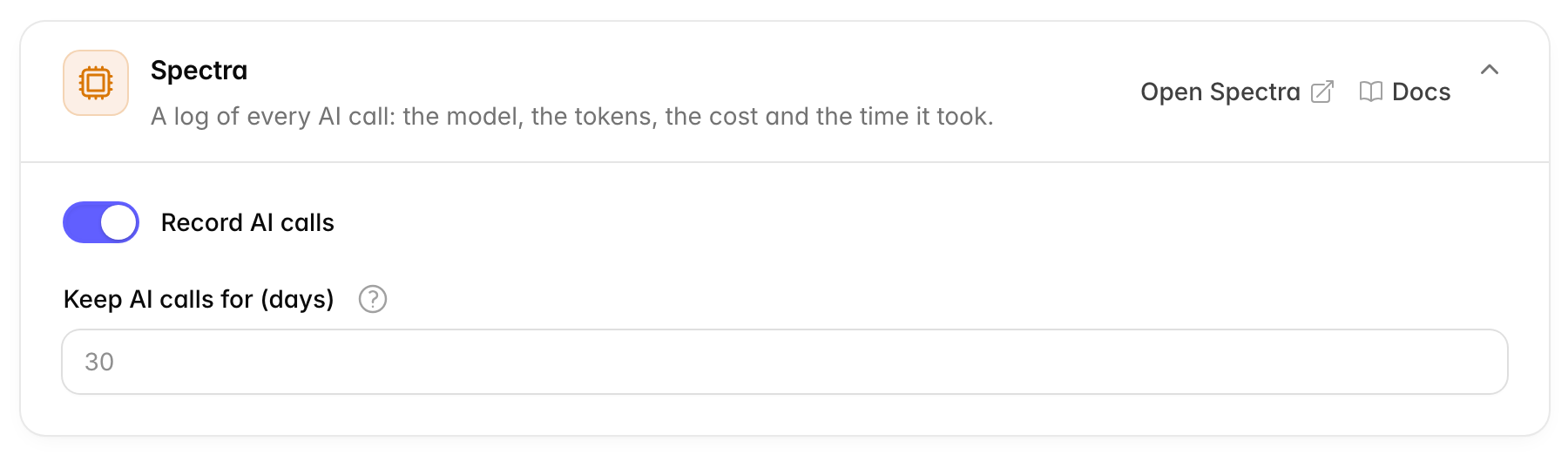
| Option | Default | What it does |
|---|---|---|
| Record AI calls | On | Logs every call Chatvia makes to an AI service. |
| Keep AI calls for (days) | 30 |
AI calls older than this are deleted once a day. You can enter 1 to 3650. |
Open Spectra in the card header opens Spectra in a new tab. A change of the switch applies to the next AI call.
Only admins can open Spectra, unless you allow a workspace's owner on the workspace's page under Workspaces. Teammates cannot open it. Spectra shows the calls of every workspace, so allow it only for an owner you trust with that.
If the server's .env file has SPECTRA_ENABLED=false, Spectra is left out of the install. The switch is then greyed out and the card says Off in .env.
When to change it: raise Keep AI calls for (days) if you want to compare costs over several months. Lower it if you want to keep less data about chats. How long data is kept is called retention.
What Spectra saves
Besides the counts, costs and times, which Spectra always keeps.
An AI call has several parts: the question that was sent, the instructions that came with it, and the answer. These switches decide which of those parts Spectra writes down. More parts help you see why an answer went wrong. Fewer parts mean less of what people wrote ends up in the log.
Each switch adds one part of every AI call to the log. With all of them off, Spectra keeps only the counts, costs and times.
| Option | Default | What it saves |
|---|---|---|
| Prompts | On | The messages sent to the AI. They include what people write in chats. |
| System prompts | On | Each agent's instructions, with the parts of your knowledge found for the question. |
| Replies | On | What the AI answered. |
| Tools | On | The list of tools the AI could use. It can be long. |
| Request data | On | The whole request sent to the AI service. It repeats the prompts and adds settings such as the temperature. |
| Embeddings | Off | The numbers that search uses to compare meaning. They are large and rarely useful. |
A prompt is the text sent to the AI. The system prompt is the part the visitor never sees: the agent's instructions, such as "You are the support assistant of our shop". An embedding is a list of numbers that stands for the meaning of a text, so search can find texts that mean the same thing.
Prompts and replies let you read a whole call, which helps when an answer is wrong. They also mean the log holds what chatters wrote. To keep less personal data, turn off Prompts, System prompts, Replies and Request data. Request data repeats the prompts, so the prompts are still saved while it is on.
A change applies to the next AI call. Calls that were already saved keep what they have.
When to change it: keep the defaults while you set up your agents and want to see why they answer as they do. Turn off the four switches above if your privacy policy says you keep as little of what people write as you can.
Traces
How Spectra groups AI calls, so the calls of one reply show as one chain. These options are in the card's Advanced part, which starts closed.
One reply often takes several AI calls. For example, a small call first checks the question, then the main call writes the answer. A trace ties those calls together, like a parcel's tracking number ties together every stop on its way. Spectra then shows them as one chain instead of loose calls.
| Option | Default | What it does |
|---|---|---|
| One trace per request | On | Groups the AI calls of one page visit or background job, so they show as one chain. Off shows each call on its own. |
| Join incoming traces | On | When another monitoring tool sends a trace ID with a request, the AI calls of that request join its trace. |
| Keep the request ID | On | Saves the ID of the page request with each AI call, so you can find the same request in the server logs. |
When to change it: the defaults suit most installs. Change them only if you connect Chatvia to another monitoring tool.
Radar
Issues you can fix, such as a refused API key or an account out of credit.
When an AI provider or another service you set up turns the app away, people get no answer, no picture or no video, and nobody tells you why. This card decides whether those moments go to Radar, and how long they stay there.
| Option | Default | What it does |
|---|---|---|
| Keep issues | On | Saves each issue with an AI provider or another service you set up (a refused key, no credit, a removed model, a service that is down), with who it happened to, to show on Radar. |
| Keep issues for (days) | 30 |
Issues not seen for this many days are deleted once a day. You can enter 1 to 3650. |
Open Radar in the card header opens Radar. A change applies at once.
When to change it: leave Keep issues on. Lower Keep issues for (days) if you want to keep less data about the people who use your agents.
Related
- Tools: open Pulse, Spectra and Horizon.
- Radar: the issues this card keeps.
- Status: whether Pulse gets the server stats.
- Installation: who can open the staff tools.