Identity verification

A protected agent is one only your business's authenticated end-users can talk to. Instead of building your own auth between your app and Chatvia, your backend signs a short-lived JWT, hands it to the chatter, and Chatvia trusts whoever you say they are.
This is how your team puts a private support bot inside a customer dashboard, or an internal assistant on the company intranet, without rebuilding sign-in.
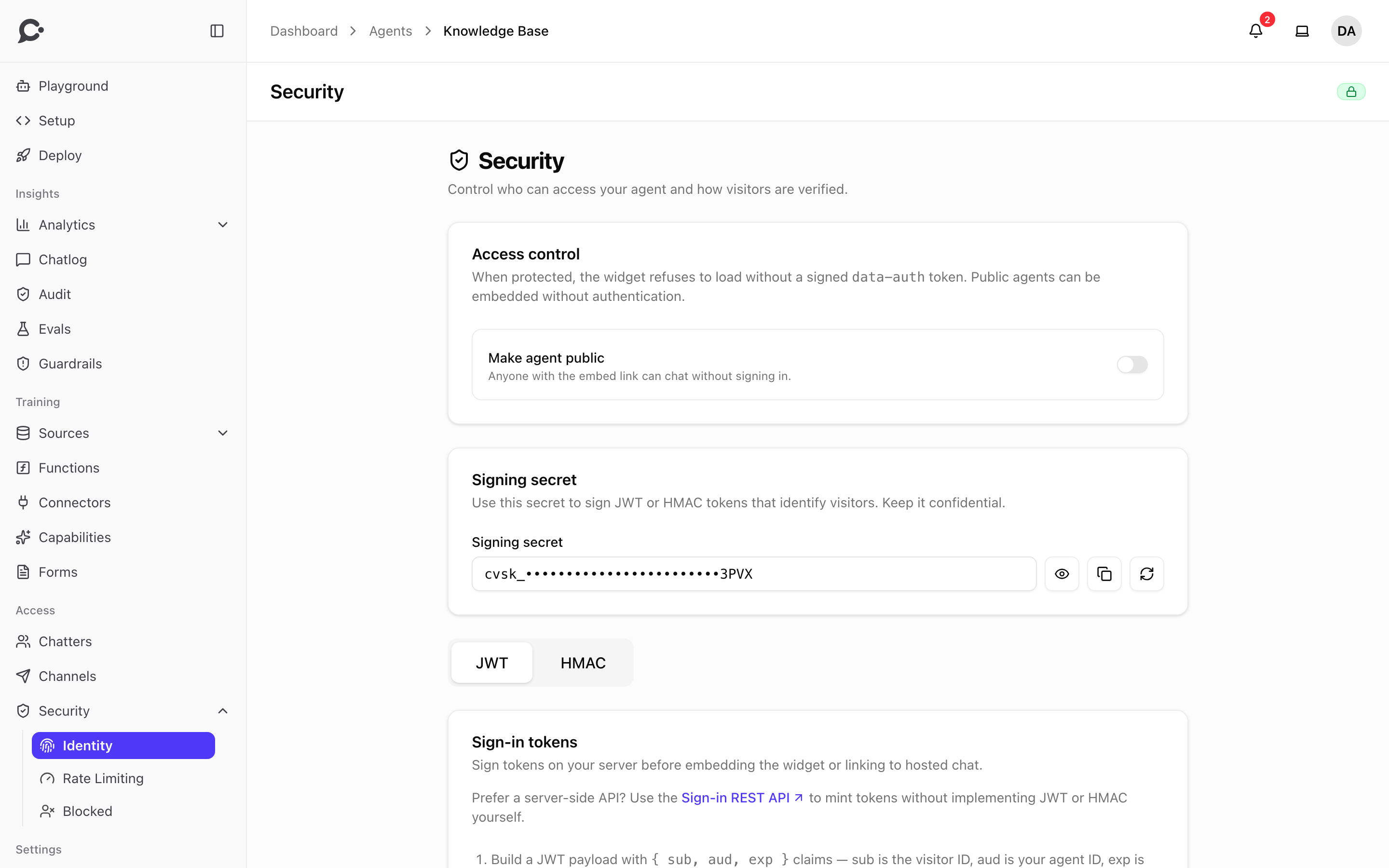
The signing secret
Each agent has its own signing secret. Find it on the agent's Security → Identity page, in the Signing secret card. The card only shows while the agent is protected, so turn off Make agent public under Access control first. A token signed with one agent's secret only works for that agent.
The secret is hidden by default. Use Reveal to show it and Copy to grab it (your team will need it on the server). Store it as an environment variable on your backend. Never ship it to the browser.
Treat it like a password
Anyone with the secret can sign in as any chatter of that agent. Regenerate it if you suspect a leak.
Regenerating
Clicking Regenerate secret mints a brand-new secret. To confirm, you type "I understand". The old secret stops working immediately, which means every token signed with the old secret is invalidated, including ones already in flight. Your team will need to redeploy the backend with the new secret before chatters can sign in again.
Regenerate when:
- The secret may have been exposed (committed to a public repo, shipped in a bundle, screenshared).
- A teammate with access to backend secrets has left the company.
- The secret hasn't been rotated in 6 to 12 months.
How to mint a token
The token is a standard JWT signed with HS256 using the agent's signing secret. It has three required claims:
| Claim | Value |
|---|---|
sub |
The chatter's Chatvia ID: the id returned by POST /api/v1/chatters when you provisioned them. You can also copy it with Copy chatter ID in Workspace → People → Chatters. Not your own app's user ID: Chatvia can only sign in a chatter it already knows. |
aud |
The agent ID (the same value passed to the widget as data-agent-id). |
exp |
Unix expiry timestamp. Max lifetime is 24 hours (86400 seconds). |
Chatvia rejects tokens with exp more than 24 hours in the future, so don't try to mint long-lived tokens.
If your backend has no JWT library, Chatvia also accepts a simpler HMAC token. The agent's Security → Identity page shows how to build both.
Node.js
const jwt = require('jsonwebtoken')

// The agent's signing secret. Keep it on the server. Never ship it to the browser.
const SIGNING_SECRET = process.env.CHATVIA_SIGNING_SECRET

function signChatviaToken(chatterId, agentId, ttlSeconds = 3600) {
  return jwt.sign(
    {
      sub: chatterId, // the chatter's Chatvia id (from POST /api/v1/chatters)
      aud: agentId,   // the agent ID (same as data-agent-id)
    },
    SIGNING_SECRET,
    { algorithm: 'HS256', expiresIn: ttlSeconds },
  )
}

// Pass it to the widget as data-auth.
const token = signChatviaToken(user.chatviaChatterId, 'YOUR_AGENT_ID')
PHP
<?php

use Firebase\JWT\JWT;

$secret = getenv('CHATVIA_SIGNING_SECRET');

function sign_chatvia_token(string $secret, string $chatterId, string $agentId, int $ttlSeconds = 3600): string
{
    return JWT::encode([
        'sub' => $chatterId,
        'aud' => $agentId,
        'exp' => time() + $ttlSeconds,
    ], $secret, 'HS256');
}

$token = sign_chatvia_token($secret, $user->chatvia_chatter_id, 'YOUR_AGENT_ID');
Python
import jwt, time, os

SIGNING_SECRET = os.environ['CHATVIA_SIGNING_SECRET']

def sign_chatvia_token(chatter_id: str, agent_id: str, ttl_seconds: int = 3600) -> str:
    return jwt.encode(
        {'sub': chatter_id, 'aud': agent_id, 'exp': int(time.time()) + ttl_seconds},
        SIGNING_SECRET,
        algorithm='HS256',
    )
Store the chatter ID your backend gets from POST /api/v1/chatters next to your own user record, and sign that. The three snippets above read it from the user (chatviaChatterId / chatvia_chatter_id).
Where the token goes
Two delivery surfaces:
Widget: data-auth
<script
  id="chatbot-embed-script"
  src="https://chat.example.com/shakomako/embed.js"
  data-agent-id="YOUR_AGENT_ID"
  data-auth="THE_TOKEN_YOU_SIGNED"
  defer></script>
The widget reads data-auth on load, exchanges it for a session, and the chatter is signed in. If the token is missing or invalid, the widget shows a locked window with the notice "This chat requires sign-in."
Hosted chat: ?token=
https://chat.example.com/chat/YOUR_AGENT_ID?token=THE_TOKEN_YOU_SIGNEDRedirect signed-in chatters from your app to this URL. Chatvia validates the token and establishes a session cookie. The ?token= parameter is stripped from the URL on success.
If the browser is already signed in to the chat as someone else, Chatvia does not switch accounts by itself. It asks "Continue as …?" first, and switches only when the person clicks Continue. This stops a stranger's link from signing someone in to the wrong account. A browser that isn't signed in goes straight to the chat.
Verification rules
Chatvia rejects a token if:
- The signature doesn't match the agent's current signing secret.
exphas passed.expis more than 24 hours in the future.auddoesn't match the agent ID.- The
subisn't a chatter granted access to the agent.
A token you sign with the secret never signs in the workspace owner or a teammate, even when sub is their ID. Teammates who can see the secret could otherwise sign in to the chat as the owner. Staff open a chat from the dashboard instead.
A rejected token resolves to "not signed in". For a protected agent that means access is denied.
Lifetime guidance
A 1-hour lifetime is enough for most apps. Refresh tokens by minting a new one on each page load. It's cheap. Don't try to bake in long-lived tokens for "remember me". That's what your own sign-in is for. Refresh Chatvia tokens from inside the chatter's session in your app.
Public and protected agents
New agents are protected. Protected status applies to the agent itself and covers all three surfaces: Hosted Chat, Chat Widget and Command Bar. To let anyone chat without signing in:
- Open the agent's Security → Identity page.
- Turn on Make agent public in the Access control card.
A protected agent that receives a request without a valid token shows the sign-in page on Hosted Chat. The Chat Widget and the Command Bar show a locked window with "This chat requires sign-in." until a valid token arrives.
Common mistakes
- Wrong audience.
audmust be the agent ID, the same value passed to the widget asdata-agent-id. Not the name, not the chat address. - Wrong subject.
submust be a chatter granted access to the agent. The ID of the workspace owner or a teammate is refused. Add chatters from Workspace → People → Chatters (workspace-wide) or from each agent's Chatters page. - Algorithm confusion. Use HS256. Chatvia rejects
noneand other algorithms. - Clock skew. Chatvia allows no clock skew when it checks
exp. Keep your server clock in sync (NTP), or short-lived tokens may be rejected.
Sign-in links via the API
If your backend doesn't have a JWT library handy, the API can mint a sign-in link. Call POST /api/v1/chatters/sign with agent_id, user_id (the chatter's Chatvia ID; an owner's API key can also use a teammate's) and an optional ttl_seconds (60 to 86400, one hour when left out). The reply holds the chat link with the token, and its expiry. See the API reference at yoursite.com/docs/api, under Chatters.