Your data and deleting your account

The workspace owner can download a copy of the workspace's data, and can delete the account and everything in it. Both are in the account settings. Teammates don't see these pages. The person who runs your install can turn either page off. If you don't see one, ask them to export or delete your workspace for you.
For example, before a shop closes, its owner downloads an archive of all chats and sources for the records, then deletes the account so no customer data stays on the server.
Download my data
Download my data gives you a ZIP file with the personal data Chatvia holds about you: your agents, conversations, messages, knowledge sources and uploaded files. It is prepared in line with GDPR, the European privacy law that gives people the right to a copy of their data.
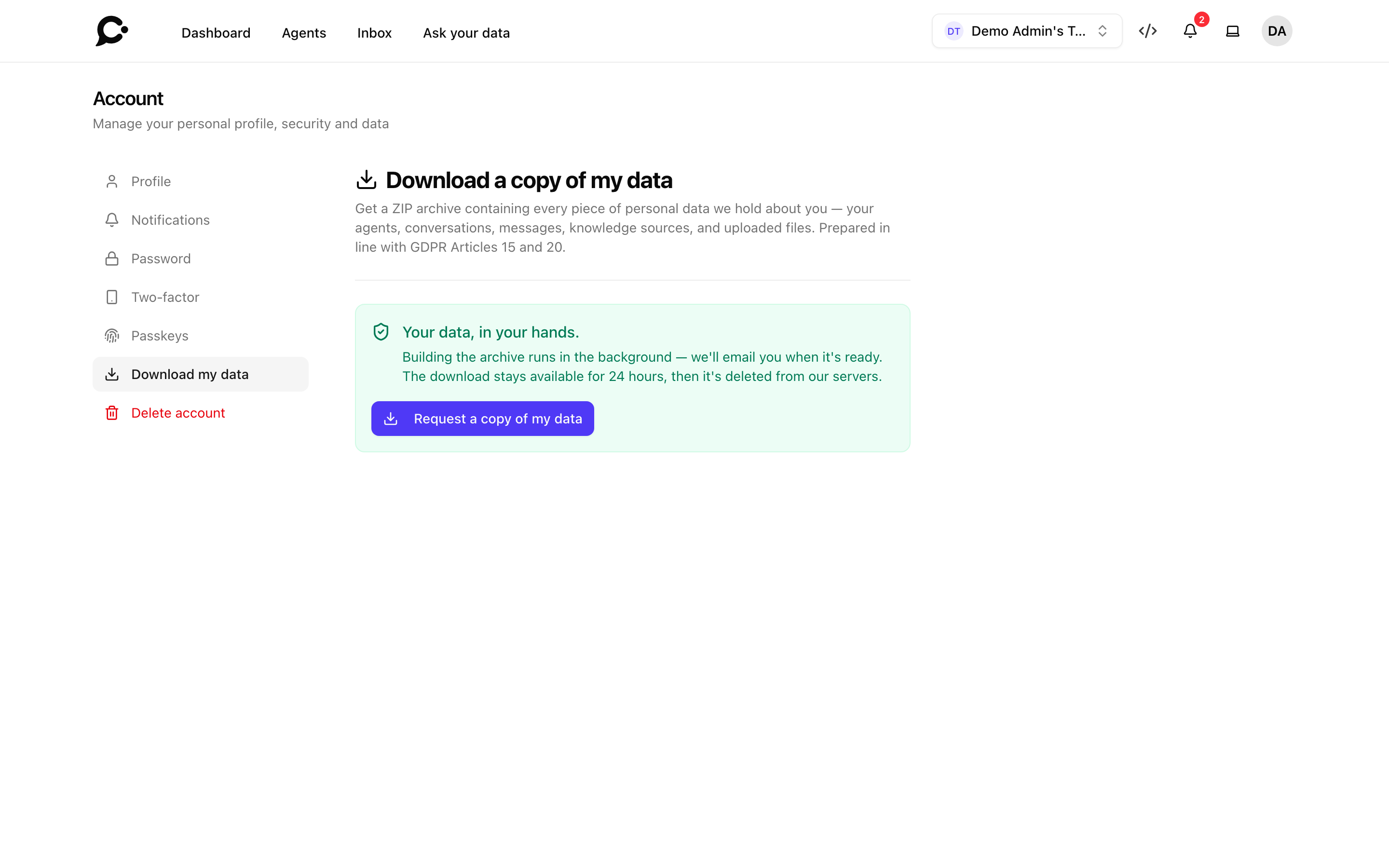
- Click your avatar, then Account, then Download my data.
- Click Request a copy of my data.
- Wait while Chatvia builds the archive. This usually takes a few minutes. You can leave the page. It refreshes by itself, and Check status checks right away.
- When it is ready, you get an email and a notification "Your data export is ready". Click Download ZIP.
The download stays available for 24 hours. The page shows how long is left. After that the file is deleted from the server, and you can request a new one.
If something goes wrong, the page says "We couldn't prepare your export." Click Try again.
You can request up to 5 exports an hour.
Delete your account
Deleting your account deletes the whole workspace, for good:
- your agents and their settings,
- all conversations and messages,
- knowledge sources, documents and uploaded files,
- your team, the accounts of your teammates, your chatters, API keys and connectors.
This can't be undone. Download your data first if you want to keep anything.
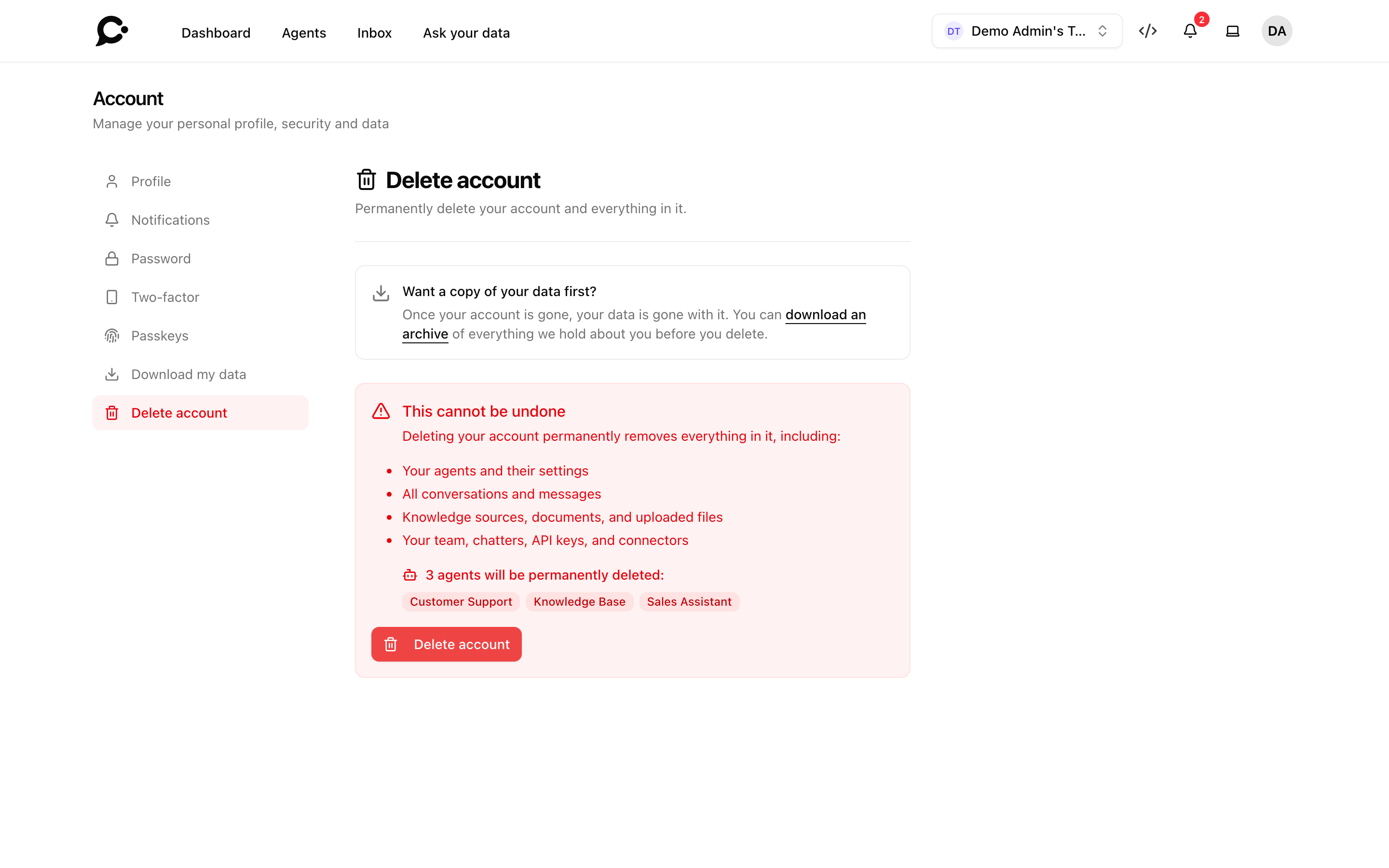
To make sure nobody deletes an account by mistake, it takes a few steps:
- Click your avatar, then Account, then Delete account. The page lists what will be deleted, including how many agents.
- Click the Delete account button. Enter your password and click Send confirmation email.
- Open the email from Chatvia and click the link in it. The link works for 30 minutes. If it doesn't arrive, click Send the link again.
- Back on the page, you see "Email confirmed. This is your last step". Click Permanently delete my account, then Yes, delete everything.
You can ask for the email up to 5 times an hour.
For teammates
A teammate has neither page. Their account belongs to the workspace:
- The workspace owner removes a teammate with Remove from workspace on the team page. This deletes the teammate's account and personal data. What they made for the workspace stays. See Teams & roles.
- The workspace has no way to hand ownership to someone else. Only deleting the workspace removes the owner.