Connectors settings

Connectors let an agent work with the other services your business uses. With the Gmail connector, an agent can look up a customer's last email. With the Google Calendar connector, it can see free times and book a meeting. With HubSpot, it can check a customer's deal before it answers. Each workspace connects the services it wants from Workspace → Integrations → Connectors.
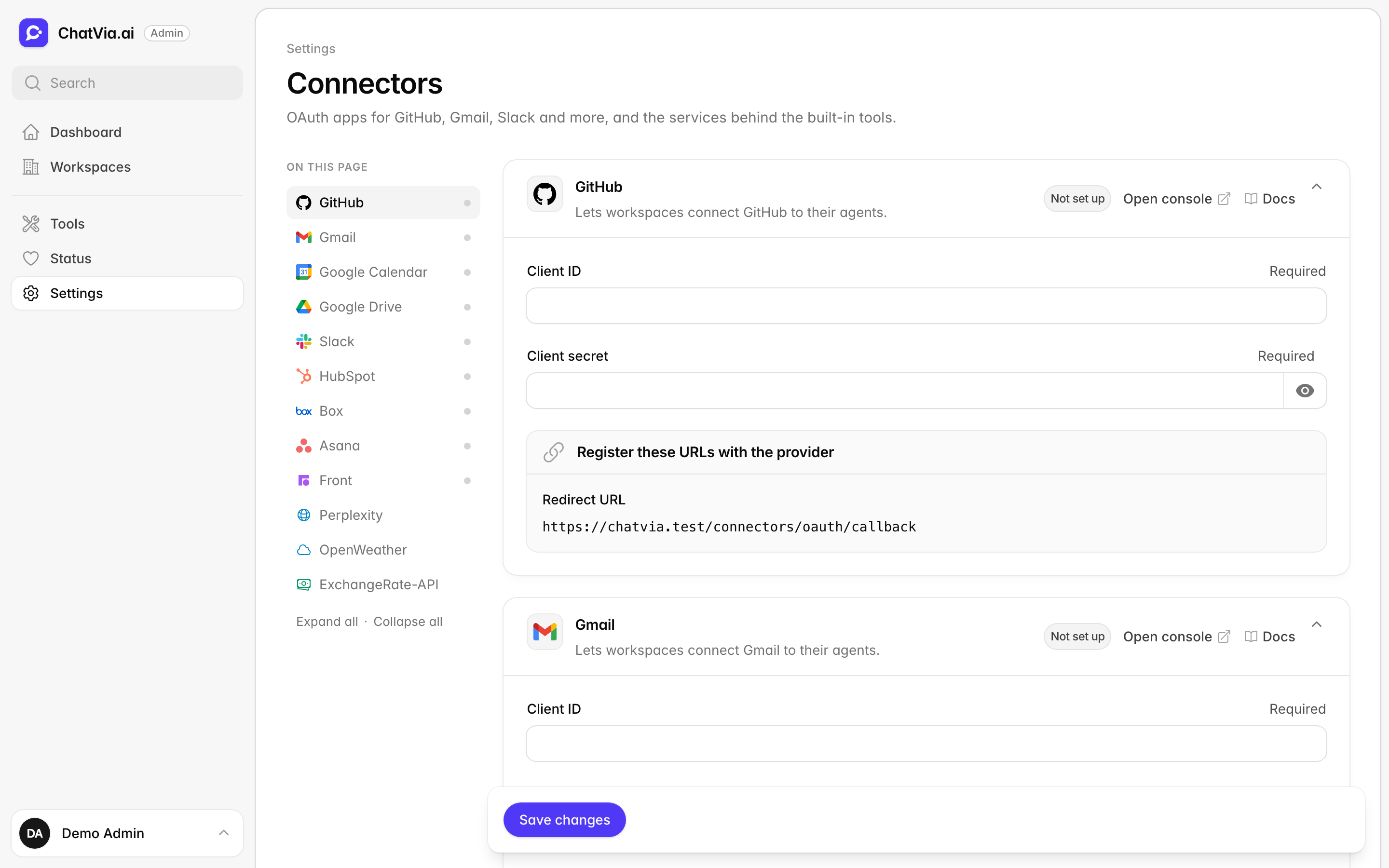
This page, under Settings → Connectors in the admin panel, prepares the ground for that. It holds two things:
- the OAuth apps that some services need before any workspace can connect them (GitHub, Gmail, Slack and others)
- the addresses of the services behind the built-in Perplexity, Weather and Currency tools
Everything here is optional. If you never touch this page, the services that need an OAuth app cannot be connected, and everything else works as usual. Set up an OAuth app only for the services your workspaces want to use. The person who does this is usually whoever runs the Chatvia install.
OAuth apps
OAuth is the standard way one service lets another act for you without sharing your password. You have seen it as the "Allow Chatvia to access your Google Calendar?" screen. When a workspace connects Gmail, the person signs in at Google and clicks Allow. Google then gives Chatvia a key for that person's mailbox, and the password stays with Google.
Before Google shows that screen, it needs to know who is asking. That is the OAuth app: a registration of Chatvia at the service, with a name and a secret. Think of it as Chatvia's visitor badge at Google's front desk.
Many connectors register with their service on their own when a workspace connects them. The services below cannot do that: they only accept sign-ins from an app that someone registered with them first. So you register one app at each service for the whole install, and enter it here. After that, any workspace can connect the service from Workspace → Integrations → Connectors with its own account.
Until a card shows Ready to use, connecting that service fails for workspaces.
Every card here works the same way:
| Field | What to enter |
|---|---|
| Client ID | The client ID (or app ID) of the OAuth app you registered at the service. Required. |
| Client secret | The secret that goes with it. Required. |
The client ID and client secret are the name and password of your OAuth app. The service gives you both when you register the app. The ID is not secret. The secret is, so treat it like a password.
Each card shows one address under Register these URLs with the provider:
- Redirect URL:
{APP_URL}/connectors/oauth/callback. It is the same for every connector. Add it to the allowed redirect (or callback) URLs of each app you register.
The redirect URL is where the service sends the person back after they click Allow. Services only send people to addresses on the app's list, so a stranger cannot catch the permission on the way.
The address is built from your install's address (APP_URL). If APP_URL
is an address the service cannot reach, like localhost, the box warns you.
Fix APP_URL first. APP_URL is the web address of your Chatvia install,
for example https://chat.example.com, set in the install's
environment file (.env).
Most cards also have an Open console link to the page where you register the app. The Client secret is never shown again once saved. Leave the field blank to keep it. The trash button next to it removes it. A new value applies at once, so you can rotate a secret without reconnecting anything. Rotating means swapping an old secret for a new one, for example when someone who knew it leaves the company.
The table under each service lists the scopes (permissions) Chatvia asks for when a workspace connects it. Some services need you to allow the same scopes on the app. A scope is one line on the permission screen, like "read your email" or "see your calendar". Chatvia asks only for the scopes listed here.
Some steps below mention MCP. MCP (Model Context Protocol) is a shared standard that lets an AI assistant use the tools of another service, the way a USB plug lets any device work with any computer. Several services offer an MCP server, which is the service's side of that plug.
GitHub
This card lets workspaces connect GitHub, so agents can read repositories, issues, pull requests and code. For example, a support agent for a software product can check whether a bug a customer reports is already known.
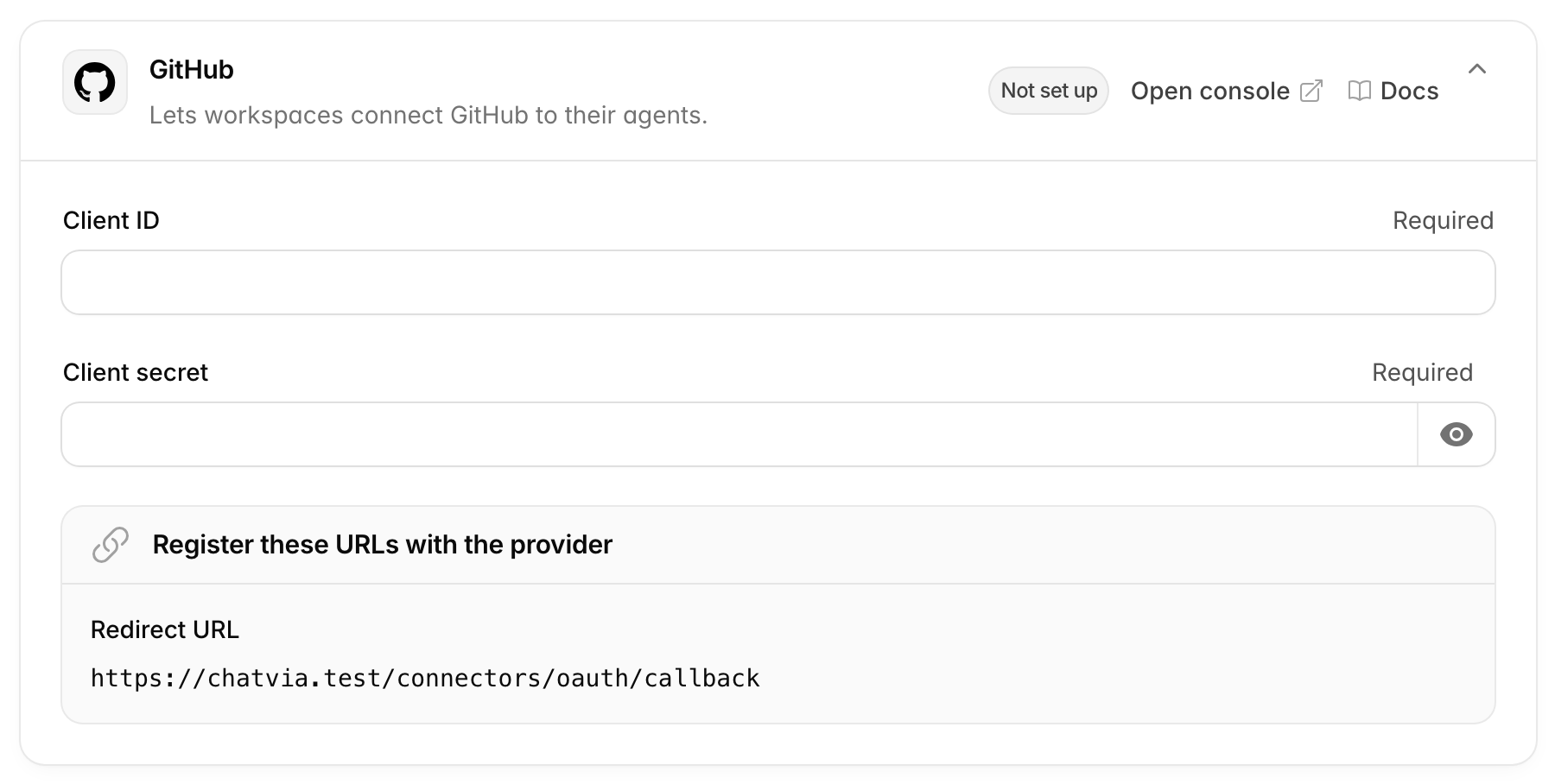
- Open github.com/settings/developers (the card's Open console link) and click New OAuth App.
- Enter a name and your install's address as the Homepage URL. People see this name on GitHub's permission screen.
- Paste the card's Redirect URL as the Authorization callback URL. Register the app.
- Copy the Client ID. Click Generate a new client secret and copy it. Paste both into the card and save.
A GitHub OAuth app has one callback URL. If you also use GitHub on the Sign-in page, register a second OAuth app for it.
Scopes: repo, read:org, read:user, user:email, gist.
Gmail
This card lets workspaces connect Gmail, so agents can search and read messages. For example, an agent can find the order confirmation you sent a customer last week. It can read, but not send or delete.
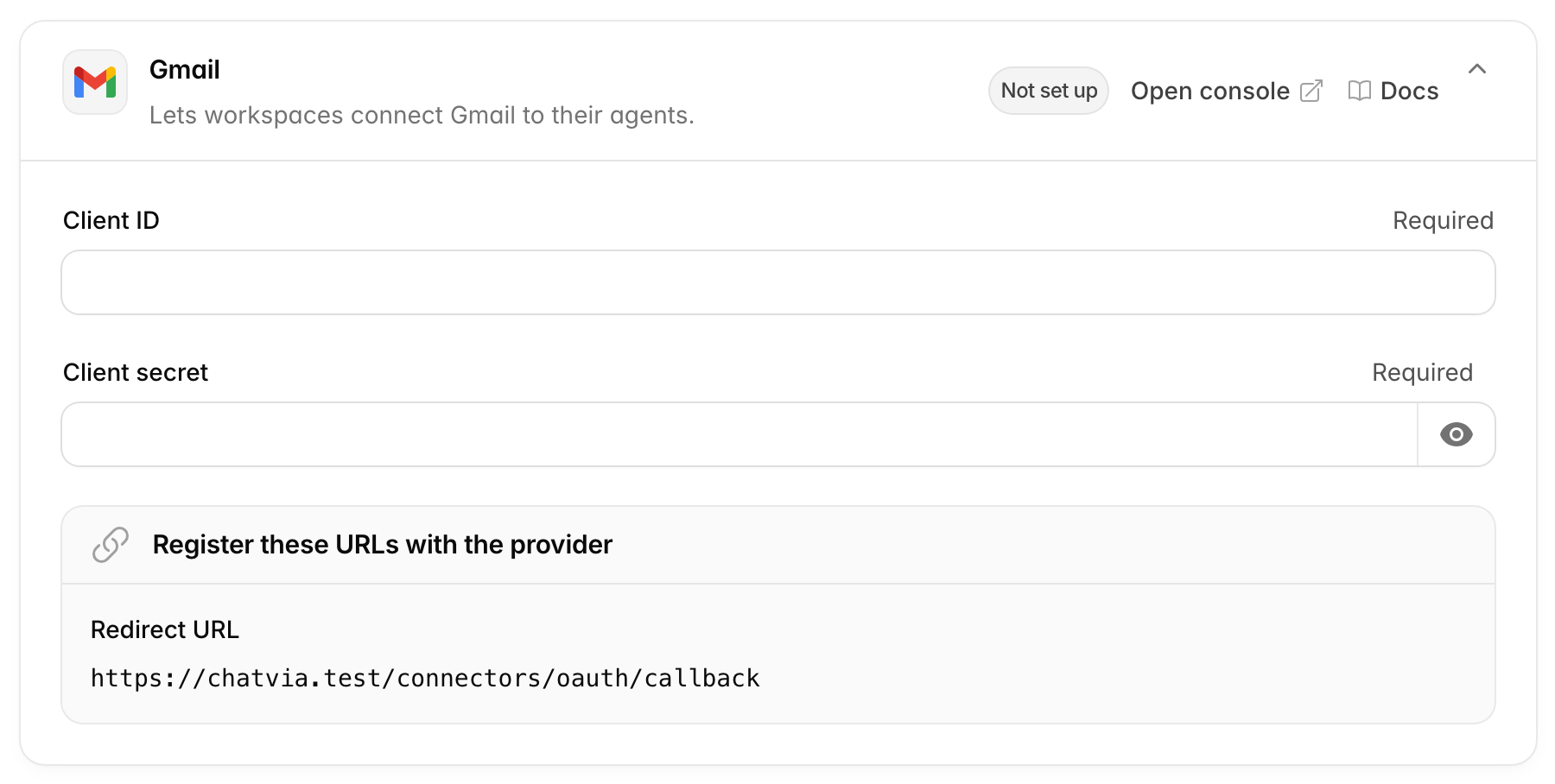
Gmail, Google Calendar and Google Drive each have their own card. You can use one Google OAuth client for all three, and enter it in each card.
- Open console.cloud.google.com/apis/credentials (the card's Open console link) and pick or create a project. A project is Google's folder for everything that belongs to one app.
- If the project has no OAuth consent screen yet, set one up first. The consent screen is the permission page people see, with your app's name.
- Click Create credentials → OAuth client ID, and pick Web application.
- Under Authorized redirect URIs, add the card's Redirect URL. Create the client.
- Copy the Client ID and Client secret into the card and save.
- In APIs & Services → Library, enable the API of each Google service you use (Gmail, Google Calendar, Google Drive) in the same project. Google keeps each service switched off for a project until you turn it on, and refuses requests to a service that is off.
Scopes: https://www.googleapis.com/auth/gmail.readonly.
Google Calendar
This card lets workspaces connect Google Calendar, so agents can read and create events. For example, a visitor asks for a demo, and the agent finds a free slot and puts it in your calendar.
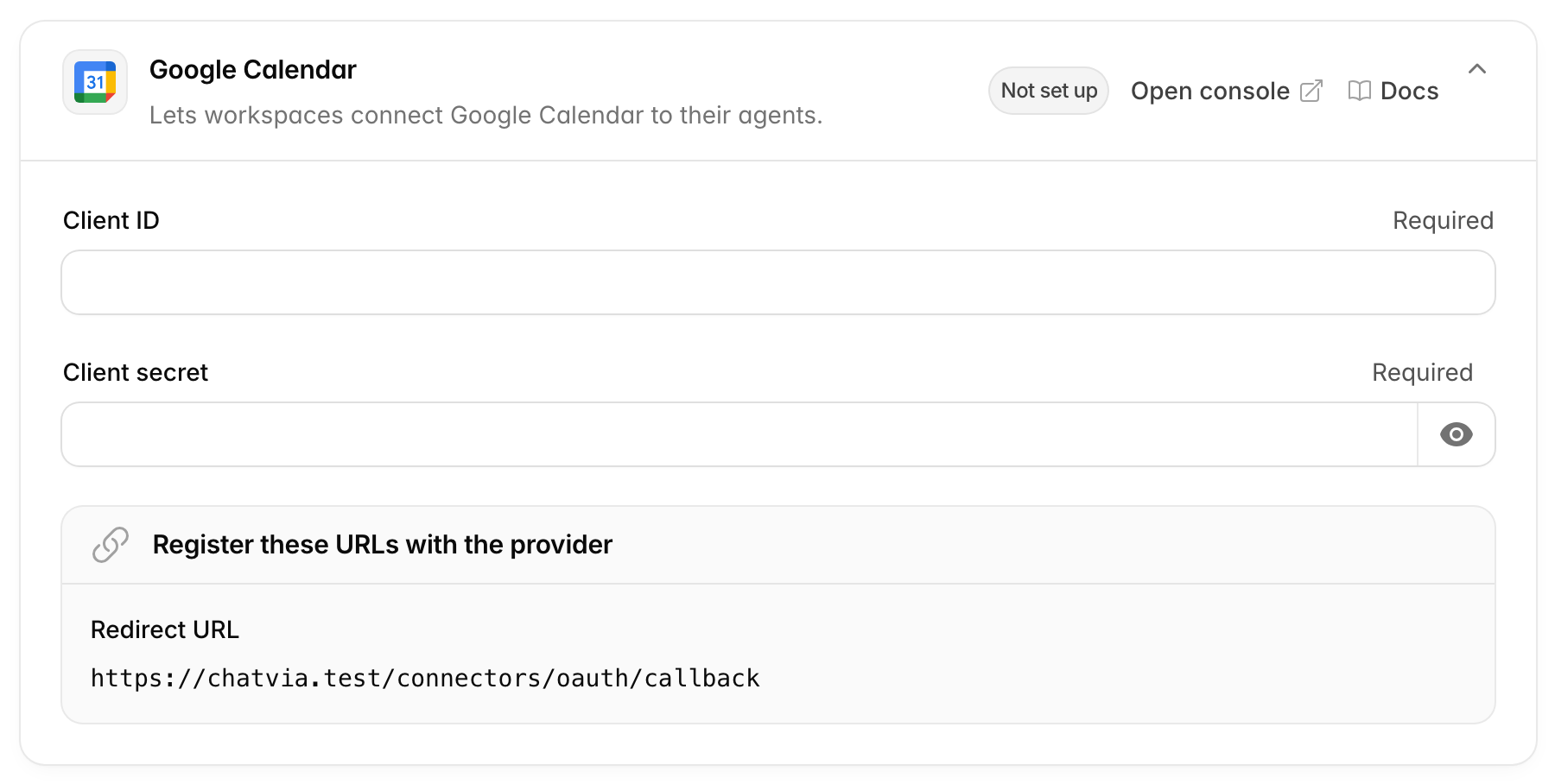
Set it up like Gmail. You can enter the same Google client. Enable the Google Calendar API in the project.
Scopes: https://www.googleapis.com/auth/calendar.events,
https://www.googleapis.com/auth/calendar.readonly.
Google Drive
This card lets workspaces connect Google Drive, so agents can read files and folders. For example, an agent can look up today's price list in a shared spreadsheet.
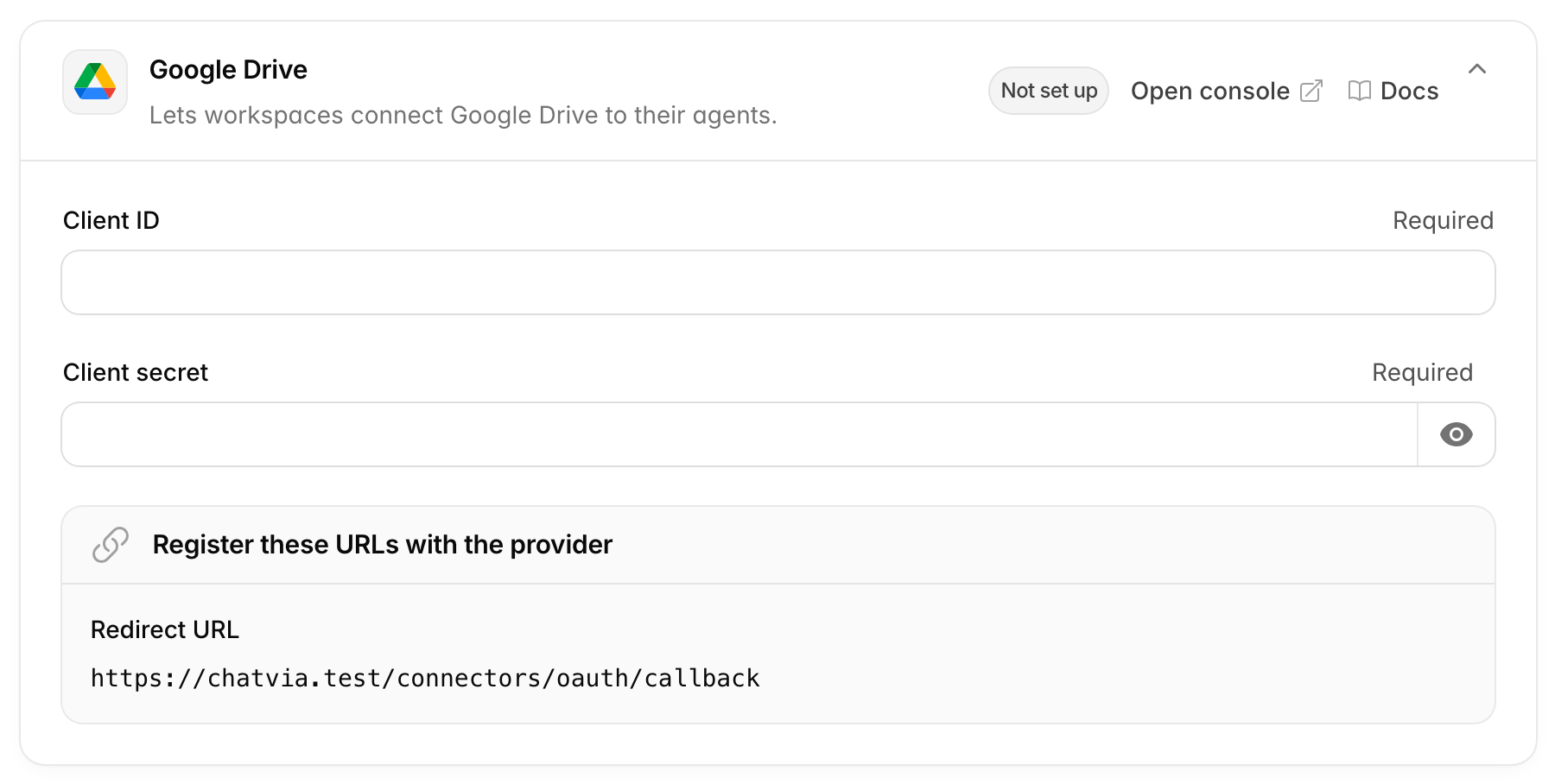
Set it up like Gmail. You can enter the same Google client. Enable the Google Drive API in the project.
Scopes: https://www.googleapis.com/auth/drive.readonly.
Slack
This card lets workspaces connect Slack, so agents can search messages, read channel history and post replies. For example, an internal help agent can find what your team said about a product change last month.
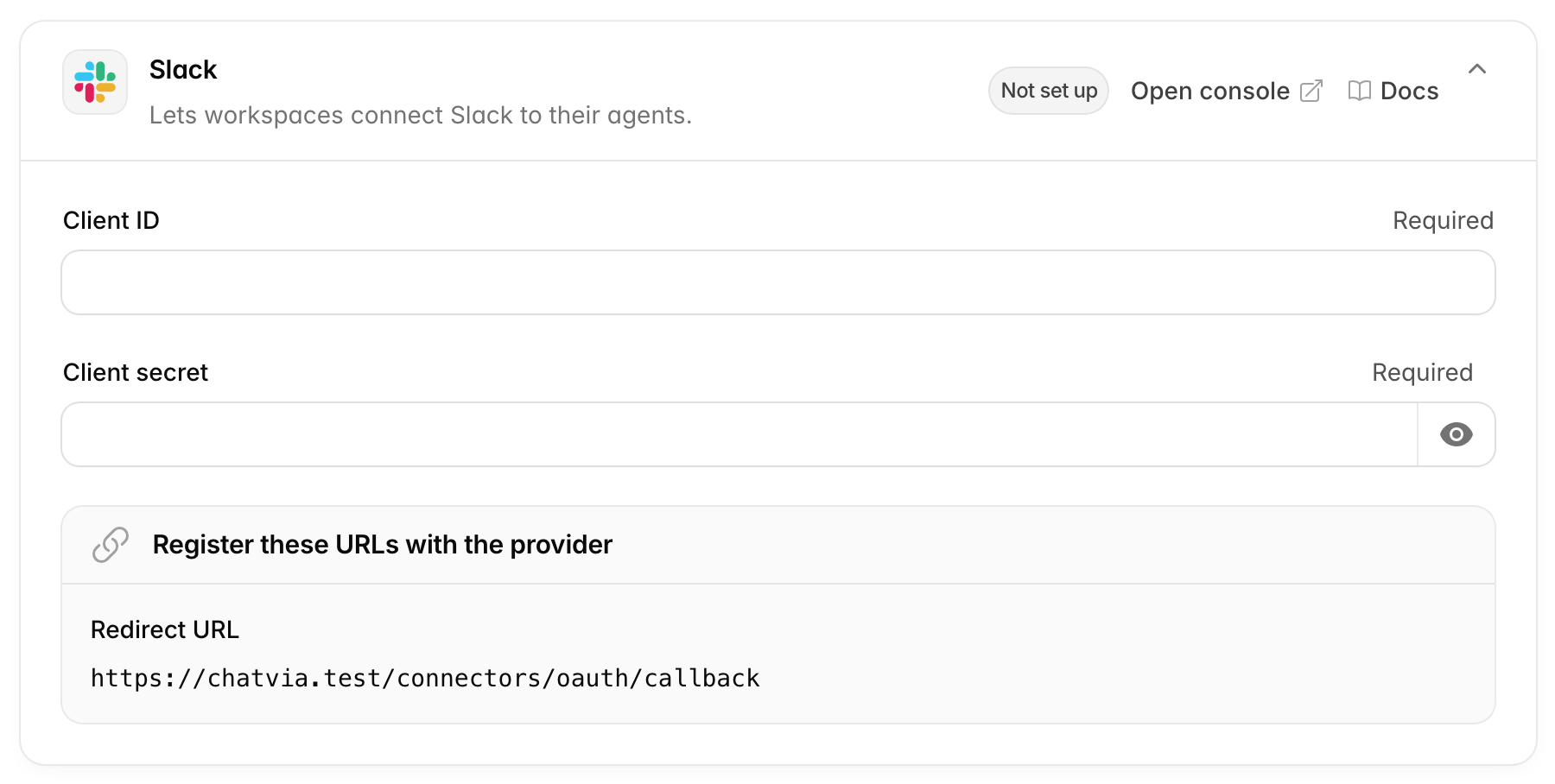
- Open api.slack.com/apps (the card's Open console link) and click Create New App → From scratch.
- In OAuth & Permissions, add the card's Redirect URL under Redirect URLs.
- Under User Token Scopes, add the scopes listed below. Chatvia acts as the person who connects, so it needs no bot scopes. In Slack, user scopes let an app act as a person, and bot scopes let it act as a separate bot user.
- In Basic Information, copy the Client ID and Client Secret into the card and save.
To let workspaces outside your own Slack workspace connect, turn on public distribution for the app in Manage Distribution. Without it, Slack only lets people from the Slack workspace that created the app use it.
Scopes (user scopes): search:read.public, channels:history,
channels:read, groups:history, groups:read, im:history, im:read,
mpim:history, mpim:read, chat:write, users:read.
HubSpot
This card lets workspaces connect HubSpot, so agents can read contacts, companies, deals and tickets. For example, a sales agent can see that a visitor's company already has an open deal before it answers.
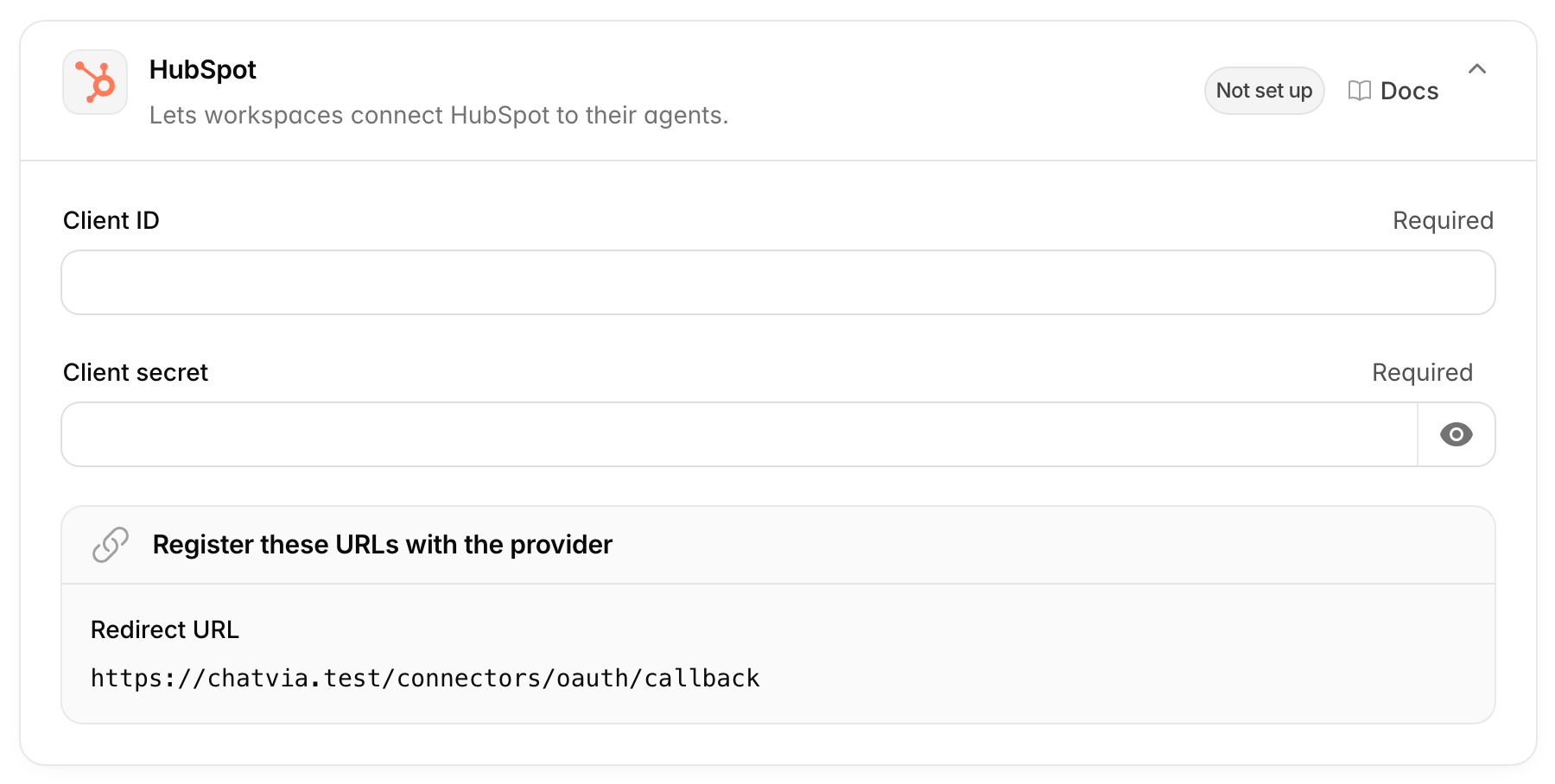
This card has no console link. In HubSpot, go to Settings → Integrations → MCP Auth Apps and create an app. Add the card's Redirect URL, and give the app the scopes listed below. They must match the scopes Chatvia asks for, or HubSpot refuses the connection. Copy the app's client ID and secret into the card and save.
Scopes: crm.objects.contacts.read, crm.objects.companies.read,
crm.objects.deals.read, tickets.
Box
This card lets workspaces connect Box, so agents can search and read files, folders and metadata. Metadata is the extra information stored with a file, like its owner or a contract's end date.
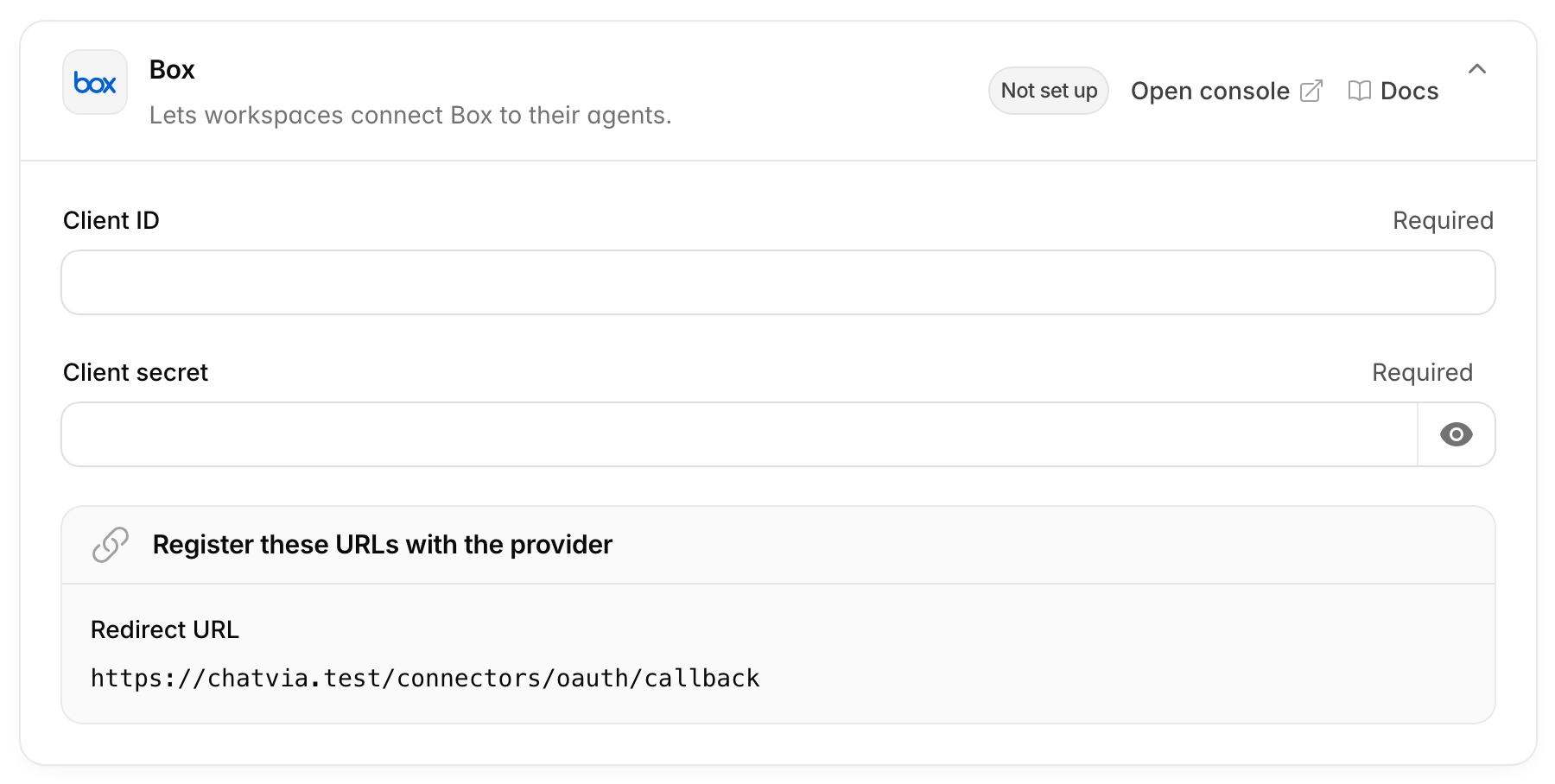
Box's connector uses the Box MCP server. In the Box Admin Console, under Integrations, create a Box MCP server entry, add the card's Redirect URL, and copy its client ID and secret into the card. The card's Open console link opens the Box developer console at app.box.com/developers/console.
Scopes: root_readwrite.
Asana
This card lets workspaces connect Asana, so agents can read and update tasks, projects and portfolios. For example, an agent can tell a customer where their project stands, or mark a task as done.
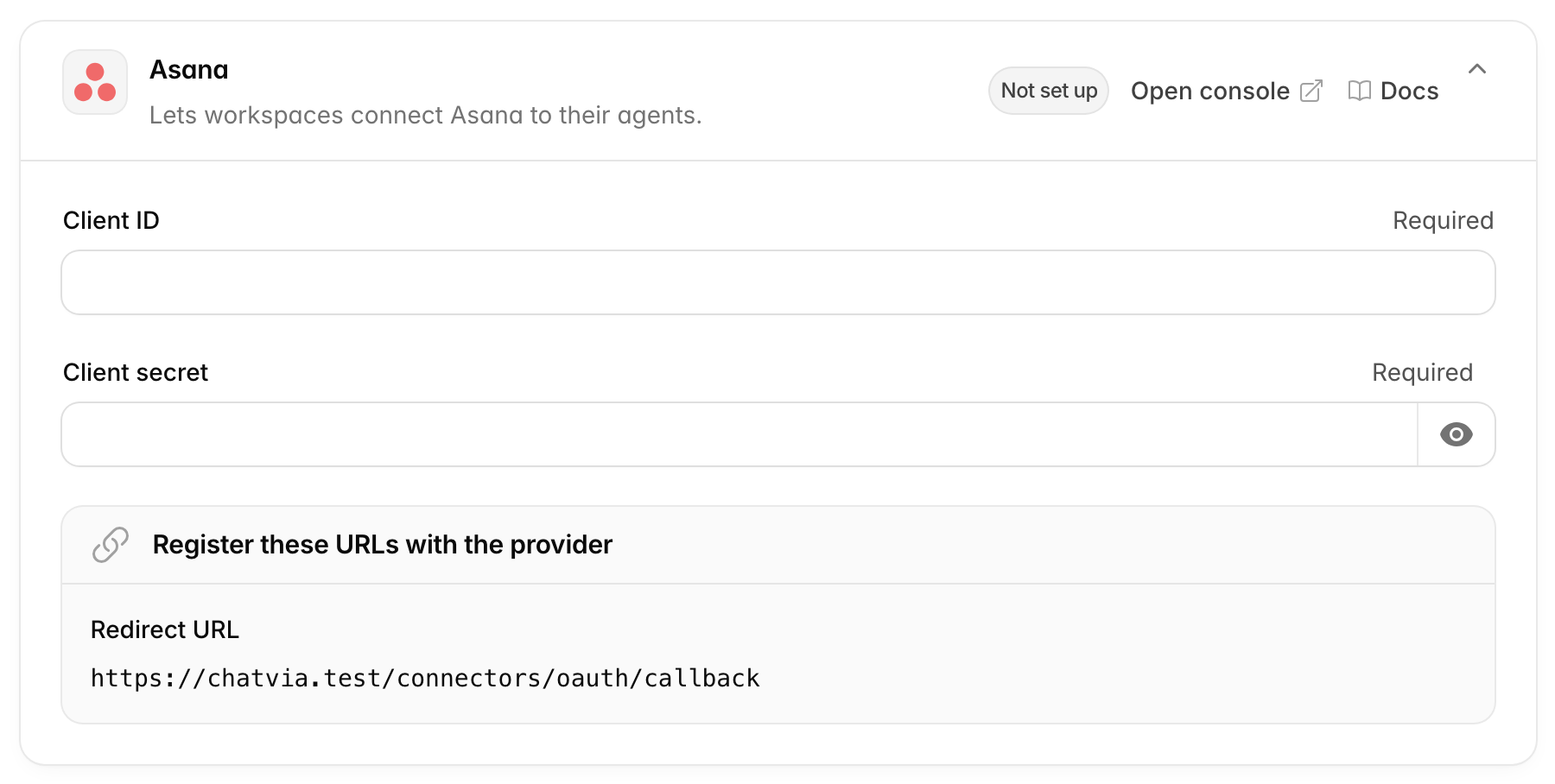
- Open app.asana.com/0/my-apps (the card's Open console link) and create a new app.
- In the app's OAuth settings, add the card's Redirect URL. Asana only accepts redirect URLs on this list.
- Copy the Client ID and Client secret into the card and save.
Scopes: default.
Front
This card lets workspaces connect Front, so agents can read and reply to shared inbox conversations. Front is a shared inbox for teams, where several people answer the same customer emails.
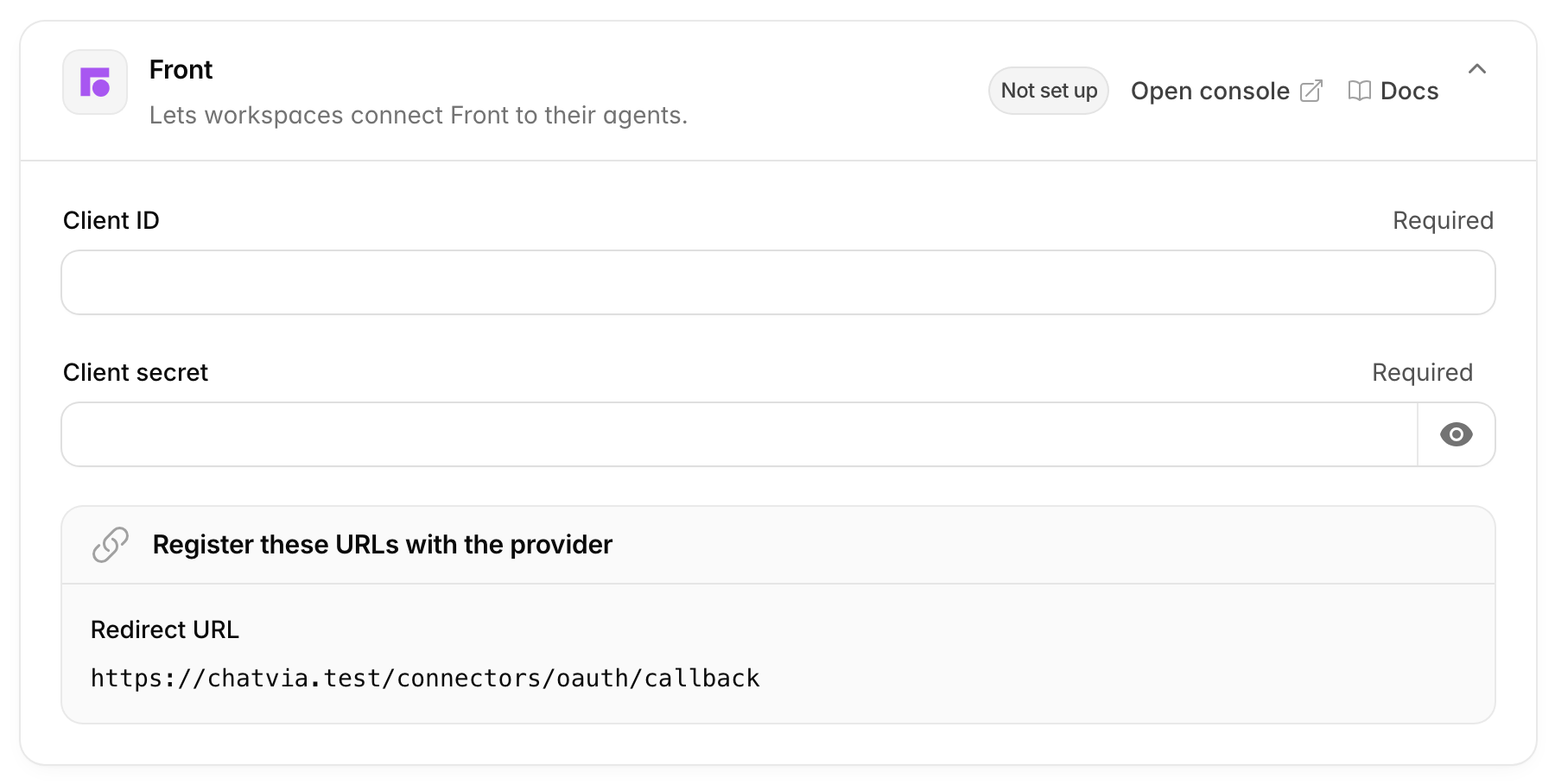
- In Front, open Settings → Company → Developers (the card's Open console link) and create an app.
- Add OAuth to the app, with the card's Redirect URL, and turn on its MCP server. The MCP server is what lets Chatvia's agents use Front's tools.
- Copy the client ID and secret into the card and save.
Scopes: read, write, send.
Built-in tool services
Chatvia comes with a few ready-made tools that agents can use. A tool is an action an agent can take while it answers, beyond reading its knowledge. Three of them get their answers from an outside service:
- Perplexity searches the web, so an agent can answer questions about things that are not in its knowledge, like today's news.
- Weather gives the current weather in a city.
- Currency converts amounts between currencies at current rates.
Each workspace adds its own API key for the service when it connects the tool, so there is nothing to sign up for here. An API key is a long password that one program uses to prove who it is to another, and it decides who pays for the use. These cards only hold the address of each service (and, for Perplexity, the models). The defaults work. Change them only to go through a proxy, or to use another model.
A proxy is a go-between server that passes requests on to the real service. Some companies use one to log or filter all traffic that leaves their network. If you are not sure whether you use one, you most likely do not, and the defaults are right for you.
A blank field uses its default, shown in the field. The defaults below are
the built-in ones. Your .env file may set others.
Perplexity
The service behind the Perplexity tool, for web search. Perplexity is an AI search engine: it reads web pages and sums up what it finds, with links to its sources.
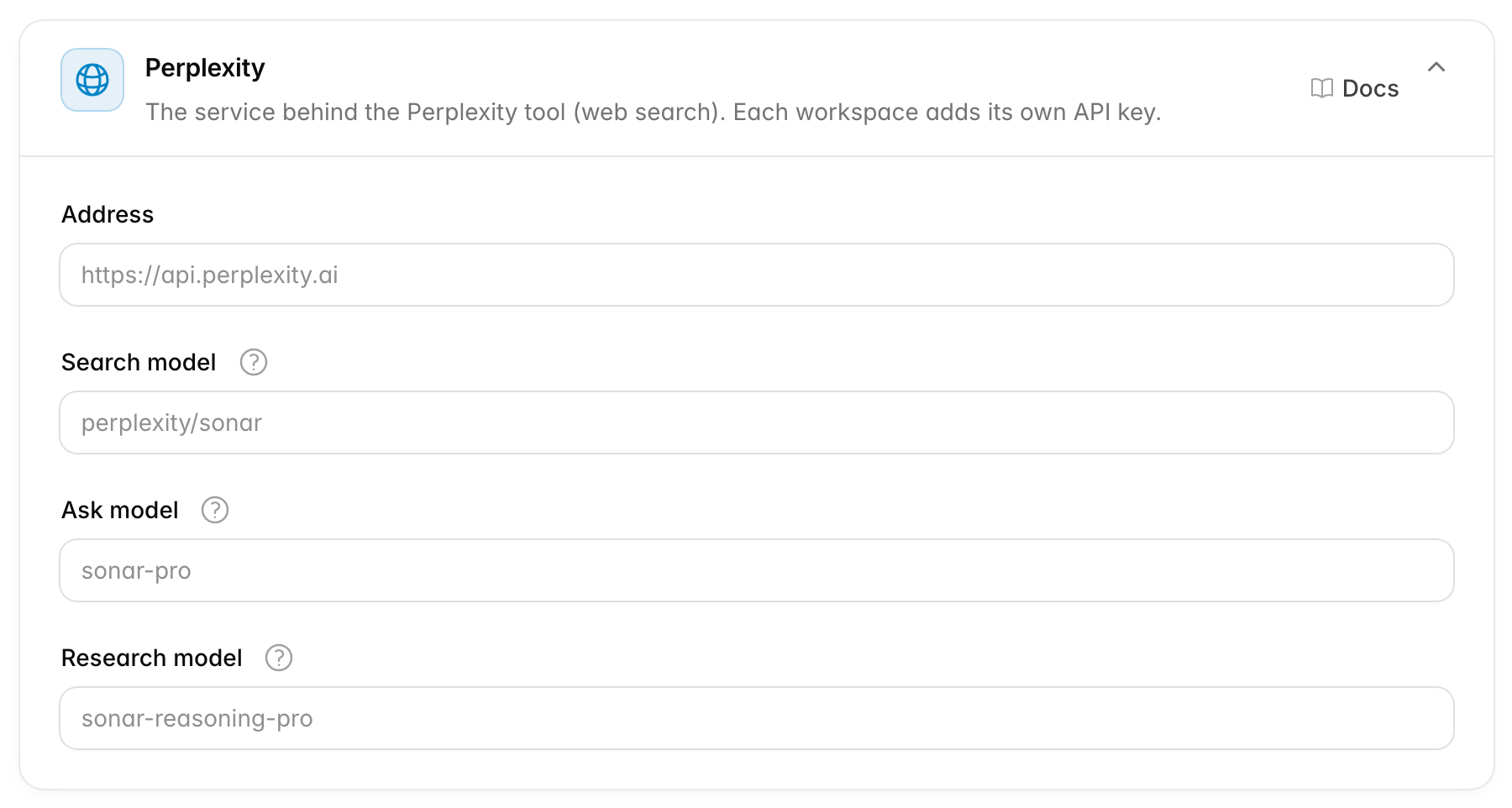
| Option | Default | What it does |
|---|---|---|
| Address | https://api.perplexity.ai |
Where Chatvia sends Perplexity requests. |
| Search model | perplexity/sonar |
The model for web searches, reading a page, finance data, finding people and running code. |
| Ask model | sonar-pro |
The model that writes a full answer, with its reasons, from web sources. |
| Research model | sonar-reasoning-pro |
The model for deep research across many sources. It is slower. |
A model here is the AI engine Perplexity uses for that kind of request. Perplexity offers several, from quick and cheap to slow and thorough. See AI model for more.
Use model names exactly as Perplexity lists them. A wrong name makes the tool fail.
OpenWeather
The service behind the Weather tool. OpenWeather is a weather data company. When a visitor asks "Is it raining in Lisbon right now?", the agent asks OpenWeather and answers with the temperature and conditions there.
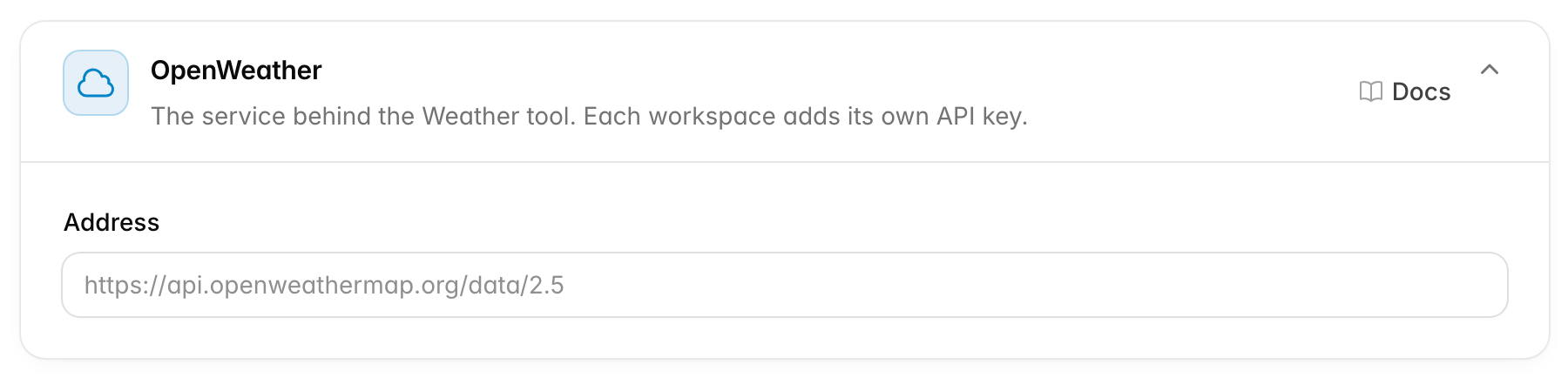
Address (default https://api.openweathermap.org/data/2.5): where
Chatvia sends weather requests.
ExchangeRate-API
The service behind the Currency tool. ExchangeRate-API publishes exchange rates. When a visitor asks "How much is 50 euros in dollars?", the agent gets the rate from it and does the sum.
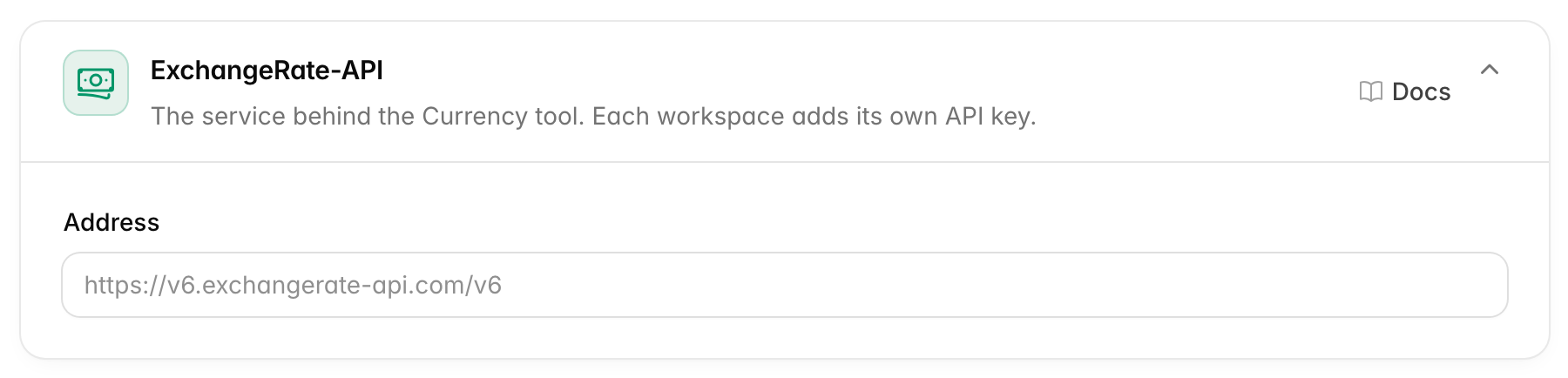
Address (default https://v6.exchangerate-api.com/v6): where Chatvia
sends exchange rate requests.
Related
- MCP connectors: how workspaces add connectors and set tool permissions.
- Sign-in: the apps behind the sign-in buttons, which are separate from these.