Email settings

Chatvia sends email all the time: the link to confirm a new account, invitations to join a workspace, password reset links, sign-in links, alerts about a sign-in from a new device, and notices like "your data export is ready". This page decides how those emails leave Chatvia and which address they come from. Open it in the admin panel under Settings → Email.
Chatvia does not deliver email by itself. It hands each email to a mail service, the way you hand a letter to the post office. You can use an SMTP server or a service like Amazon SES, Mailgun, Postmark, Resend or Cloudflare.
Every install that real people use needs this page. Until it is set up, Chatvia only writes emails to its log, so nobody can confirm a sign-up, accept an invitation or reset a password. The person who sets it up is usually whoever runs the install, often with help from whoever manages your company's email.
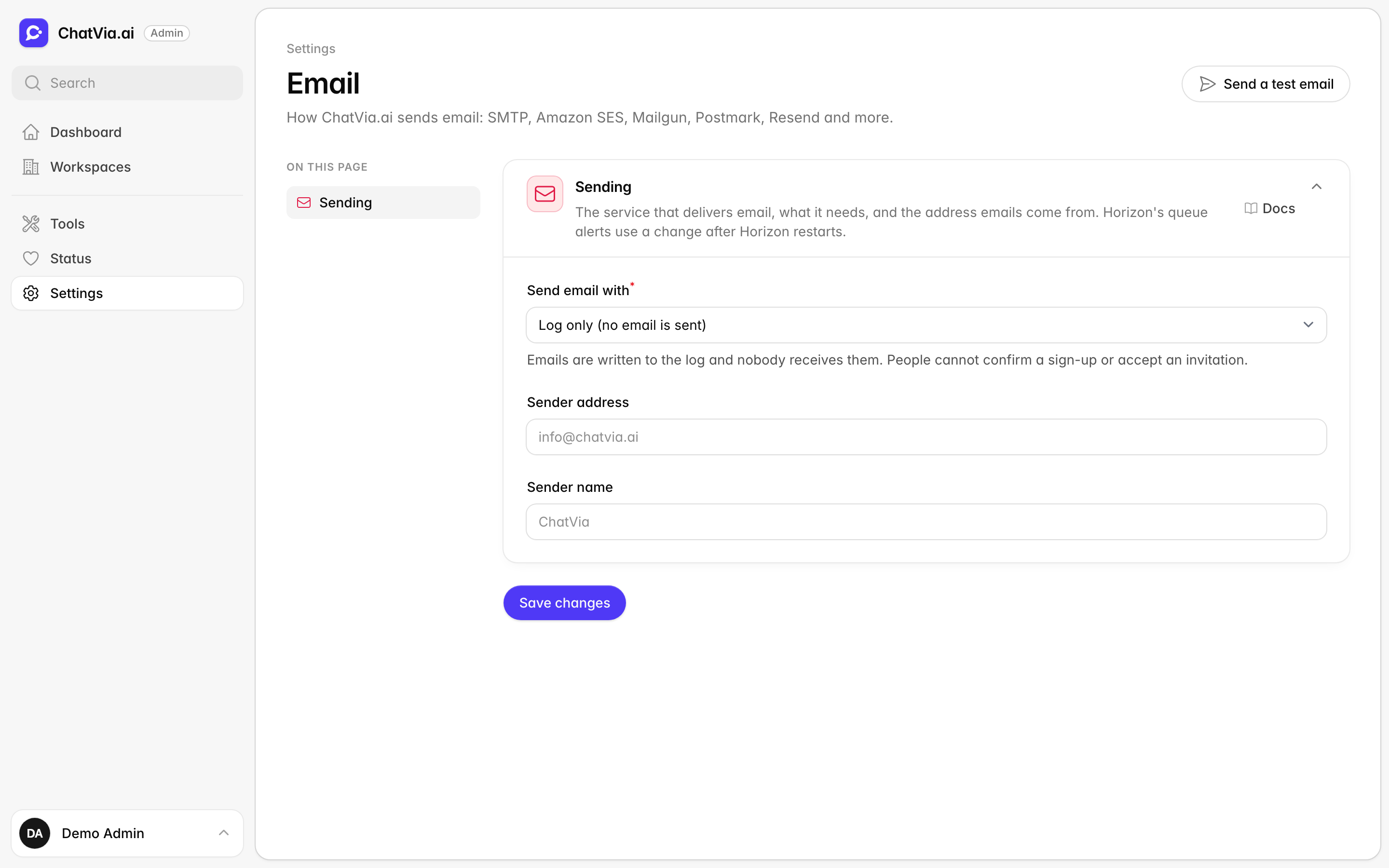
Sending
This is the one card on this page. It answers three questions: which mail service delivers Chatvia's email, how Chatvia logs in to that service, and which name and address the emails come from. Pick the service, fill in what that service needs, and set the sender address. The card's header shows the service in use and the sender address, or what is still missing.
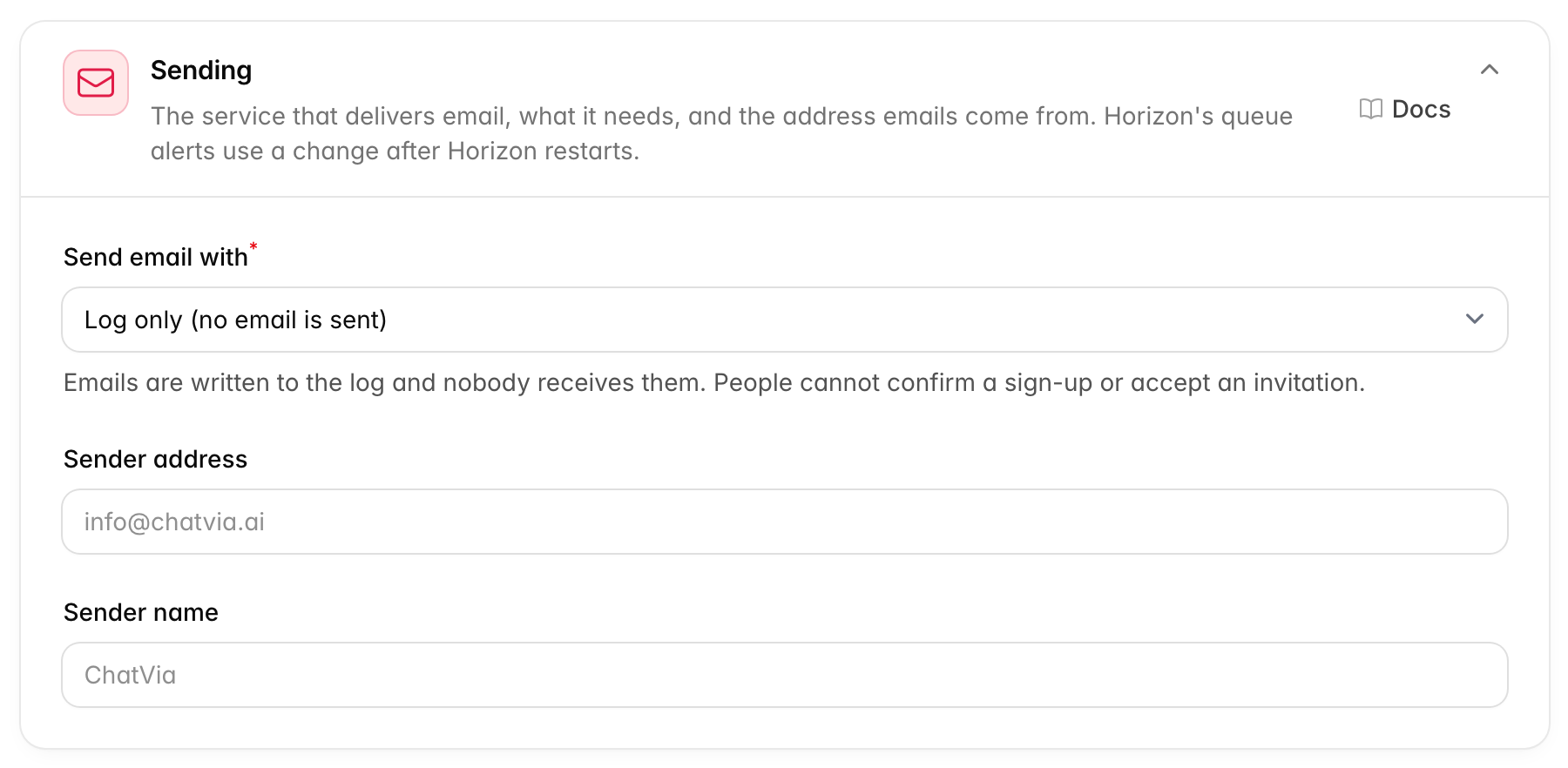
Send email with picks the service. Below it, the card shows only the
fields of the service you picked. The default is Log only (no email is
sent), unless your .env file sets another one.
Your .env file is the install's
environment file: a small
settings file on the server that Chatvia reads when it starts. Whoever
installed Chatvia may have set the email service there already.
| Choice | Use it for |
|---|---|
| SMTP server | Any email provider that offers SMTP: your own mail server, Gmail, Microsoft 365, Brevo, SendGrid and others. |
| Amazon SES | Amazon Simple Email Service. |
| Mailgun | The Mailgun API, from a domain verified there. |
| Postmark | The Postmark API. |
| Resend | The Resend API. |
| Cloudflare Email | Cloudflare's email API. |
| Sendmail (this server) | The sendmail program of the server Chatvia runs on. |
| Log only (no email is sent) | Trying things out. Emails go to the log, and nobody receives them. |
Which one to pick:
- If your company already has an email provider, like Google Workspace or Microsoft 365, SMTP server lets you send through it with no new account.
- If you send a lot of email, or want the best chance of landing in the inbox, a sending service (Amazon SES, Mailgun, Postmark, Resend or Cloudflare) is made for that job.
- Log only is for testing, when you do not want real people to get email.
The sending services connect through an API. An API is a way for one program to talk to another directly over the internet, with an API key to prove who is asking. An API key is a long password made for a program instead of a person.
If your .env file sets a way of sending that is not in this list (for
example failover), it shows as an extra choice marked (set in .env),
so you can keep it. Failover means "try one service, and if it fails, try
the next".
For the services with a key, the key field has a Get a key link to the page where you create one. Keys, tokens and passwords are never shown again once saved. Leave the field blank to keep the saved one. The trash button next to it removes it.
Most services ask you to verify your sending domain first. That means
proving you own the domain in your sender address, for example
yourcompany.com, by adding a few DNS records that the service gives you.
DNS is the internet's address book for your domain. Whoever manages your
domain, often at the company where you bought it, can add the records. It
also helps keep your emails out of spam.
SMTP server
SMTP is the standard way email is handed from one computer to the next on the internet. Nearly every email provider offers it. An SMTP server is the provider's outgoing mail desk: Chatvia logs in to it, hands over each email, and the server delivers it.
| Field | What to enter |
|---|---|
| Host | The address of the SMTP server, for example smtp.example.com. Required. |
| Port | Usually 587, or 465 for SMTPS. The built-in default is 2525, which few providers use, so set the port your provider gives you. |
| Encryption | STARTTLS (port 587) or SMTPS (port 465). Leave it on the default to choose by the port: SMTPS on port 465, STARTTLS on the others when the server offers it. |
| Username | The user name your provider gives you. Often your email address. |
| Password | The password or app password for that user. |
What these words mean:
- The port is like a door number at the server's address. One server has many doors, and each one is for a different kind of traffic. Mail servers listen on a few known numbers, and your provider tells you which one to use.
- Encryption scrambles the email and your password on the way, so nobody in between can read them. STARTTLS and SMTPS both do this. They only differ in when the scrambling starts, so pick the one that matches the port.
- An app password is a separate password that Gmail or Microsoft 365 makes for one app. You use it instead of your normal password, and you can cancel it at any time without changing your own.
Your email provider's help pages list its SMTP host, port and how to get a password. Gmail and Microsoft 365 need an app password, or SMTP turned on for the mailbox.
Amazon SES
Amazon SES (Simple Email Service) is Amazon's service for sending email from apps. It needs an AWS account.
| Field | What to enter |
|---|---|
| Access key ID | The ID of an AWS access key. Required. |
| Secret access key | The secret of that key. Required. |
| Region | The region where your sending domain is verified, for example eu-west-1. Required. |
The access key ID and secret access key work like a user name and password for a program. The region is the part of the world where Amazon runs the service for you, written as a short code. SES keeps a separate setup in each region, so use the one where you verified your domain.
To get the key:
- In the SES console, verify your sending domain (or address) in the region you want to use. A new SES account can only send to verified addresses until you ask AWS for production access.
- In IAM, create a user that may send email with SES. IAM is the part of AWS where you decide who may do what. A user that can only send email cannot do damage elsewhere if its key leaks.
- Open the user's Security credentials and create an access key. The Get a key link opens the IAM security credentials page.
Mailgun
Mailgun is a service for sending email from apps.
| Field | What to enter |
|---|---|
| Domain | The sending domain verified in Mailgun, for example mg.example.com. Required. |
| API key | A Mailgun API key. Get a key opens Mailgun's API security page. Required. |
| Region | US (the default) or EU: where your Mailgun account is. A wrong region makes every email fail. |
Mailgun keeps US and EU accounts apart. If you signed up on Mailgun's EU site, pick EU.
Postmark
Postmark is a service for sending email from apps, made for the emails people wait for, like sign-up links and password resets.
| Field | What to enter |
|---|---|
| Server API token | In Postmark, open Servers, pick your server, and copy a token from its API Tokens tab. Get a key opens the servers list. Required. |
A token is another word for an API key. In Postmark, a "server" is a group of settings for one app, not a computer.
Verify your sender address or domain in Postmark first.
Resend
Resend is a service for sending email from apps.
| Field | What to enter |
|---|---|
| API key | Create one at resend.com/api-keys (the Get a key link). Required. |
Verify your sending domain in Resend first.
Cloudflare Email
Cloudflare Email is Cloudflare's service for sending email from apps. It is a good fit if Cloudflare already manages your domain.
| Field | What to enter |
|---|---|
| Account ID | Your Cloudflare account ID, shown in the Cloudflare dashboard. Required. |
| API token | A token that may send email for the account. Create it at dash.cloudflare.com/profile/api-tokens (the Get a key link). Required. |
Sendmail (this server)
sendmail is a mail program that can run on the same server as Chatvia.
With this choice there are no fields. Chatvia hands each email to the
sendmail program of its server. The server needs a working mail program
(such as Postfix) set up to deliver email. Most installs are better off
with SMTP or an email service, because mail sent straight from a server
often lands in spam unless someone sets that server up with care.
Sender
This is the "From" line of every email Chatvia sends. It is what people see in their inbox before they open the email, so it decides whether they recognize it as yours. These two fields show for every choice.
| Field | What to enter |
|---|---|
| Sender address | The address emails come from, for example [email protected]. The built-in default is [email protected], unless your .env file sets another one. |
| Sender name | The name people see next to that address, for example your company's name. The built-in default is Example. |
Change both. Most email services refuse to send from an address or domain
you have not verified with them, and emails from example.com land in spam
or are refused.
Send a test email
This check sends a real email, so you know your settings work before a new teammate waits for an invitation that never comes.
After you save, click Send a test email at the top of the page. Chatvia sends a short email to your own admin address with the saved settings. If it fails, the error from the email service is shown. It uses the saved settings, so save your changes first.
A change applies to the app at once. There is one exception. Horizon is the program that runs Chatvia's background jobs, the work it does behind the scenes, like reading a new document. When jobs wait too long in line, Horizon can send an alert email. Those alert emails pick up a change only after Horizon restarts. See Queue and worker for more on background jobs.
Related
- Sign-in: sign-in buttons for Google, Microsoft, GitHub and Slack, next to the email sign-in.
- Manage your install