Install

One command installs ChatVia.ai on Linux or macOS:
curl -fsSL https://chatvia.ai/install.sh | bashThe installer asks a few questions, installs everything and shows where to sign in. Use the arrow keys to move and Enter to choose. When a question has a default, Enter keeps it. This page shows every screen, in order, and what each question decides. The screenshots come from an install on Ubuntu with the Custom setup, so you see every question.
Install with one command
How to install
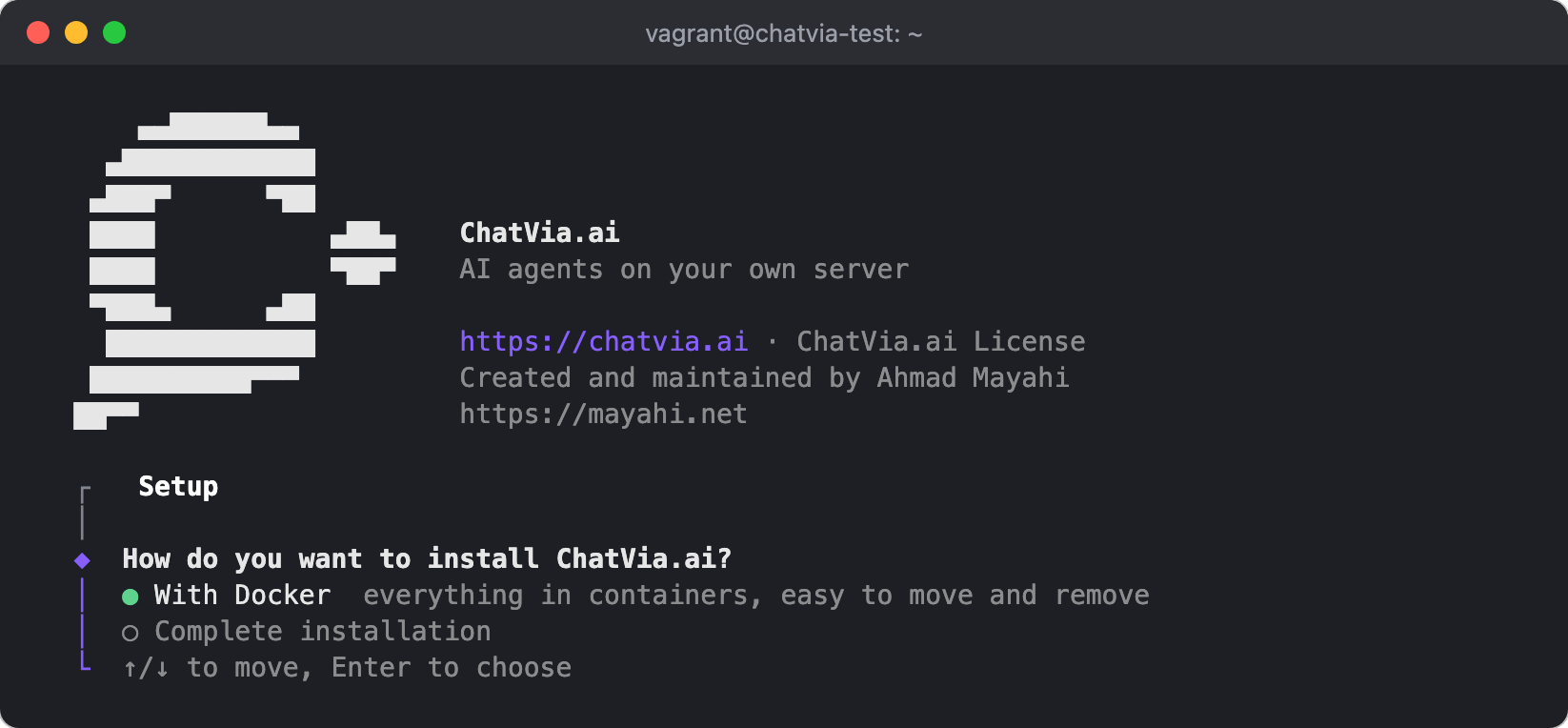
On Linux, the installer first asks how to install ChatVia.ai. On macOS it always uses Docker.
- With Docker: everything runs in containers, easy to move and remove.
On a server, use Ubuntu 26.04 LTS. It also works on your own computer
with Docker. The steps below show this path. Pass
--dockerto skip the question. - Complete installation: everything is installed directly on a fresh Ubuntu server (24.04 LTS or newer), without Docker.

The complete installation asks a few other questions: if this is a fresh server, the admin e-mail and password, your domain name, HTTPS, the firewall and, on a small server, swap. Then it asks the same Setup questions as Docker. See Install on Ubuntu.
Install folder
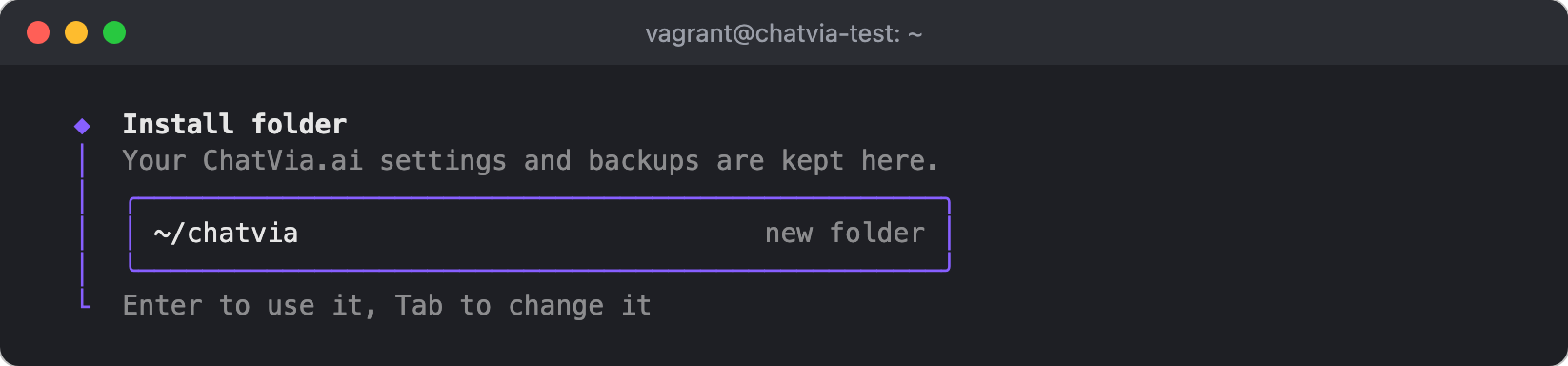
The folder for your settings (compose.yaml, .env), the manage tool,
PostgreSQL's settings and your backups. Docker keeps your data. The default
is ~/chatvia. Press Enter to use it, or Tab to type another one (--dir
sets it without asking). The box tells you what is in the folder:
new folder, has other files, or an install of ChatVia.ai. If
ChatVia.ai is already there, the installer offers to upgrade it instead.
Next, the installer checks that Docker is installed and running. If it is not, it offers to install it: on Linux with Docker's official script, on macOS with Homebrew.
Admin e-mail
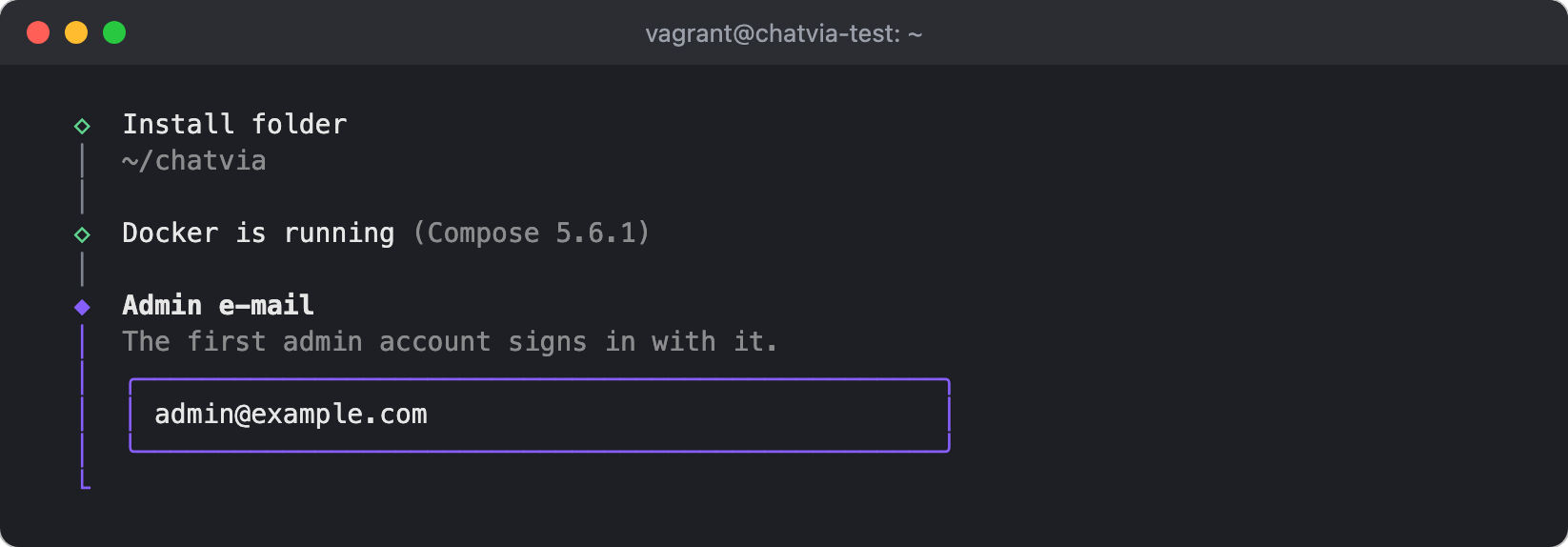
The e-mail address of the first admin account. You sign in to the admin panel with it.
Admin password
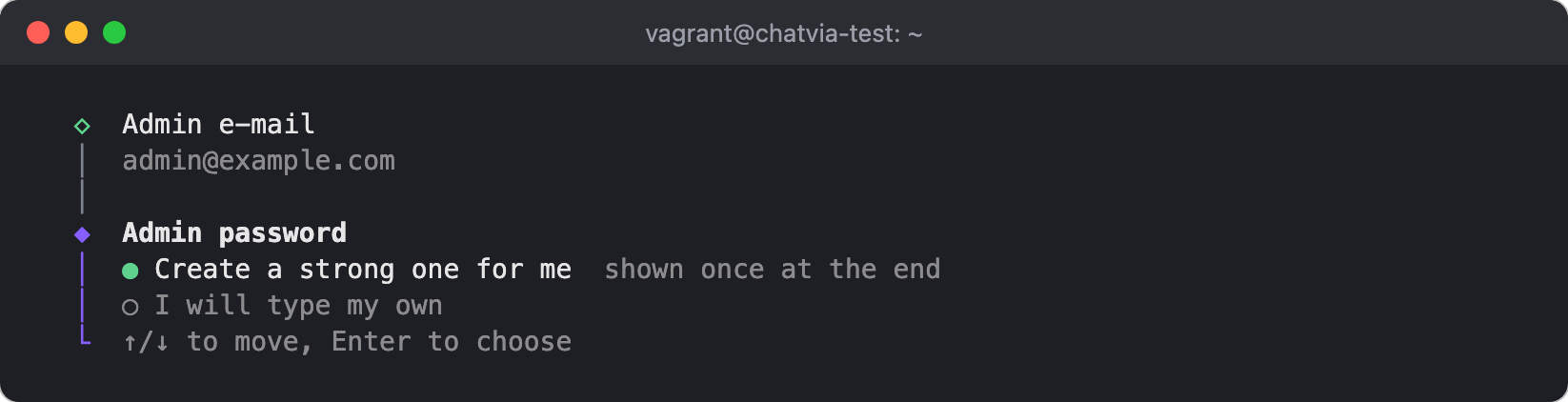
- Create a strong one for me: the installer makes a random password and shows it once, on the last screen. Save it then.
- I will type my own: you type a password (at least 12 characters) twice.
The password is used for the first start only. It is never written to a file.
Port
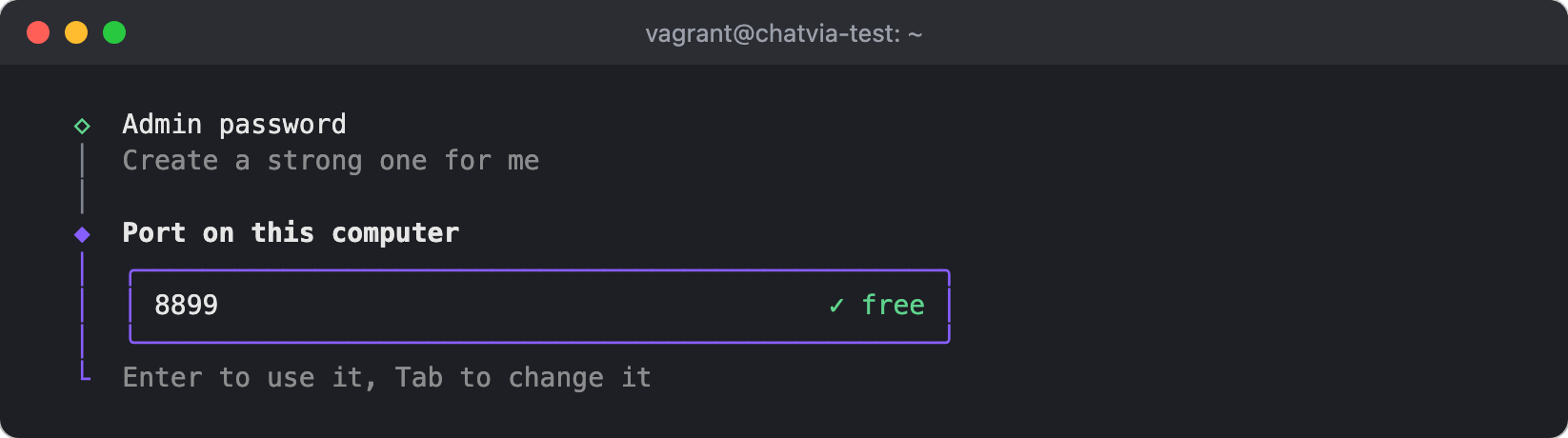
The port ChatVia.ai listens on, on this computer. The default is 8899. The
box shows free when no other program uses the port. See Ports.
Address
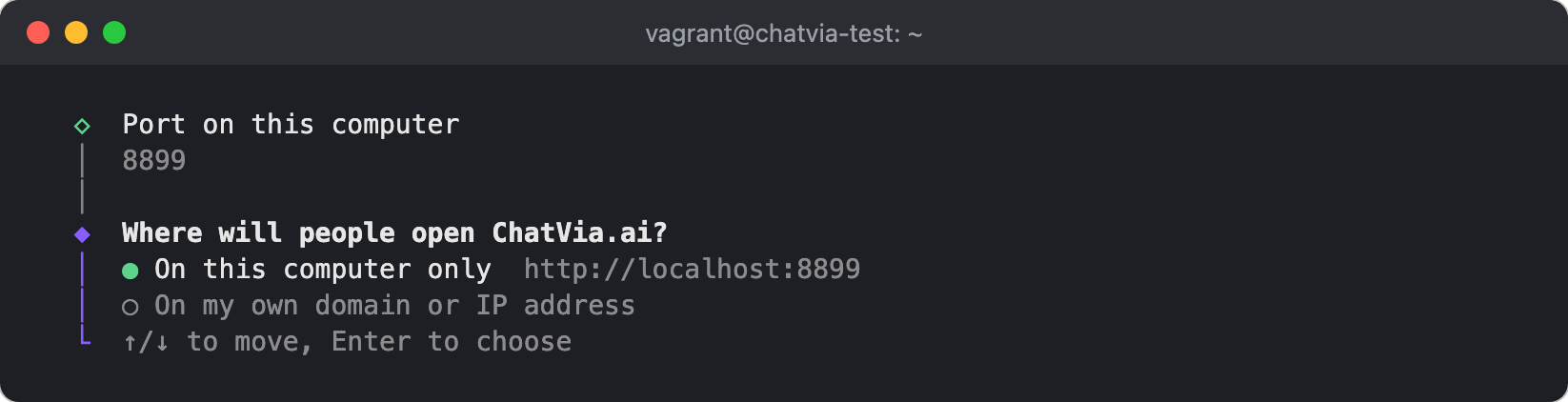
- On this computer only: people open
http://localhost:PORT. Good for trying ChatVia.ai. - On my domain, ChatVia.ai handles HTTPS: the best choice for a server.
You type your domain name, for example
chat.example.com. ChatVia.ai then answers on ports 80 and 443 and gets a free HTTPS certificate by itself. It also gets one for each agent's custom domain. See HTTPS built in. - On this server's IP address, with HTTPS: for a server with no domain
name, or to try ChatVia.ai on a server. You type the server's IP address
and a port, for example
8898. The installer fills in the server's public address, and lists the machine's own addresses below it. In a VM or on a home network, the public address belongs to your router: use one of the machine's own addresses then. People then openhttps://203.0.113.10:8898. The certificate is ChatVia.ai's own, so browsers show a warning until you trust it. See HTTPS on an IP address. - On my own domain or IP address: you type the full address people open,
for example
https://chat.example.com. Your own reverse proxy (for example nginx) handles HTTPS. See Use your own proxy.
For HTTPS built in, ports 80 and 443 must be free on this server. If another program uses them, the installer says so and asks again. It also checks that your domain points at this server, and warns you when it does not.
Setup
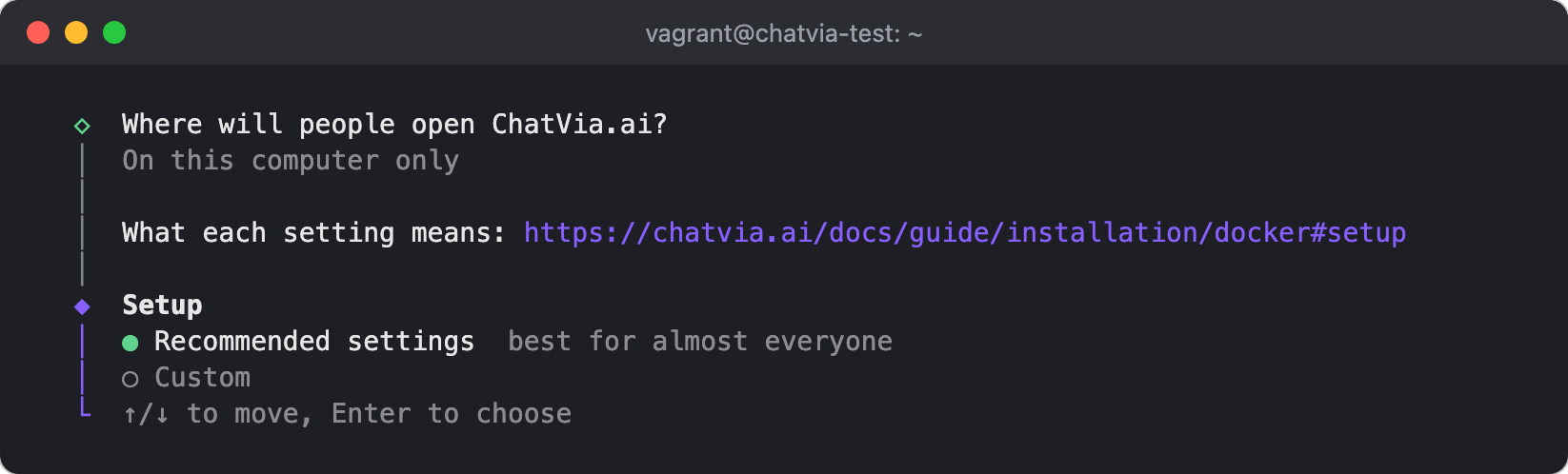
- Recommended settings: best for almost everyone. The installer uses
halfvec, 1024 dimensions, the binary search index and the newest version, and goes straight to Check your settings. - Custom: you choose the four settings below yourself.
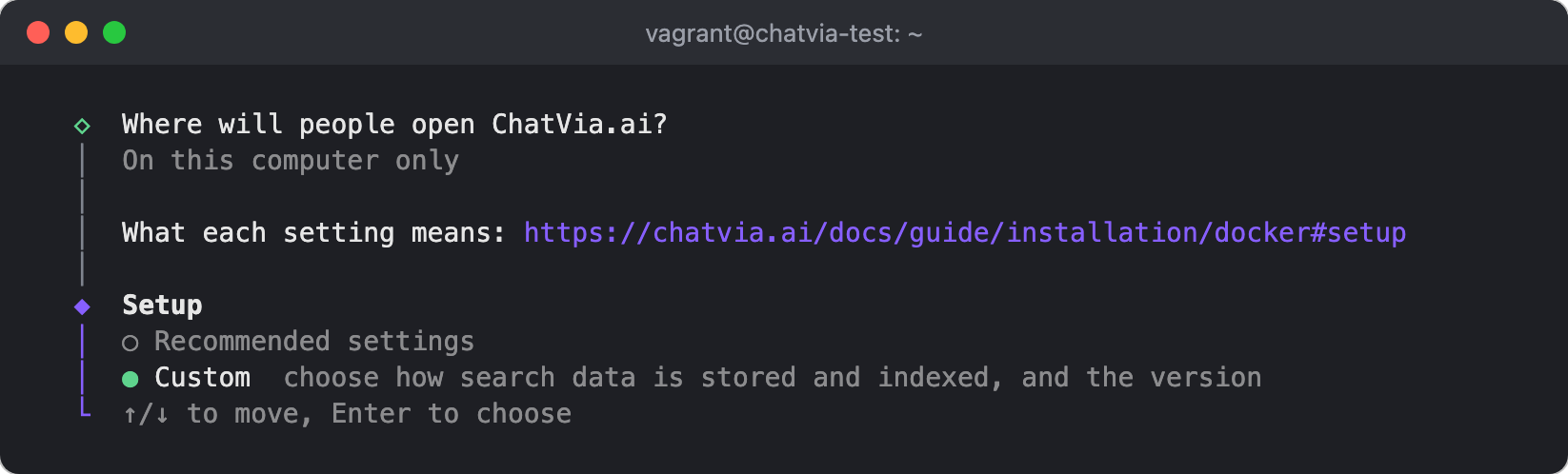
The next two questions are permanent. They decide how the search data of your knowledge is stored, and you can't change them after the install. The recommended values suit almost every install. See Embedding storage.
Vector type
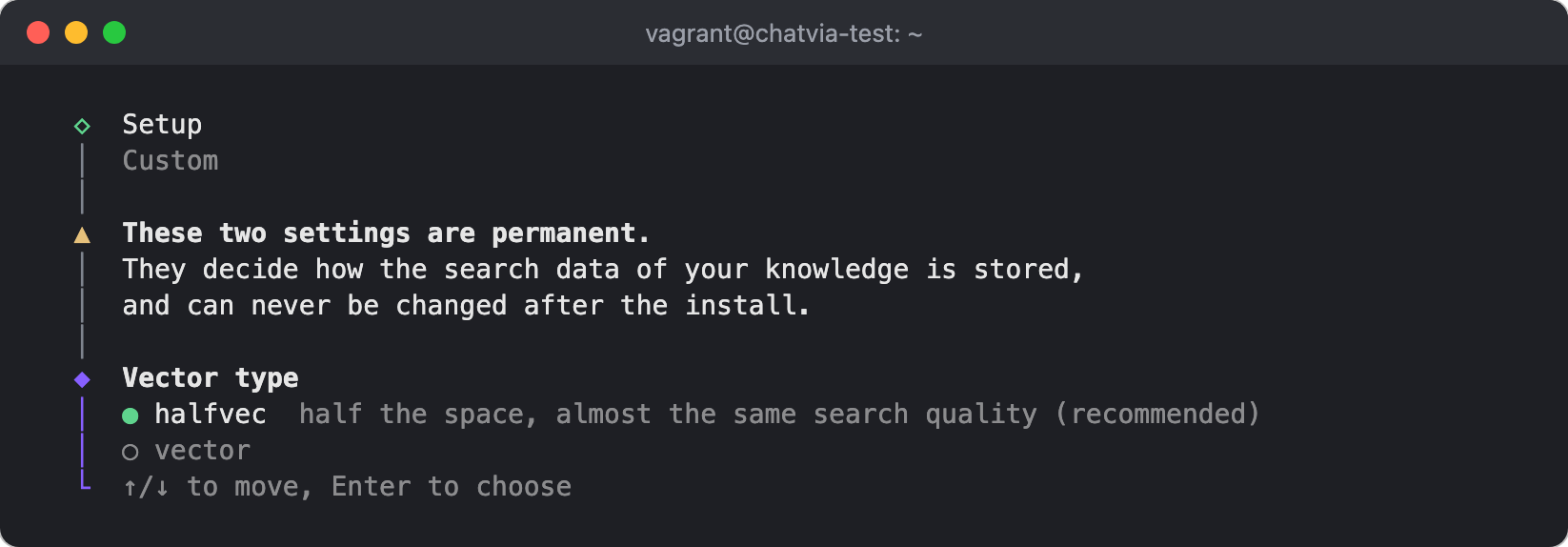
- halfvec (recommended): 2 bytes per dimension. It takes half the space
of
vector, with almost the same search quality. - vector: 4 bytes per dimension. Full precision, twice the space.
Vector size
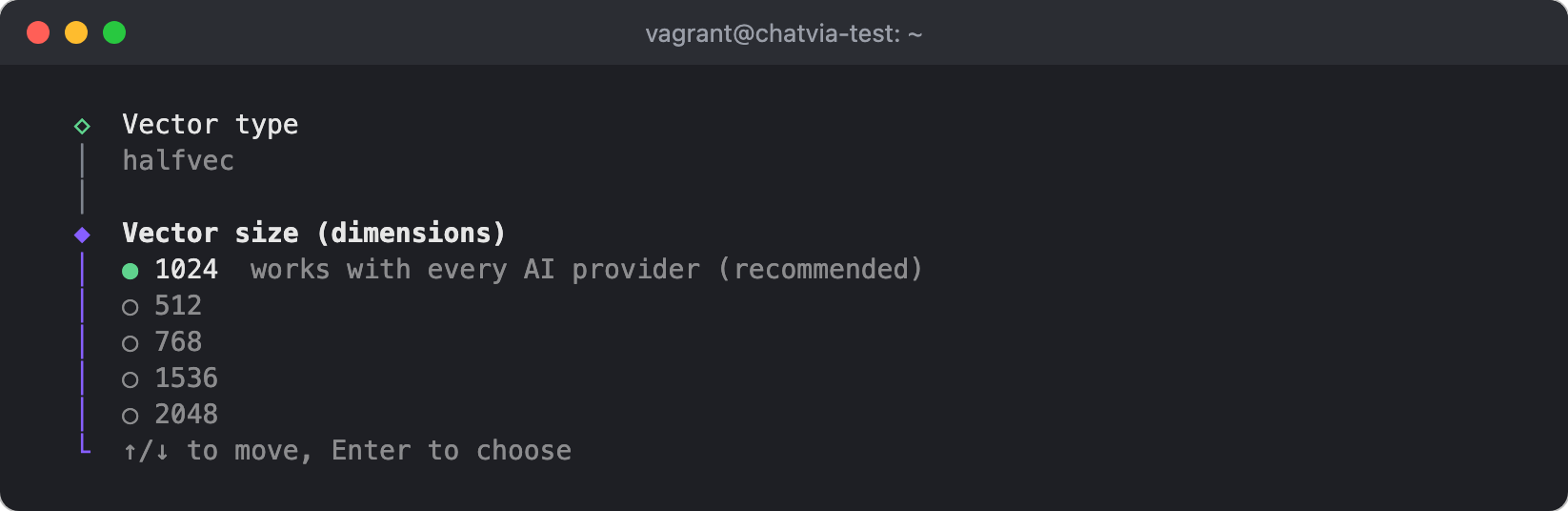
The number of dimensions of every stored embedding. Your embedding model must be able to return this size.
- 1024 (recommended): works with every AI provider.
- 512: smaller and faster, a little less precise. Qwen3, OpenAI, Gemini, Cohere, Jina and Voyage AI.
- 768: Qwen3, OpenAI, Gemini and Jina.
- 1536: more detail, more space. Qwen3, OpenAI, Gemini and Cohere.
- 2048: the most detail, the most space. Qwen3, Gemini, Voyage AI and OpenAI's large model.
Move to an option to see its note on the screen.
Search index
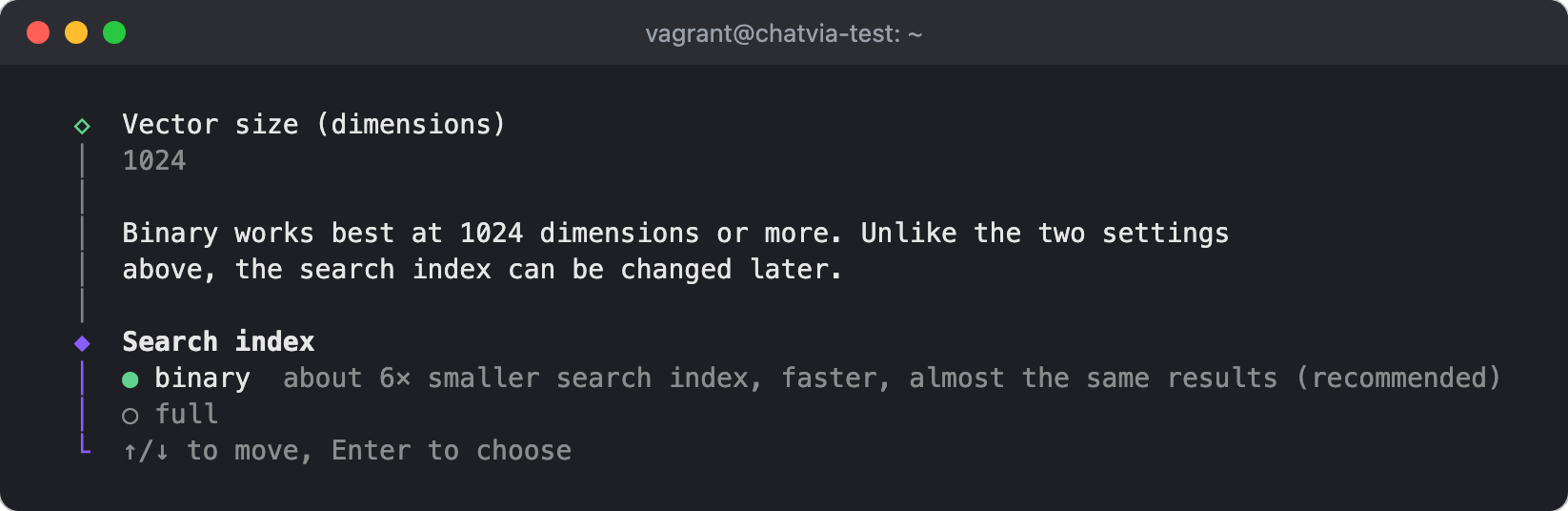
What the index for search by meaning holds. Unlike the two settings above, you can change it later.
- binary (recommended): the index keeps 1 bit per dimension, so it is about 6 times smaller and stays in memory longer as your knowledge grows. Search finds the closest matches in it, then checks them against the full vectors, so the results are almost the same. It works best with 1024 dimensions or more.
- full: the index keeps the full vectors. It is the largest index and the most exact.
To change it later, set EMBEDDING_INDEX (binary or full) in .env and
restart ChatVia.ai. The next start rebuilds the index. With a lot of
knowledge, that takes a while. See Embedding storage.
Version
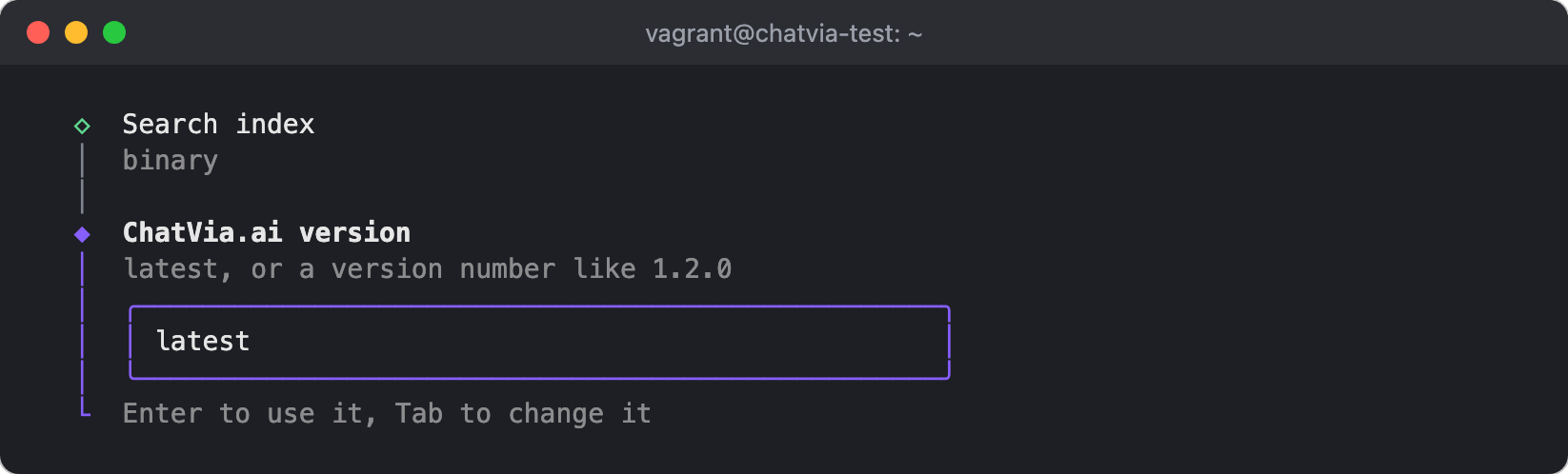
The ChatVia.ai version to install. latest (the default) is the newest
release. You can also type a version number, like 1.2.0.
Check your settings
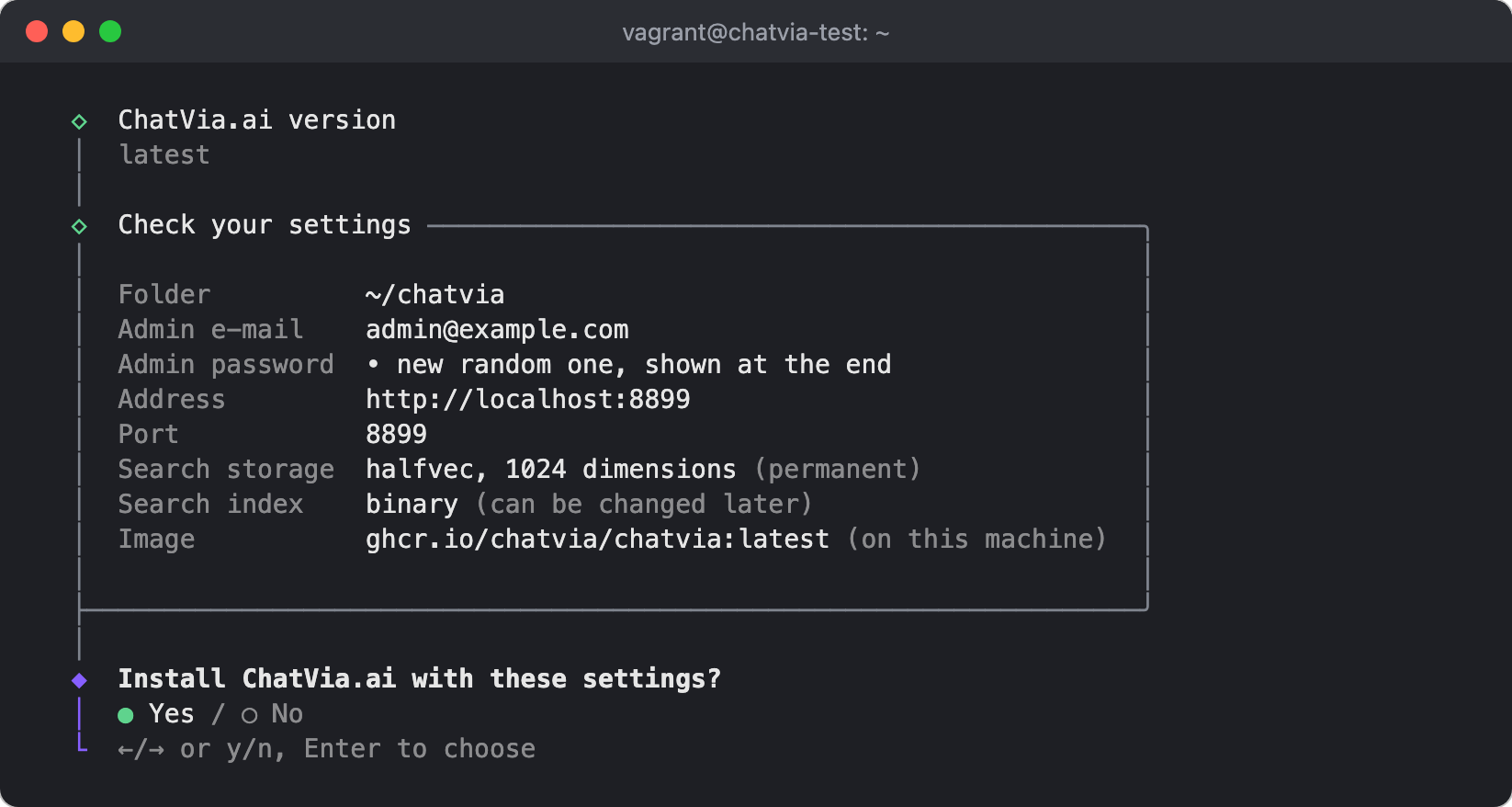
The installer lists every answer. Choose Yes to install, or No to stop without changing anything.
Installing
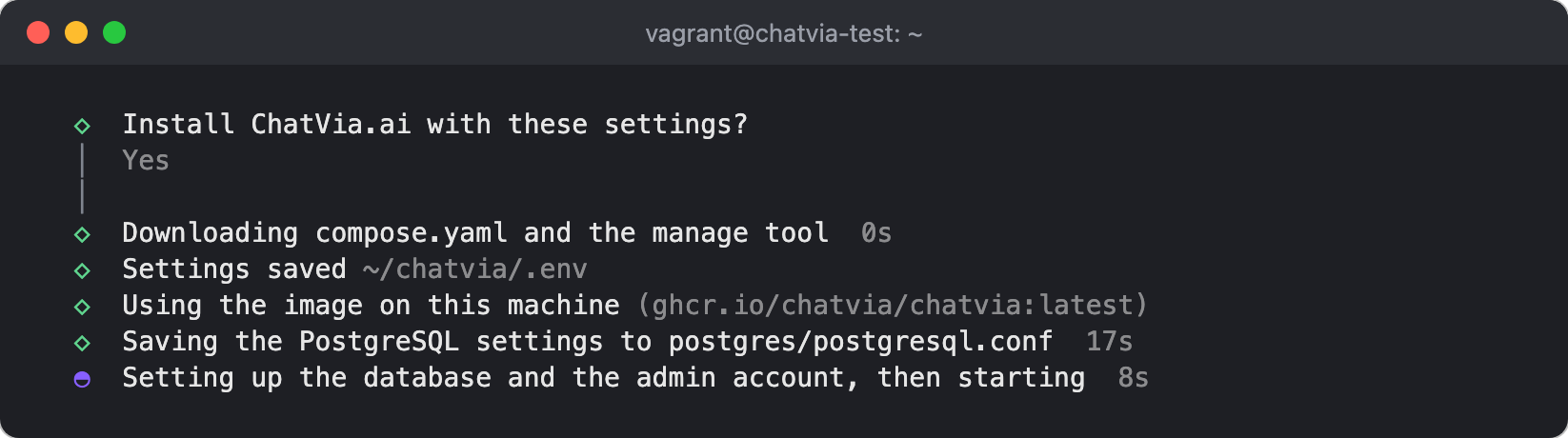
The installer now:
- Writes
compose.yaml,.envand themanagetool into the folder. - Downloads the ChatVia.ai image. (The screenshot used an image that was already on the computer.)
- Saves PostgreSQL's settings to
postgres/postgresql.conf, so you can tune them later (see PostgreSQL settings). - Sets up the database and the admin account, then starts ChatVia.ai.
- Waits for the web app, and sizes the queue workers to this computer.
If a step fails, the installer stops and shows where its log is.
Done
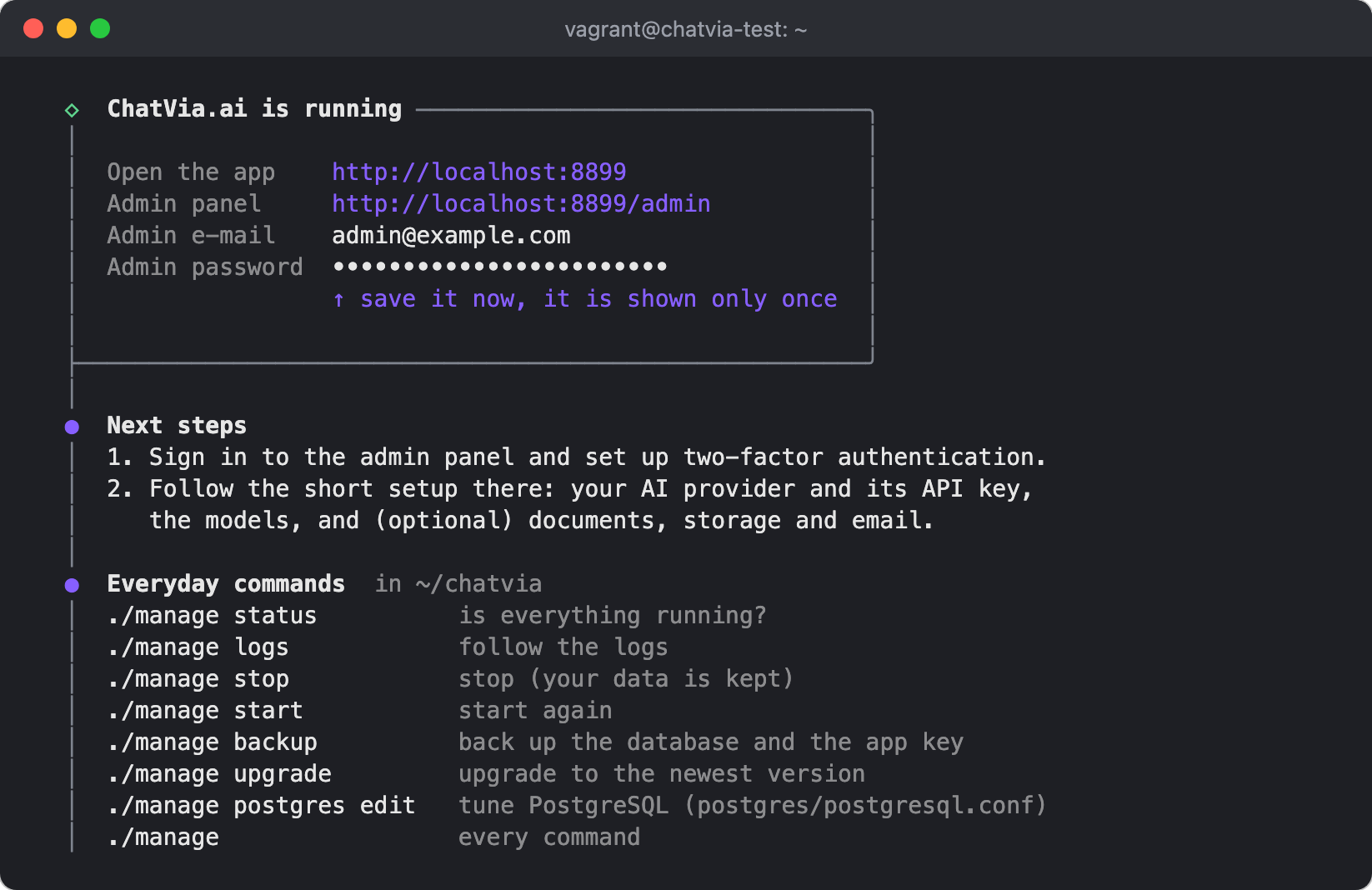
ChatVia.ai is running. The last screen shows:
- The address of the app and of the admin panel.
- Your admin e-mail and, if the installer made it, your password. It is shown only this once, so save it now. (It is hidden in this screenshot.)
- The next steps: sign in to the admin panel, set up two-factor authentication, and follow the short setup there (your AI provider and its API key, the models, and optionally documents, storage and email).
- The everyday
./managecommands. See Manage your install.
Install count
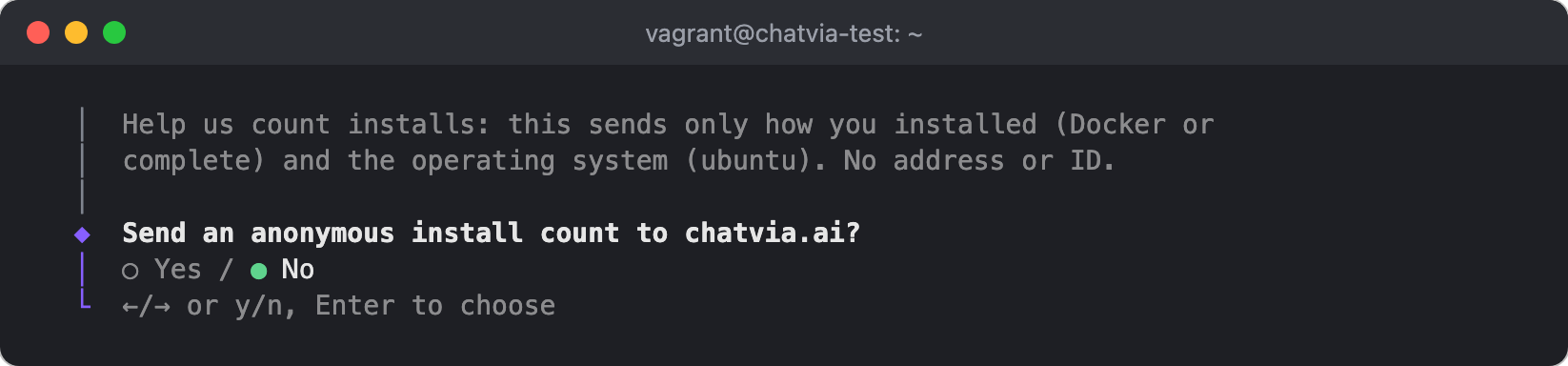
The installer asks if it may send an anonymous install count to chatvia.ai.
It sends only how you installed (Docker or complete) and the operating
system: no address, no ID and no settings. The answer is No unless you
choose Yes. --count-install sends it without asking, and
--no-count-install skips the question. With --yes alone, nothing is sent.
News
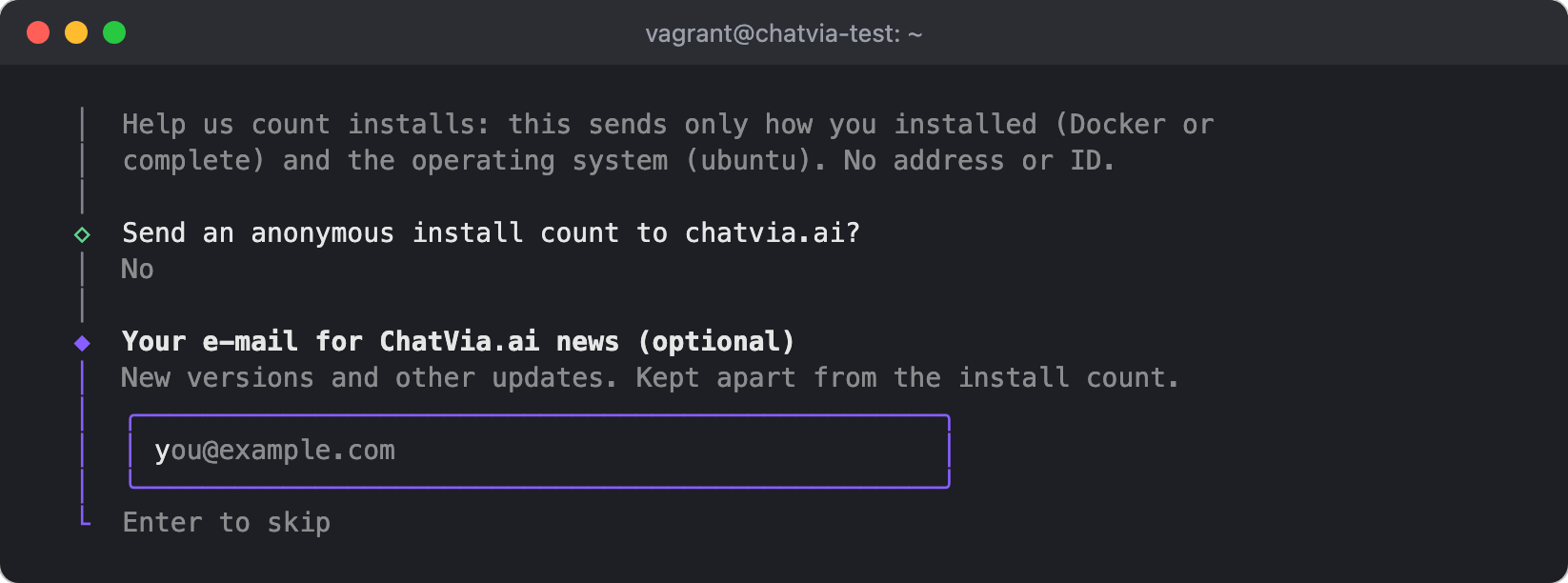
The installer asks if you want news about ChatVia.ai (new versions and other
updates) at the admin e-mail address. The address is kept apart from the
install count. The answer is Yes unless you choose No. --news
subscribes without asking, and --no-news skips the question. With --yes
alone, no address is sent.
Without questions
The setup questions run once: run the installer again and pick the same
folder to upgrade. For an install without questions, pass the settings as
options (--dir sets the folder):
curl -fsSL https://chatvia.ai/install.sh | bash -s -- --yes --email [email protected]On a server, with HTTPS built in:
curl -fsSL https://chatvia.ai/install.sh | bash -s -- --yes --email [email protected] \
  --https builtin --url https://chat.example.com
On a server with no domain name, with HTTPS on its IP address and port 8898:
curl -fsSL https://chatvia.ai/install.sh | bash -s -- --yes --email [email protected] \
  --https self-signed --url https://203.0.113.10:8898
--https proxy (the default) leaves HTTPS to your own proxy. --help lists every option. --dry-run shows what would happen without
changing anything.
Run with Docker
The Chatvia image runs the whole app: the web app, the queue workers, the scheduler and the WebSocket server. The compose file adds PostgreSQL (with the search extensions) and Redis. You need Docker with Docker Compose 2.24 or newer.
For now, Chatvia needs Redis and Laravel Horizon (the queue workers). The compose file runs both for you, so there is nothing extra to install. See Redis and Horizon are required. For a server that other people use, we recommend a VPS (a virtual private server that you control): see Where to install.
Each part runs in its own container: app (web), horizon (queue workers),
scheduler, reverb (WebSockets), pulse (server stats for /pulse),
postgres and redis. Docker
restarts any of them that stops, and a health check marks one that hangs, so
no process supervisor is needed inside the containers. See them with
./manage status (or docker compose ps), and the logs of one with
./manage logs horizon.
The image is published at ghcr.io/chatvia/chatvia, with one tag per
release (for example 1.4.2, 1.4, 1 and latest).
The image also serves the chat widget, at /shakomako/embed.js. The embed
snippets in the dashboard point there, so the widget needs no extra setup.
Start by hand
Download the compose file into an empty folder and start it:
mkdir chatvia && cd chatvia
curl -fsSLO https://raw.githubusercontent.com/chatvia/chatvia/main/docker/compose.yaml
docker compose up -d
Then open http://localhost:8000. To use the manage tool
too, download it into the same folder:
curl -fsSLO https://raw.githubusercontent.com/chatvia/chatvia/main/docker/manage
chmod +x manage
The first start sets up everything by itself:
- It creates the secrets of your install: the app key, the database password, the WebSocket keys and the built-in tools' secret. They stay in a Docker volume, so no two installs share them.
- It creates the database and runs the migrations.
- It creates the first admin account.
Sign in
Without your own admin password, the first start makes a random one and prints it once:
docker compose logs migrateSign in with [email protected] and that password, then:
- Open the admin panel at
/admin. We recommend you set up two-factor authentication, under your profile. - The admin panel opens with the setup of a new install. Choose your AI provider and enter its API key, pick the models, and set up e-mail. Click Finish setup. This also adds the built-in tools (charts, forms, weather, currency, web search) to the tool catalog. You can change everything later under Settings.
To add the built-in tools again, for example after an upgrade, run
./manage sync-tools (or, without the manage tool,
docker compose exec app php artisan chatvia:mcp:sync-builtin).
Settings
Put your settings in a .env file next to compose.yaml. The file
docker/.env.example
lists the common ones. Every setting from the project's .env.example works
too. API keys are not set in this file: enter them in the admin panel.
| Setting | Default | What it does |
|---|---|---|
APP_PORT |
8000 |
The port on your machine that serves the app. |
APP_URL |
http://localhost:8000 |
The address people use to open the app. Change it with APP_PORT, or set your domain. |
APP_BIND_IP |
empty | Set it to 127.0.0.1 so only this server can reach APP_PORT. Empty means every network. |
COMPOSE_PROFILES, CHATVIA_DOMAIN |
empty | https and your domain turn on HTTPS built in. ./manage https on sets them. |
COMPOSE_PROFILES, CHATVIA_IP, CHATVIA_HTTPS_PORT |
empty, empty, 443 |
self-signed, the server's IP address and a port turn on HTTPS on an IP address. ./manage https on sets them. |
CHATVIA_VERSION |
latest |
The version Chatvia runs, like 1.4.2. The installer writes the exact version, and ./manage upgrade changes it. |
DB_DATABASE, DB_USERNAME |
chatvia |
First start only. |
DB_PASSWORD |
random | First start only. |
ADMIN_EMAIL, ADMIN_NAME |
[email protected], Admin |
First start only. |
ADMIN_PASSWORD |
random | First start only. Remove it from .env afterwards. |
APP_KEY |
random | Your own app key instead of a random one. |
PHP_FPM_PM_MAX_CHILDREN |
16 |
How many pages and API calls the app answers at once. See Web workers. |
CHATVIA_STREAM_WORKERS |
32 |
How many chat answers the app writes at once. See Web workers. |
MAIL_* |
write to the logs | Only a preset. Set up e-mail in the admin panel, under Settings → Email. It is needed for sign-up, invitations and password resets. |
"First start only" settings are read when the database is created. Changing them later does not change the existing database or account.
A changed setting applies after ./manage restart (or
docker compose up -d).
Changes to the services themselves go in compose.override.yaml, next to
compose.yaml. Docker Compose reads it after compose.yaml, and upgrades
never replace it.
Ports
Only the web container is published. It listens on port 8080 inside the
container and also passes the browser's WebSocket connections to the
WebSocket server. With HTTPS built in, ports 80 and 443
are published too, and APP_PORT only listens on the server itself. To use
another port, set APP_PORT and APP_URL:
APP_PORT=9000
APP_URL=http://localhost:9000
PostgreSQL and Redis are not published. To reach them from your machine, add
a ports entry to their service in compose.override.yaml, as with any
Docker container. For a quick look at the database, ./manage psql needs no
port.
PostgreSQL settings
The installer saves PostgreSQL's settings to postgres/postgresql.conf in
the install folder. ./manage postgres tune sizes them to the machine's
memory and processors. Change them yourself with ./manage postgres edit,
or change the file and run ./manage postgres apply. Every way checks the
file before PostgreSQL reads it. See
Tune PostgreSQL.
Web workers
The app container answers browser and API requests with two groups of
workers:
| Workers | Requests | Most at once | Setting |
|---|---|---|---|
| Pages | Dashboard pages, uploads, API calls | 16 | PHP_FPM_PM_MAX_CHILDREN |
| Chat answers | Messages in the hosted chat, the chat widget, the analytics chat and the API | 32 | CHATVIA_STREAM_WORKERS |
A chat answer keeps its worker until the agent stops writing. Because chat answers have their own workers, a busy chat cannot make dashboard pages wait. When all chat workers are busy, a new answer waits until one is free.
Workers start when requests come, and most stop again when idle. Each one
uses up to about 80 MB of memory, and one database connection while it works.
PostgreSQL allows 100 connections unless you raise max_connections (see
PostgreSQL settings), and the queue workers need
some too. To change a number, set it in .env and run ./manage restart app:
CHATVIA_STREAM_WORKERS=64Queue workers
The horizon container runs the background jobs: replies on messaging
channels, reading files and websites, analytics, exports. It starts a few
workers and adds more when jobs wait, up to a limit for each kind of work.
Each worker uses about 80 MB of memory.
| Workers | Jobs | Most at once (small server) |
|---|---|---|
| Chat | Replies on messaging channels, e-mails, other short jobs | 6 |
| Files and websites | Reading knowledge sources, then exports | 4 |
| Analytics | Conversation analysis, evals, audit logs | 2 |
| Audio and video | Transcribing recordings | 1 |
| Live voice calls | Live voice conversations. Each call holds one worker. | 3 |
The numbers in the table fit the smallest server: 16 workers at most, 5 when nothing is waiting. The install sizes them to your machine once, at the end. After you give the machine more memory or processors, size them again:
./manage artisan chatvia:workers:tune --restartOr set them yourself in the admin panel under
Settings → Platform → Queue workers,
then run ./manage restart horizon. Numbers you set there
stay: nothing changes them behind your back.
HTTPS built in
For a server that other people use, ChatVia.ai can handle HTTPS itself. It
runs Caddy, a web server, in one more container (the proxy service):
- Caddy answers on ports 80 and 443, and passes each request to the app.
- It gets a free certificate from Let's Encrypt for your domain, and renews it by itself.
- It also gets a certificate for each agent's custom domain, the first time someone opens it. Before that, it asks ChatVia.ai if the domain is saved for an agent. A domain that is not saved never gets a certificate. See Custom domains.
APP_PORTthen only listens on the server itself, so nobody can skip HTTPS.
Choose On my domain, ChatVia.ai handles HTTPS in the installer, or turn it on later:
./manage https onBefore you turn it on:
- At your DNS provider, add an A record for your domain (for example
chat.example.com) that points at the server's IP address. - Make sure ports 80 and 443 are free: stop any other web server on the server, like nginx or Apache.
- Open ports 80 and 443 in your firewall, or at your cloud provider. Let's Encrypt checks your domain over them.
The first certificate takes a few seconds. If the domain does not point at
the server yet, Caddy keeps trying by itself, and HTTPS starts to work soon
after the record does. ./manage https status shows if HTTPS works and
which certificates Caddy has. If something goes wrong, ./manage logs proxy
shows why.
./manage https on writes these settings to .env:
COMPOSE_PROFILES=https
CHATVIA_DOMAIN=chat.example.com
APP_BIND_IP=127.0.0.1
CHATVIA_ON_DEMAND_TLS=true
TRUSTED_PROXIES=172.16.0.0/12,10.0.0.0/8,192.168.0.0/16
It also sets APP_URL to https:// and your domain. TRUSTED_PROXIES are
the private networks Docker uses. ChatVia.ai trusts Caddy's details about
each visitor (like their IP address) from there. This is safe because the
app's port only listens on the server itself. CHATVIA_ON_DEMAND_TLS turns
on custom domains in the admin panel by default.
To use your own proxy instead, run ./manage https off. It stops Caddy and
keeps APP_BIND_IP and TRUSTED_PROXIES for your proxy, so you only point
it at the port (see Use your own proxy). The
certificates stay saved, in case you turn HTTPS on again.
HTTPS on an IP address
A server with no domain name can still use HTTPS, on its IP address. Caddy
then runs in the proxy-self-signed service:
- Caddy answers on the port you choose (443 by default), and passes each
request to the app. People open
https://with the IP address and the port, for examplehttps://203.0.113.10:8898. - The certificate comes from Caddy itself, not from Let's Encrypt. It is valid for one year, and Caddy makes a new one by itself.
APP_PORTthen only listens on the server itself.
Choose On this server's IP address, with HTTPS in the installer, or turn it on later:
./manage https on --ip 203.0.113.10 --port 8898Open the port in your firewall, or at your cloud provider.
The first time you open the address, the browser says the connection is not private, because it does not know the certificate. Choose Advanced, then go on to the address. To stop the warning on your own computers and phones, save Caddy's root certificate and add it to each device as a trusted root:
./manage https caIt saves chatvia-root-ca.crt in the install folder and shows how to add it
on a Mac, on Windows and in Firefox. Add it only to your own devices: a
device that trusts it trusts every certificate this server's Caddy makes.
This is good for trying ChatVia.ai and for a team that uses it on its own devices. It is not enough for the public:
- Visitors cannot accept the warning for the Chat Widget on another website, so the widget does not load there.
- Chat apps like Slack, Teams, WhatsApp, Messenger and Instagram only send messages to a server with a trusted certificate.
- Agents' custom domains need HTTPS built in.
When you have a domain, switch to it with
./manage https on --domain chat.example.com. ./manage https off turns
HTTPS on the IP address off: ChatVia.ai then answers on
http:// with the IP address and APP_PORT.
Use your own proxy
If your server already has a web server, or you want to set up HTTPS
yourself, put your own reverse proxy in front of ChatVia.ai, for example
nginx, Traefik or Caddy. Never open APP_PORT to the internet directly:
- The app port speaks plain HTTP. Passwords, sign-in links and chats would travel without encryption.
- Docker opens published ports in the firewall by itself. A
ufwrule that blocks the port does not stop it.
The reverse proxy gets the HTTPS certificate and passes each request to
APP_PORT. It must also pass WebSocket connections on the path /app/.
When you chose your own proxy handles HTTPS in the installer, or ran
./manage https off, .env already holds what a proxy on the same server
needs:
APP_URL=https://chat.example.com
SESSION_SECURE_COOKIE=true
APP_BIND_IP=127.0.0.1
TRUSTED_PROXIES=172.16.0.0/12,10.0.0.0/8,192.168.0.0/16
APP_BIND_IP keeps the port on the server itself: only programs there, like
your proxy, can reach it. TRUSTED_PROXIES are the private networks Docker
uses, where a proxy on this server connects from. ChatVia.ai trusts the
proxy's details about each visitor (like their IP address) from there. All
that is left is to set up the proxy.
A proxy on another machine
For a load balancer or a proxy on another server, the port has to listen on
the network, and ChatVia.ai has to trust that machine instead. Set in
.env:
APP_BIND_IP=
TRUSTED_PROXIES=203.0.113.10
Use the address, or range, your proxy connects from. Then run
./manage restart, and make sure only the proxy can reach the port, for
example with your cloud's firewall. Behind Cloudflare, add the word
cloudflare, which stands for its published ranges (for example
cloudflare,172.16.0.0/12); without it, visitor IPs, countries and rate
limits see Cloudflare's edge instead of the visitor.
Set up the proxy
With Caddy, two lines are enough. Caddy gets the certificate and passes WebSocket connections on its own:
chat.example.com {
    reverse_proxy 127.0.0.1:8899
}
With nginx, pass the Upgrade and Connection headers, so WebSocket
connections work:
server {
    listen 443 ssl;
    server_name chat.example.com;
    # ssl_certificate and ssl_certificate_key, for example from Certbot

    client_max_body_size 100m;

    location / {
        proxy_pass http://127.0.0.1:8899;
        proxy_http_version 1.1;
        proxy_set_header Host $host;
        proxy_set_header X-Forwarded-For $proxy_add_x_forwarded_for;
        proxy_set_header X-Forwarded-Proto $scheme;
        proxy_set_header Upgrade $http_upgrade;
        proxy_set_header Connection "upgrade";
        proxy_read_timeout 300s;
        proxy_buffering off;
        # Each page sends a long Link header (preloaded scripts and styles),
        # more than nginx's default buffer holds.
        proxy_buffer_size 64k;
        proxy_buffers 8 64k;
        proxy_busy_buffers_size 128k;
    }
}
Use your own port in place of 8899. Without the proxy_buffer_size lines,
every page answers with a 502 error ("upstream sent too big header" in the
nginx error log). For an install set up by hand, also set APP_URL,
SESSION_SECURE_COOKIE, APP_BIND_IP and TRUSTED_PROXIES in .env as
shown above, then run ./manage restart.
Every agent's hosted chat lives under the same domain, at
https://chat.example.com/chat/{agent}, so one DNS record and one certificate
are enough. See Hosted chat addresses. To
give agents domains of their own, your proxy needs a certificate for each of
them: see Custom domains. With
HTTPS built in, this happens by itself.
Upgrade
./manage upgradeIt shows the new version and its release notes, backs up the data, then switches to the new version. When the new version does not start, it goes back to the old one with that backup. See Upgrade and Roll back.
Without the manage tool, set the new version in .env
(CHATVIA_VERSION=1.5.0), then run:
docker compose pull
docker compose up -d
The migrations run before the new version serves requests.
Back up
Your data is in four Docker volumes:
| Volume | Holds |
|---|---|
pgdata |
The database |
storage |
Uploaded files, and the backups the app makes (Settings → Backups) |
secrets |
The app key and the other secrets |
redisdata |
Queues and caches |
With HTTPS built in, caddy_data and caddy_config hold
the certificates and Caddy's settings. Backups leave them out: Caddy gets the
certificates again by itself.
./manage backup saves the database, the app key and Redis in one file, and
./manage restore puts them back, also on another server. Add --files
for the uploaded files. See Back up and
Restore.
Without the tool, keep a copy of the secrets volume, or set your own
APP_KEY. Without the app key, the API keys in the admin panel cannot be
read.
Commands
Run Artisan commands in the app container:
./manage artisan about
./manage admin [email protected]            # another admin account
./manage password [email protected]         # a new password
Without the manage tool, use docker compose exec app php artisan .... See
the logs of all services with ./manage logs (or docker compose logs -f).
What the image includes
The programs that read file sources (poppler, pandoc, catdoc, ffmpeg), WeasyPrint for exporting a chat as PDF and for summaries of office files, and fonts for every language the dashboard offers.