Storage settings

This page decides where Chatvia keeps the files people add to it, like the PDFs and documents an agent learns from. Open it in the admin panel under Settings → Storage. It is usually set once, by whoever installed Chatvia.
If you never touch it, files are kept on the same server Chatvia runs on. That works well for most installs. Change it only if you want your files kept with an online storage service instead, for example because the server's disk is small. Decide before people start adding files, because switching later moves nothing.
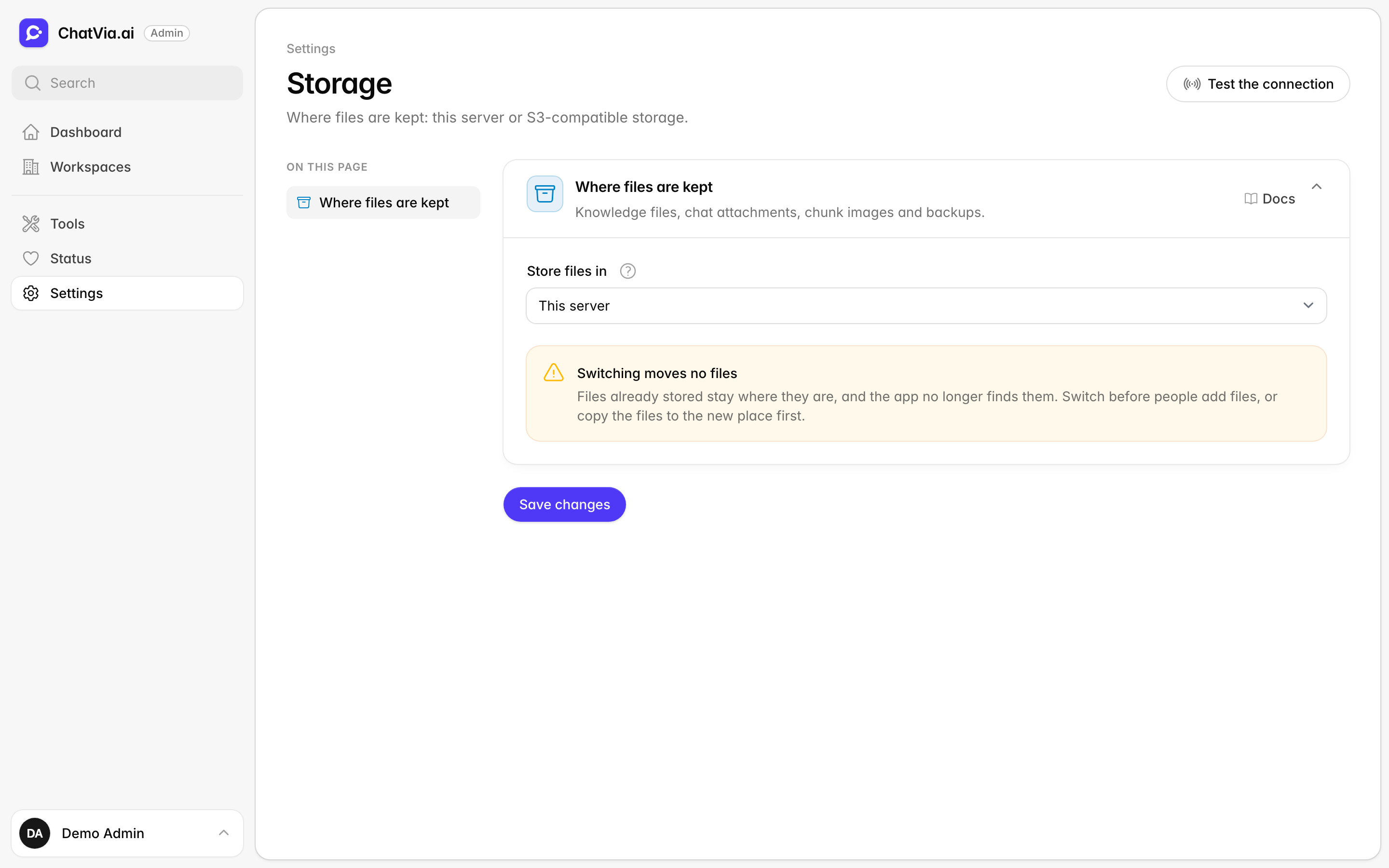
Where files are kept
Every time someone uploads a file to Chatvia, it has to be saved somewhere. This card picks that place. It is a bit like choosing whether to keep your paperwork in a cabinet in your office or in a rented storage unit across town. Both hold the same papers. One needs no setup, the other has more room.
The card covers the files people add and the files Chatvia makes from them:
- knowledge files, the documents your agents learn from
- chat attachments, the files visitors send in a chat
- the images taken from knowledge files (chunk images). Chatvia cuts each document into small pieces, called chunks, and keeps the pictures found in them.
- images and videos your agents make in a chat
- profile photos and agent logos, which anyone may see
- backups
The card has three parts: Private files, Public images and Backups. Each part picks its own place:
- This server (the default). The files stay on the server's disk,
under
storage/app. It needs no setup. Remember them in your backups (see Back up). - S3-compatible bucket. The files go to a bucket at an online storage service. Storage grows with your files, and the server's disk stays small. The bucket fields appear when you pick it.
So you can, for example, keep the private files on this server and still send the backups to a bucket.
While any part is still on this server, the card shows a note: We recommend S3-compatible storage. Files on the server are lost if its disk breaks, and a second server cannot reach them. A bucket keeps them safe and lets Chatvia run on more than one server. The note goes away once all three parts use a bucket.
S3-compatible storage is online file storage that you rent by the gigabyte. Amazon created it under the name S3, and many other companies now offer the same kind of service that works the same way, such as Cloudflare R2, Scaleway and MinIO. A bucket is one named storage space at such a service, like one folder that holds all of Chatvia's files.
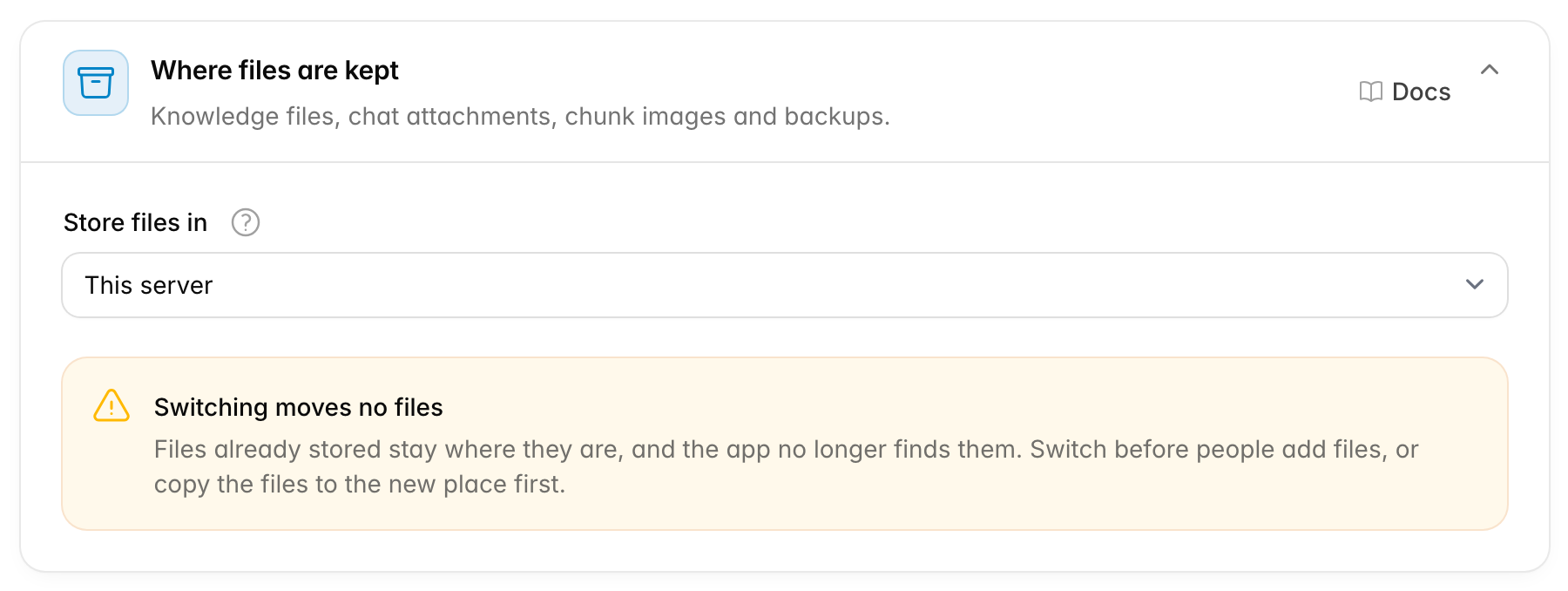
Switching moves no files
Files already stored stay where they are, and Chatvia no longer finds them. Switch before people add files, or copy the files to the new place first.
Each part that uses a bucket has its own connection: its own address, region and keys. So each bucket may sit with another storage company or another account. When all your buckets are with the same company, copy the same endpoint, region and keys into each part.
Every part asks for these fields:
| Field | What to enter |
|---|---|
| Bucket (Private bucket, Public bucket or Backups bucket) | The bucket's name, for example chatvia-files. Required. |
| Endpoint | The address of the storage service, for example https://s3.fr-par.scw.cloud. Leave it empty for AWS S3. |
| Region | Where the bucket is kept, for example eu-west-1 or fr-par. Use auto for Cloudflare R2. Required. |
| Access key ID | The ID of the access key the service gave you. Required. |
| Secret access key | The secret that goes with that key. Required the first time. |
| Use path-style addresses | Off by default. Turn it on for MinIO (see below). |
The parts:
| Part | Holds | Extra fields |
|---|---|---|
| Private files | Knowledge files, chat attachments, chunk images, and generated images and videos. | Keep private files on: This server (the default) or S3-compatible private bucket. The bucket fields show, and are required, with S3-compatible private bucket. |
| Public images | Profile photos and agent logos. | Keep profile photos and agent logos on: This server (the default) or S3-compatible public bucket. The bucket fields and Public URL show, and are required, with S3-compatible public bucket. |
| Backups | The backup files. | Keep backups on: This server (the default), S3-compatible private bucket or Same as the private bucket. The bucket fields show, and are required, with S3-compatible private bucket. With Same as the private bucket they show the private bucket's values and you cannot change them. |
What these words mean:
- The endpoint is the web address Chatvia talks to when it saves or reads a file. Each storage company has its own. AWS S3 is the one Chatvia knows already, which is why you can leave it empty there.
- The region is the part of the world where the service keeps your files, written as a short code. Your storage company shows it next to your bucket.
- The access key ID and secret access key work like a user name and password that a program uses instead of a person. The storage service gives you both when you create the key. Anyone who has them can read your files, so keep the secret private. This kind of key is often called an API key.
The private bucket holds the files only Chatvia should open. Keep it private. Chatvia opens its files only through signed links, so nobody needs public access to it. A signed link is a file address with a built-in permission slip that only Chatvia can write, so only people Chatvia sends it to can open the file.
Public images are the profile photos and agent logos. Visitors' browsers load them straight from where they are kept, on your dashboard, in hosted chat and in the chat widget on your website. Keep profile photos and agent logos on picks that place:
- This server (the default). The server keeps the images and serves them, even when the private files are in a bucket. That is fine when Chatvia runs on one server. When it runs on more than one, a photo saved on one server is missing on the others, so pick a public bucket.
- S3-compatible public bucket. A bucket that anyone can read. Enter its name and its Public URL.
The public bucket must let anyone read its files. Use a bucket of its own for it: Chatvia refuses the private or backups bucket here, because then anyone could read your private files.
The Public URL is the web address the public files load from. Chatvia adds the file's path to it. For example:
- Cloudflare R2: the bucket's public
r2.devaddress, such ashttps://pub-1234.r2.dev, or your own domain linked to the bucket. - AWS S3:
https://<bucket>.s3.<region>.amazonaws.com, or a CloudFront address in front of the bucket. - Scaleway:
https://<bucket>.s3.<region>.scw.cloud. - MinIO:
http://<your-minio-host>:9000/<bucket>.
Any CDN in front of the bucket works too. Put its address here.
Backups are the files that Backups makes. Keep backups on picks their place:
- This server (the default). The backups sit on the same disk as Chatvia. If that disk breaks, they are lost with it.
- S3-compatible private bucket. The backups go to a
backupsfolder in a bucket of their own, off the server. This is the safest choice: if the private bucket is deleted or emptied by mistake, the backups are still there. - Same as the private bucket. The backups go to a
backupsfolder in the bucket of the private files. Chatvia fills in the private bucket's name, endpoint, region and keys for you and locks them. When you change the private bucket, the backups follow it. You can only pick this while the private files are in a bucket. If you move the private files back to this server, the backups go back to this server too.
Picking This server again for public images or backups forgets the bucket you named there, with its connection.
A Secret access key is never shown again once saved. Leave the field blank to keep the saved one. The trash button next to it removes it.
Getting the keys
Create the buckets first, then a key that may read, write and delete files in them. You can use one key for all buckets, or a key for each. Chatvia needs all three: it saves new files, opens them for chats, and removes them when someone deletes a file. Give the key access to these buckets only, so a leaked key cannot reach anything else you store.
For the public bucket, also turn on public read access, as each service below explains. Leave the private and backups buckets private.
- AWS S3. In the S3 console, create the buckets and keep Block all
public access on for the private and backups buckets. In IAM, create a
user with access to those buckets, then open the user's Security
credentials and create an access key. Leave Endpoint empty, and set
Region to the buckets' region. IAM is the part of AWS where you decide
who may do what. For the public bucket, turn Block all public access
off and add a bucket policy that lets everyone read files
(
s3:GetObject). Chatvia does not mark single files as public, so the policy is what opens them. - Cloudflare R2. In the Cloudflare dashboard, open R2, create the
buckets, then create an R2 API token with read and write access to them.
The endpoint is
https://<account-id>.r2.cloudflarestorage.com, and the region isauto. For the public bucket, open its Settings and turn on the r2.dev address or link your own domain. That address is the Public URL. - Scaleway. Create the buckets in Object Storage, then an API key in
IAM. The endpoint is
https://s3.<region>.scw.cloud, for examplehttps://s3.fr-par.scw.cloud, and the region is the same short name, for examplefr-par. For the public bucket, set its visibility to public, or add a bucket policy that lets everyone read files. - MinIO. Use the address of your MinIO server as the endpoint, any
region your server accepts (often
us-east-1), and turn on Use path-style addresses (below). MinIO is storage software you run on your own server instead of renting it. For the public bucket, set its access policy to public read (for examplemc anonymous set download <alias>/<bucket>).
Use path-style addresses (off by default, in each part) puts the bucket
name in the path of each address (https://host/bucket/file) instead of in the host
name (https://bucket.host/file). Turn it on if your storage server needs
it, as MinIO does. Most services, like AWS S3, work with it off. If the
connection test below fails with an address or host error on a self-hosted
service, this switch is the first thing to try.
Test the connection
This check tells you whether Chatvia can really use the storage you set up, before anyone uploads a real file. A typing mistake in a key or a bucket name is easy to make, and you would rather find it now than when a customer's upload fails.
After you save, click Test the connection at the top of the page. For each place files go (private files, public images and backups), Chatvia writes a small file with the saved settings, reads it back and deletes it. For the public bucket it also loads the file from the Public URL, so a bucket that is not really public shows up here. It tells you that storage works, or shows the error the storage service returned. It tests the saved settings, so save your changes first.
Related
- Back up: leave out
--fileswhen your files are in object storage. - Installation