Sign-in settings

This page adds Sign in with Google, Microsoft, GitHub and Slack buttons to Chatvia's sign-in and sign-up pages. With them, your team can sign in with an account they already have, instead of making and remembering one more password. Open it in the admin panel under Settings → Sign-in.
Everything here is optional. Without it, people sign in with their email address. Set up the providers your users already have accounts with. For example, if your company uses Google Workspace for email, the Google button is the one people will reach for. The person who sets this up is usually whoever runs the Chatvia install.
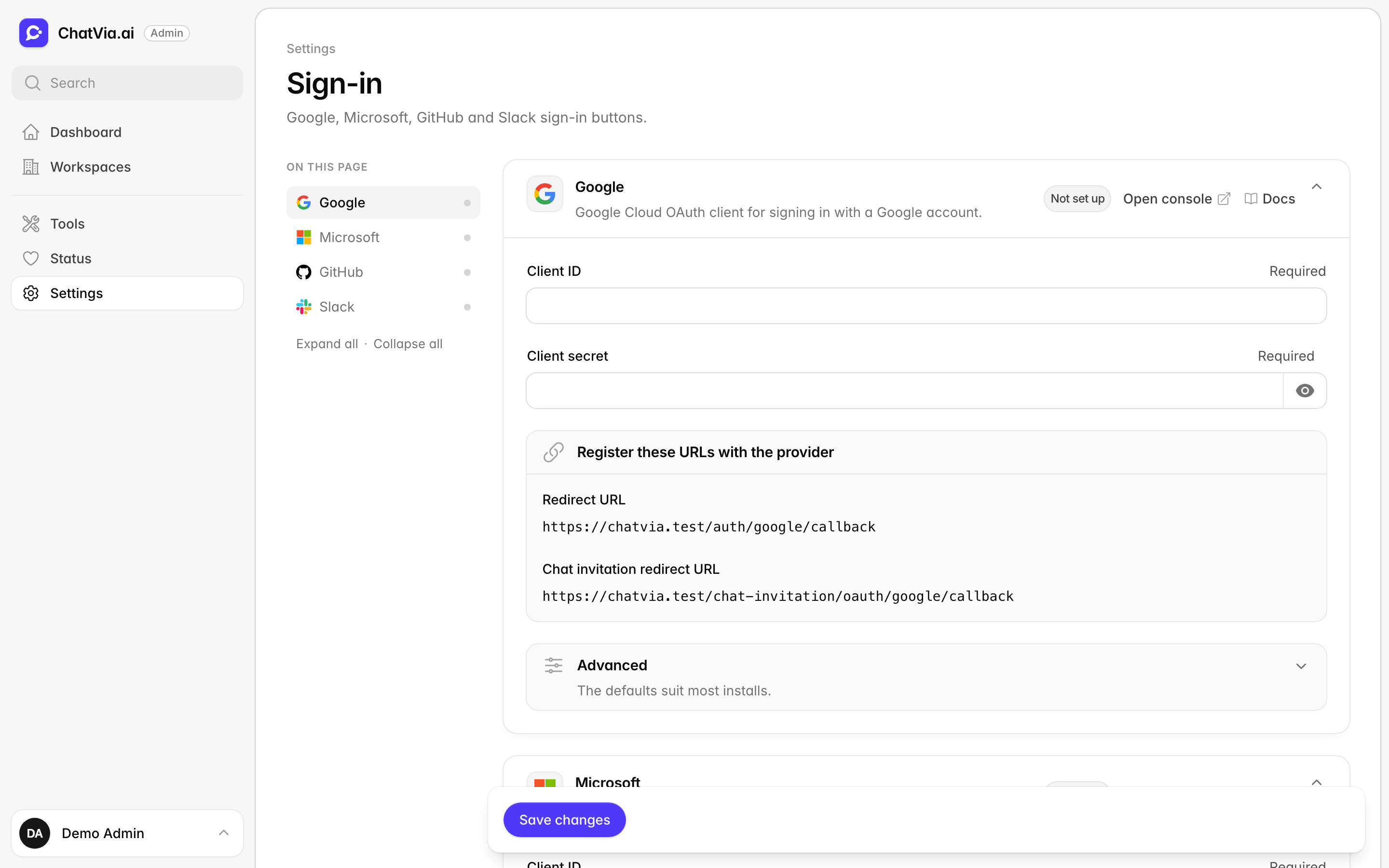
Each button works through an OAuth app. OAuth is the standard way one service lets another act for you without sharing your password. You have seen it as the "Continue to Chatvia as Alex?" screen after you click a sign-in button. Google, Microsoft, GitHub or Slack checks who the person is, and tells Chatvia. Chatvia never sees their password at that service.
For this to work, the provider needs to know Chatvia first. So you register Chatvia once at each provider, as an "OAuth app", and enter what the provider gives you here.
A provider's button shows on the sign-in and sign-up pages once its card has both a Client ID and a Client secret. The same providers then show in each person's account settings, where they can link a provider to an existing account.
Every card works the same way:
| Field | What to enter |
|---|---|
| Client ID | The client ID (or application ID) of the OAuth app you registered with the provider. Required. |
| Client secret | The secret that goes with it. Required. |
The client ID and client secret are the name and password of your OAuth app. The provider gives you both when you register the app. The ID is not secret. The secret is, so treat it like a password.
Each card has an Open console link to the page where you register the
app, and a Register these URLs with the provider box with the addresses
to add to the app. They are built from your install's address (APP_URL).
If APP_URL is an address the provider cannot reach, like localhost, the
box warns you. Fix APP_URL first.
APP_URL is the web address of your Chatvia install, for example
https://chat.example.com. It is set in the install's
environment file (.env),
a small settings file on the server.
The addresses on the card are redirect URLs: where the provider sends the person back after they sign in. Providers only send people to addresses on your app's list, so a stranger cannot catch the sign-in on the way.
The Client secret is never shown again once saved. Leave the field blank to keep it. The trash button next to it removes it, and the button disappears from the sign-in page.
Each card's closed Advanced part has one option, Another redirect URL (empty by default). Leave it empty to use the address shown on the card. If you enter another one, it must also be listed in your app at the provider. You rarely need it.
Sign-in for chatters
A chatter is someone you invite to talk to one of your agents, like a customer or a colleague. Chatters never see the dashboard. When a chatter opens their invitation link, they can make a password, or click Sign in with Google or Sign in with Slack.
That is why the Google and Slack cards show a second address, the
Chat invitation redirect URL. Both addresses start with
{APP_URL}/auth/<provider>/:
| Address | Who comes back to it |
|---|---|
/auth/google/callback |
Your team, signing in to the dashboard. |
/auth/google/chat-invitation/callback |
A chatter, accepting an invitation. |
Chatvia needs two addresses because the two people go to different places after they sign in. Your team lands in the dashboard. The chatter's invitation is accepted, and they land in the agent's chat, already signed in.
Add both addresses to the same OAuth app. You do not need a second app. If
you leave the chat invitation address out, your team can still sign in. But
a chatter who clicks the Google or Slack button on their invitation gets an
error from the provider (Google calls it redirect_uri_mismatch).
The chatter must sign in with the account that uses the email address the invitation was sent to. If the emails differ, Chatvia says so and does not accept the invitation. This way, a forwarded link cannot be used by someone else.
Microsoft and GitHub have one address each, because chatters cannot use them to accept an invitation.
This card adds a Sign in with Google button, so people can sign in with the Google account they already use for Gmail, including Google Workspace accounts at work. It uses a Google Cloud OAuth client, which is Google's name for an OAuth app.
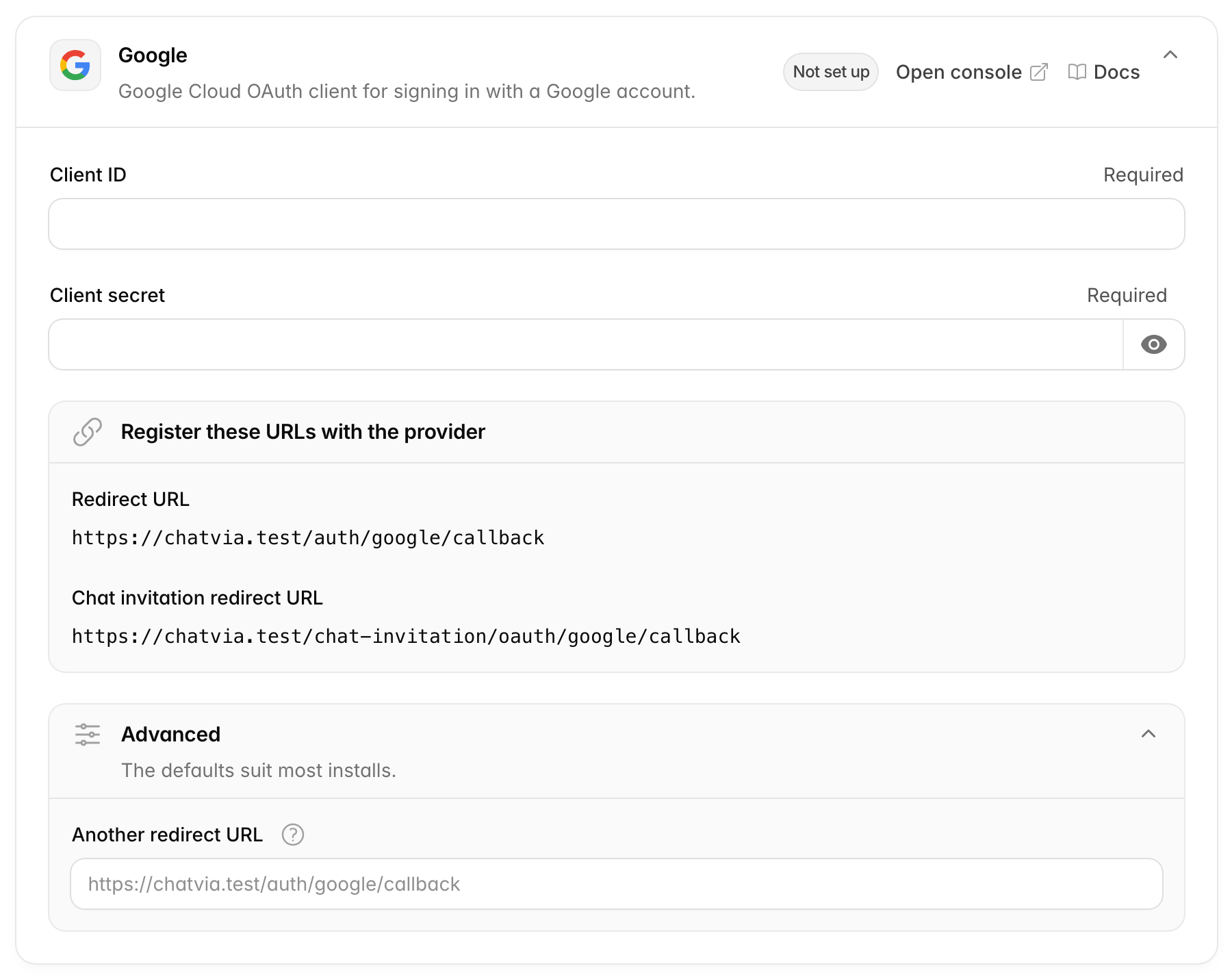
The card shows two addresses:
- Redirect URL:
{APP_URL}/auth/google/callback - Chat invitation redirect URL:
{APP_URL}/auth/google/chat-invitation/callback. Where a chatter comes back to after they accept an invitation with Google. See Sign-in for chatters.
How to set up Google
- Open console.cloud.google.com/apis/credentials (the card's Open console link) and pick or create a project. A project is Google's folder for everything that belongs to one app.
- If the project has no OAuth consent screen yet, set one up first. Use External so anyone with a Google account can sign in. The consent screen is the page people see, with your app's name, when they click the button.
- Click Create credentials → OAuth client ID, and pick Web application.
- Under Authorized redirect URIs, add both addresses from the card. Create the client.
- Copy the Client ID and Client secret into the card and save.
While the consent screen is in testing, only the test users you list there can sign in. Publish it to let everyone in.
Microsoft
This card adds a Sign in with Microsoft button, for work, school or personal Microsoft accounts. It suits teams that use Microsoft 365 or Outlook. It uses a Microsoft Entra app registration. Microsoft Entra (formerly Azure Active Directory) is where Microsoft keeps its sign-in settings, and an app registration is its name for an OAuth app.
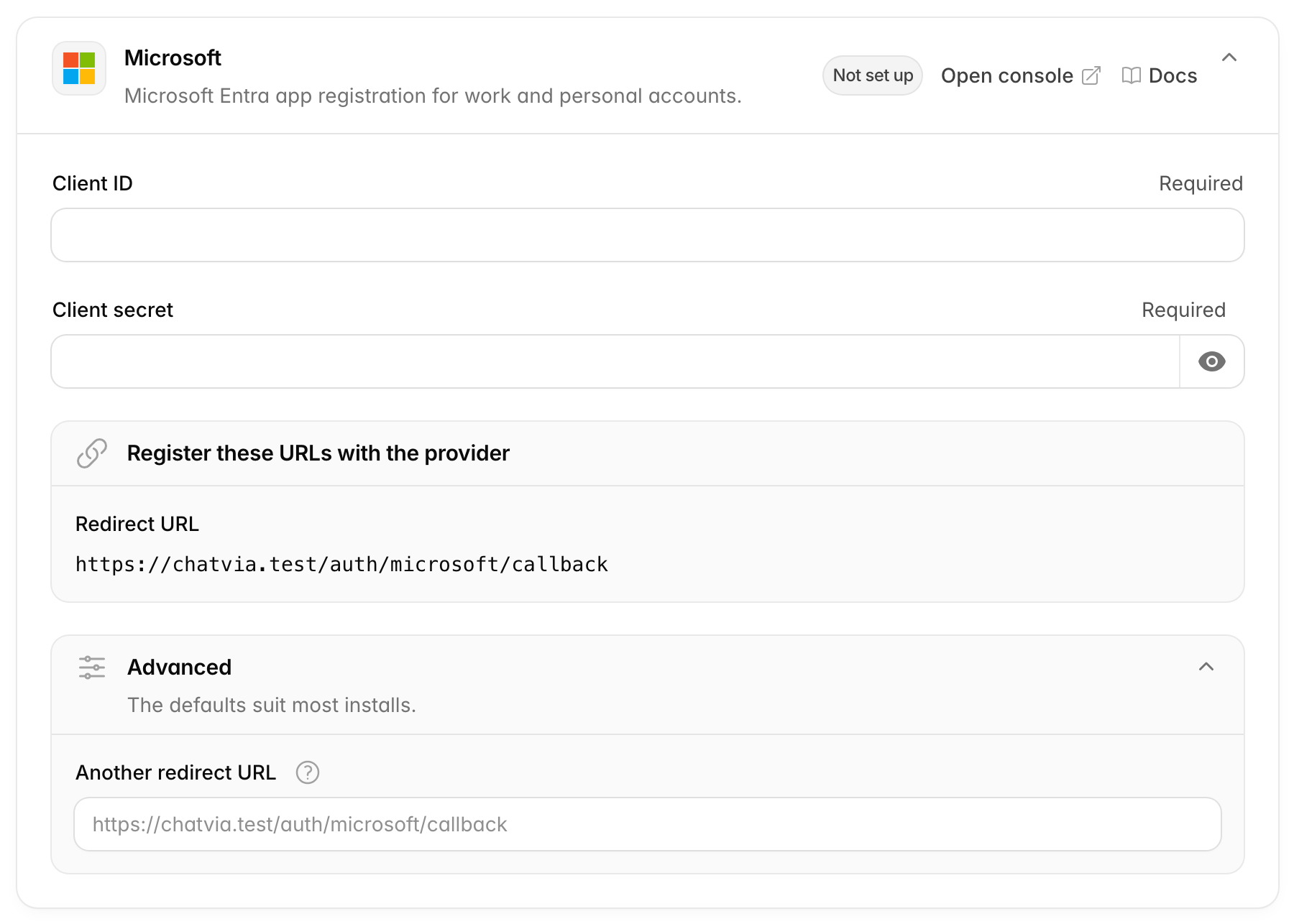
The card shows one address:
- Redirect URL:
{APP_URL}/auth/microsoft/callback
How to set up Microsoft
- Open App registrations in the Azure portal (the card's Open console link) and click New registration.
- Under Supported account types, pick accounts in any organizational directory and personal Microsoft accounts. Chatvia signs people in through Microsoft's shared sign-in for all account types. If you pick a narrower type here, people can get an error from Microsoft when they sign in.
- Under Redirect URI, pick Web and paste the card's Redirect URL. Register the app.
- Copy the Application (client) ID into Client ID.
- Open Certificates & secrets, click New client secret, and copy its Value (not its ID) into Client secret. Save. Microsoft shows the value only once, right after you create it.
Client secrets expire
A Microsoft client secret expires after the time you chose when you made it. Sign-in with Microsoft then stops working. Make a new secret before that day and paste it into the card. A reminder in your calendar a few weeks before the date saves you a surprise.
GitHub
This card adds a Sign in with GitHub button. It suits technical teams whose people already sign in to GitHub every day. It uses a GitHub OAuth app.
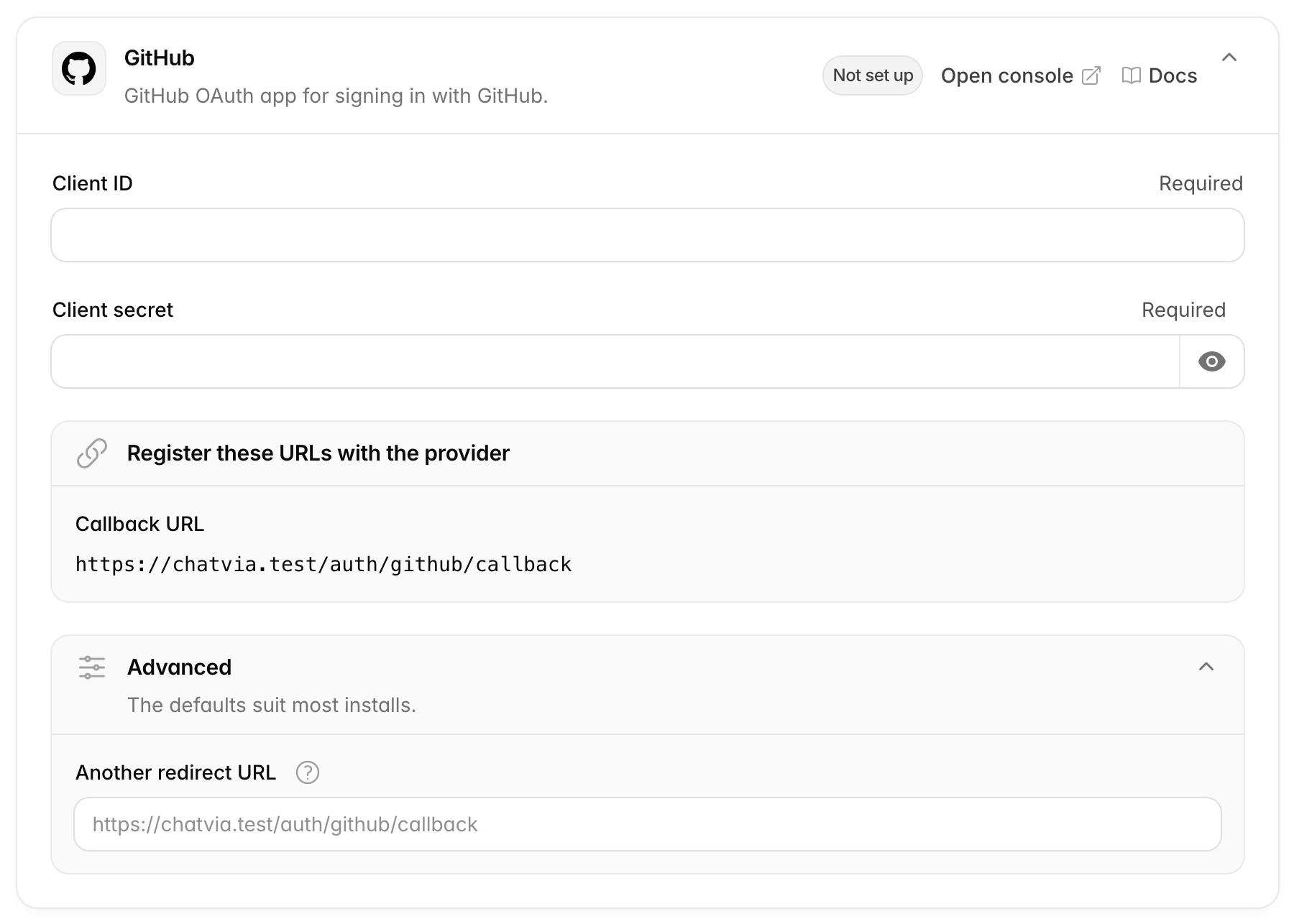
The card shows one address:
- Callback URL:
{APP_URL}/auth/github/callback
GitHub calls the redirect URL a callback URL. It means the same thing.
How to set up GitHub
- Open github.com/settings/developers (the card's Open console link) and click New OAuth App.
- Enter a name, and your install's address as the Homepage URL. People see this name on GitHub's sign-in screen.
- Paste the card's Callback URL as the Authorization callback URL. Register the app.
- Copy the Client ID. Click Generate a new client secret and copy it. Paste both into the card and save.
Chatvia asks GitHub only for the person's email address (user:email).
That is a scope: one permission on GitHub's screen. It gives Chatvia no
access to the person's code.
A GitHub OAuth app has one callback URL. If you also use the GitHub connector, register a separate OAuth app for it.
Slack
This card adds a Sign in with Slack button, so people can sign in with the Slack account they use at work. It uses a Slack app.
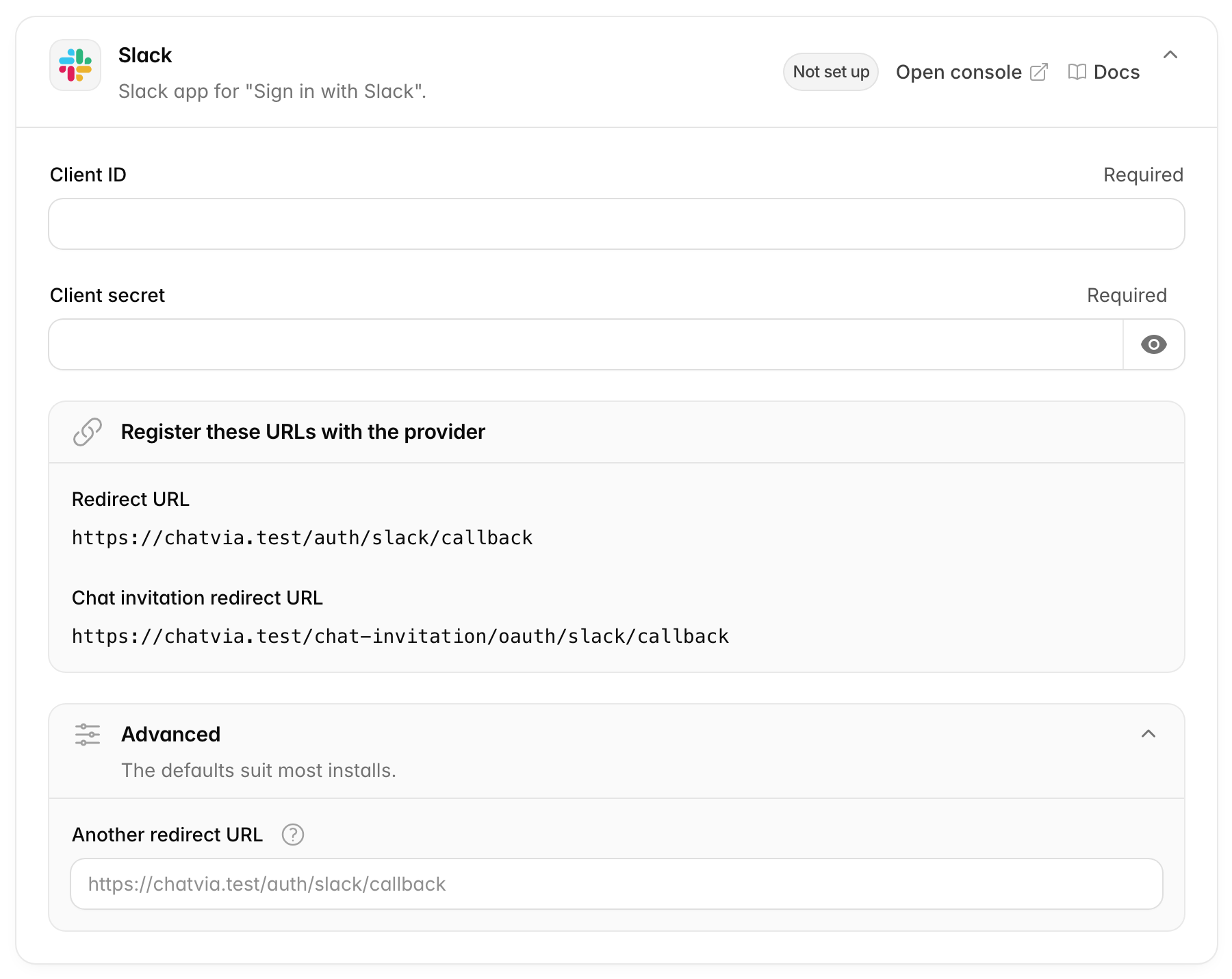
The card shows two addresses:
- Redirect URL:
{APP_URL}/auth/slack/callback - Chat invitation redirect URL:
{APP_URL}/auth/slack/chat-invitation/callback. Where a chatter comes back to after they accept an invitation with Slack. See Sign-in for chatters.
How to set up Slack
- Open api.slack.com/apps (the card's Open console link) and click Create New App → From scratch.
- In OAuth & Permissions, add both addresses from the card under Redirect URLs.
- In Basic Information, copy the Client ID and Client Secret into the card and save.
When someone signs in, Chatvia asks Slack for these user scopes:
identity.basic, identity.email, identity.team and identity.avatar.
These are the permissions on Slack's screen. They cover the person's name,
email address, Slack workspace and profile picture, and nothing else.
To let people from other Slack workspaces sign in, turn on public
distribution for the app in Manage Distribution. Without it, only
people in the Slack workspace that created the app can use the button.
Related
- Connectors: the OAuth apps that let agents use GitHub, Google and Slack. They are separate from the sign-in apps.
- Workspaces, teams & roles
- Chatters: inviting the people who talk to your agents.