Messenger

Connect a Facebook Page to your agent. When someone messages your Page on Facebook Messenger, your agent answers as the Page, with the same knowledge, guardrails, history and message limits as on your website.
For example, a bakery has a Facebook Page. A customer taps Message on the Page and asks "Can I order a birthday cake for Saturday?". The agent answers in Messenger with the bakery's order rules, even late at night.
Setup has two parts:
- Once per install: the person who runs your Chatvia server sets up one Meta app in the admin panel. Every workspace on the install connects through it. See Channels settings.
- Per agent: someone in the workspace clicks Connect with Facebook and picks a Page. Nobody pastes keys or codes.
Until the first part is done, the Messenger card is greyed out and says "Not set up on this server". Ask your admin.
Public agents only
Like every channel, Messenger works for public agents only. If the panel says Public agents only, see the agent must be public.
Before you start
You need a Facebook Page that you manage, and a Facebook account that has full control of it. A personal Facebook profile can't be connected, only a Page.
Step 1: Connect with Facebook
- Open your agent and click Channels in the left menu.
- Click Setup on the Messenger card.
- Click Connect with Facebook.
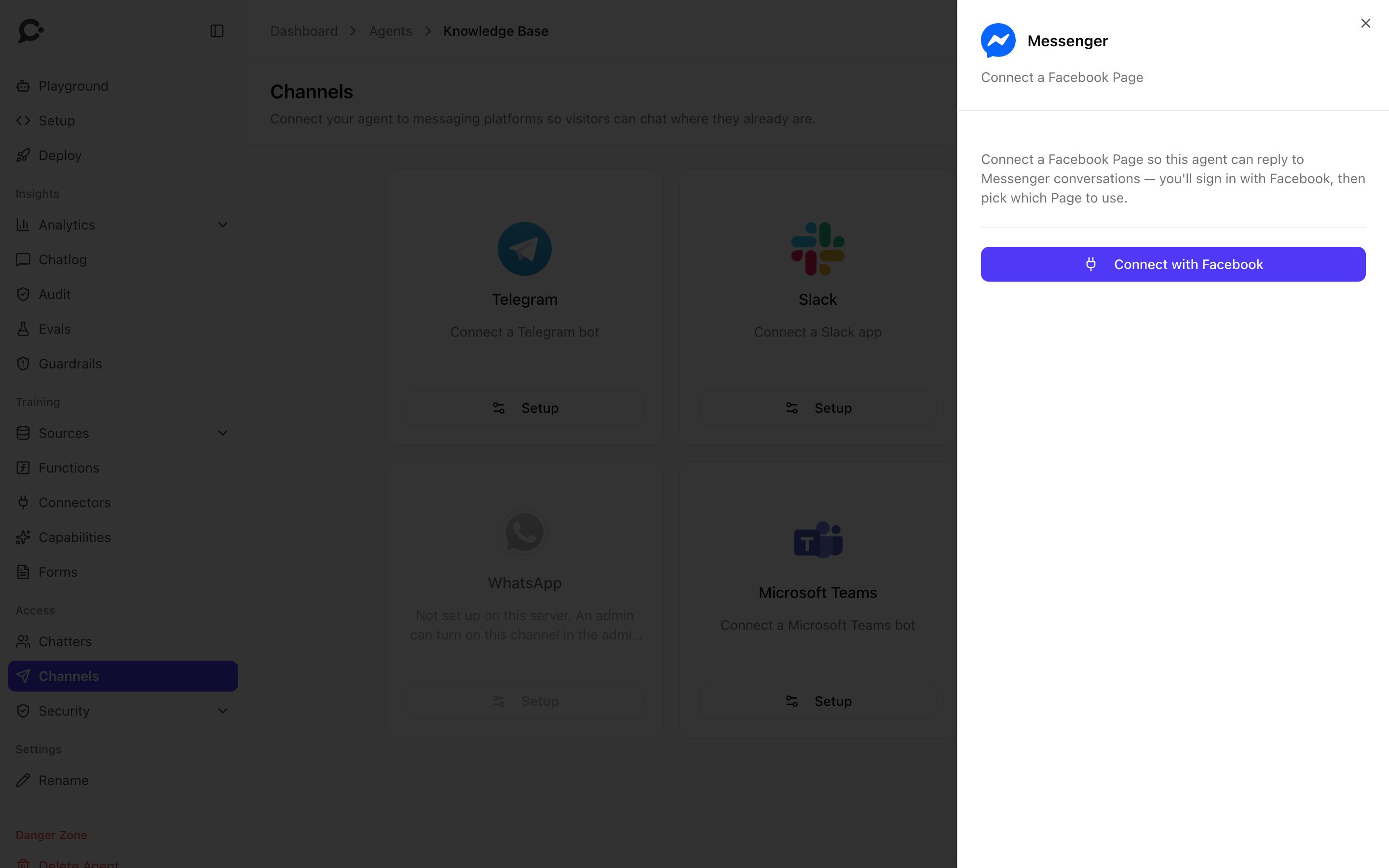
Your browser goes to Facebook. Sign in if asked. Facebook then asks which Pages Chatvia may use and lists the permissions. Pick your Page and keep every permission ticked. Chatvia needs them to read and answer the Page's messages.
Step 2: Pick the Page
Facebook sends you back to the Channels page, with the Messenger panel open.
- Under Choose a Facebook Page, pick the Page this agent should answer for.
- Click Connect this Page.
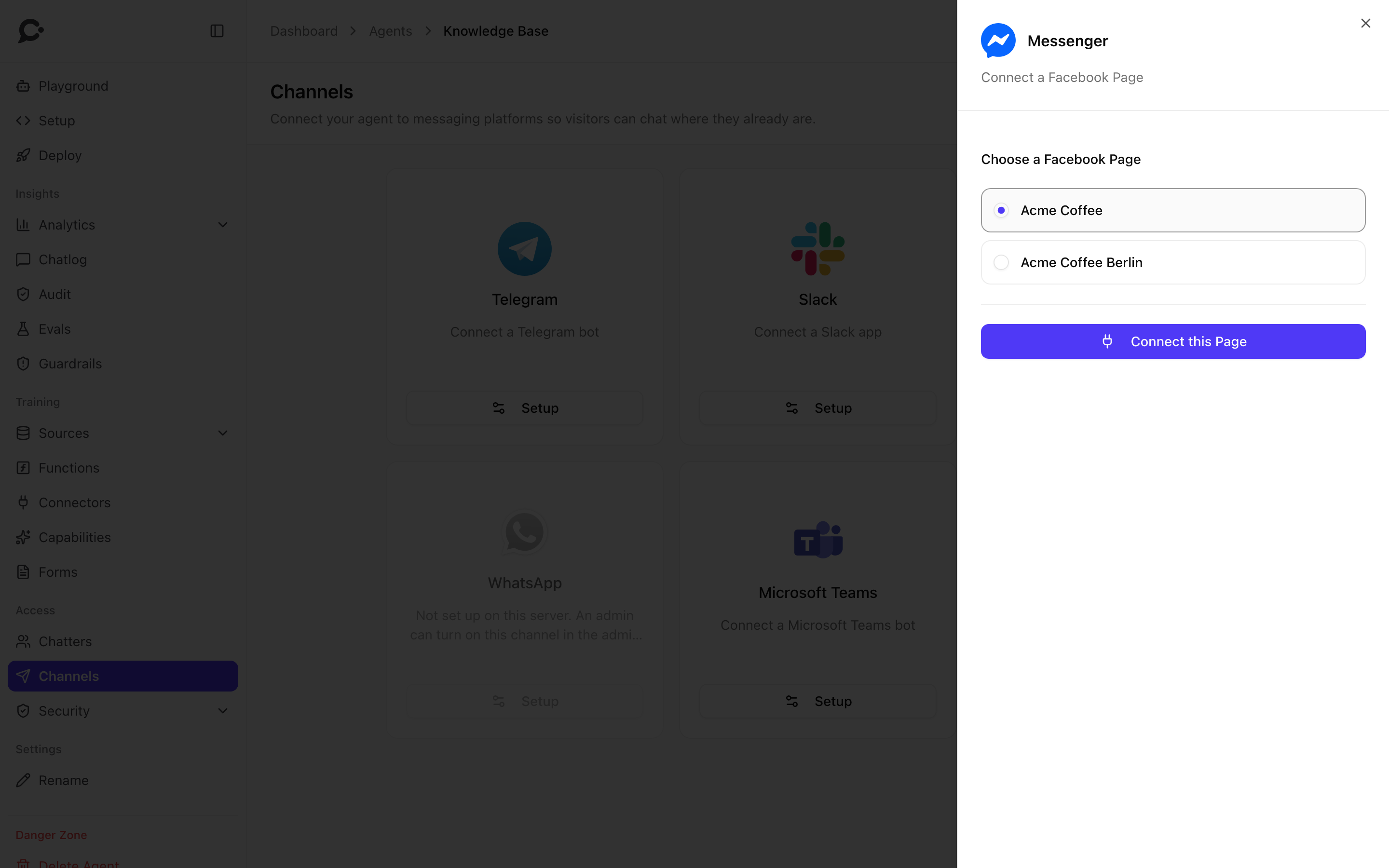
The card now shows Connected and the Page's name. Chatvia also tells Facebook to send the Page's new messages to Chatvia. You don't need to change anything on the Page.
Step 3: Test it
From another Facebook account, open your Page and click Message. Ask a question. You see "typing…" while the agent thinks, then the answer.
The conversation appears in your agent's Chatlog with a Messenger badge. Its title is "Messenger · " followed by the person's first name, when Facebook shares it.
How replies behave
- The agent shows "typing…" while it works, then sends the full answer at once.
- Messenger shows no text formatting, so the answer is sent as clean plain text. Lists keep their bullets and numbers. Links are sent as their text with the address after it, and Messenger makes the address tappable.
- One Messenger message holds up to 2,000 characters. A longer answer is split into several messages.
- Each person has one ongoing conversation with the agent, so it remembers earlier messages.
- Only text messages are answered. Photos, stickers, voice messages and likes are ignored.
- Chatvia only answers messages people send. It never starts a conversation, so its replies always fall inside Messenger's 24-hour window for answering.
Good to know
- One Page, one agent. A Page can power one agent at a time. To move it to another agent, disconnect it here first.
- Testing before going live. While your admin's Meta app is in Development mode, the bot only answers people who have a role on that Meta app (or are added as testers). Everyone else gets no reply. The admin switches it to Live mode after Meta's app review. See the tip in Channels settings.
- Disconnect stops the agent from answering. Your Page and its messages in Facebook are not changed.
Troubleshooting
| Problem | Likely cause |
|---|---|
| The Messenger card is greyed out | The admin has not set up the Messenger Meta app yet. |
| "Facebook sign-in was cancelled. Please try again." | You closed or declined the Facebook screen. Click Connect with Facebook again. |
| "No Facebook Pages came back." | You didn't pick a Page on the Facebook screen, or you unticked a permission. Connect again and keep every permission ticked. |
| "That Page selection expired. Please reconnect." | Too much time passed, or you signed out, between Facebook and picking the Page. Connect again. |
| "That Facebook Page is already connected to another agent." | Disconnect it from the other agent first. |
| "That Facebook connection didn't match your session." | The Facebook screen was opened from a different browser tab or session. Start again from the Channels page. |
| No answer to messages | The Meta app is still in Development mode and the sender has no role on it. Or the admin's webhook isn't set up. Ask your admin. |
| "This assistant isn't available on Messenger right now." | The agent was made protected after connecting. Make it public again on Security → Identity. |