Channels settings

This page lets your agents answer people on Facebook Messenger, Instagram and WhatsApp, not only in the chat on your website. Open it in the admin panel under Settings → Channels.
Messenger, Instagram and WhatsApp all belong to Meta. Before any outside software can read and answer messages there, Meta wants that software registered with it as a "Meta app". This page holds those Meta apps. You set each one up once for the whole install. After that, any workspace can connect its Facebook Pages, Instagram accounts and WhatsApp numbers to its agents with a Connect with Facebook button, and nobody in the workspace handles keys.
The person who sets this up is usually whoever runs the Chatvia install, and it takes some time in Meta's developer website. If you never touch this page, nothing breaks. Workspaces simply cannot connect these three channels.
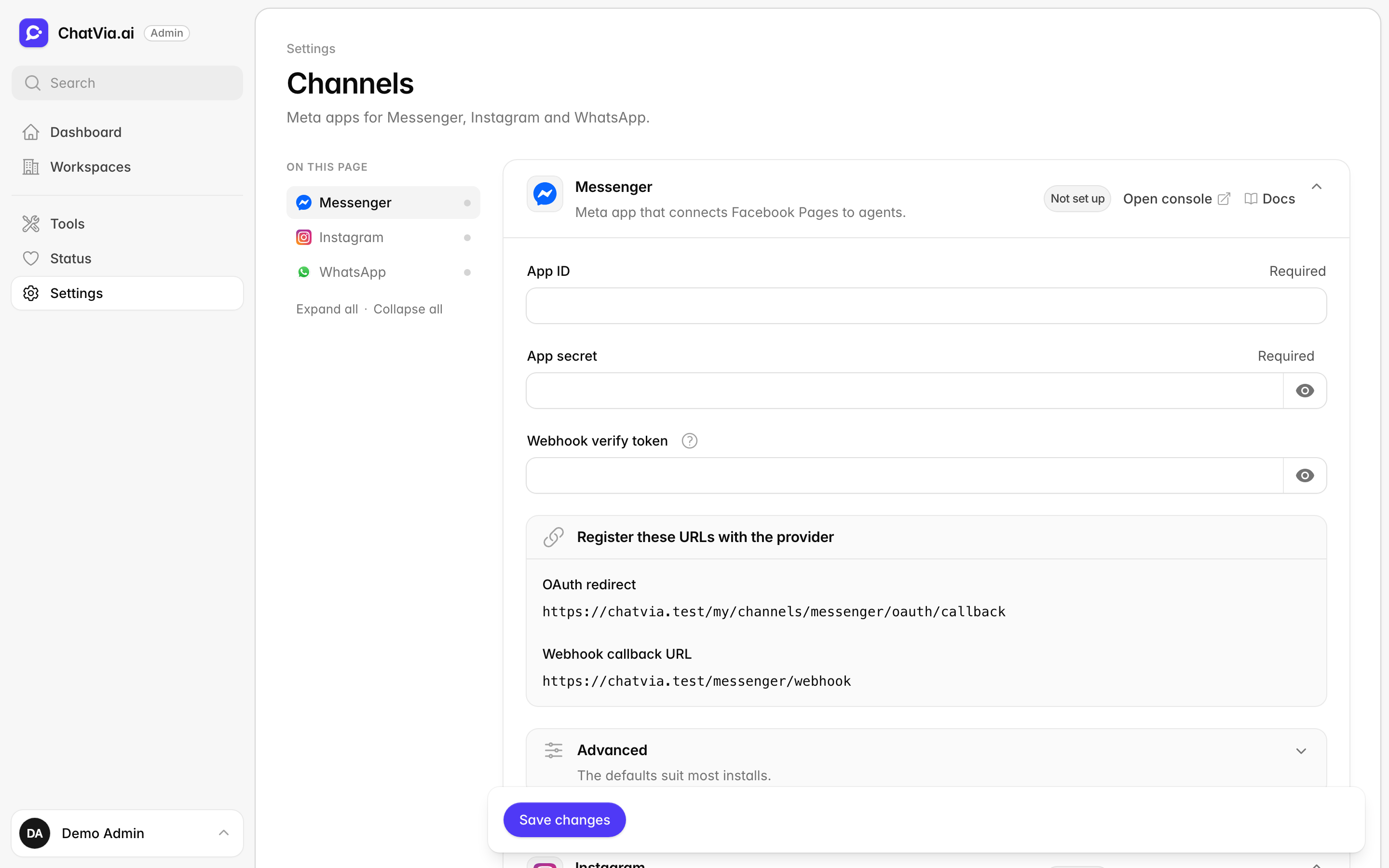
Each channel has its own card and its own Meta app. You may also enter the same Meta app in all three cards. Until a card shows Ready to use, workspaces cannot connect that channel.
Telegram, Slack and Microsoft Teams are not set up here. Each workspace connects those on the agent's Channels page, with its own bot or app.
Every card has:
- an Open console link to developers.facebook.com/apps, where you create and manage Meta apps.
- a Register these URLs with the provider box with the addresses to
paste in Meta. They are built from your install's address (
APP_URL). IfAPP_URLis an address Meta cannot reach, likelocalhost, the box warns you. FixAPP_URLfirst.
APP_URL is the web address of your Chatvia install, for example
https://chat.example.com. It is set in the install's
environment file (.env),
a small settings file on the server that Chatvia reads when it starts.
localhost means "this computer", so Meta, which sits on the internet,
cannot reach it.
The secret fields (App secret, Webhook verify token, Number registration PIN) are never shown again once saved. Leave a field blank to keep the saved value. The trash button next to it removes it.
Messenger
This card lets your agents answer messages sent to your Facebook Pages. Someone opens your shop's Facebook Page, taps Message and asks "Are you open on Sunday?". The message reaches Chatvia, and the agent answers in Messenger, as your Page.
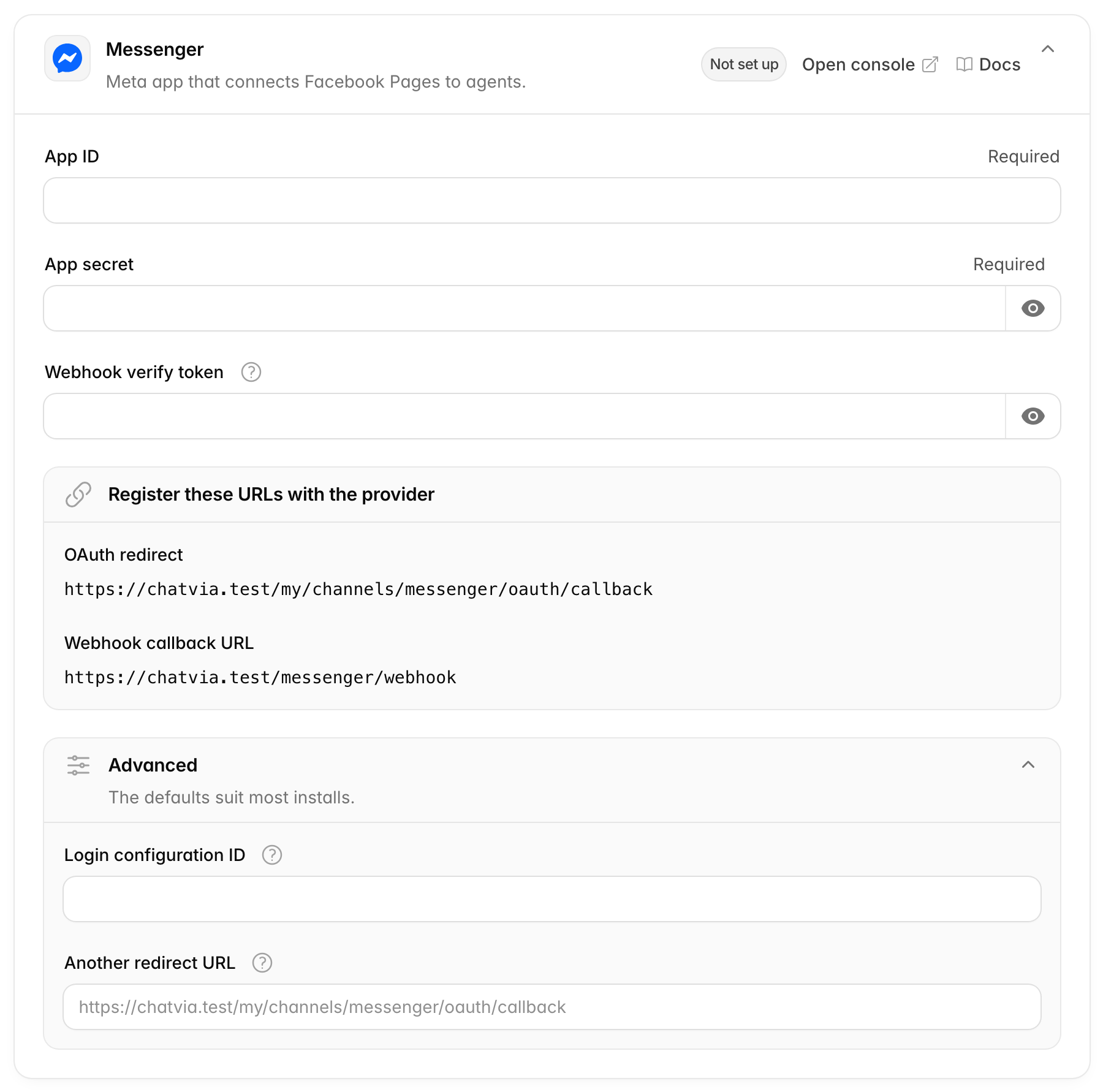
| Field | What to enter |
|---|---|
| App ID | From App settings → Basic in your Meta app. Required. |
| App secret | From the same page. Required. |
| Webhook verify token | Any random text you choose. Paste the same text in the webhook settings of your Meta app. Required. |
In plain words:
- The App ID is the public name tag of your Meta app. The App secret is its password. Together they prove to Meta that Chatvia is your app. Other services call this pair a client ID and client secret.
- A webhook is an address Meta calls each time something happens, like a new message. Instead of Chatvia asking Meta "any new messages?" every few seconds, Meta knocks on Chatvia's door the moment one arrives.
- The Webhook verify token is a password you make up. When you enter
the webhook address in Meta, Meta calls it once with this token, to make
sure the address really belongs to you. It can be any text, like
blue-kettle-4821. It only has to be the same in both places.
The card shows two addresses to register:
- OAuth redirect:
{APP_URL}/my/channels/messenger/oauth/callback. Add it to the valid OAuth redirect URIs in your Meta app's Facebook Login settings. - Webhook callback URL:
{APP_URL}/messenger/webhook. Paste it, with the Webhook verify token, in your Meta app's Messenger webhook settings, and subscribe to the messages field.
OAuth is the standard way one service lets another act for you without sharing your password. You have seen it as the "Allow this app to manage your Page?" screen. When a workspace clicks Connect with Facebook, Meta shows that screen, and then sends the person back to Chatvia. The redirect URL (Meta calls it a redirect URI) is that "back to Chatvia" address. Meta only sends people to addresses on your app's list, so a stranger cannot catch the permission on the way.
How to set it up
- Go to developers.facebook.com/apps and create an app with a use case that lets you manage messages for Facebook Pages. This is the app Meta will know Chatvia by.
- Copy the App ID and App secret from App settings → Basic into the card. Type any random text into Webhook verify token. Save.
- Add the OAuth redirect to your Meta app's Facebook Login settings. This lets Meta send people back to Chatvia after they connect a Page.
- Paste the Webhook callback URL and the verify token in the webhook settings, and subscribe to messages. Meta checks the address at once. Subscribing to messages tells Meta which events to send: new messages, and not every other thing that happens on the Page.
When a workspace connects a Page, Chatvia asks Meta for these permissions:
pages_show_list, pages_messaging, pages_read_engagement,
pages_manage_metadata and business_management. These are the items the
person sees on Meta's permission screen. Together they let Chatvia list the
person's Pages, receive and answer their messages, and turn on the webhook
for the Page they pick.
The card's closed Advanced part has two more options:
- Login configuration ID (empty by default). The ID of a Facebook Login for Business configuration in your Meta app. Without it, people see the classic permission screen when they connect. Set it if you use Facebook Login for Business. Facebook Login for Business is Meta's newer permission screen for business accounts. A configuration is a saved set of permissions you make in your Meta app, and Meta gives it an ID.
- Another redirect URL (empty by default). Leave it empty to use the OAuth redirect shown on the card. If you set one, add that address to the allowed redirect addresses of your Meta app instead.
App mode
While a Meta app is in Development mode, only people with a role on the app (or added as testers) can use it. Switch it to Live mode, which needs Meta's app review, to answer everyone. App review is Meta's check that your app uses each permission for a good reason. It can take a few days, so test in Development mode first with your own Page.
This card lets your agents answer direct messages (DMs) sent to your Instagram account. A customer sees your post, sends your account a DM asking "Do you ship to Canada?", and the agent answers in Instagram. It works with Instagram professional accounts, meaning business and creator accounts linked to a Facebook Page you manage.
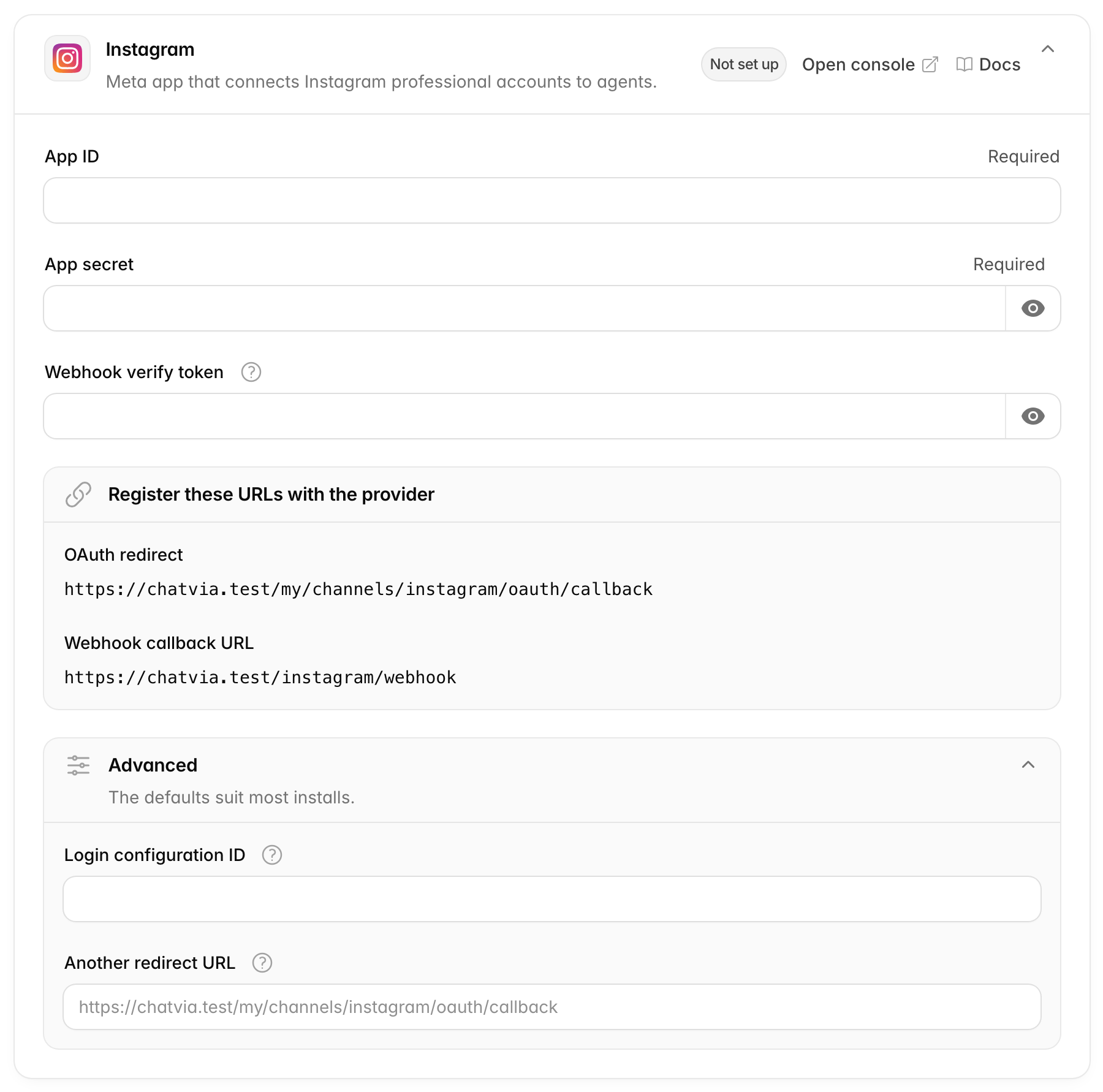
The fields and the Advanced part are the same as on the Messenger card: App ID, App secret and Webhook verify token, then Login configuration ID and Another redirect URL. The words are explained there.
The card shows two addresses to register:
- OAuth redirect:
{APP_URL}/my/channels/instagram/oauth/callback. Add it to the valid OAuth redirect URIs in your Meta app's Facebook Login settings. - Webhook callback URL:
{APP_URL}/instagram/webhook. Paste it, with the Webhook verify token, in your Meta app's Instagram webhook settings, and subscribe to the messages field.
When a workspace connects an account, Chatvia asks Meta for these
permissions: instagram_basic, instagram_manage_messages,
pages_show_list, pages_manage_metadata, pages_read_engagement and
business_management.
The full steps, for you and for the workspace, are in the Instagram guide.
This card lets your agents answer messages sent to a WhatsApp Business phone number. A customer messages your business number on WhatsApp, and the agent answers there.
It uses two Meta products. The WhatsApp Cloud API is how outside software sends and receives WhatsApp messages. Embedded Signup is the Meta popup that lets a business pick its number and give Chatvia access. A workspace clicks Connect with Facebook, picks a WhatsApp Business number in that popup, and the agent answers messages to that number.
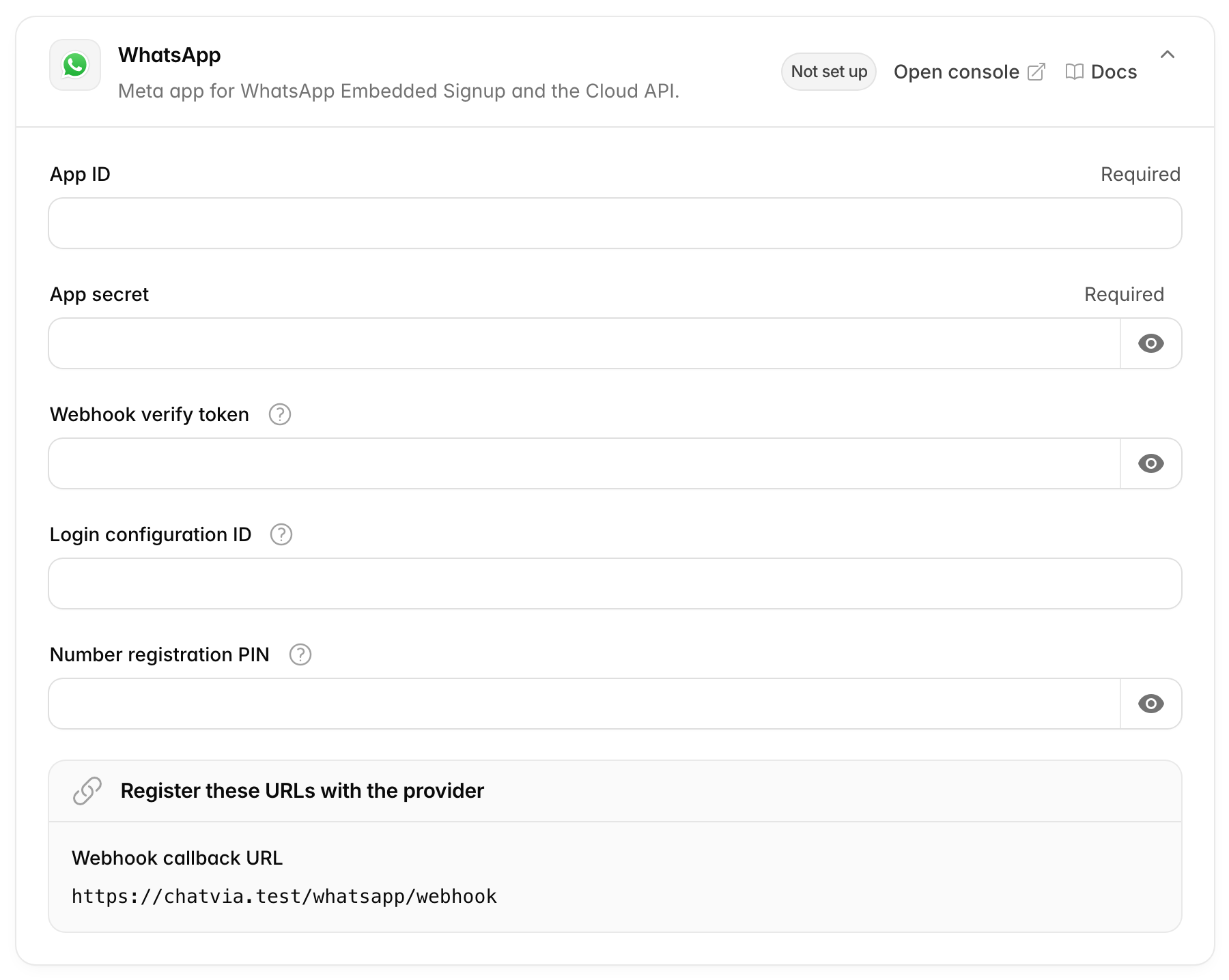
| Field | What to enter |
|---|---|
| App ID | From App settings → Basic in your Meta app. Required. |
| App secret | From the same page. Required. |
| Webhook verify token | Any random text you choose. Paste the same text in the webhook settings of your Meta app. Required. |
| Login configuration ID | The ID of the Facebook Login for Business configuration for WhatsApp Embedded Signup in your Meta app. It opens when a workspace connects WhatsApp. Required. |
| Number registration PIN | Optional. Six digits Meta needs to register each connected number for the Cloud API. Any six digits except 000000. |
App ID, App secret and Webhook verify token mean the same as on the Messenger card.
Unlike Messenger and Instagram, WhatsApp needs the Login configuration ID. The Embedded Signup popup cannot open without it.
The Number registration PIN is a six-digit code that Meta asks for once per number, a bit like the PIN on a new SIM card. When a workspace connects a number, Chatvia registers it for the Cloud API with this PIN. Without a PIN, Chatvia skips that step, and you have to register the number with Meta yourself. Set a PIN unless you do.
The card shows one address to register:
- Webhook callback URL:
{APP_URL}/whatsapp/webhook. Paste it, with the Webhook verify token, in the webhook settings of your Meta app's WhatsApp use case, and subscribe to the messages field.
WhatsApp has no OAuth redirect: the connection happens in Meta's popup. One webhook serves every number on the install.
The full steps, for you and for the workspace, are in the WhatsApp guide.
Related
- Microsoft Teams, which each workspace sets up itself