Command Bar

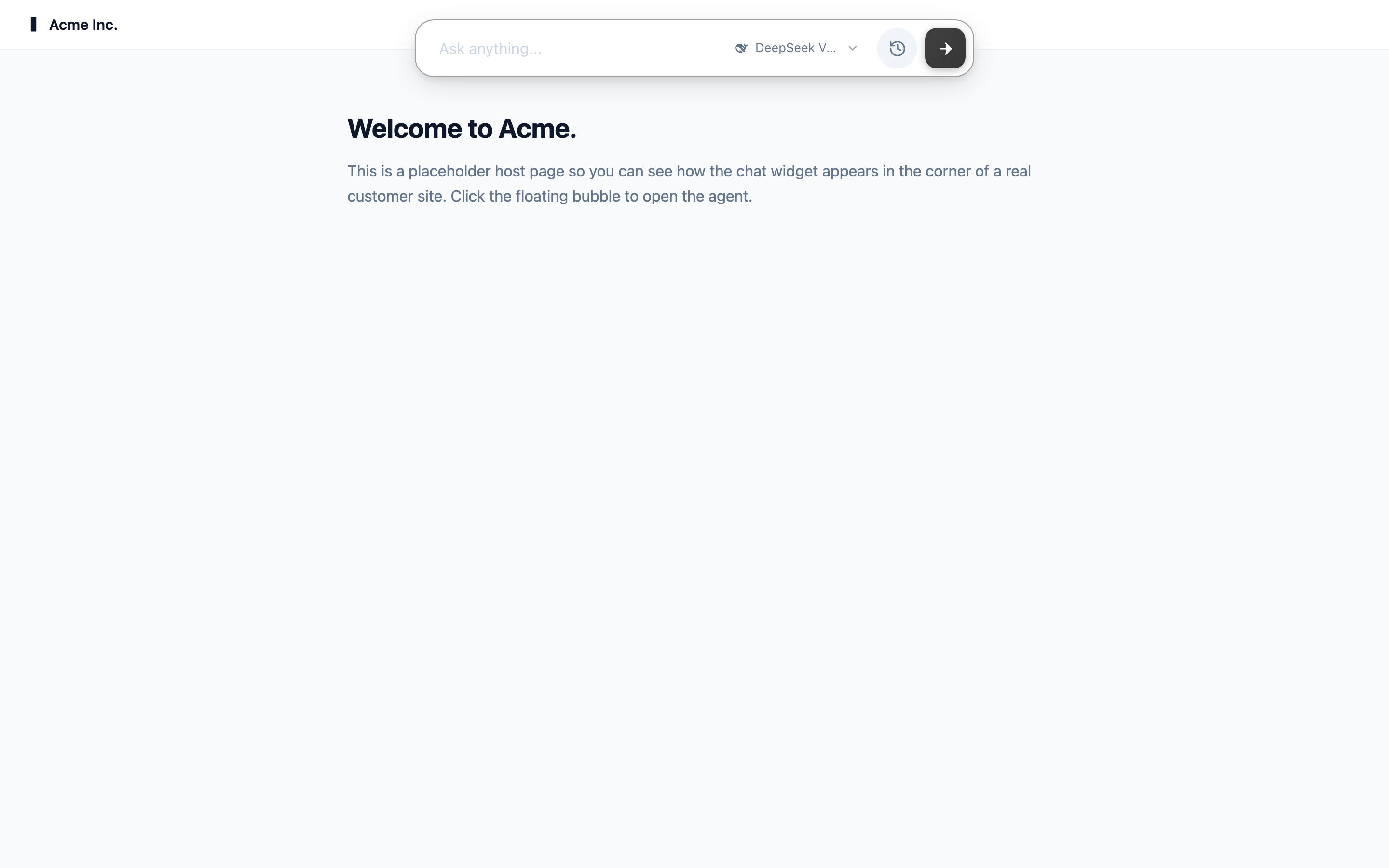
The Command Bar is a small "ask anything" bar that floats at the top or bottom of your web page. A visitor clicks it, or presses a shortcut such as ⌘K, types a question and presses Enter. A chat panel slides in with the answer. It is one of the three surfaces of every agent, next to the Hosted Chat and the Chat Widget.
Use it where people already expect a search box. For example, a software company adds the Command Bar to its help center and its app. A user presses ⌘K anywhere in the app, types "how do I invite a teammate?", and gets the steps without leaving the page they are on.
Command Bar or Chat Widget?
Both run the same chat with the same agent. Only the way in is different.
| Chat Widget | Command Bar | |
|---|---|---|
| On the page | A round bubble in a corner | A bar at the top or bottom of the page |
| Opens with | A click on the bubble | A click on the bar, or a keyboard shortcut |
| Feels like | A support chat | A search box |
| Good for | Shops, marketing sites, support pages | Docs, dashboards, apps |
Add it to your site
- Open the agent and click Deploy in its sidebar.
- In the Command Bar card, check that the switch is on.
- Click Copy to copy the code.
- Paste it into your page, just before
</body>.
The code looks like this:
<script id="chatbot-embed-script"
    src="https://chat.example.com/shakomako/embed.js"
    data-agent-id="YOUR_AGENT_ID"
    data-mode="bar"
    defer></script>
https://chat.example.com stands for your Chatvia address. The code on the Deploy page already has the right one.
data-mode="bar" is what makes it a Command Bar. Without it, the same code shows the chat bubble.
Then add your site to the agent's Allowed sites. The Command Bar uses the same list as the Chat Widget, in the Chat Widget card on the Deploy page. Requests from a site that is not on the list are refused. See Allowed sites.
How visitors use it
- They click the bar, or press the keyboard shortcut. The bar grows and the cursor goes into it.
- They type a question and press Enter, or click the arrow.
- A chat panel slides in at the side of the page, full height, with the question and the answer. They can keep chatting there.
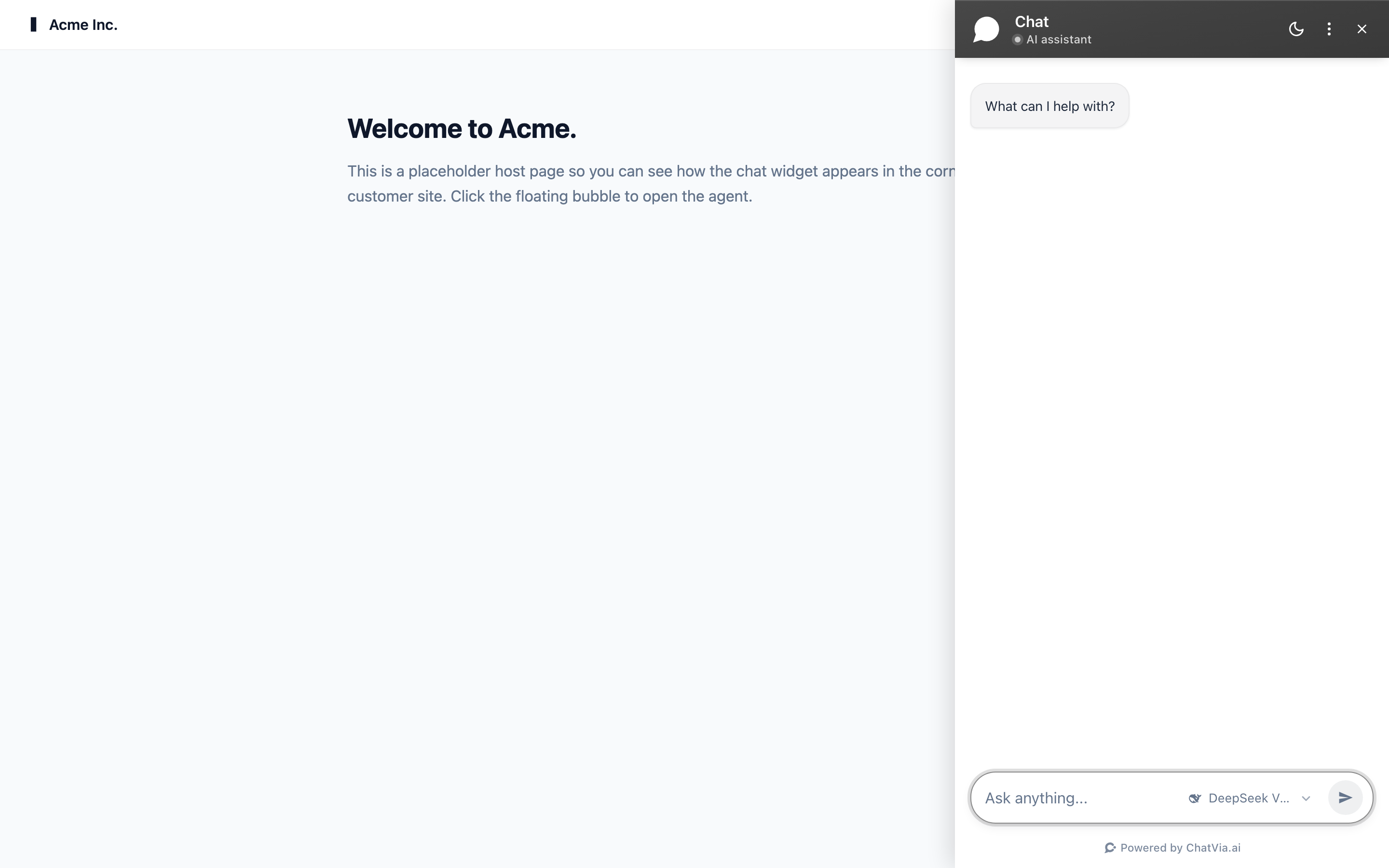
The clock button on the bar (View chat history) opens the panel without sending anything, so a visitor can go back to the chat they already started. Escape closes the panel, then shrinks the bar again.
When the agent offers more than one AI model, the bar also shows a model picker.
Settings
Open the agent's Setup page and click the Command Bar tab at the top. Then open Behavior (the section is called Command Bar behaviour).
| Setting | Choices | Default |
|---|---|---|
| Keyboard trigger | ⌘K, ⌘J, ⌘/, / or ? | ⌘K |
| Placement | Top center, Top right, Bottom center or Bottom right | Top center |
On Windows and Linux, ⌘ means Ctrl, so ⌘K is Ctrl+K.
With / or ? as the trigger, the key does nothing while the visitor is typing in a text field on your page, so they can still type those characters. The ⌘ shortcuts work everywhere.
The bar reads these settings each time it loads. You don't need to copy the code again after a change.
Everything else comes from the sections every surface shares: the placeholder text from Info, the colors from Branding, and the starters, languages, model and composer buttons from their own sections. See The Setup page.
Protected agents
When the agent is protected, the code on the Deploy page has a data-auth="YOUR_SIGNED_TOKEN" line. Your server puts a signed token there for the signed-in user. Without a valid token, the panel shows "This chat requires sign-in." See Protected agents.
Open it from your own code
The Command Bar has the same window.chatvia functions as the Chat Widget. For example, a "Ask a question" button on your page can call window.chatvia.open(), or send a question with window.chatvia.send('How do I reset my password?'). See Programmatic control.
Turn it off
Turn off the switch in the Command Bar card on the Deploy page. The bar then no longer shows on any page that has the code. You don't need to remove the code first. The Chat Widget keeps working when it is on.
Good to know
- Some things only the Hosted Chat can do. The Command Bar has no Approve and Deny buttons, so the agent can't use tools that need approval here. See Functions.
- Put only one Chatvia code on a page: either the Chat Widget or the Command Bar.
- The bar sits above your page. If it covers your own header or search box, pick another Placement.
- The Command Bar is built by Shakomako, the open-source chat widget. Developers can read about every embed attribute in Shakomako, the chat widget.