Audio sources

An audio source is a sound recording your agent learns from. Chatvia turns the speech into text (a transcript), and the agent answers from that text like it answers from a document.
Use it for know-how that only exists as a recording. For example, a bike shop records its best mechanic explaining how to fit each brake model. The shop uploads the recordings, and the agent can now tell customers which brake pads fit their bike. Or a support lead records a two-minute voice note about a new returns rule, right in the browser, so the agent knows about it the same day.
Before you start
Audio needs a speech to text service. That is a service that listens to a recording and writes down what is said. The admin of your Chatvia server picks it in AI models and turns audio on in Knowledge settings.
Until both are done, Audio is missing from the Sources menu. If the agent already has audio sources, the page still shows them, with the note "The administrator turned off uploads of these file types." You can still delete them.
A teammate needs two permissions in their role: Train Audio to open the page, and Train Files to upload or record. See Teams & roles.
Upload a recording
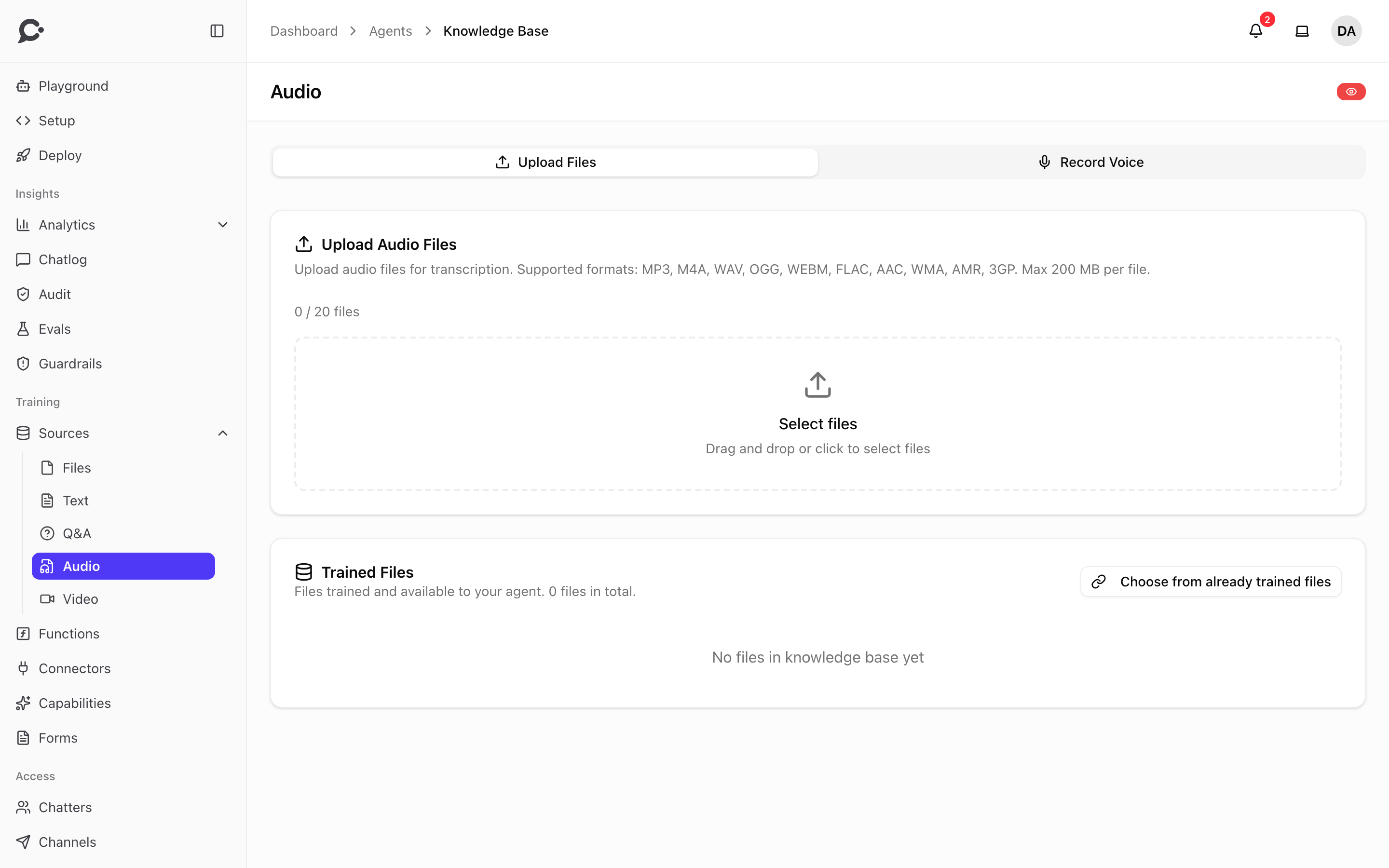
- Open the agent and click Sources under Training in its sidebar. Then click Audio.
- Stay on the Upload Files tab.
- Drag your files onto Select files, or click it to pick them. You can pick up to 20 files at a time.
- Wait for each upload to finish. The files then wait under Ready to Train, with their total length in minutes.
- Click Train.
Training runs in the background. You can leave the page. Each file moves to Trained Files when it is done, with the status "Ready to chat with".
To drop files before you train them, click the remove button on one file, or Clear All for every file waiting.
Record a voice note
You can also record straight from your microphone, with no file to upload.
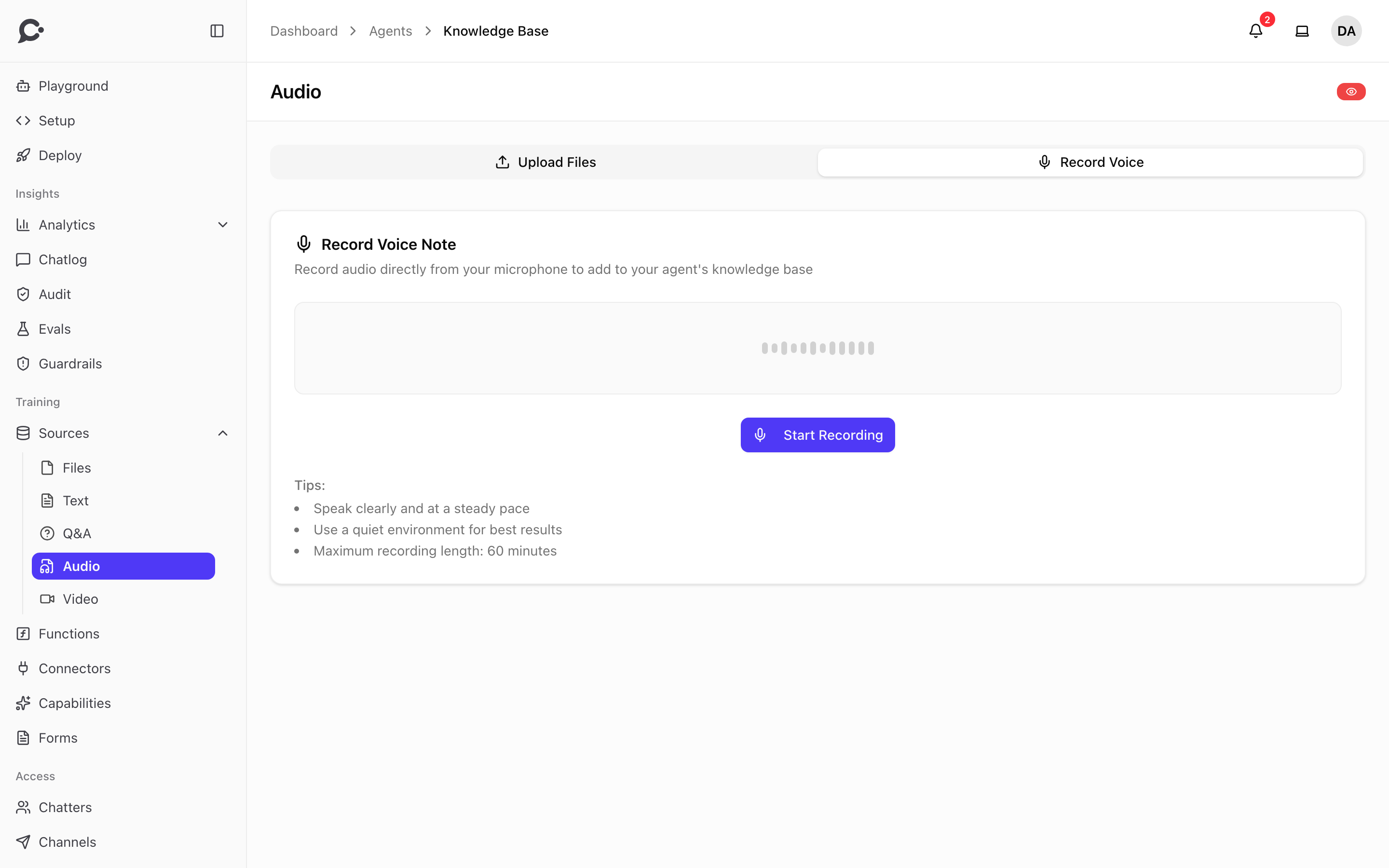
- On the Audio page, click the Record Voice tab.
- Click Start Recording. Your browser asks for the microphone the first time. Allow it.
- Speak. You can pause and go on. A timer shows how much time is left.
- Click Stop. Play it back to check it.
- Type a Recording Name, then click Save Recording. Or click Discard to throw it away.
The recording is uploaded and waits under Ready to Train on the Upload Files tab. Click Train there, the same as for an uploaded file.
A recording can be up to 60 minutes long. It is saved as a .webm or .m4a file, depending on your browser. Speak clearly, and record in a quiet room. Background noise makes the transcript worse.
Supported formats and limits
| Formats | MP3, M4A, WAV, OGG, WEBM, FLAC, AAC, WMA, AMR, 3GP |
| Size | Up to 200 MB per file in the uploader |
| Files at once | Up to 20 |
| Recording in the browser | Up to 60 minutes |
Chatvia checks what is inside a recording, not only its file name.
The speech to text service only takes some formats, and files up to a certain size (for OpenAI, 25 MB). For any other file, Chatvia first turns the sound into a small MP3 with a program called ffmpeg. If your server has no ffmpeg, such files are refused at upload with one of these messages:
- "This recording is too large to turn into text on this server. Upload a shorter recording."
- "This server can't turn .wma files into text. Upload an MP3 file instead."
Ask the person who runs your Chatvia server to install ffmpeg, or upload a shorter MP3.
What happens during training
- Chatvia sends the recording to the speech to text service and gets the transcript back. This is the slow step, and the one your server pays for.
- It splits the transcript into short blocks of whole sentences. See Chunk. The admin can change how transcripts are split in Splitting settings.
- It indexes the blocks so the agent can find them, like any other source. From source to knowledge explains this.
Chatvia keeps the transcript. If training fails after the transcript was made, training again reuses it instead of paying for a new one.
Manage audio sources
Each trained file in Trained Files has these actions:
- View file summary: a short summary of the recording, when the admin turned on AI enhancement in Knowledge settings.
- Replace with a new version: upload a new recording in its place. It trains again and keeps its place in every agent that uses it.
- Delete: remove it. If other agents use the same file, you can remove it from this agent only, or delete it everywhere.
Choose from already trained files adds a recording your workspace already trained for another agent. It is not trained again.
Adding and training audio does not count against message limits.
Good to know
- The agent only knows what was said. Music, tone of voice and sounds are lost.
- Names and product codes are often written down wrong. If a word matters, add it in a text source or a Q&A pair too.
- For a video, use the Video page. It works the same way.