Telegram

Connect a Telegram bot to your agent. People find your bot in Telegram, send it a message, and your agent answers with the same knowledge, guardrails, history and message limits as on your website.
For example, a bike repair shop creates a bot called @fixmybike_bot and puts the link on its flyers. A customer opens the bot and asks "How much is a tyre change?". The agent answers in the chat, using the shop's price list.
Telegram is the quickest channel to set up. You need a Telegram account and about two minutes. Nobody needs to touch the admin panel.
Public agents only
Like every channel, Telegram works for public agents only. If the panel says Public agents only, see the agent must be public.
Step 1: Create a bot with BotFather
A Telegram bot is a Telegram account that a program runs instead of a person. You create it with @BotFather, Telegram's own bot for making bots.
- In Telegram, search for @BotFather and open the chat. Look for the blue check mark next to its name.
- Send
/newbot. - BotFather asks for a name. This is what people see at the top of the chat, for example "Fix My Bike Help".
- BotFather asks for a username. It must end in
bot, for examplefixmybike_bot. This is the address people use to find the bot. - BotFather replies with a token, a long code like
123456789:ABCdef…. Copy it.
The token is the key to your bot. Anyone who has it can control the bot, so don't share it or post it anywhere.
Step 2: Connect it in Chatvia
- Open your agent and click Channels in the left menu.
- Click Setup on the Telegram card.
- Paste the token into Bot token.
- Click Connect.
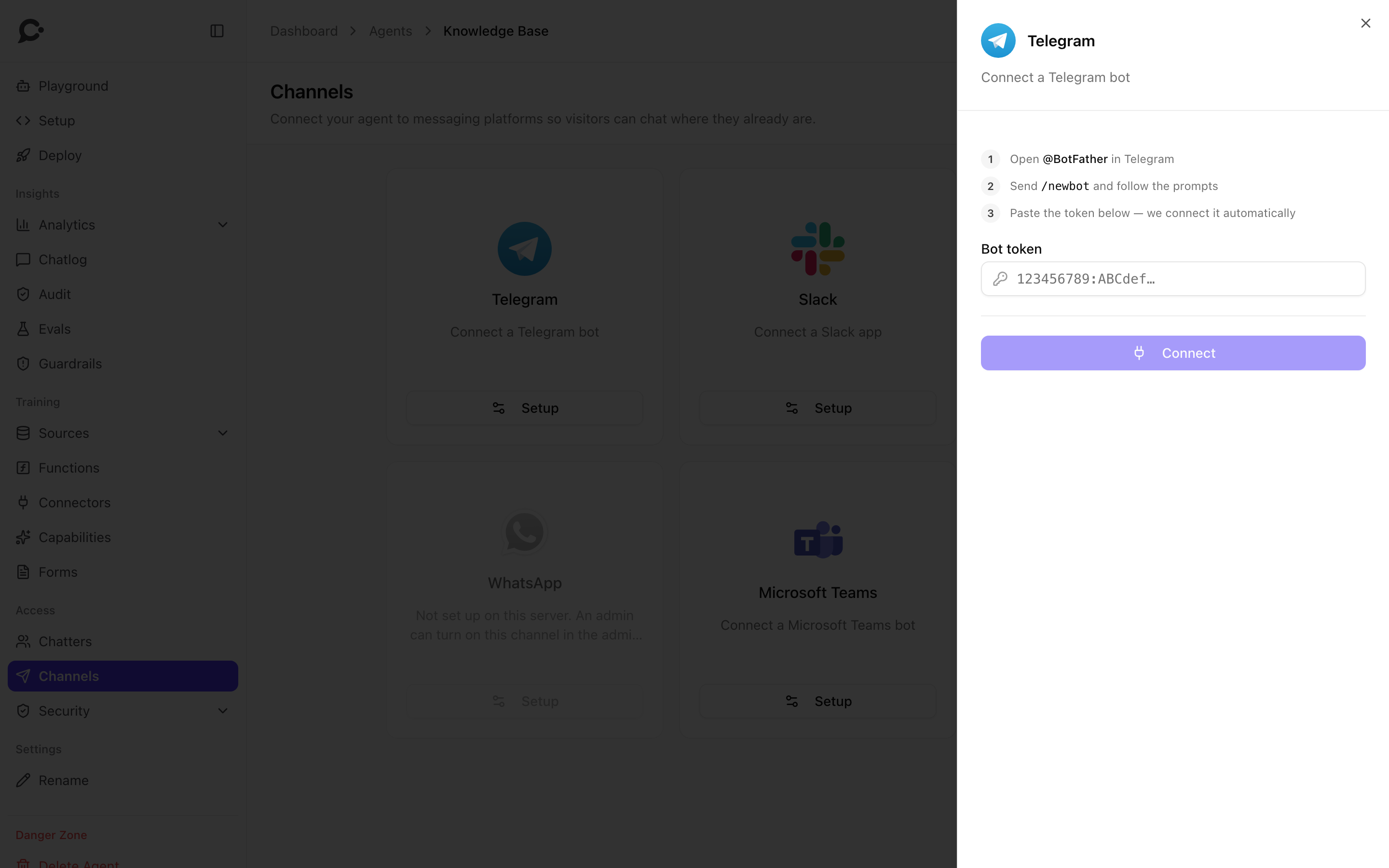
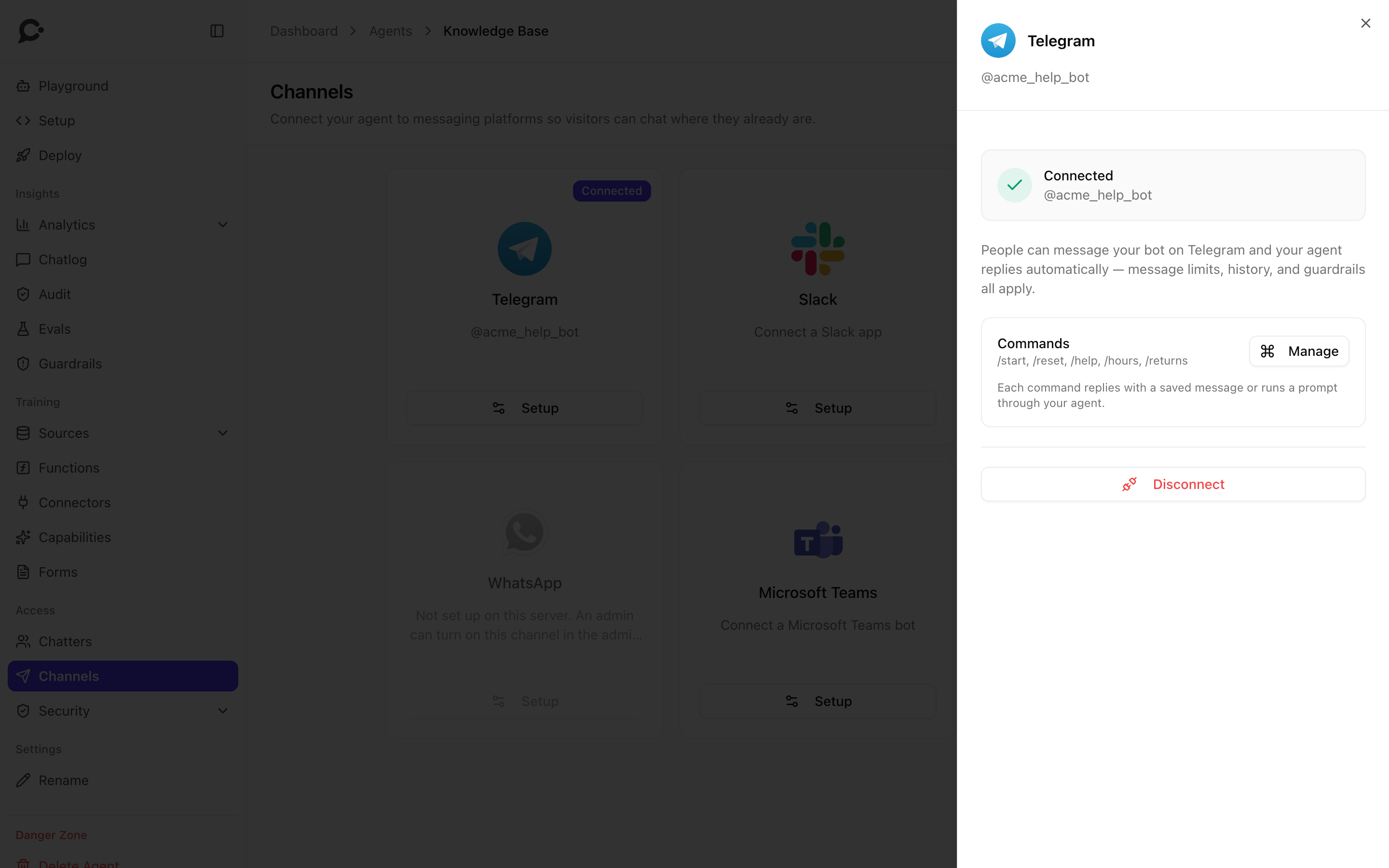
Chatvia checks the token with Telegram. Then it tells Telegram to send the bot's messages to Chatvia, and it fills the bot's command menu. You don't have to do anything else in Telegram. The card now shows Connected and the bot's @username.
Step 3: Test it
Open your bot in Telegram (search for its username, or go to https://t.me/your_bot_username) and tap Start. The bot answers with its /start greeting. Then ask it a question. You see "typing…" while the agent thinks, then the answer.
The conversation appears in your agent's Chatlog with a Telegram badge. Its title is "Telegram · " followed by the person's first name.
Commands
A command is a word that starts with /, like /hours. When someone types / in your bot's chat, Telegram shows a menu of your commands with their descriptions. Commands are a quick way to answer common questions with one tap.
Each command does one of two things:
- Send a message: the bot replies with the exact text you wrote. The AI is not used, and the reply does not count toward your message limit. Good for fixed facts, like opening hours.
- Run a prompt: the text you wrote is sent to your agent as if the person had typed it. The agent answers with its knowledge and tools, like any other message, and it counts toward your message limit. Good for questions where the answer can change, like "Explain our return policy in three short steps."
Edit commands
- On the connected Telegram panel, find the Commands box. It lists your current commands.
- Click Manage.
- Change the commands (see below).
- Click Save commands.
Chatvia updates the command menu in Telegram right away. Nothing is saved until you click Save commands. Cancel throws away your changes.
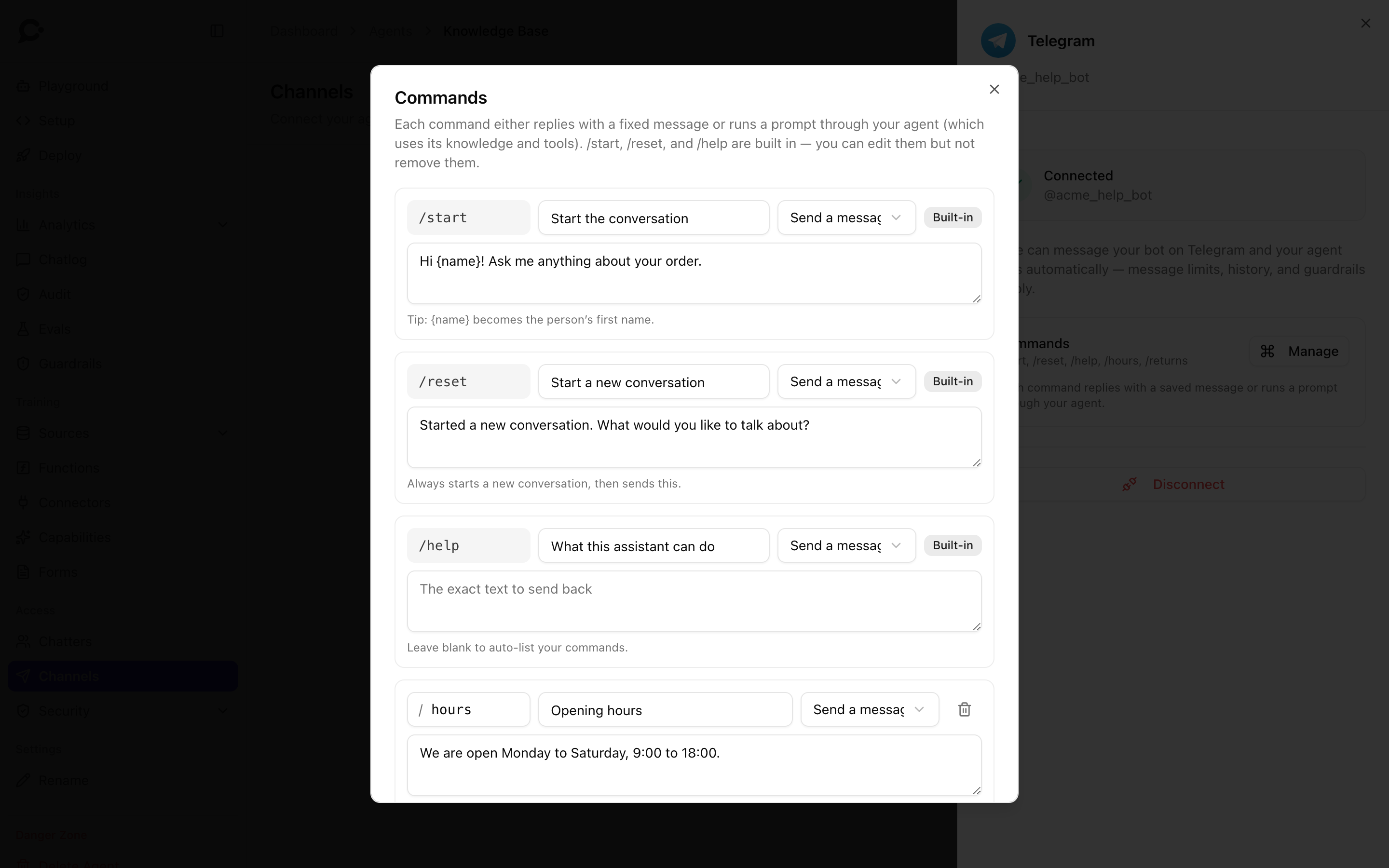
Each command has:
| Field | What it is |
|---|---|
| Command | The word after /. Lowercase letters, digits and underscores only, up to 32 characters. Each command can exist once. |
| Description | A short line shown in Telegram's command menu, for example "Opening hours". Required. |
| Mode | Send a message or Run a prompt. |
| Text | The message to send, or the prompt to run. Required for every command except /help. |
To add a command, click Add command. To remove one, click the trash button on its row. You can have up to 60 commands.
In the text, {name} becomes the person's first name, for example "Hi {name}! How can I help?". If Telegram doesn't share a first name, the bot uses "there".
The three built-in commands
/start, /reset and /help always exist. They have a Built-in badge. You can change their description, mode and text, but not remove or rename them.
| Command | Default | Notes |
|---|---|---|
/start |
Sends "Hello". | Telegram sends /start by itself when someone opens your bot for the first time and taps Start. So this is your bot's greeting. Put a warm welcome here. |
/reset |
Sends "Started a new conversation. What would you like to talk about?" | Always starts a new conversation first, then sends your text. The agent forgets the earlier messages. The old conversation stays in your Chatlog. |
/help |
Lists all your commands. | Leave the text empty to keep the automatic list. Write your own text to replace it. |
The built-in texts are in your agent's language (see language of the fixed messages).
If someone types a command that doesn't exist, the message goes to the agent like any other question.
Groups
You can add the bot to a Telegram group. The whole group then shares one conversation with the agent. By default, Telegram only passes a bot the group messages meant for it, such as commands and replies to the bot's own messages. BotFather's /setprivacy changes this. In a group, commands may look like /hours@fixmybike_bot. Chatvia understands both forms.
How replies behave
- The bot shows "typing…" while the agent works, then sends the full answer at once.
- Formatting shows natively: bold, italic, strikethrough, code, quotes and links. Lists become bullet or numbered lines. Headings become bold lines.
- Telegram allows up to 4,096 characters per message. A longer answer is split into several messages and sent as plain text without formatting.
- Only text messages are answered. Photos, voice notes, stickers, files and edited messages are ignored.
Good to know
- One bot, one agent. A Telegram bot sends its messages to one place only. If you connect the same token to a second agent, only the agent you connected last gets the messages. The same happens if another tool was using the bot before: Chatvia takes it over.
- Self-hosted installs must be reachable from the internet, because Telegram delivers each message to your Chatvia server. On a local test install, the bot connects but no messages arrive.
- Disconnect (on the panel) tells Telegram to stop sending messages to Chatvia. Your bot still exists in Telegram. Delete it with BotFather's
/deletebotif you no longer need it. - If you create a new token in BotFather (
/revoke), the old one stops working and so does your connection. Disconnect, then connect again with the new token. - Disconnecting removes your commands. Write down your custom commands before you disconnect, so you can add them again.
Troubleshooting
| Problem | Likely cause |
|---|---|
| "That doesn't look like a Telegram bot token" | The pasted text isn't a full token. Copy the whole line from BotFather, including the part before the colon. |
| "Telegram rejected that token" | The token is wrong or was revoked. In BotFather, send /mybots, pick your bot and tap API Token to see the current one. |
| The bot never answers | Another agent or tool connected the same bot later. Or the install isn't reachable from the internet. |
| The bot answers some messages but not photos | Only text is answered. |
| "This assistant isn't available on Telegram right now." | The agent was made protected after connecting. Make it public again on Security → Identity. |
| A command can't be saved | Every command needs a description, and every command except /help needs a text. Names use lowercase letters, digits and underscores only. |