The Setup page

Setup is where you shape one agent: what it says, how it looks, which buttons chatters get, and what Chatvia keeps from each chat. For example, a shop owner can turn on file uploads so customers can send a photo of a broken product, show the sources under each answer, and make the widget open on the bottom left of the page.
Open an agent and click Setup at the top of its sidebar.
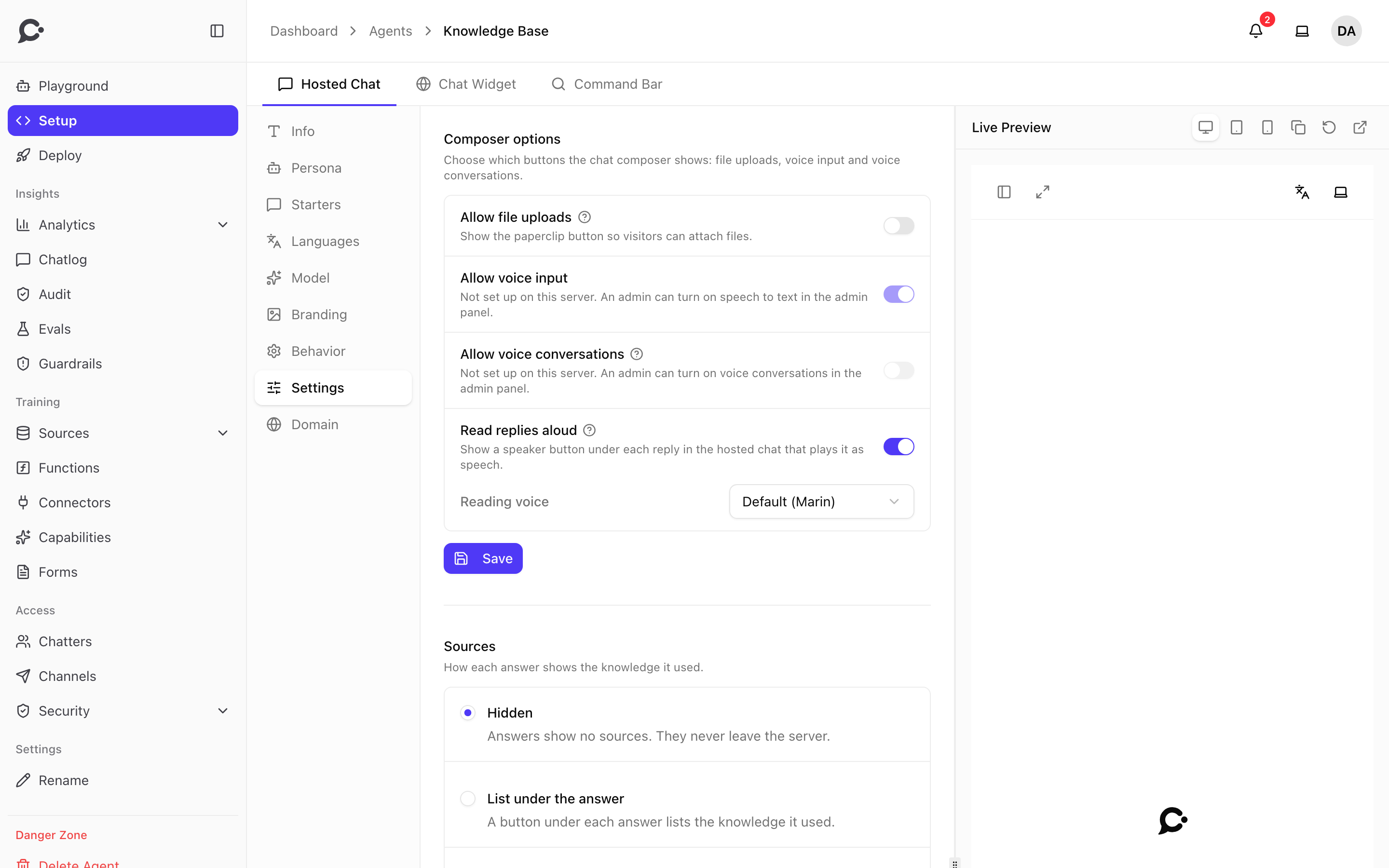
How the page is laid out
The page has three parts:
- Surface tabs at the top: Hosted Chat, Chat Widget and Command Bar. A tab switches the live preview and the sections that belong to only one surface. See Agent surfaces.
- The section menu on the left. Click a section to open it.
- Live Preview on the right. It shows the real chat and reloads after each save. Drag the handle between the panes to make the preview wider or narrower.
The sections are:
| Section | What it holds | Shown on |
|---|---|---|
| Info | Chat title, welcome message, placeholder and notice. See Appearance & branding. | All tabs |
| Persona | The agent's instructions. See Persona & instructions. | All tabs |
| Starters | Suggested first questions. See Conversation starters. | All tabs |
| Chat Bubbles | Short prompts next to the widget button. | Chat Widget tab only |
| Languages | The languages the agent offers. See Languages. | All tabs |
| Model | The AI model and answer style. See Model & generation. | All tabs |
| Branding | Colors, avatar, logo and privacy link. See Appearance & branding. | All tabs |
| Behavior | Options for the surface of the open tab. See Behavior. | All tabs, different fields per tab |
| Settings | Composer buttons, sources under answers, feedback, chat log and analytics. See Settings. | All tabs |
Each section, and each group inside Settings, has its own Save button. What you change only applies after you click it. Edits you have not saved yet stay in place while you switch sections or tabs.
View only
If your role does not have the Setup agent permission, the page shows a View Only banner and you can look but not change anything. See Teams & roles.
The live preview toolbar
The buttons above the preview switch between desktop, tablet and mobile sizes, Copy agent ID (you need it for embed codes), Refresh preview and Open in new tab.
Languages
Languages decides which languages this agent supports. Each language you turn on:
- appears in the language switcher of the Hosted Chat,
- gets its own tab in Info and Starters, so you can check and edit its translation,
- is a target when Chatvia translates your texts automatically.
To change the list:
- Open Setup → Languages.
- Tick the languages you want, or use Select all or Clear all.
- Click Save.
At least one language must stay on. To hide the language switcher from chatters altogether, turn off Language switcher in Behavior on the Hosted Chat tab.
Behavior
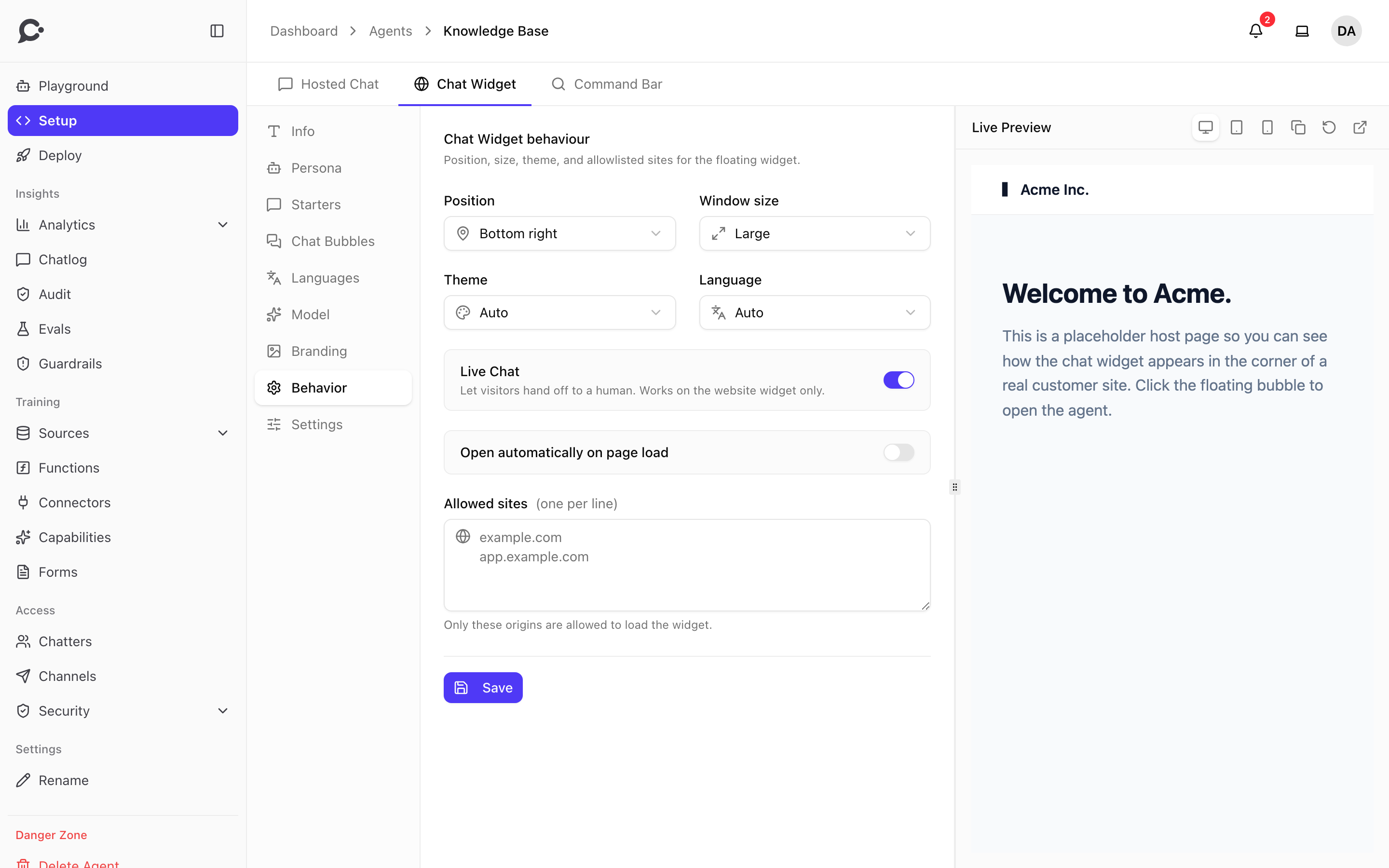
Behavior holds the options that only make sense for one surface, so its fields change with the tab you are on. Each tab saves on its own.
Hosted Chat tab
| Option | Default | What it does |
|---|---|---|
| Default theme | Auto | Light, dark, or Auto to follow the chatter's device. |
| Language | Auto | The language of the chat screen. Auto detects the chatter's language. |
| Remove sidebar | Off | Hides the conversation list next to the chat. |
| Hide sidebar on page load | Off | Starts with the conversation list closed. The chatter can still open it. |
| Enable theme switcher | On | Lets the chatter switch between light and dark. |
| Enable chat expand | On | Shows the button that widens the chat. |
| Language switcher | On | Shows the language picker in the chat header. |
Chat Widget tab
| Option | Default | What it does |
|---|---|---|
| Position | Bottom right | Where the chat button sits: Bottom right or Bottom left. |
| Window size | Large | Small, Medium or Large chat window. |
| Theme | Auto | Light, dark, or Auto to follow the visitor's device. |
| Language | Auto | The language of the widget. Auto detects the visitor's language. |
| Live Chat | On | Lets visitors ask for a person from your team. It needs a license key. See Human handoff. |
| Open automatically on page load | Off | Opens the chat window by itself. Delay (ms) sets how long to wait first, in milliseconds (500 is half a second). |
| Allowed sites | Empty | The websites that may load the widget, one per line. |
Add your website to Allowed sites
The widget only works on the sites in this list. Add the address of every site you put it on, for example example.com. www.example.com then works too, and *.example.com allows every subdomain. An empty list does not mean "every site": the widget then runs only on the Chatvia server's own address and on sites the admin allowed for every agent. See Allowed sites.
Command Bar tab
| Option | Default | What it does |
|---|---|---|
| Keyboard trigger | ⌘ + K (Ctrl + K on Windows) | The keys that open the bar. You can also pick ⌘/Ctrl + J, ⌘/Ctrl + /, / or ?. |
| Placement | Top center | Where the bar opens: Top center, Top right, Bottom center or Bottom right. |
Settings
Settings holds switches for the whole agent, on every surface. It has five groups, each with its own Save button.
Composer options
The composer is the message box at the bottom of the chat. These switches decide which buttons it shows.
| Option | Default | What it does |
|---|---|---|
| Allow file uploads | Off | Shows a paperclip so visitors can attach a PDF or an image and ask about it. |
| Allow voice input | On | Shows a microphone so visitors can speak a message instead of typing it. |
| Allow voice conversations | Off | Shows a button beside the microphone that starts a live spoken call with the agent. While it is on, a Voice list picks the voice the agent speaks with. |
| Read replies aloud | Off | Shows a speaker button under each reply in the Hosted Chat that reads it out. While it is on, Reading voice picks the voice. |
Some of these need the server admin to set them up first. When one is not set up, its switch is greyed out and says so. The admin turns them on in Settings → AI models.
Good to know about cost:
- With file uploads, the agent's own model reads the file when it can. If it cannot read PDFs or images, the model the admin picked for file uploads answers.
- In a voice conversation each spoken answer counts as one message, and a call costs much more to run than a typed chat. The agent can use its tools that need no approval. Both sides of the call are saved in the chat log.
- Reading a reply aloud does not count as a message. Each reply is turned into speech once and saved, so playing it again costs nothing.
Sources
Sources decides whether answers show the knowledge they came from.
| Option | What chatters see |
|---|---|
| Hidden (default) | No sources. They never leave the server. |
| List under the answer | A button under each answer that lists the knowledge it used. |
| Numbered citations | A small number after each sentence that opens its source, and a numbered list under the answer. Works in the Hosted Chat, the Chat Widget and the API. Voice calls and messaging apps leave the numbers out. |
Sources are hidden by default because a list of sources under small talk like "Thanks!" confuses chatters. Turn them on when your customers want proof, for example on a help center agent.
Feedback
Chatters can rate each answer in the Hosted Chat with Good response or Bad response. You see the ratings in the chat log.
| Option | Default | What it does |
|---|---|---|
| Ask what was wrong | On | After Bad response, shows a box where the chatter can write what was wrong. Writing in it is optional. |
Turn it off when you only want the rating and not a note. The Bad response rating is still saved, but no box opens and Chatvia does not keep a note.
Chat log
Store conversations is on by default. While it is on, every chat is saved so it shows in the chat log and feeds the analytics.
When you turn it off, Chatvia saves nothing. A chatter still sees their own messages during their visit, but they are gone when the visit ends. The analytics switches below turn off too, because there is nothing left to analyze.
Analytics
These switches decide which insights Chatvia works out from each conversation. All three are on by default. Each one uses extra AI calls, so turn off the ones you do not need.
| Option | What it tracks |
|---|---|
| Sentiment | Whether visitors feel positive, neutral or negative. |
| Tone | How visitors express themselves, for example frustrated, urgent or satisfied. |
| Topics | What visitors ask about, grouped into topics. |
They need Store conversations on. Turning one off stops that analysis and hides its page. The results show under Analytics in the agent's sidebar. See Analytics.