Backup settings

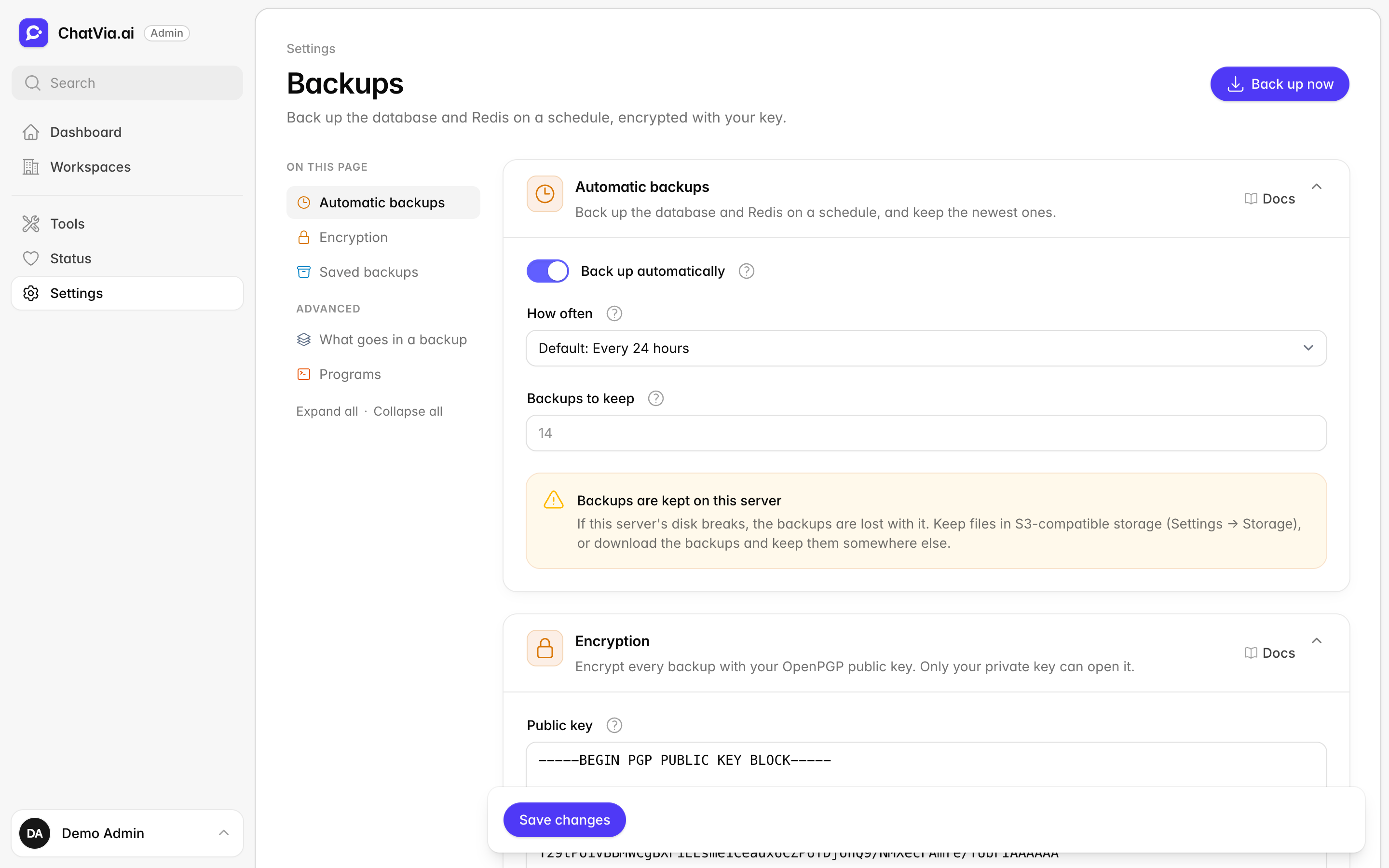
A backup is a copy of your data that you can put back if something goes wrong: a broken disk, a bad upgrade, or data deleted by mistake. This page decides when ChatVia.ai makes backups, how many it keeps, whether they are encrypted, and what goes in them. It also lists the backups made so far. Open it in the admin panel under Settings → Backups.
If you never open it, ChatVia.ai backs up the database and Redis every 24 hours and keeps the newest 14 backups. The backups are not encrypted until you add your public key (see Encryption).
How a backup works
A backup is one file, for example chatvia-2026-10-26-031500.tar. It is
made in this order:
- ChatVia.ai copies the database and the analytics database with
pg_dump, then reads each copy back to check that it is complete. - It copies the Redis data with
redis-cli. Redis holds who is signed in and the memory of open chats. - It adds the other parts you chose (see What goes in a backup).
- It packs everything into one file. When you saved a public key, it
encrypts the file with it, and the file name ends in
.tar.gpg. - It saves the file with your other files, in the
backupsfolder of the storage you chose in Storage: on this server, or in S3-compatible storage. - It deletes the oldest backups, so only the number you chose stays.
Only one backup runs at a time. The work files are deleted at the end, also when a backup fails, so no copy of your data is left on the server by mistake. On this server, only the user that runs ChatVia.ai can read the backup files.
The file has the same layout as a backup made by
./manage backup in a Docker install.
So ./manage restore can put back both kinds.
| File in the backup | What it holds |
|---|---|
backup.env |
When the backup was made, and which parts it holds. |
database.dump |
The database: workspaces, agents, knowledge, chats and settings. |
database-extras.sql |
Database settings that the copy leaves out. |
redis.rdb |
The Redis data: sign-ins and chat memory. |
secrets.env |
The app key. Only in encrypted backups. |
files.tar |
The uploaded files, when you chose them. |
analytics.dump |
The analytics database: the numbers behind the charts and reports. |
pulse.dump, spectra.dump |
The Pulse and Spectra databases, when you chose them. |
Automatic backups
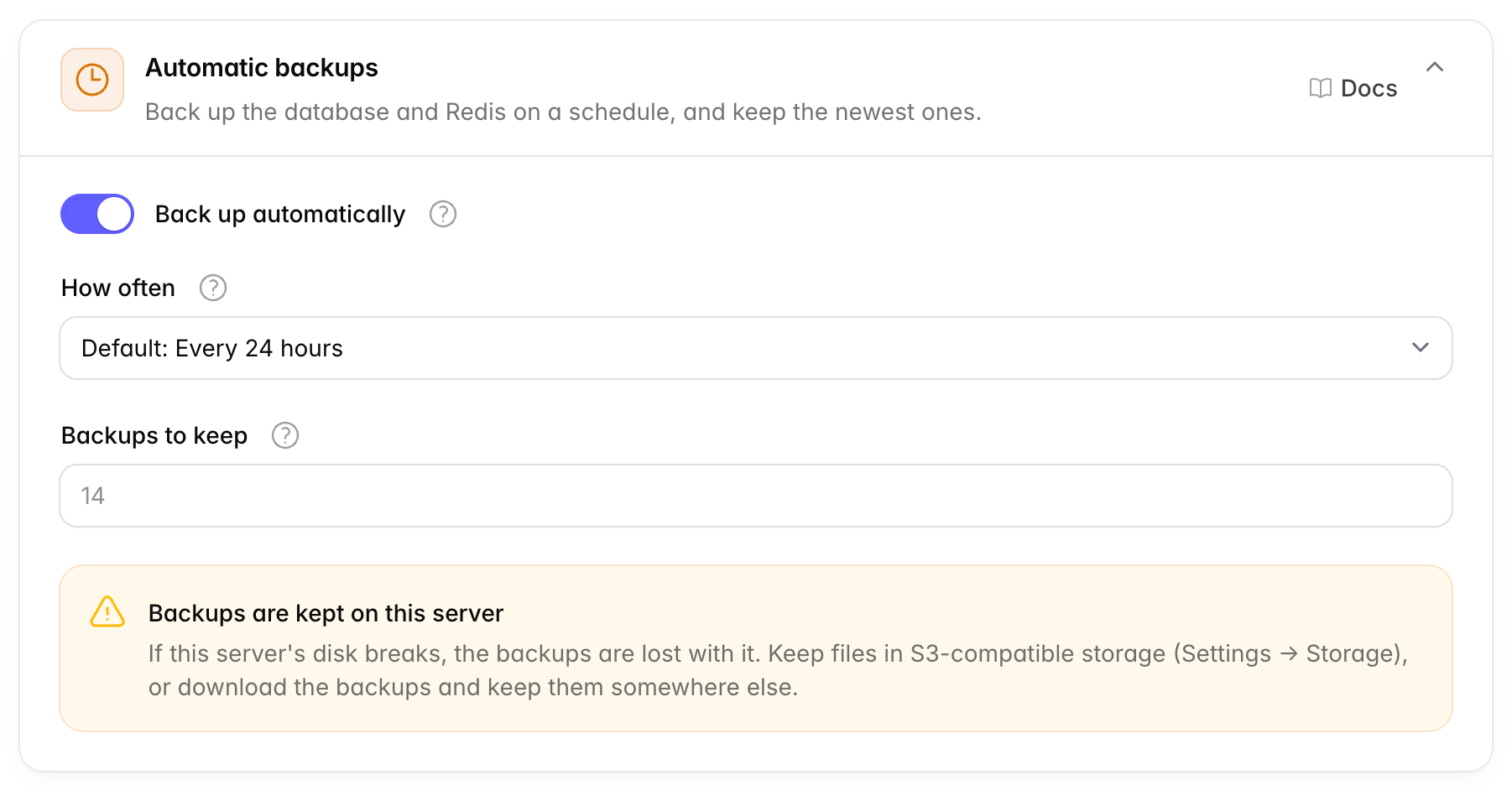
Back up the database and Redis on a schedule, and keep the newest ones.
| Option | What it does | Default |
|---|---|---|
| Back up automatically | Makes a backup on the schedule below. Off makes backups only when you click Back up now. | On |
| How often | The time between two automatic backups: every 6, 12, 24 or 48 hours, or every week. | Every 24 hours |
| Backups to keep | How many of the newest backups stay. When a new backup is done, older ones are deleted. A number from 1 to 365. | 14 |
ChatVia.ai checks every hour whether a backup is due. A backup is due when the last automatic backup is as old as the time you chose. So "every 48 hours" and "every week" work well across the end of a month. If the server was off at the time of a backup, the backup runs as soon as the server is back.
If an automatic backup fails, ChatVia.ai tries again after 6 hours at most, even when you chose "every week". Backups you make with Back up now do not change the schedule.
How many to keep: the number times the time between backups is how far back you can go. 14 backups every 24 hours lets you go back two weeks. Each backup takes space, so look at the size of a backup in the list before you raise the number a lot.
Backups kept on this server
With Keep backups on: This server (in Storage), the backups are on the same disk as ChatVia.ai. If that disk breaks, the backups are lost with it. The card shows a warning about this. Pick an S3-compatible private bucket for the backups there, or download the backups now and then and keep them on another computer.
When a program that backups need is not found on the server, the card shows it in red. See Programs.
Encryption
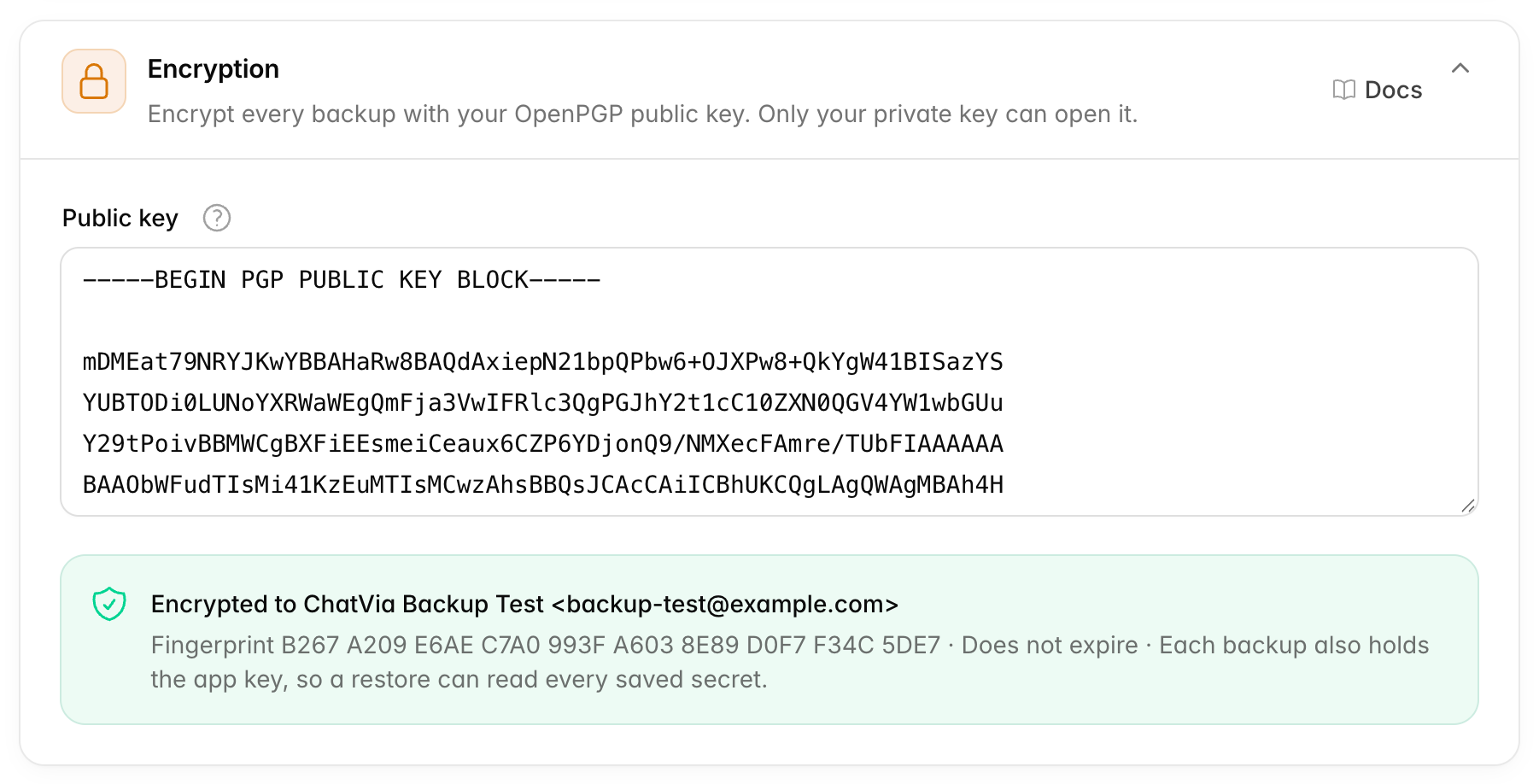
Encrypt every backup with your OpenPGP public key. Only your private key can open it.
A backup holds all your data: chats, contacts, and the keys of the services you connected. Encryption turns the file into data that nobody can read without your key. It is like putting the backup in a safe before it leaves the house.
ChatVia.ai uses OpenPGP, the same standard many people use for private email. It works with a pair of keys that belong together:
- The public key locks. You paste it here. Anyone may see it: it can only lock, never unlock.
- The private key unlocks. It stays on your own computer. Never paste it into ChatVia.ai.
So the server can encrypt backups, but it cannot open them. If someone steals the server or your storage bucket, they cannot read your backups either.
Public key is the field for your public key. Paste the whole block,
from -----BEGIN PGP PUBLIC KEY BLOCK----- to
-----END PGP PUBLIC KEY BLOCK-----. When you save, ChatVia.ai checks the
key. It refuses:
- a private key,
- text that is not an OpenPGP key,
- more than one key,
- a key that has expired or was revoked (cancelled),
- a key that can only sign, not encrypt.
After you save, a green box shows whose key it is, its fingerprint and when
it expires. The fingerprint is a short code that only this key has. Compare
it with the fingerprint on your computer
(gpg --fingerprint [email protected]) to be sure you pasted the right key.
To stop encrypting, empty the field and save. Backups already made stay as they are.
The app key goes in encrypted backups only
ChatVia.ai encrypts the API keys and passwords you save in the admin panel
with the app key (APP_KEY). After a restore you need the same app key,
or those values cannot be read.
- An encrypted backup holds the app key (
secrets.env). A restore puts it back for you. - A backup that is not encrypted leaves the app key out. Anyone who got
the file could read every saved secret with it. Keep the app key somewhere
safe yourself: it is in the
.envfile on the server, or in thesecretsvolume of a Docker install.
Keep your private key safe
Without your private key, nobody can open the backups, you included. Keep a copy of it, and of its passphrase, in a safe place that is not the ChatVia.ai server, for example in your password manager.
Make a key pair
You need GnuPG (gpg) on your own computer. On a Mac,
install it with brew install gnupg. On Ubuntu or Debian, use
sudo apt install gnupg. On Windows, use Gpg4win.
Make a key pair for your backups. gpg asks for a passphrase that protects the private key on your computer:
gpg --quick-gen-key "ChatVia.ai backups <[email protected]>" default default neverPrint the public key, and paste all of it into Public key:
gpg --armor --export [email protected]Save a copy of the private key, and keep it safe (see above):
gpg --armor --export-secret-keys [email protected] > chatvia-backups-private-key.ascOpen an encrypted backup
On the computer that has your private key:
gpg --output chatvia-2026-10-26-031500.tar --decrypt chatvia-2026-10-26-031500.tar.gpggpg asks for your passphrase. The result is a normal backup file. To see what is in it:
tar -tf chatvia-2026-10-26-031500.tarSaved backups
The backups made so far, newest first. Download one to keep it somewhere else.
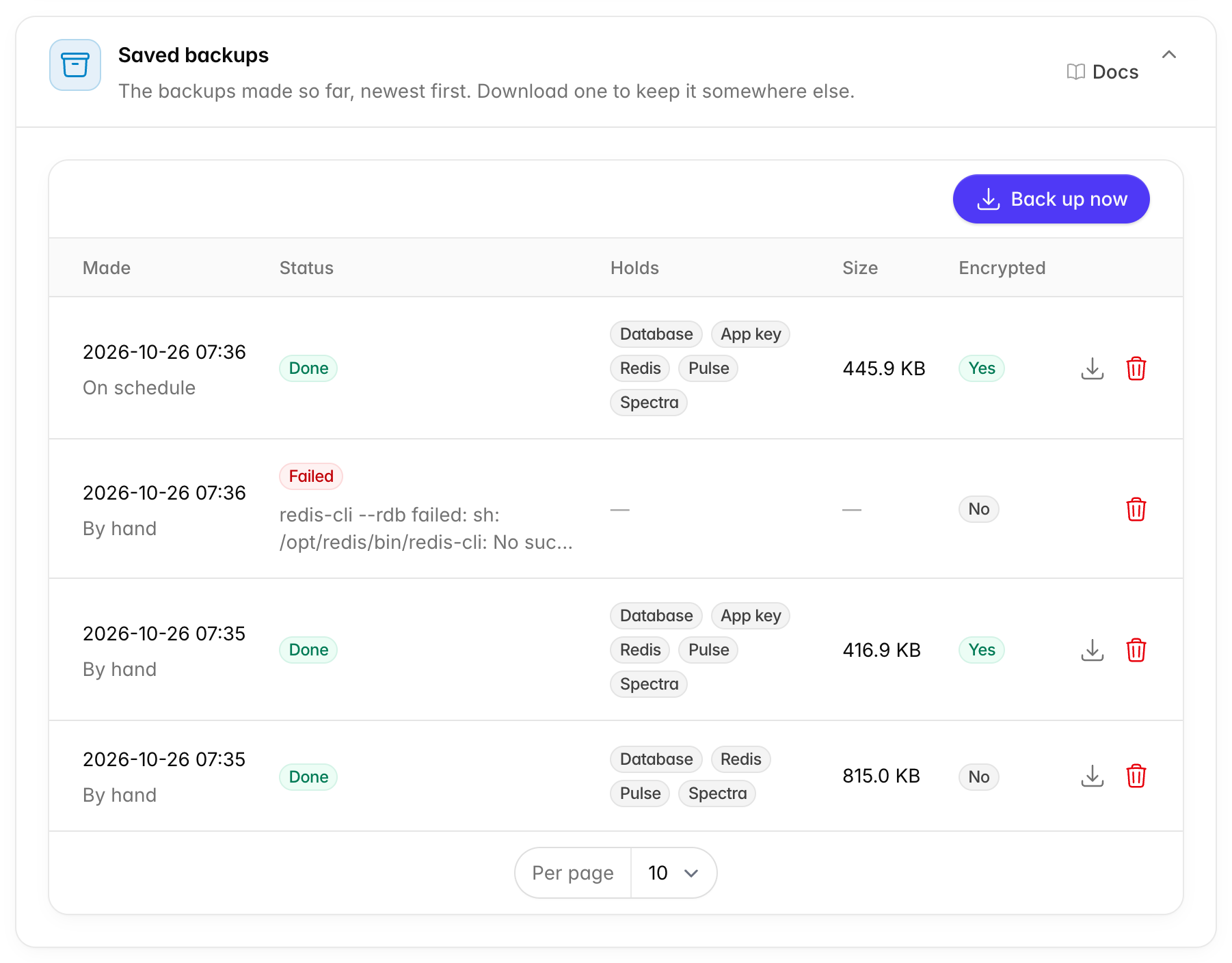
Each row shows:
| Column | What it shows |
|---|---|
| Made | When the backup was made, and how: On schedule or By hand. |
| Status | Waiting (a worker will start it soon), Running, Done or Failed. A failed backup shows why under the status; point at it to read all of it. |
| Holds | The parts in the backup. App key means the app key is in it. |
| Size | The size of the backup file. |
| Encrypted | Yes when the file is encrypted with your public key. Point at it to see the key's fingerprint. |
The buttons at the end of a row:
- Download (arrow) saves the backup file on your computer.
- Delete (bin) deletes the backup file for good. A backup that is still running cannot be deleted.
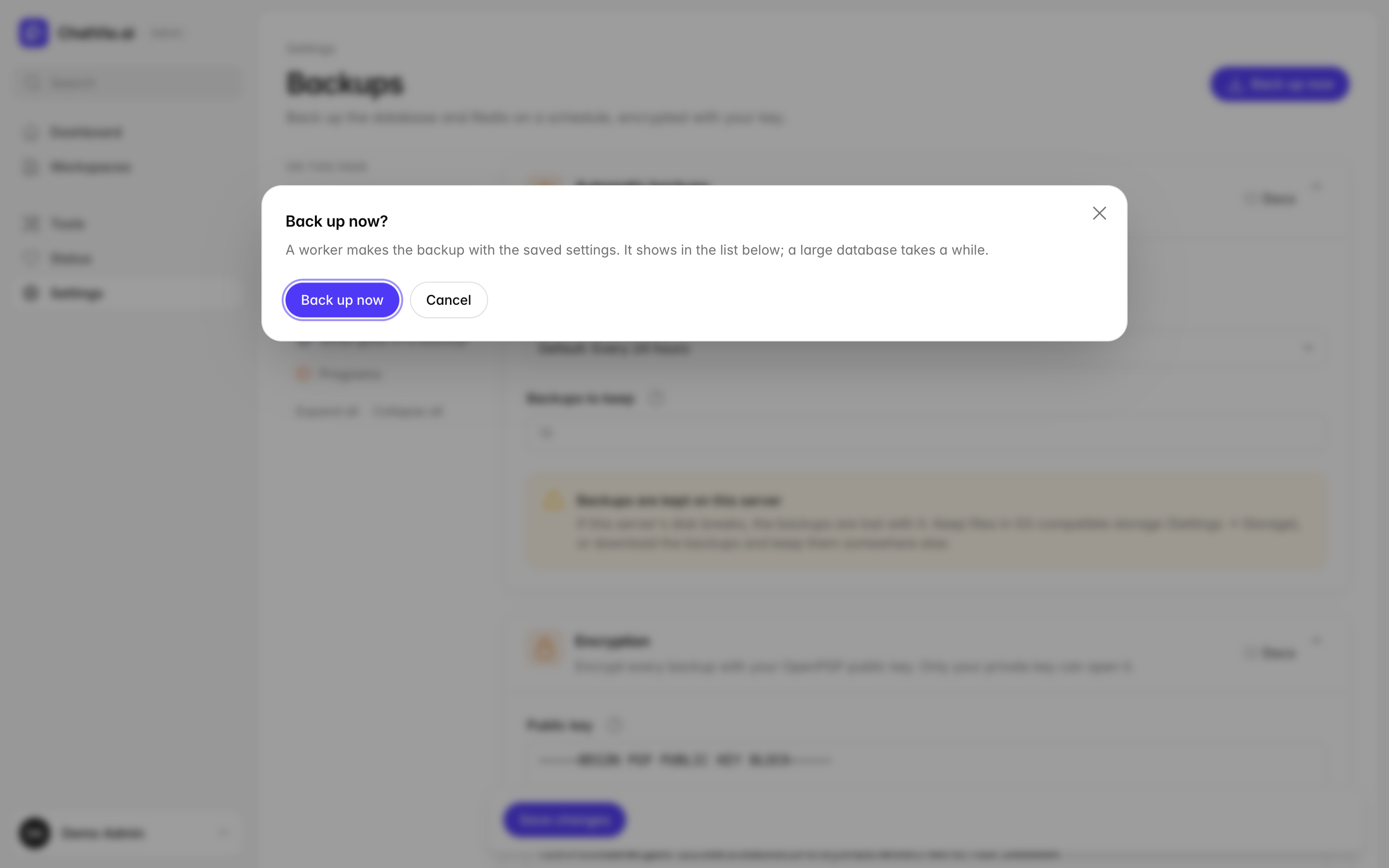
Back up now (at the top of the page and of the list) makes a backup right away, with the saved settings. A worker makes it in the background, so you can leave the page. The list updates by itself while it runs.
You can also make a backup on the server's command line:
php artisan chatvia:backup:createIn a Docker install, run it as ./manage artisan chatvia:backup:create.
When a backup fails
The list shows Failed and the reason. The settings overview shows "The last backup failed" on the Backups tile. The most common reasons:
| Reason | What to do |
|---|---|
A program was not found, like pg_dump or redis-cli |
Install it, or enter its full path in Programs. |
pg_dump says its version does not match the server |
Install the PostgreSQL client of the same version as your database server, or newer. |
| The disk is full | Free some space, or keep fewer backups. A backup needs free space for about twice its size while it is made. |
| "Another backup was running" | Wait until that backup is done, then try again. |
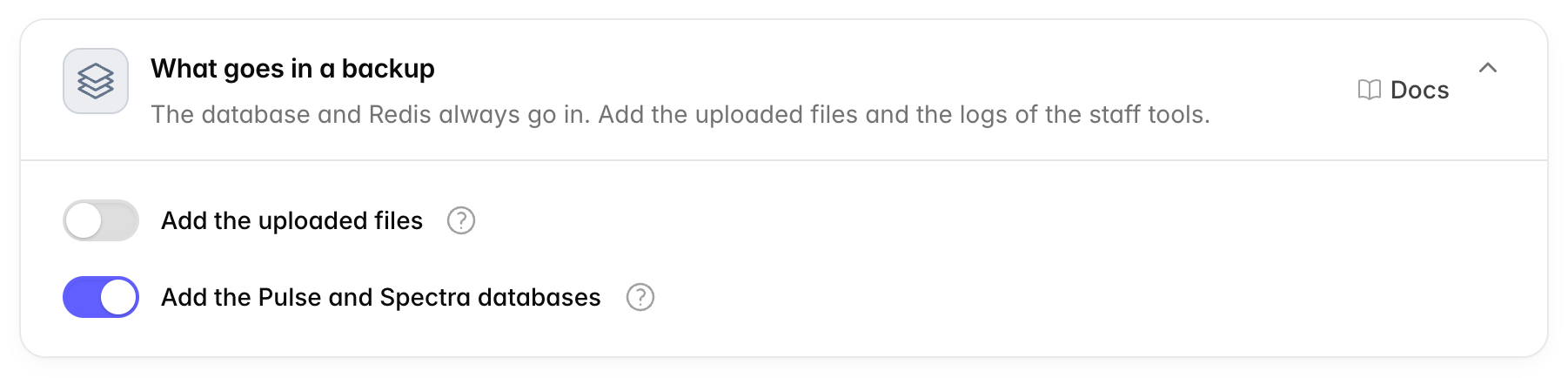
What goes in a backup
The database, the analytics database and Redis always go in. Add the uploaded files and the logs of the staff tools.
This card is under Advanced, closed.
| Option | What it does | Default |
|---|---|---|
| Add the uploaded files | Adds knowledge files, chat attachments and images, when they are kept on this server. Backups can get much larger. With S3-compatible storage, the files are already kept off this server, so this option is greyed out and the files are left out. | Off |
| Add the Pulse and Spectra databases | Adds the server statistics (Pulse) and the log of AI calls (Spectra), when they have their own databases. Turn it off for smaller backups: you can lose this data without harm. | On |
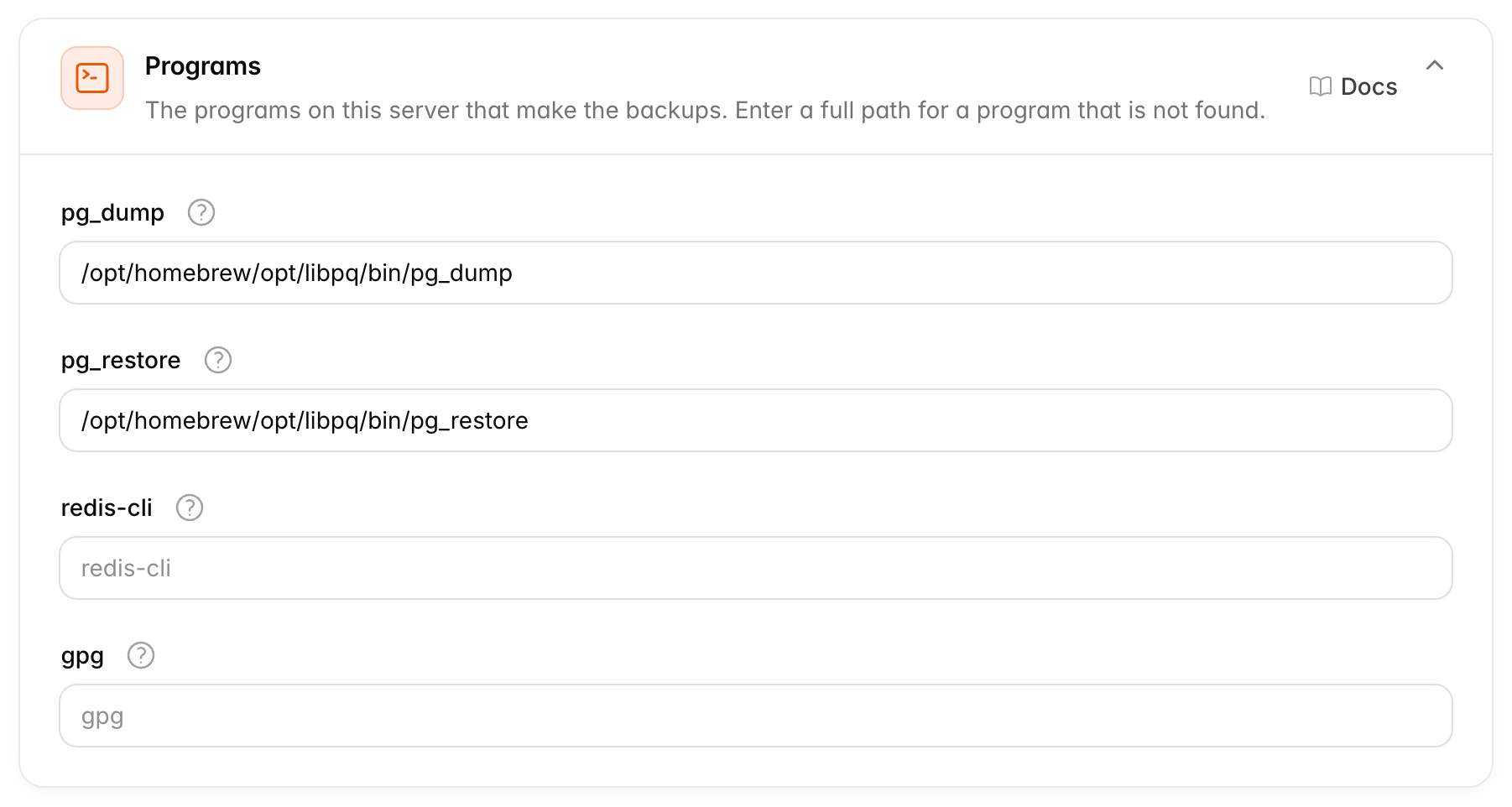
Programs
The programs on this server that make the backups. Enter a full path for a program that is not found.
This card is under Advanced, closed.
| Program | What it does | Needed |
|---|---|---|
| pg_dump | Copies the databases. It must be the same version as your PostgreSQL server, or newer. Part of the PostgreSQL client. | Always |
| pg_restore | Reads each database copy back, to check it is complete. Part of the PostgreSQL client. | Always |
| redis-cli | Copies the Redis data. Part of Redis. | Always |
| gpg | Encrypts the backups with your public key. | Only when a public key is saved |
Leave a field empty to run the program by its name. The server then looks
for it in its usual folders (the PATH). Enter a full path, like
/usr/lib/postgresql/18/bin/pg_dump, when the program is somewhere else.
The field takes only the program's own name, or a full path that ends in it.
Point at the ? next to a program to see the file the server uses.
The Docker image and the Ubuntu installer install all four programs. You only need this card for an install you set up by hand.
Restore a backup
A restore replaces all current data with the data in the backup. Do it when the data is lost or broken, or to move ChatVia.ai to another server.
First, download the backup from Saved backups. If the
server is gone, take the file from your S3-compatible storage (the backups
folder) or from the copy you kept.
With Docker
./manage restore puts back a backup from this page, encrypted or not.
Copy the file into the install folder on the server, then run:
./manage restore chatvia-2026-10-26-031500.tar.gpgFor an encrypted backup, the server needs gpg and your private key. If
you do not want your private key on the server, open the backup on your own
computer first (see Open an encrypted backup),
copy the .tar file to the server, and restore that.
The tool backs up the current data first, puts back the database, the app key, Redis and the other parts the backup holds, and starts ChatVia.ai again. It keeps the server's own database password and other secrets. See Restore for every step.
Without Docker
There is no restore tool yet for installs without Docker. These steps do
it by hand, for an install made with the
Ubuntu guide. Run them as a user who may use
sudo.
-
Open the backup. For an encrypted backup, decrypt it on the computer with your private key and copy the
.tarfile to the server (see Open an encrypted backup). Then unpack it into a folder that only PostgreSQL's own user can read:bashR=/var/tmp/chatvia-restore sudo mkdir -m 700 $R sudo tar -xf chatvia-2026-10-26-031500.tar -C $R sudo chown -R postgres: $R sudo cat $R/backup.envThe
HOLDS=line lists the parts in the backup. -
Stop ChatVia.ai. The site shows a maintenance page, and the queue workers and the scheduler pause:
bashsudo -u chatvia php /var/www/chatvia/artisan down sudo supervisorctl stop chatvia-horizon chatvia-reverb chatvia-pulse -
Put back the database. This restores into a new database first, so your current data stays until the copy is complete. The database extensions (like
vector, for search) are added by PostgreSQL's own user, and everything else is restored aschatvia, so ChatVia.ai owns its tables:bashsudo -u postgres createdb -O chatvia chatvia_restore for ext in $(sudo -u postgres pg_restore -l $R/database.dump | sed -n 's/.* EXTENSION - \([a-z0-9_]*\).*/\1/p'); do sudo -u postgres psql -d chatvia_restore -c "CREATE EXTENSION IF NOT EXISTS $ext" done sudo -u postgres sh -c "pg_restore -l $R/database.dump | grep -v -E ' EXTENSION - | COMMENT - EXTENSION ' > $R/database.list" sudo -u postgres pg_restore -d chatvia_restore --no-owner --role=chatvia -L $R/database.list \ --exit-on-error --single-transaction $R/database.dump sudo -u postgres psql -d chatvia_restore -v dbname=chatvia_restore -f $R/database-extras.sqlThen swap the two databases. The old one stays as
chatvia_olduntil you delete it:bashsudo -u postgres psql -c "SELECT pg_terminate_backend(pid) FROM pg_stat_activity WHERE datname = 'chatvia'" sudo -u postgres psql -c 'ALTER DATABASE chatvia RENAME TO chatvia_old' sudo -u postgres psql -c 'ALTER DATABASE chatvia_restore RENAME TO chatvia'Do the same for
analytics.dump(databaseanalytics), and forpulse.dumpandspectra.dump(databasespulseandspectra) when the backup holds them. You can skip Pulse and Spectra: ChatVia.ai works without their old data. -
Put back the app key, when the backup holds
secrets.env. Copy theAPP_KEYline (andAPP_PREVIOUS_KEYS, if it is there) into/var/www/chatvia/.env, in place of the lines there:bashsudo cat $R/secrets.env sudo -u chatvia nano /var/www/chatvia/.env -
Put back the uploaded files, when the backup holds
files.tar:bashsudo cat $R/files.tar | sudo -u chatvia tar -xf - -C /var/www/chatvia/storage -
Empty Redis. The queued jobs and the cache from before do not fit the restored data. People sign in again afterwards:
bashREDISCLI_AUTH='your-redis-password' redis-cli FLUSHALLThe Redis password is
REDIS_PASSWORDin.env. The backup'sredis.rdbcould also be put back, to keep people signed in. That takes more steps, because Redis runs with its append-only file on, and most installs do not need it. -
Start ChatVia.ai again. The migrations update a backup from an older version:
bashcd /var/www/chatvia sudo -u chatvia php artisan migrate --force sudo -u chatvia php artisan optimize sudo systemctl restart php8.5-fpm sudo supervisorctl start chatvia-horizon chatvia-reverb chatvia-pulse sudo -u chatvia php artisan up -
Check it, then delete the old database and the unpacked files:
bashsudo -u postgres dropdb chatvia_old sudo rm -rf $R
A backup from a newer version of ChatVia.ai does not fit an older one. Upgrade first, then restore.
Related
- Storage: where the backups are kept.
- Manage your install: back up and restore a
Docker install with
./manage. - Observability: Pulse and Spectra.