Audit

The Audit page is your workspace's record of what happened. It has two logs:
- Tool calls: every action your agents took with tools, such as looking up an order in your shop or creating a ticket in your help desk.
- Security: sign-ins, changes to API tokens and security settings, blocked attacks and blocked visitors in your workspace.
Use it to answer questions like "Which agent refunded this order, and who asked for it?" or "Who changed our security settings last week?".
Open it with your avatar, then Workspace, then Audit under Governance & Security. The Tool calls tab needs the Governance permission, and the Security tab needs the Security permission. The workspace owner sees both. See Teams & roles.
Tool calls
A tool is an action an agent can take beyond writing a reply, through a function or a connector. This log has one row for each time an agent tried to use one, across all your agents.
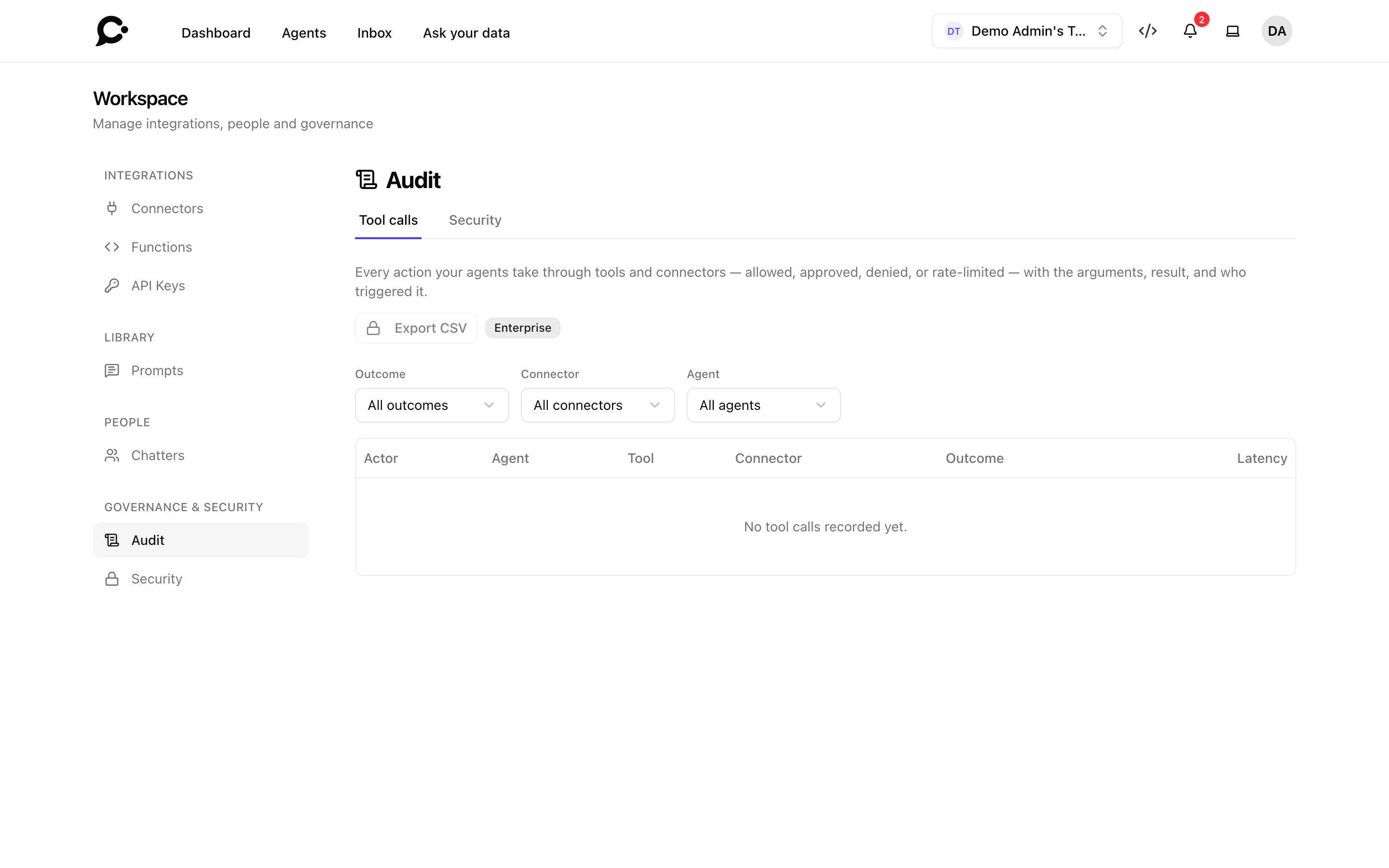
| Column | What it shows |
|---|---|
| Actor | Who was chatting when the agent used the tool: a signed-in person, or visitor. |
| Agent | The agent that used it. |
| Tool | The tool's name. error next to it means the tool answered with an error. |
| Connector | The connector the tool belongs to. |
| Outcome | What happened, see below. A gated badge means a person had to approve it. |
| Latency | How long the tool took, in milliseconds (1,000 ms is one second). |
The outcomes are:
| Outcome | Meaning |
|---|---|
| Auto | The tool ran without anyone having to approve it. |
| Approved | The tool needed approval, and a person approved it before it ran. |
| Denied | The tool needed approval, and a person said no. It did not run. |
| Rate limited | The agent used the tool too many times in a short time, so it did not run. |
| Not offered | The agent asked for a tool it was not given, so it did not run. |
Filter the list with Outcome, Connector and Agent. Use Previous and Next to page through it.
Click a row to see its details: the Arguments the agent sent to the tool, the Result it got back (as Preview or Markdown), a link to the conversation, and its trace number. If the visitor approved a tool by voice during a voice call, the details show the Spoken approval.
Each agent also has its own tool call log, in the agent's Audit page.
Security
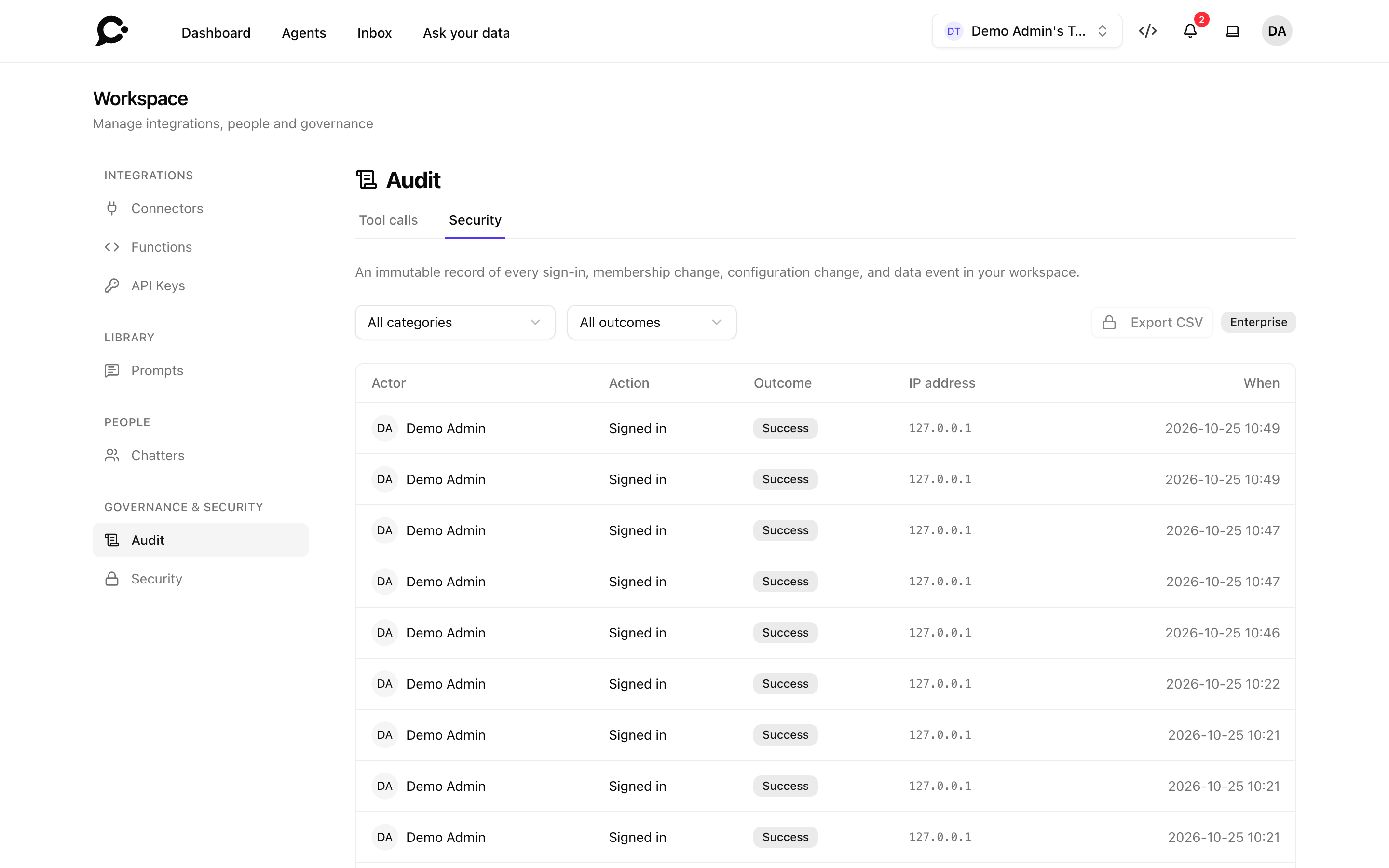
This log records security events in your workspace. Nobody can edit or delete an entry. These events are recorded:
| Category | Events |
|---|---|
| Authentication | Signed in, failed sign-in, signed out. |
| Configuration | API token created or revoked. Security policy, IP allowlist or data retention changed. Audit webhook turned off automatically. |
| Data | Audit log exported. |
| Threats | Attack blocked by guardrails. Visitor blocked or unblocked. Chatter blocked. |
The category filter also lists Membership & roles. Chatvia does not record events in that category yet, so it stays empty.
Each row shows the Actor (the person, or System for automatic changes), the Action, the Outcome (Success, Failure or Denied), the IP address and When. Filter with All categories and All outcomes.
Click a row to see more: the Target (what was changed), the User agent (the browser and system used) and the Details. For a settings change, the details show the values before and after. "Integrity hash recorded" means Chatvia stored a fingerprint of the details when the entry was written, so a later change to them could be spotted.
Export to CSV
Click Export CSV on either tab to download the log as a spreadsheet file. The export uses the filters you applied. Each export is itself recorded in the security log, as Audit log exported.
Enterprise
Export CSV needs an Enterprise license on your Chatvia install. Without one, the button is greyed out. See What Enterprise unlocks.
How long entries are kept
- Tool calls are kept for 90 days by default.
- Security entries are kept for 365 days by default. Your workspace can keep them for a shorter time, but not under 30 days, with Security audit log (days) on the Security page.
The admin of your Chatvia server sets both defaults, and can turn the security log off. See Security settings.
Good to know
- Secrets are hidden. Values such as passwords, tokens and API keys are replaced before an entry is saved, so they never show in the log.
- Long values are cut. Very long arguments, results or details are cut at a size limit. The details then say "Cut off at the size limit. Only the start is shown."
- Send the security log to your own tools. Your security team can get every event as it happens with the SIEM webhook. See Security.