Capabilities

Capabilities are extra features that Chatvia builds in, which an agent can use inside the chat. Unlike connectors, most of them need no account with another service and no setup: you turn one on with a switch. Calendar is the exception: it works through your Calendly or Cal.com account, so you connect one of them first.
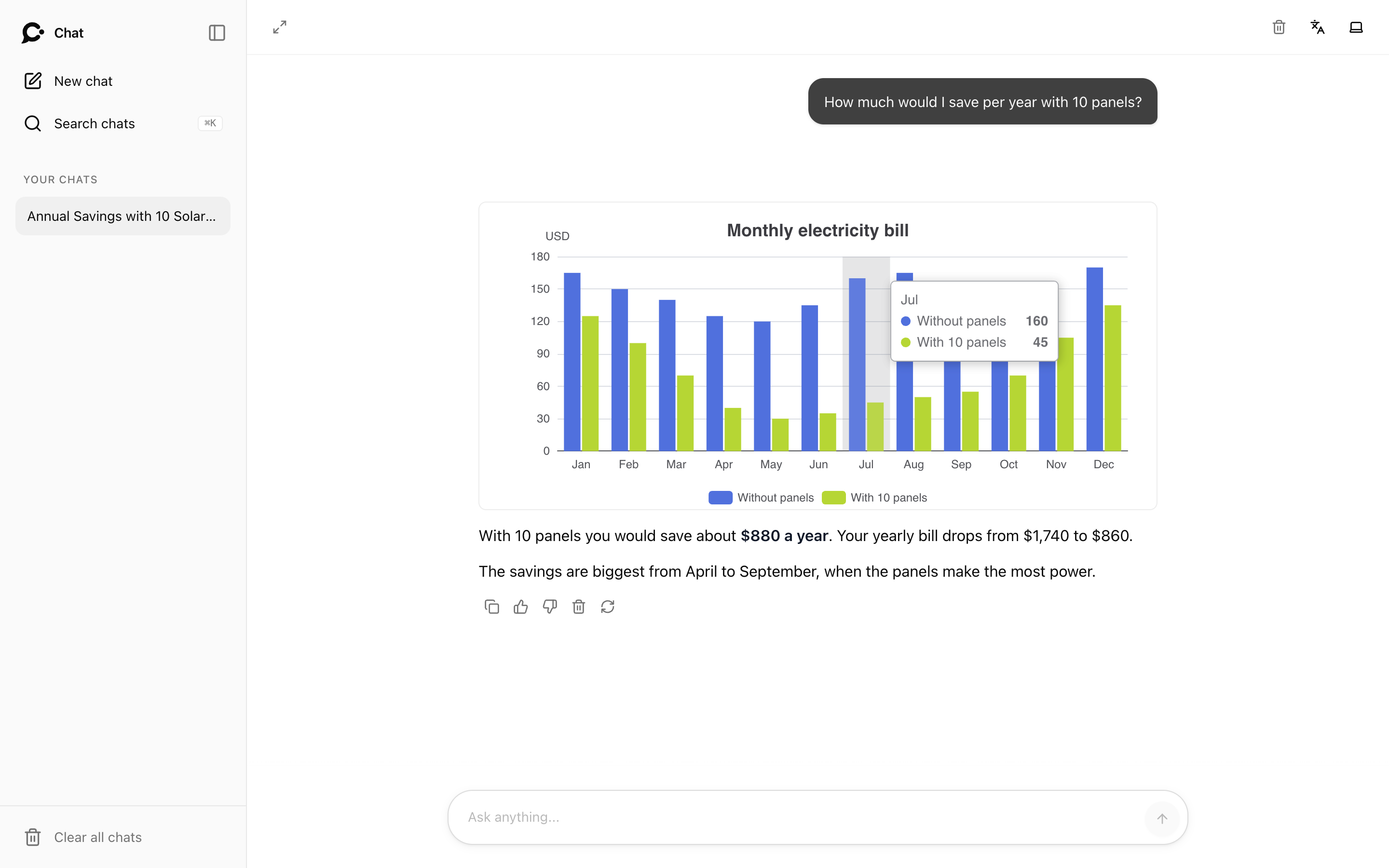
For example, a solar installer's agent with Interactive charts on can answer "How much would I save per year with 10 panels?" with a bar chart instead of a wall of numbers.
Open an agent and click Capabilities in the sidebar, under Training.
Needs a license key
Capabilities need a license key on your Chatvia install. Without one, they don't work in chats. See What needs a key.
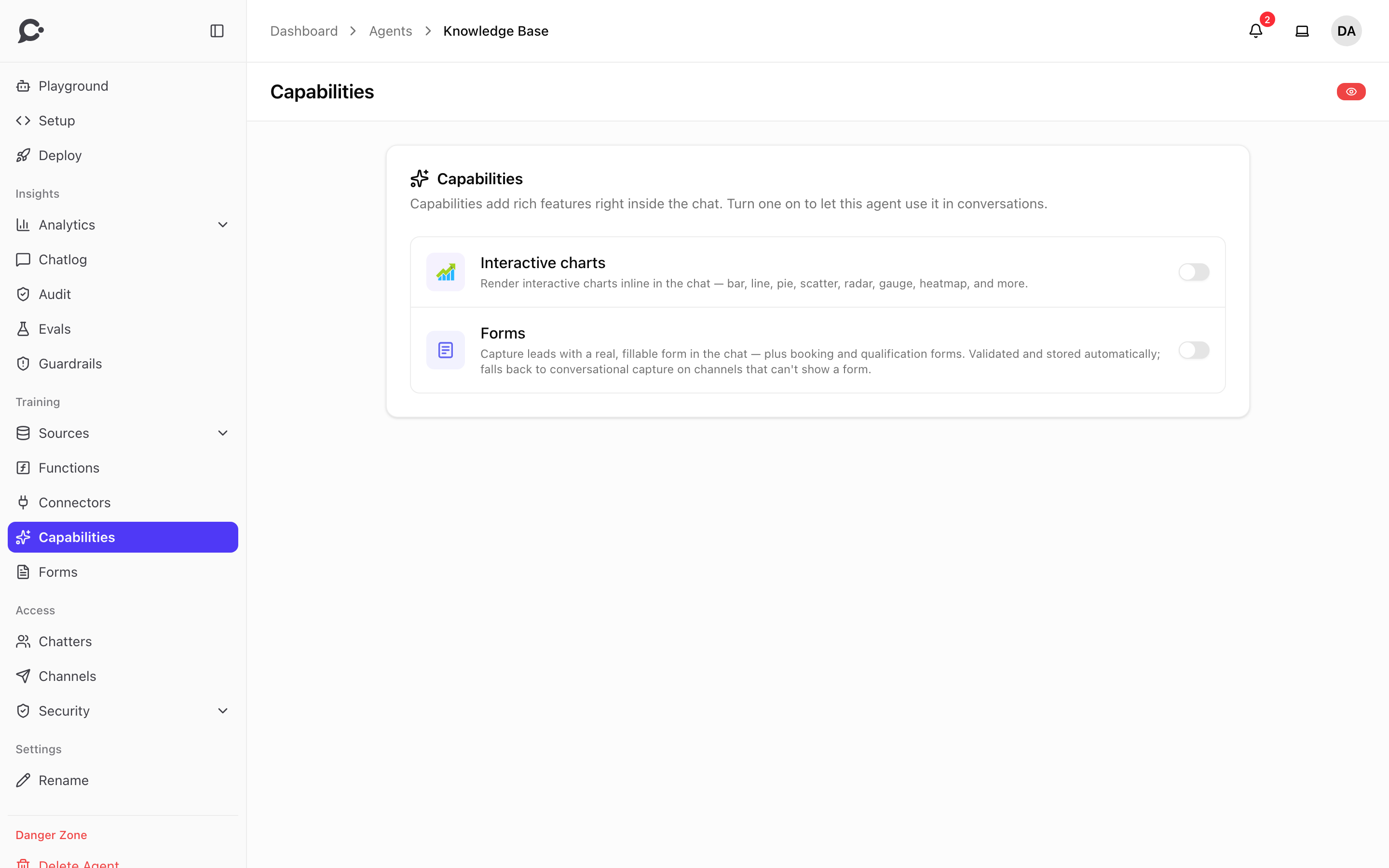
The capabilities
| Capability | What it does | Where it works |
|---|---|---|
| Interactive charts | The agent can draw interactive charts in the chat, built with Apache ECharts. See Interactive charts. | Hosted Chat only. Not in voice calls. |
| Forms | The agent can show a real, fillable form in the chat, to capture leads, qualify them or take a booking. | Hosted Chat, Chat Widget and Command Bar. On messaging apps the agent asks for the details in words instead. Not in voice calls. |
| Calendar | The agent can show a calendar in the chat. The visitor picks a free time from your Calendly or Cal.com and books the meeting there. Each booking is saved as a lead. | Hosted Chat, Chat Widget and Command Bar. On messaging apps the agent shares your booking link instead. Not in voice calls. |
| Image generation | The agent can make pictures when a visitor asks: logos, illustrations, product ideas. Works once an admin adds an image model in Settings → AI models. | Hosted Chat only. Not in voice calls. |
| Audio generation | The agent can make an audio file of a text, or of an attached PDF, read aloud. Works once an admin picks a service in Settings → AI models. | Hosted Chat only. Not in voice calls. |
| Video generation | The agent can make a short video when a visitor asks. A video takes a few minutes, so a placeholder shows until it is ready. Works once an admin adds a video model in Settings → AI models. | Hosted Chat only. Not in voice calls. |
The agent decides by itself when to use a capability, based on the conversation.
Turn a capability on or off
Click the switch next to it. Turning one on for the first time can take a moment.
Turning a capability off takes it away from the agent.
Interactive charts
Charts are drawn with Apache ECharts, a free charting library. They are real, interactive charts, not pictures: visitors can hover a bar or point to see its value, and click a legend item to hide or show a series.
The agent can draw 12 kinds of chart:
| Chart | Good for |
|---|---|
| Bar | Comparing amounts, side by side or stacked. |
| Line | Change over time. |
| Combo | Bars and a line on one chart, for example sales and growth rate. |
| Pie | Parts of a whole. |
| Scatter | How two numbers relate. |
| Radar | Comparing several scores at once. |
| Gauge | One number on a scale, for example 73%. |
| Heatmap | Values across two dimensions, for example busy hours per weekday. |
| Candlestick | Price moves: open, high, low and close. |
| Sankey | Flows from one step to the next. |
| Sunburst | Nested parts of a whole. |
| Treemap | Sizes of many items at a glance. |
The agent picks the chart that fits the question. Charts follow the chat's light or dark theme.
Calendar, Calendly and Cal.com
Calendar books meetings in your Calendly or Cal.com account, so it needs one of them connected first:
- Open Connectors in your workspace settings and connect Calendly or Cal.com.
- Come back to the agent's Capabilities page and turn on Calendar.
If you add Calendly or Cal.com to an agent on its own Connectors tab, Calendar turns on for that agent by itself, and the agent books through the one you just added. You can still turn Calendar off on the Capabilities page. Connecting a service for the whole workspace does not turn Calendar on for any agent.
Until one is connected, the Calendar row shows a Connect Calendly or Cal.com button instead of a switch. If it is later disconnected, the row shows a warning and the agent stops offering meetings.
If your workspace has connected both, the Calendar row shows a Book through choice. Pick the one this agent should use. Each agent can use a different one. A calendar a visitor already has open keeps the service it was shown with.
Cal.com works with cal.com accounts. Self-hosted Cal.com and the cal.eu region are not supported.
What the visitor sees:
- When the visitor wants a meeting, the agent shows a calendar for the right meeting type (your active event types in Calendly, or your visible event types in Cal.com).
- The calendar shows one week of free times at a time, in the visitor's own time zone. The visitor can look up to 31 days ahead.
- The visitor picks a time, types their name and email (and notes, if your event asks for them), and clicks Book meeting.
- Calendly or Cal.com books the meeting and sends its usual invitation and emails.
A visitor can book one meeting per chat session. The calendar stays open for 6 hours; after that, the visitor asks again for a new one.
Some meetings can only be booked on the service's own booking page:
- Free Calendly plan. Calendly allows booking from other apps only on paid plans. On a free plan, the calendar shows an Open booking page button that opens your Calendly booking page in a new tab. These bookings are not saved as leads.
- Questions the calendar does not ask. The calendar asks only for a name, an email and notes. If your Calendly event has other required questions, your Cal.com event has other required booking fields, or the event asks the visitor for their location or phone number, the agent shares the booking page instead of showing the calendar.
Each booking is saved as a lead on the agent's Meeting bookings form, whichever service booked it. See Leads.
Let people choose the image or video model
With Image generation or Video generation on, you can let chatters pick the model for their images or videos. The switch is in Setup → Model. See Image and video models.
Forms and this page
You design the forms themselves on the Forms page. When you create a form there, the Forms capability turns on by itself. If you later turn it off here, the agent stops showing forms, even though they still exist.
Permissions
Turning capabilities on and off needs the Manage Connectors permission. See Teams & roles.