License

This page controls the "Powered by ChatVia.ai" credit under every hosted chat and Chat Widget, and holds your license key. Open it with License at the bottom of the admin panel's sidebar.
You need it when you buy a license key and want to hide the credit, so your chats show only your own brand. You also need it when you move a key to another install. If you never open it, the credit stays under every chat, and everything else works the same.
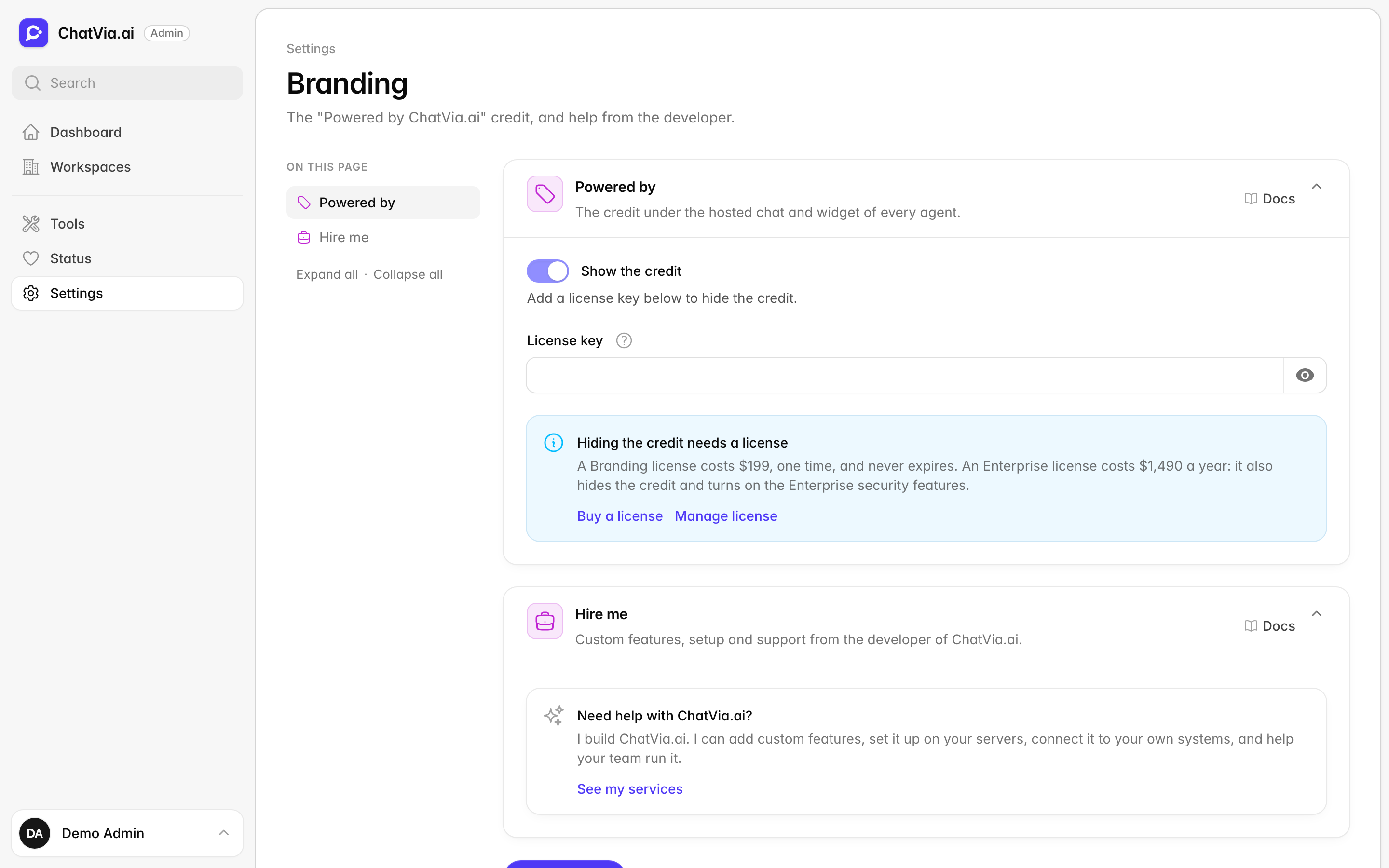
Powered by
The credit under the hosted chat and widget of every agent.
The credit is a small "Powered by ChatVia.ai" line under each chat, the way some free website builders add their name to the bottom of your site. Many businesses want their customers to see only their own brand. Hiding the credit needs a license key. A license key is a long code you get when you buy a license, like the serial number of a paid program. It proves that this install may use the paid features.
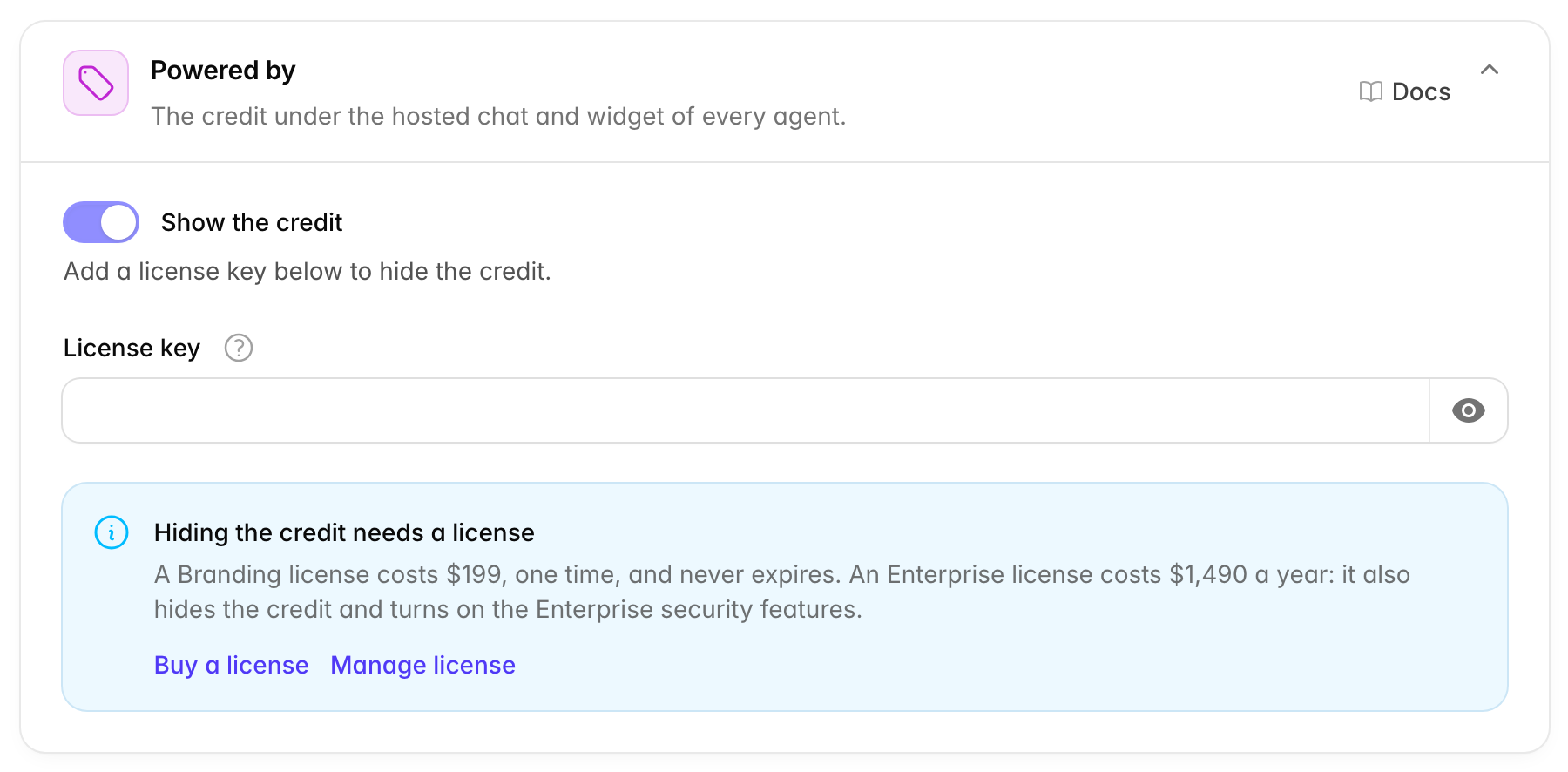
The credit shows on every agent of the install. Hiding it needs a license key that is active for this install.
Show the credit is on by default. It stays on, and greyed out, until a valid license key is saved. Then you can turn it off.
License key takes the key from the email you got when you bought it. Paste the whole key and save. Saving activates the license for this install's domain at chatvia.ai. The domain is the name in your install's address, such as chat.example.com. The key is stored encrypted, which means it is scrambled so only the app can read it, and it is never shown again. Leave the field blank to keep the saved key.
To hide the credit:
- Paste your key in License key and click Save changes.
- Turn off Show the credit and save again.
If the key is not saved, the page says why. "This is not a valid license key" usually means part of the key was not copied. Other messages come from chatvia.ai, for example when the key is already active on another domain.
Where the license stands
Below the fields, a box shows where the license stands:
| The box says | What it means |
|---|---|
| Hiding the credit needs a license | No key is saved. The box lists the license types and their prices, with a Buy a license button. |
| Pro license, licensed to a name | The key is valid here. The Pro features are on, and you can hide the credit. |
| Enterprise license, licensed to a name | The key is valid here. The Pro and Enterprise features are on, and you can hide the credit. |
| The license has ended | An Enterprise or SaaS key was not renewed, and its 14 extra days are over. The box shows the last day. The Pro features turn off and the credit shows. Renew the key with Manage license: it works again after the next daily check, or right away when you save the key again. |
| The license is not active here | The saved key is not valid, or it is not active for this install's domain. The credit stays on until you save a valid key. |
Manage license opens the page at chatvia.ai where you manage your keys.
A license belongs to one domain
A license is tied to the domain of the install's address (APP_URL). If you move the install to another domain, save the key again so it is activated there.
Remove the key
Click the trash button next to License key to remove the saved key. The credit shows again under every hosted chat and widget, and Show the credit turns back on. The key is also released at chatvia.ai, so you can use it on another install. An Enterprise key's features turn off with it.
When to change it: when you buy a license, when you move the install to a new domain, or when you want to use your key on another install. Remove the key from the old install first, so it is free for the new one.
Hire me
Custom features, setup and support from the developer of ChatVia.ai.
This card is not a setting. It is a note from the person who builds Chatvia, for when you want help beyond these docs.
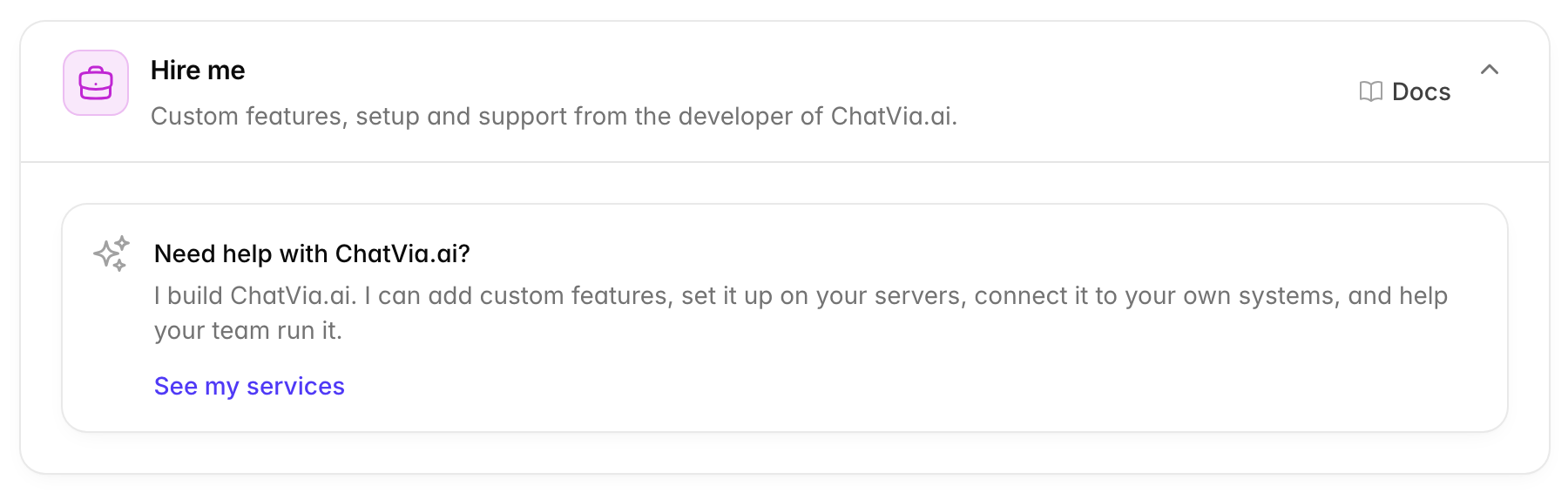
This card has no options. It tells you that the developer of Chatvia can add custom features, set Chatvia up on your servers, connect it to your own systems, and help your team run it. See my services opens the list of services in a new tab.
Related
- License keys: the kinds of keys, what Enterprise unlocks, and how to manage or move a key.
- Appearance & branding: each agent's own colors, logo and avatar.