Model & generation

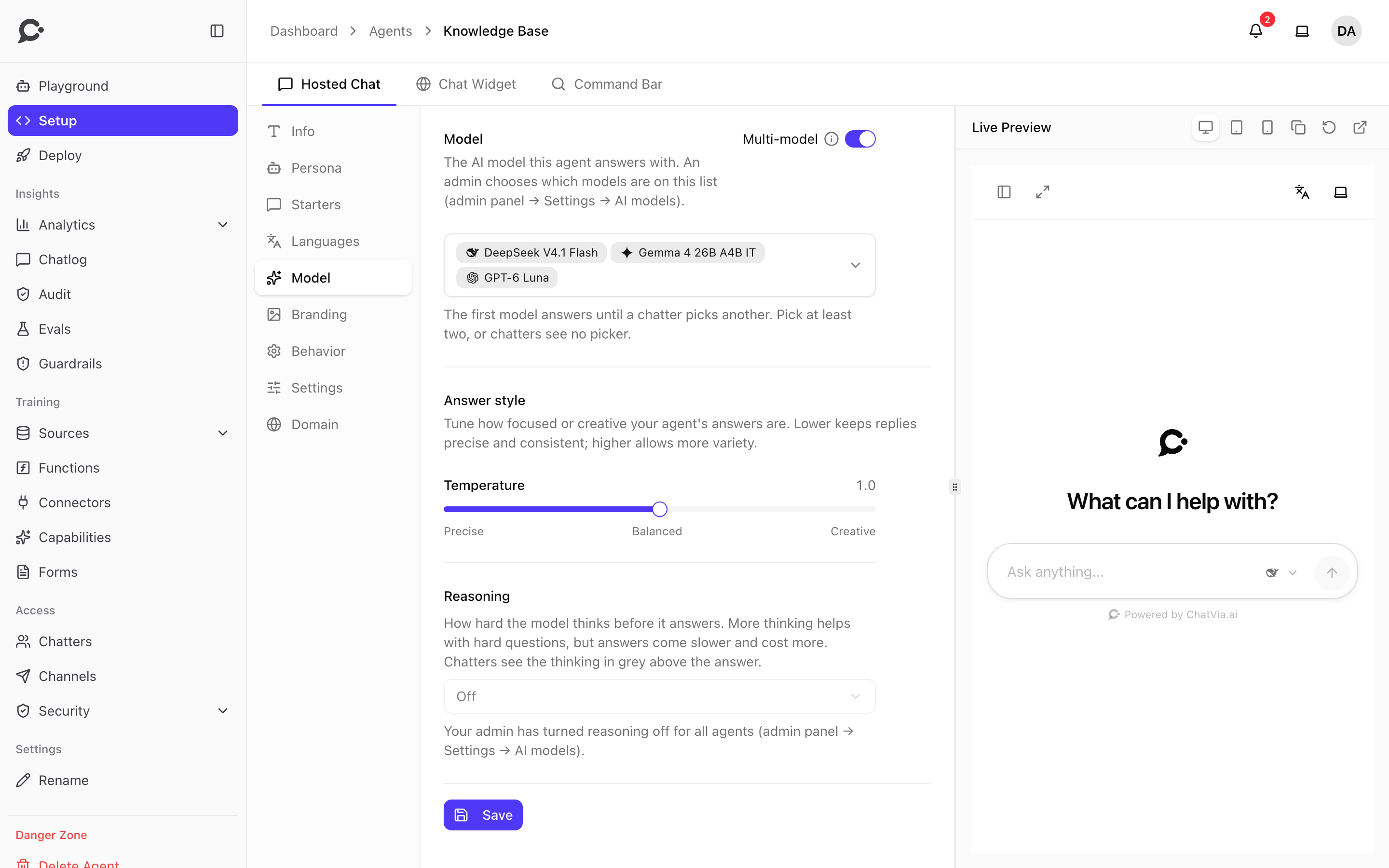
Every agent in your workspace runs on one of the LLMs that your Chatvia server provides. The Setup → Model section lets your team pick the model and tune its answers. The same model choice applies across all three surfaces of the agent: Hosted Chat, Widget, and Bar.
Picking a model
The list of models comes from the admin of your Chatvia server. They add models in the admin panel, under Settings → AI models, and each agent picks one of them. The list groups models by the provider that serves them, and the admin's default model carries a Default badge. You'll typically see:
- Open-weight models (Qwen, Llama, Mistral, gpt-oss): privacy-first, and some are hosted in the EU.
- Frontier models (Claude, GPT, Gemini): best quality on hard reasoning tasks.
If a model can't call tools, the list marks it No tool calling and the Model section warns you. The agent then answers without its functions and connectors.
Recommended approach:
- Start with the default model.
- If responses are too generic or miss nuance, switch to a larger model.
- If responses are too slow or too expensive, downshift.
Answer settings
The Model section has these settings:
| Setting | What it does |
|---|---|
| Model | The AI model this agent answers with. |
| Multi-model | Lets chatters pick which model answers. Shown only while the admin allows it. See Letting chatters pick a model. |
| Let people choose the image model / Let people choose the video model (under Image and video models) | Lets chatters pick the model for their images or videos. Shown only while the agent has the capability on. Off by default. See Image and video models. |
| Temperature (under Answer style) | From Precise to Creative. Lower keeps replies focused and consistent. Higher allows more variety. |
| Reasoning | Off, Low, Medium or High: how hard a reasoning model thinks before it answers. Shown only when the picked model can reason. More thinking helps with hard questions, but answers come slower and cost more. Chatters see the thinking in grey above the answer. The admin can turn reasoning off for all agents. |
Letting chatters pick a model
By default the agent answers with its one model, and chatters can't pick another. To offer a choice, the admin first turns on Let chatters pick a model in Settings → AI models. Then turn on Multi-model in Setup → Model and pick at least two models.
- The first model you pick is the agent's own model. It answers until a chatter picks another.
- Chatters pick a model in the message box of the Hosted Chat, the Chat Widget and the Command Bar, for each message.
- In the Hosted Chat, a chatter who asks for a new answer can try again with another model.
- Each reply shows the logo of the model that wrote it. Hover it to see Answered by and the model's name.
- If a chatter's pick is no longer offered, the agent's own model answers.
Image and video models
When the agent has Image generation or Video generation on (see Capabilities), the Model section shows a Image and video models part with one switch for each: Let people choose the image model and Let people choose the video model. They are off by default.
The switches work only when a platform admin has added two or more image (or video) models, in Settings → AI models. Until then they are locked.
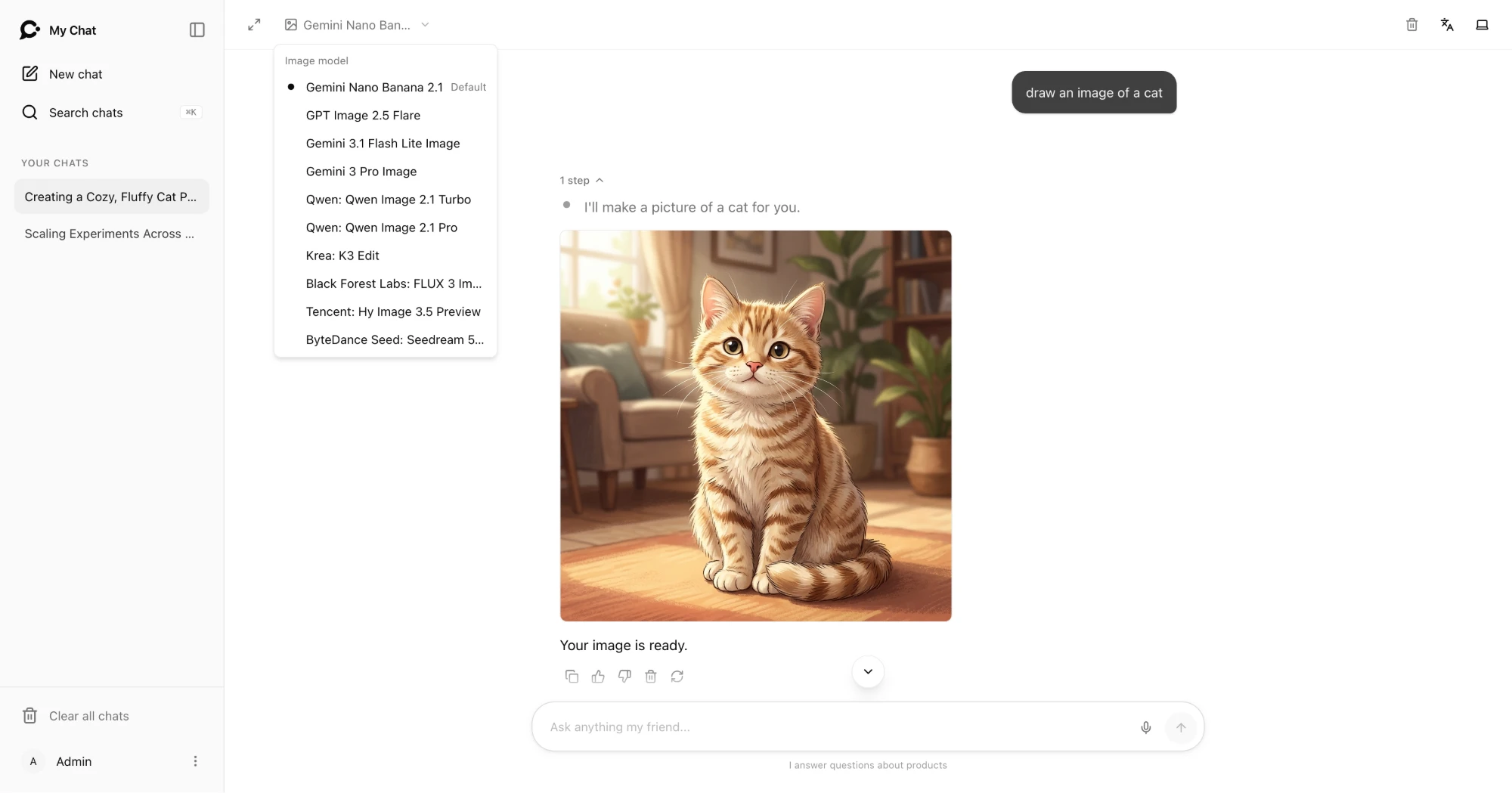
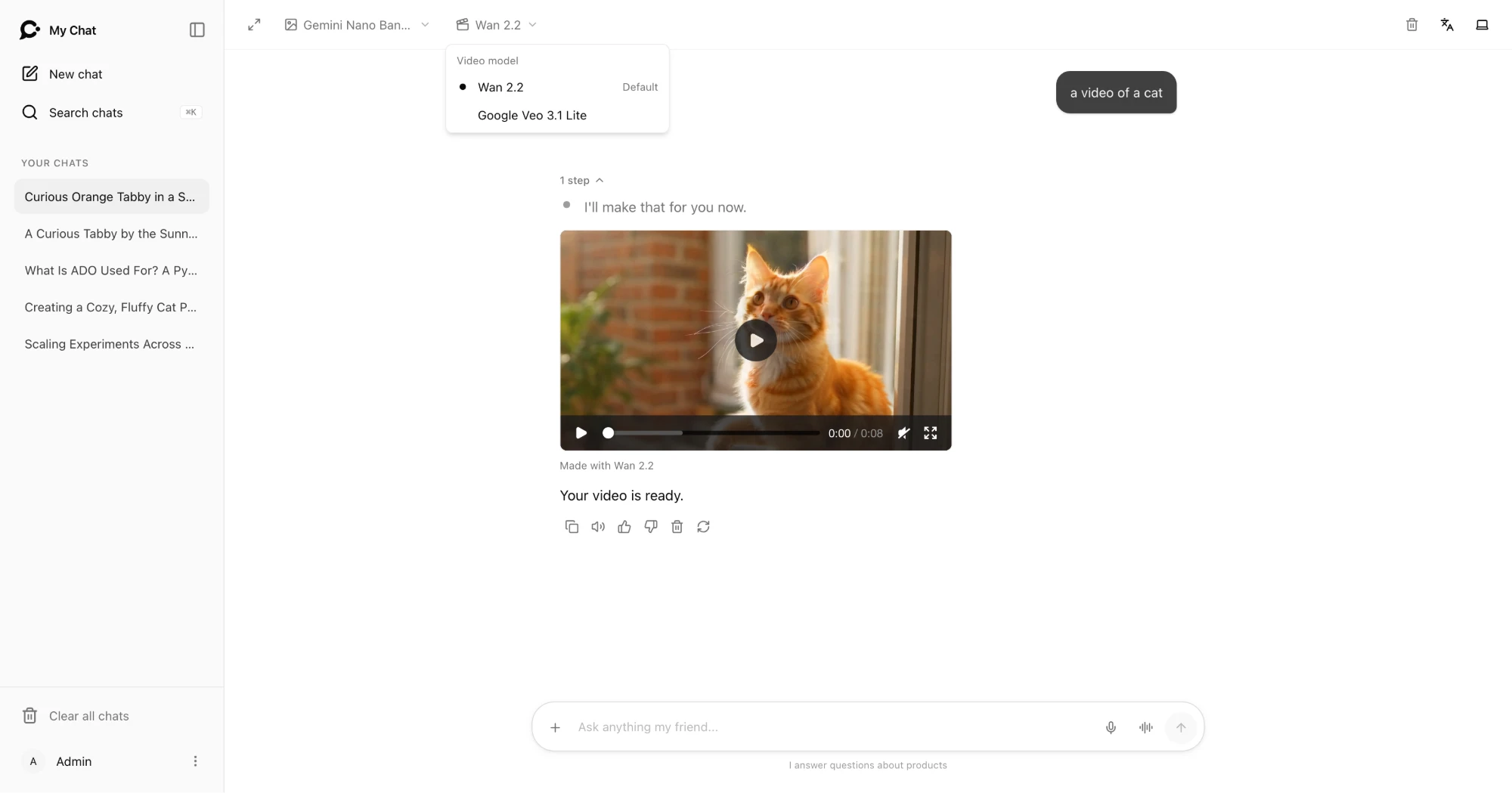
Turn one on and click Save. The hosted chat then shows an Image model or Video model menu at the top left. Chatters pick the model for their next images or videos there. Under the switch you see the models they can pick from.
- The menu lists the models the admin allows, with the admin's model first, as the default.
- The menu shows only when there are at least two models.
- Each image or video shows the name of the model that made it.
Messages and limits
Each agent reply counts as one message, whatever the model and however many tokens it uses. If your workspace has a monthly message limit, see Message limits.
Match the model to the task
Reasoning models are better at multi-step questions ("Given X and Y, what's Z?"). Smaller chat models are faster and cheaper for FAQ-style lookups. If your sources are exhaustive Q&A pairs, a cheap model often does fine.