Status

Chatvia is not one single program. It needs several helpers to work: a database that stores everything, background helpers that do the slow work, outside AI services that write the replies, and more. Each of these is a service. If one stops, part of Chatvia stops with it, for example agents stop answering or new files never finish training.
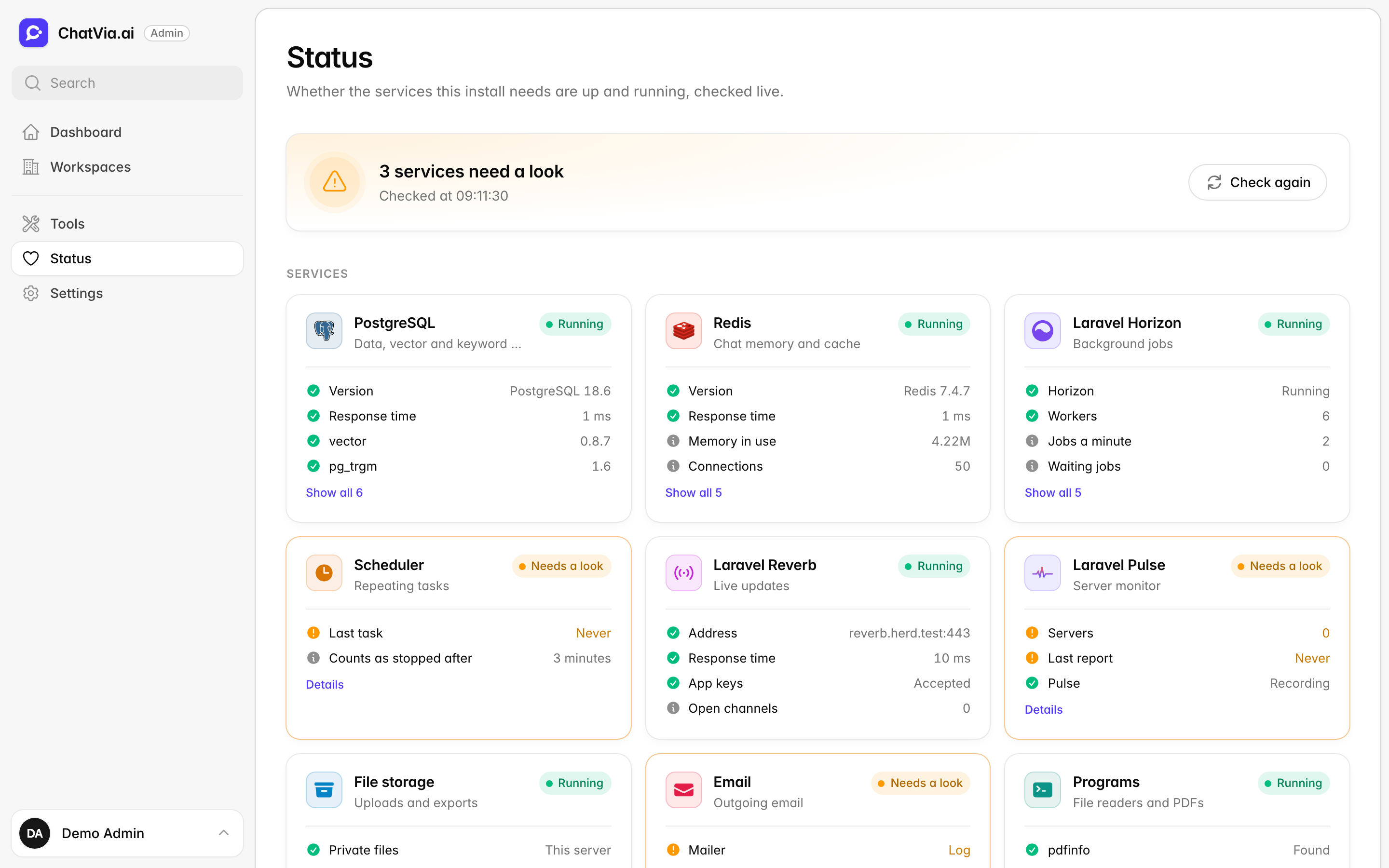
The Status page tells you whether the services your install needs are up and running. It checks each one live, every time you open the page: the services on your server, the AI and other outside services Chatvia calls, and the environment the app runs in. The server is the computer your install runs on. Open the page with Status in the admin panel's sidebar. Look here first when something does not work. It only checks and changes nothing, so you can open it as often as you like.
Only admins can open this page.
The banner
The banner is the one-line answer to "is everything fine?". Read it first, then the cards below it if it says something is wrong.
The banner at the top sums up what the checks found:
- Everything is running: every check passed.
- 1 service needs a look, or more: something works, but with a catch.
- 1 service is down, or more: something does not work.
It also says when the services were checked. The page opens at once and checks the services on your server first. Then it checks the AI and other outside services, which wait on other servers, so they take a little longer. Until a check answers, its card says "Checking…". Click Check again to run every check again, for example after you fixed something.
The same summary shows as a banner on the dashboard.
What each state means
Each card shows one of four states, like a traffic light with an extra "off" position.
| State | What it means |
|---|---|
| Running | The service answers and works. An AI or outside service shows Set up instead, as nothing of it runs on your server. |
| Needs a look | It works, but something is not right. Read the card. |
| Down | It does not work. The features that need it stop. |
| Off | It is not set up, or not used on this install. |
Each card shows the most important lines of its check. Click Details, or Show all, to see every line and a hint about what to do.
Services
These run on your server, or next to it. If a check fails with an error, the card says Does not answer. and the dialog shows the error.
Many fixes below mean typing a command on the server, such as php artisan horizon. If you do not run the server yourself, send the card's message to the person who does.
PostgreSQL
The database. It holds the data, and runs search by meaning and by keywords.
A database is where an app keeps its data in an orderly way, like a huge filing cabinet. PostgreSQL is the database Chatvia uses. Every workspace, agent, chat and piece of knowledge lives there. It also does the searching when an agent looks for an answer in your knowledge. Extensions are add-ons that teach PostgreSQL new tricks, such as searching by meaning.
The card shows the PostgreSQL version, how fast it answered, and the extensions. vector and pg_trgm are required. pg_textsearch is optional. Keyword search says which engine keyword search uses: pg_textsearch (BM25) or Built-in full-text search.
Missing extensions means the database lacks vector or pg_trgm. Install them on the database server, then run the migrations again (php artisan migrate). Migrations are the steps that set up the database's tables.
Redis
Chat memory and the cache.
Redis is a very fast store that keeps data in the server's memory. Chatvia uses it as its cache: a place to keep things it needs often, so it does not have to look them up again each time, like keeping your keys by the door. It also holds the short-term memory of chats, and the queue of background jobs.
The card shows the Redis version, how fast it answered, the memory in use, the connections and how long it has been up.
When it does not answer, check that Redis runs and that the Redis settings in .env are right. The .env file is the settings file on the server that the app reads when it starts. Most of the app stops while Redis is down.
Laravel Horizon
The background jobs.
Some jobs take too long to do while someone waits, like reading a 200-page PDF. Chatvia puts them in a waiting line, called a queue, and background helpers called workers pick them up one by one. Laravel Horizon runs those workers and keeps an eye on them. If Horizon stops, nothing in the line gets done: files stay untrained and replies on messaging channels are not sent.
The card shows whether Horizon runs, how many workers it has, the jobs it does a minute, the jobs that wait, and the jobs that failed this week.
| The card says | What to do |
|---|---|
| Horizon is not running. (Down) | No background job runs. Start it with php artisan horizon, and keep it running with Supervisor or systemd. |
| Horizon is paused. (Needs a look) | Jobs wait until it goes on. Run php artisan horizon:continue. |
| Horizon is restarting. (Needs a look) | It starts again once its running jobs finish. Wait, then click Check again. |
Supervisor and systemd are tools on the server that start a program again if it stops, so it keeps running day and night.
A number under Failed this week is marked, but does not change the state. Open Horizon from the Tools page to see why the jobs failed, and to retry them.
Scheduler
The repeating tasks, such as the nightly clean-up and the backups.
The scheduler is Chatvia's alarm clock. It starts tasks that must run at set times, such as deleting old conversations every night. Cron is the server's own alarm clock, which wakes the scheduler.
The scheduler should wake up every minute. The card shows when it last ran a task.
| The card says | What to do |
|---|---|
| Has not run a task yet. (Needs a look) | The scheduler never ran. Run php artisan schedule:work, or php artisan schedule:run every minute from cron. |
| No task for some time (Down) | It ran before, but not in the last 3 minutes. Check the cron job or the schedule:work process. |
Laravel Reverb
Live updates in the browser, such as training progress and human handoff.
Normally a web page only changes when you reload it. Laravel Reverb keeps a line open between the server and each browser, so the server can push news the moment it happens. That is how a progress bar moves on its own, or how a teammate sees at once that a visitor asked for a person.
The check asks Reverb for its open channels, at the same address and with the same keys the app uses.
| The card says | What to do |
|---|---|
| Reverb does not answer. (Down) | Start it with php artisan reverb:start. Check the address on the card. |
| Reverb refused the app keys. (Down) | Check REVERB_APP_ID, REVERB_APP_KEY and REVERB_APP_SECRET in .env. They must match the ones Reverb runs with. |
| Not on Reverb. (Off) | Live updates go through another driver, named on the card. |
Laravel Pulse
Laravel Pulse is the app's health tracker and server monitor. It records slow pages, errors and how busy the server is. To know how busy the server is, a small helper, pulse:check, has to keep running and send the server's stats regularly. This card checks that those stats arrive.
The card shows whether Pulse records, how many servers report their stats, and when the last report came.
| The card says | What to do |
|---|---|
| Pulse is off. (Off) | The server's .env file has PULSE_ENABLED=false. Remove that line to use Pulse. |
| No server stats yet. (Needs a look) | No server has sent its CPU, memory and disk yet. Run php artisan pulse:check, and keep it running. |
| Server stats stopped. (Needs a look) | No report came in the last 2 minutes. Check that php artisan pulse:check still runs. |
File storage
Uploads and exports.
Files people upload, such as PDFs for an agent's knowledge, have to be kept somewhere. A disk is a place for files. It can be this server's own disk, or S3-compatible storage, an online file store such as Amazon S3. There files sit in a bucket, which is like a folder you rent.
The check saves a small file on the Private files and the Public files disks, reads it back and deletes it. Each line says where the files are kept: This server, or S3 with the bucket name.
When a disk fails, the card says which one. Check the storage settings in Settings → Storage, and the bucket's keys and permissions. For files on this server, the card also shows the free disk space. Less than 10% free is marked.
Outgoing email.
Chatvia sends emails for sign-up confirmation, password resets and invitations. It hands them to a mail server or a mail service, like dropping a letter at the post office. SMTP is the common language mail servers speak.
| The card says | What to do |
|---|---|
| Emails go to the log. (Needs a look) | No email is sent. Each email is written to the log file instead, with its sign-in and password reset links. Anyone who can read that file could use those links, so keep it private. Set up email in Settings → Email. |
| The mail server does not answer. (Down) | Check the server and port in Settings → Email, and that your server may connect to it. |
| Sends with a service (Running) | Email goes through a mail service's API. It is not tested here, as that would send an email. |
For an SMTP server, the check only connects to it. It sends nothing. Sender is marked when no sender address is set.
Programs
The programs that read files and make PDFs.
A program here is a separate piece of software installed on the server, like an app on a phone. Chatvia hands some file types to these programs because they read them well. Every program is optional, so this card stays Running, and the dashboard banner leaves it out.
Each line shows a program and whether it was found:
- Found: the program is there.
- Not found with Built-in used: the app does the work itself.
- Not found with Not needed now: your current settings do not use it.
- Not found with Optional and a note: you lose what the note says.
When the card says Some file types cannot be read. or Some features do not work., install the programs it names, or set their paths in Settings → Platform → Programs. You can also leave them out and lose only what they do.
AI and other services
The services Chatvia calls over the internet.
These services do not run on your server. Chatvia sends them work and gets the result back, and you pay the AI provider, the company that runs them, such as OpenAI. Each one needs an API key, a secret code that lets Chatvia use your account there, like a password made for an app.
Each row shows the providers it runs on. The check uses your saved keys, with a call that costs nothing or next to nothing, such as a provider's model list. A provider that serves several services is called once.
A few words from the table below:
- An AI model is the "brain" that writes the text, such as GPT or Claude. A chat model is one that writes the replies of agents.
- An embedding is a list of numbers that stands for the meaning of a piece of text. A vector is that list. Texts with a close meaning get close numbers, so agents can find the right part of your knowledge even when the visitor uses other words.
- A reranker reads what search found and puts the best matches first, like a librarian who sorts a pile of books by how well they fit your question.
| Service | What it is for | When it fails |
|---|---|---|
| Chat models | Writes the replies of agents. | Down when no chat model is ready, or when every provider fails. Needs a look when some providers fail. Add a model in Settings → AI models, or fix the key in Settings → AI providers. |
| Embeddings | Turns knowledge into vectors for search. | Down when no embedding service is set up, or when a test embedding fails. Pick one in Settings → AI models. |
| Reranking | Puts the best search results first. | Off when not set up. Down when the provider's key fails. |
| Document reading | Reads PDFs, scans and office files. | Same as Reranking. |
| Speech to text | Turns recordings and voice notes into text. | Same as Reranking. |
| Voice conversations | Lets visitors talk with agents in real time. | Same as Reranking. |
| Read aloud | Plays agent replies as speech. | Same as Reranking. |
| Audio generation | Lets agents make audio files in chats. | Same as Reranking. It is Off until you pick a service in Settings → AI models, even when a key is saved. |
| Image generation | Lets agents make pictures in chats. | Checks the key of each service whose models are listed. Running when all answer, Warning when some do not, Down when none do. It is Off until you add a model in Settings → AI models, even when a key is saved. |
| Video generation | Lets agents make videos in chats. | Same as Image generation. It is Off until you add a model in Settings → AI models, even when a key is saved. |
| Web pages | Firecrawl reads websites for knowledge. | Off when no Firecrawl key is set. Otherwise the check reads the key's credit usage. |
Chat models and embeddings are required: agents cannot answer without them, so a missing one is Down, not Off. A row that Needs a look shows the provider's warning in place of its description.
The last row is models.dev, the site Chatvia reads to learn what each model supports, such as whether it reasons. When it cannot be read, the row Needs a look. Models then keep their "Reasons" switch, and Chatvia tries again once a day.
Environment
What the app runs with, as php artisan about would tell it.
This part is mostly for the person who runs the server, or a developer who helps you. It lists the app's basic settings and the versions of the software it runs on. The environment says whether this install is the live site (production) or a test copy.
| Group | What it shows |
|---|---|
| Application | The address, the environment, debug mode, maintenance mode, the time zone and the language. |
| Versions | PHP, Laravel, Filament, Livewire, Horizon, Pulse and Reverb. |
| Caches | Whether the config, routes, events, views and settings are cached. |
| Drivers | The broadcasting, cache, database, logs, mail, queue and session drivers. |
Debug mode on a live site
Debug mode is marked red when it is on while the environment is production. Debug mode shows error details, with secrets, to anyone. Set APP_DEBUG=false in .env.
The Settings line in Caches has a button, Reload the saved settings and AI models. Chatvia keeps the settings and the model list in a cache for every request and worker. Now and then a process keeps a copy from before a save, so a key you just added looks missing. The button reads both from the database again. The workers pick up the fresh copy before their next job.
Related
- Behind the scenes: what to check when something is wrong.
- Installation: the processes Chatvia needs next to the web server.
- Tools: open Horizon, Pulse and Spectra.