Profile

Your profile is how you appear to your colleagues in Chatvia: your name, email address and photo. It also holds personal choices, such as how dates are shown. It belongs to you, the person signed in, not to the workspace. Each teammate has their own.
For example, a new support agent adds her photo so colleagues recognise her in the team list, and picks the Day/Month/Year date format she is used to.
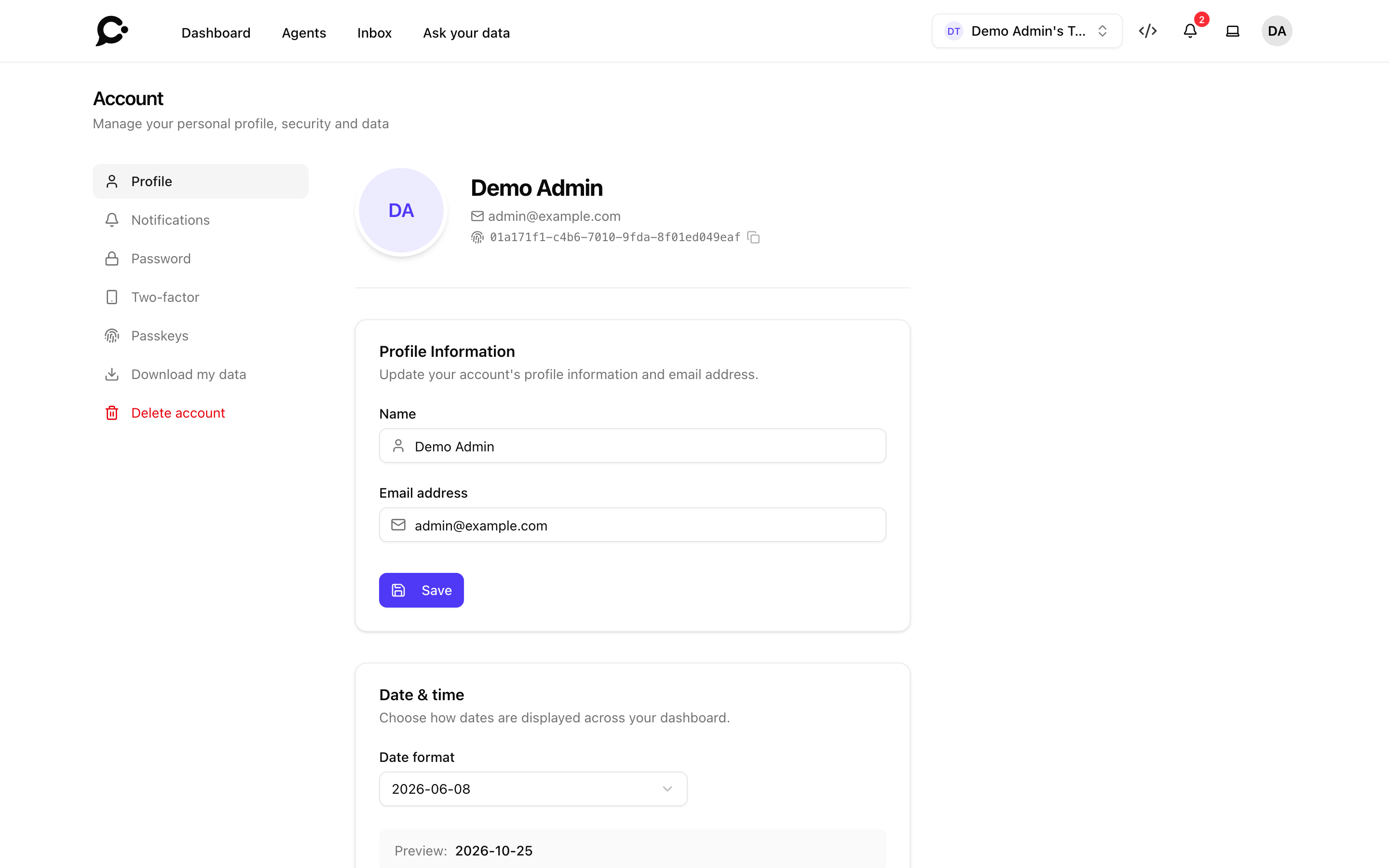
Open it with your avatar in the top right corner, then Account. Profile is the first page.
Your photo
Click your avatar at the top of the page and pick an image. It is saved right away. JPG, PNG, WebP and GIF files up to 4 MB work. Without a photo, Chatvia shows your initials.
To go back to your initials, click Remove photo and confirm.
Under your name you see:
- Managed by and the workspace name, when you are a teammate in someone else's workspace.
- Copy account ID: copies your Chatvia ID. Your developers may need it for some API calls, such as sign-in links.
Profile Information
| Field | Notes |
|---|---|
| Name | Shown in the dashboard and in the team lists. |
| Email address | Used to sign in and for emails from Chatvia. It must not be used by another account. |
Click Save to keep your changes.
When you change your email address, you must confirm the new one. Chatvia sends a link to it. Until you click it, the page says "Your email address is unverified." Click Click here to resend the verification email if the email did not arrive.
Date & time
Date format sets how dates are shown across your dashboard, for you only. The page shows today's date in the format you pick.
| Choice | Example |
|---|---|
| Year-Month-Day (the default) | 2026-06-08 |
| Day/Month/Year | 08/06/2026 |
| Month/Day/Year | 06/08/2026 |
| Day.Month.Year | 08.06.2026 |
| Month Day, Year | Jun 8, 2026 |
Click Save under the card.
Language
To change the language of the dashboard, click your avatar, then Language, and pick one. The change is instant and saved to your account, so it follows you to other computers. It only changes what you see.
This is not the language your agents reply in. Set that per agent in Setup → Languages.
The other account pages
The side menu of Account has more pages:
| Page | What it is for |
|---|---|
| Notifications | What reaches you, and how. See Notifications. |
| Password, Two-factor, Passkeys, Social accounts | How you sign in. See Account security. |
| Download my data, Delete account | Workspace owner only. See Your data and deleting your account. |