Widget (chat bubble)

The Chat Widget is a floating chat bubble your team can embed on any website with one <script> tag. It opens a chat panel that talks to your agent in real time. It is one of three surfaces every agent supports: Hosted Chat, Chat Widget and Command Bar.
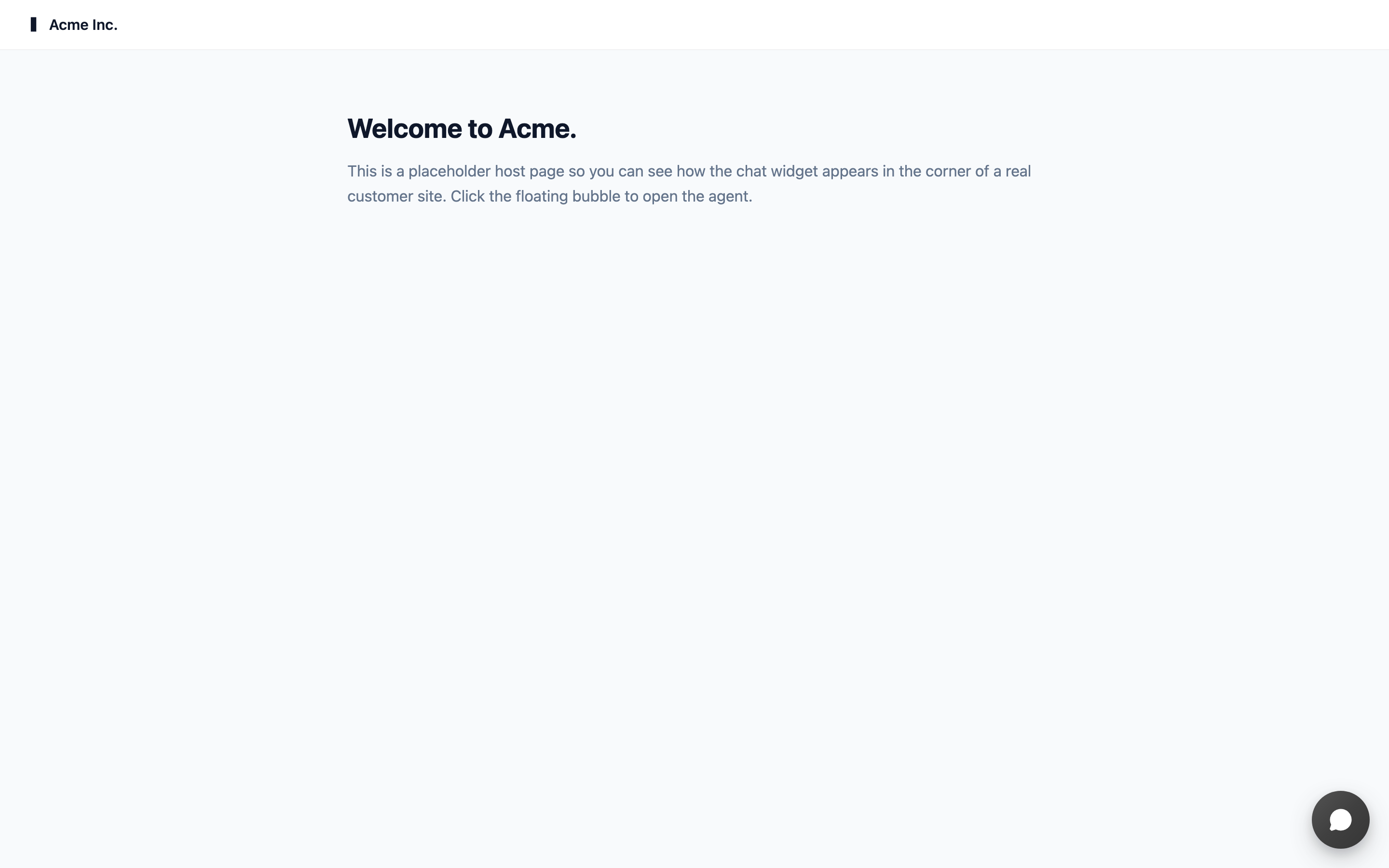
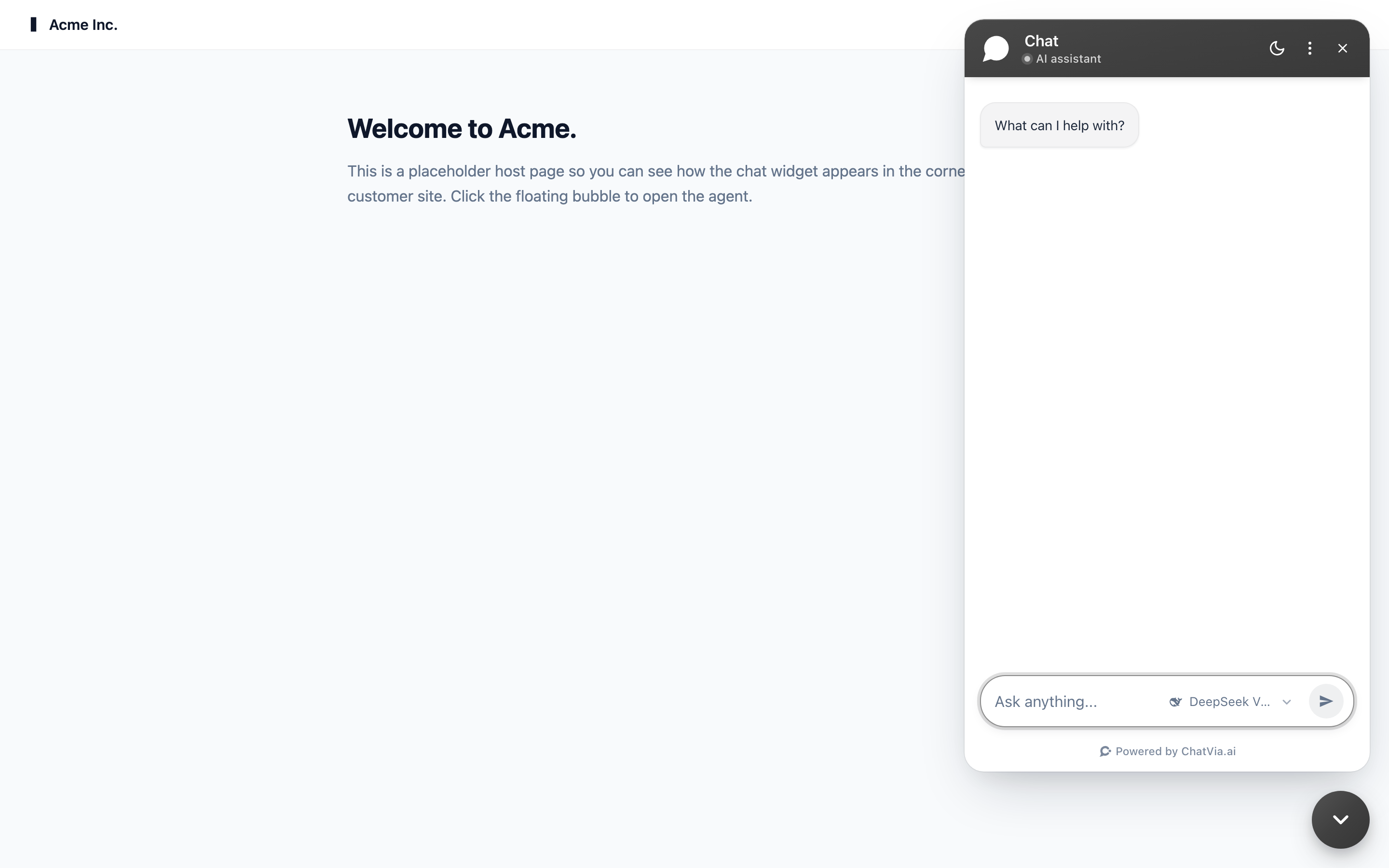
The embed snippet
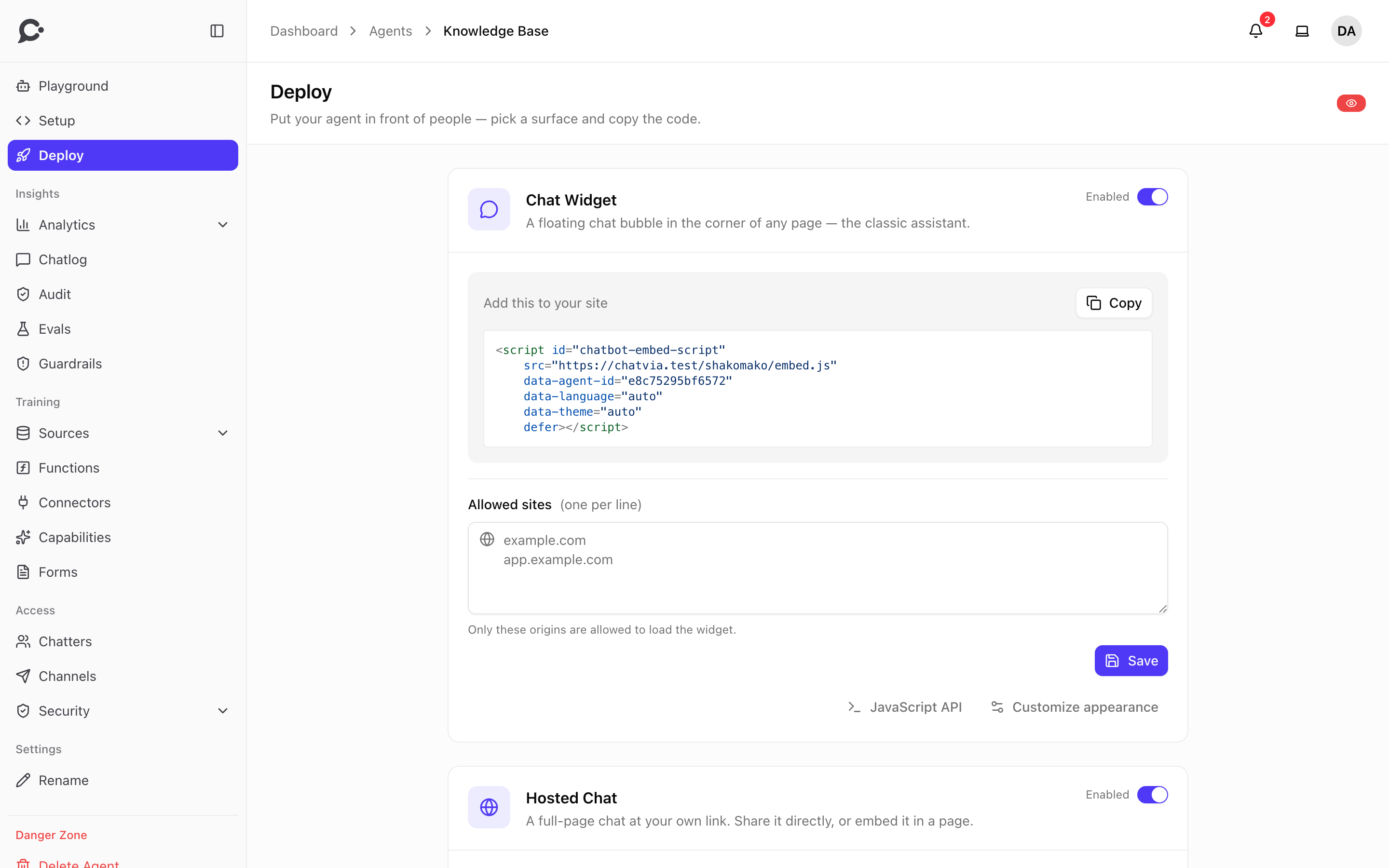
In the dashboard, open the agent and go to its Deploy page. Copy the snippet from the Chat Widget card:
<script id="chatbot-embed-script"
    src="https://chat.example.com/shakomako/embed.js"
    data-agent-id="YOUR_AGENT_ID"
    data-language="auto"
    data-theme="auto"
    defer></script>
https://chat.example.com stands for your install's own address (APP_URL). The snippet on the Deploy page already has the right address.
Paste it just before </body>. That's all. The widget loads in the background and doesn't block your page.
Data attributes
| Attribute | Required | Notes |
|---|---|---|
id |
recommended | Keep it as chatbot-embed-script. In browsers that don't report the running script, the loader uses it to find the tag. |
src |
yes | The embed loader URL on your install: {APP_URL}/shakomako/embed.js. |
data-agent-id |
yes | The agent ID. Your team will find it in the dashboard URL and in the snippet on the agent's Deploy page. |
data-language |
no | Forces a language. auto (default) follows the customer's browser. Or one of the 20 supported codes (en, de, fr and so on). |
data-theme |
no | auto, light or dark. Without it, the agent's theme setting applies. |
data-auth |
conditionally | Required for protected agents. A token signed with the agent's signing secret. |
defer |
recommended | Loads after the page is parsed, so the page renders faster. |
The widget has a few more attributes, like data-mode and data-mount-id. See Shakomako, the chat widget for the full list.
What you get out of the box
- Floating button. Bottom right by default. You can move it to the bottom left.
- Open / close animations.
- Conversation persistence. Customers can reload the page and pick up where they left off (the session is kept in
localStorage). - Auto language detection.
- Markdown rendering. Assistant messages support bold, lists and code blocks.
- Mobile responsive.
- A11y. Keyboard navigable, ARIA-labeled.
The widget has no Approve and Deny buttons. Functions and connector tools that need approval are left out here, so the agent can't use them in the widget. Only the Hosted Chat can ask for approval.
Customizing appearance and behavior
Everything visible to the customer, such as colors, position, size, text labels and starters, is configured in the dashboard, on the agent's Setup page. Most sections apply to all three surfaces. A tab bar at the top (Hosted Chat, Chat Widget, Command Bar) switches the live preview and the sections that belong to one surface.
- Setup → Info / Persona / Starters: shared across surfaces.
- Setup → Branding: color theme, avatar, logo and privacy policy link, shared across surfaces.
- Setup → Model: the model, shared across surfaces. Pick several models under Multi-model and visitors choose which one answers each message. Each reply then shows the logo of the model that wrote it. This needs the admin of your Chatvia server to turn on Let chatters pick a model (see AI models).
- Setup → Chat Widget tab → Chat Bubbles: short messages next to the closed bubble.
- Setup → Chat Widget tab → Behavior: position, window size, theme, language, Live Chat, open on page load (with a delay), and allowed sites.
Changes apply on the next page load. There's no rebuild step. Language and theme are the exception: the snippet carries them as data-language and data-theme, and these win over the saved setting. After you change them, copy the snippet again or edit the two attributes.
The admin of your Chatvia server sets two things for every agent's widget at once, in Widget settings:
- Removing chats: what happens when a visitor removes a chat from the widget. End chat only (the default) keeps every chat, and visitors can only end a chat and start a new one. Remove from history hides the chat from the visitor and keeps it in your chat log. Delete permanently erases it for good.
- The "AI assistant" line under the chat title. The admin can hide it. "Human agent" still shows while a person answers.
Allowed sites
List the sites where this widget may run. You can edit the list on the Deploy page (Chat Widget card) or in Setup → Chat Widget tab → Behavior. Requests from any other site are refused. This stops someone from copying your snippet and running it on their own site.
Write one site per line:
example.com: that host.www.example.commatches too.*.example.com:example.comand every subdomain, at any depth.
An empty list does not allow every site. The widget then runs only on your install's own address (APP_URL) and on the hosts the admin allowed for every agent (see Widget settings). localhost is allowed only when the install runs in the local environment. Add your own sites before you go live.
Languages
The widget supports automatic and forced languages. When set to auto, it reads navigator.language and matches it against the widget's 20 languages: ar, da, de, en, es, fa, fi, fr, hi, id, ja, ko, no, pl, pt, ru, sv, tr, vi and zh. Other languages fall back to English. If your customers are predominantly one language, force it with data-language. It skips the detection step and makes sure the welcome message is right.
Programmatic control
The embed script exposes a global window.chatvia:
// Open the widget
window.chatvia.open()

// Close it
window.chatvia.close()

// Toggle. Returns true when it is now open.
window.chatvia.toggle()

// Send a message programmatically
window.chatvia.send('How do I reset my password?')

// Start a new conversation
window.chatvia.newChat()

// Listen for events: 'open', 'close', 'ready' and 'handoff'
window.chatvia.on('ready', () => console.log('Widget ready'))
window.chatvia.on('open', () => console.log('Widget opened'))

// Stop listening
window.chatvia.off('open')
The methods work once the widget has loaded. The ready event fires at that moment.
Useful for:
- Triggering the widget from a "Need help?" button elsewhere on the page.
- Pre-filling a question from a deep link.
- Closing the widget after a conversion event.
The JavaScript API link on the Deploy page shows the same methods.
Performance
The loader is < 5 KB. Once the page has loaded, it reads version.json and loads the widget bundle (about 110 KB gzipped). The bundle has a new name for each release, so browsers can cache it for a long time.
No layout shift: the bubble is position: fixed and doesn't affect your page's flow.
Common issues
- "Widget doesn't appear." Check that
data-agent-idmatches the agent's external ID exactly, that the page's site is in the agent's allowed sites, and that the Chat Widget is enabled on the Deploy page. - "Wrong language." Set
data-languageexplicitly to override browser detection. - "This chat requires sign-in." The agent is protected. Mint a token and pass it as
data-auth. See Protected agents. - Styles look off. The widget uses its own
chatvia-class names, but it is not isolated from your page. A very broad rule in your CSS (for example on everybutton) can reach it. Make such rules more specific.