Appearance & branding

Match every chat surface to your brand. Appearance is configured once in the agent's Setup page, in two sections: Info and Branding. The same values apply to all three surfaces at once: Hosted Chat, Widget, and Bar.
Info
Editable copy that your customers see:
| Field | Where it appears |
|---|---|
| Chat Window Title | Top of the chat window, usually your product name. |
| Welcome Message | The greeting chatters see when a new chat opens. |
| Composer Placeholder | Greyed text in the input box ("Ask anything…"). |
| Notice under the chat box | Optional. A short line under the message box: what the agent covers, and that answers can be wrong. |
When you save, these texts are translated into every language automatically. To check or edit a translation, click that language's flag at the top of the Info section. Leave a field empty there to keep the automatic translation. Pick the agent's languages in the Languages section.
On the Chat Widget tab there is also a Chat Bubbles section: short prompts shown next to the widget launcher.
In the Chat Widget, the line under the title says "AI assistant", or "Human agent" while a teammate answers. The admin can hide "AI assistant" for the whole server in Settings → Widget.
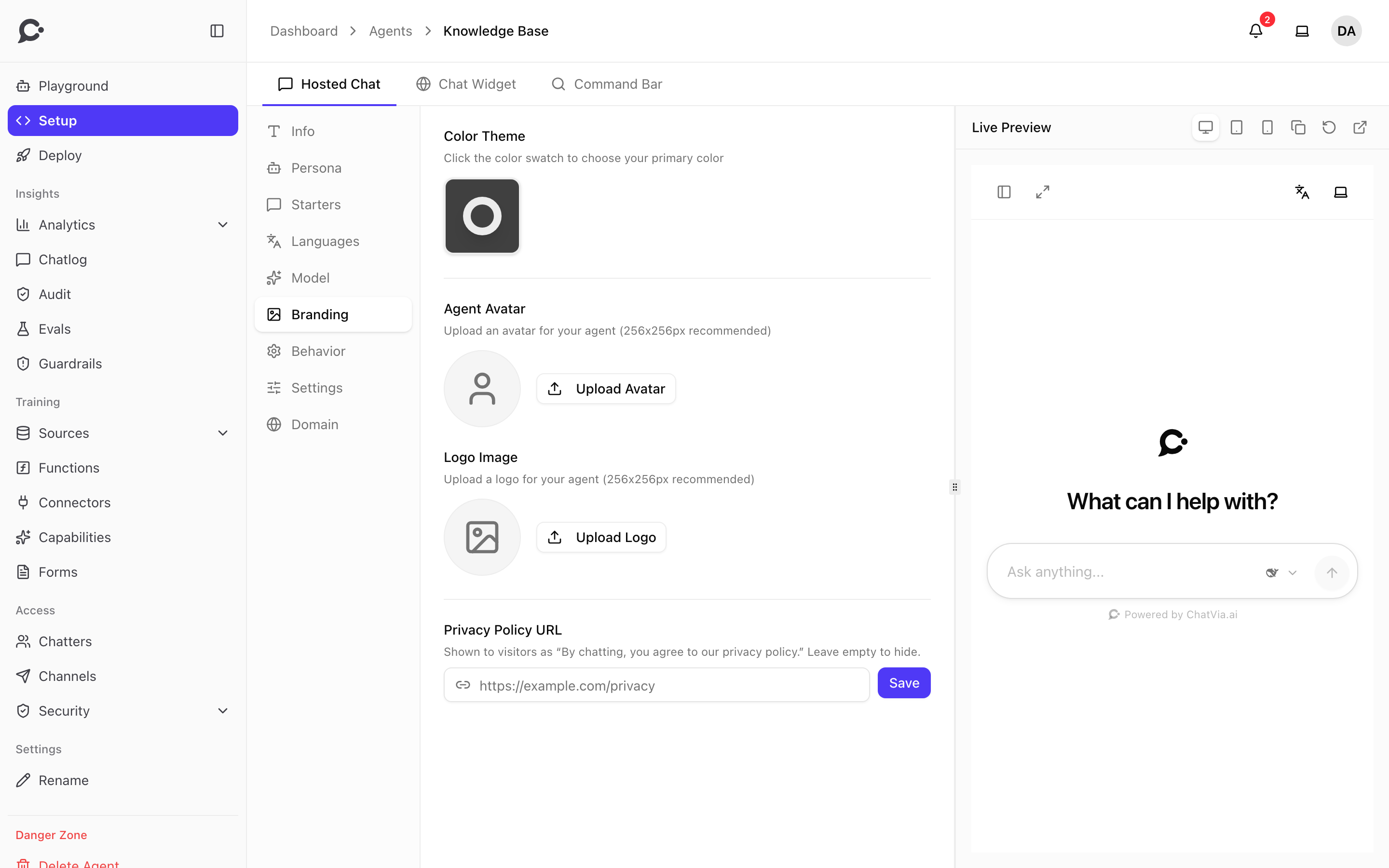
Color theme
The Color Theme in Branding has two pieces:
- Theme color: the primary hue used for the bubble button, message highlights and the send button.
- Shade: a lighter or darker variant of the theme color, set with the Color Intensity slider.
The picker shows a fixed palette of colors (Black, Red, Blue, Slate and so on). There is no custom hex value. Click Apply to save the color.
Use full color functions in CSS variables
If your team overrides the theme via custom CSS, store full color functions (e.g. hsl(220 90% 56%)) in your variables and reference them as var(--name). Don't wrap with hsl(var(--name)). That's invalid CSS and is silently dropped.
Avatar, logo and privacy link
The Branding section also has two image uploads:
- Agent Avatar: shown beside agent messages.
- Logo Image: shown in the chat header.
Both take a common image file, such as PNG, JPG, GIF or WebP. Chatvia scales it down and stores it as a PNG. Square images at 256×256 work best.
Privacy Policy URL is optional. When set, visitors see "By chatting, you agree to our privacy policy."
Live preview
The Setup editor includes a Live Preview panel on the right. Each time your team saves a change, the preview reloads, so you see exactly what chatters will see. The preview is the real chat in a frame, not a separate mock. Its toolbar switches between desktop, tablet and mobile sizes, copies the agent ID, refreshes the preview, and opens it in a new tab. Because appearance is shared, the same values flow into the Hosted Chat, the embeddable Widget, and the Bar surface without any extra configuration.