Workspaces, teams & roles

Chatvia is organised around a workspace: the company account that owns your agents, sources, MCP connectors, functions, and people. Inside a workspace, teams group your people by scope-of-access. Roles control what each member can do.
Workspace vs team
- Workspace: the customer account. One per company. Owns agents, sources, and the full member list. It can have a monthly message limit.
- Team: a scope-of-access grouping inside the workspace. Teams let you silo work (one per client, one per product area, one per environment) without spinning up a new workspace.
A person belongs to one workspace. If you are in several teams, the team switcher picks which team you're acting on.
Two kinds of people in a workspace
A workspace has two kinds of members, and they live in different places:
- Teammates: people who manage agents from the dashboard. Added from Manage Teams, in the team menu at the top of the dashboard. Roles control what they can do.
- Chatters: end-users who talk to agents in the Hosted Chat, Chat Widget or Command Bar. They never see the dashboard. Invited from Workspace → People → Chatters (workspace-wide) or from an agent's Chatters page (per-agent grant).
Keep this split in mind for the rest of the page: when we say "member" we mean a teammate. Chatters are covered in their own sub-section.
Creating a team
Only the workspace owner can create teams.
Every workspace starts with one team. You can add as many teams as you like, with or without a license key.
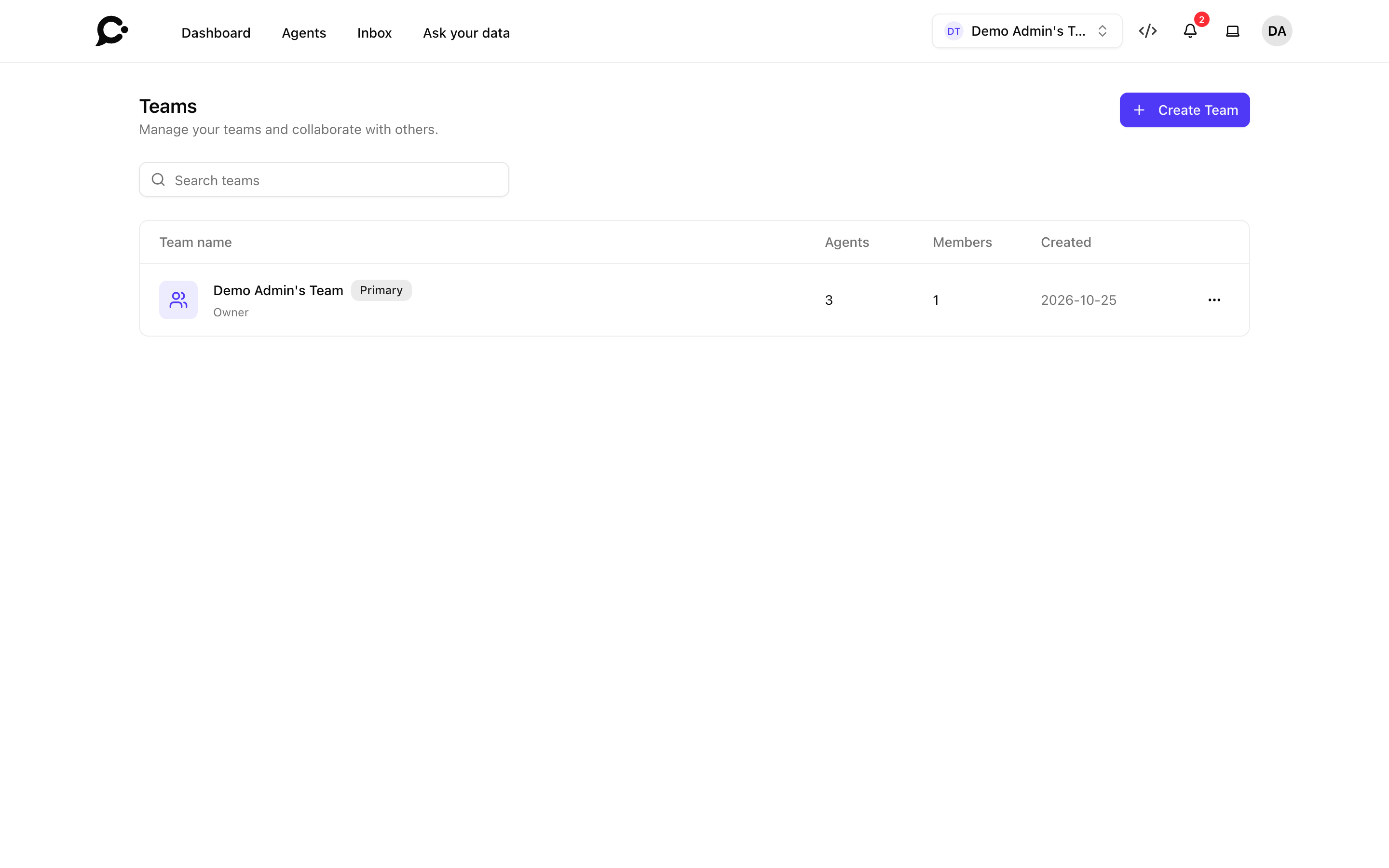
- Open the team menu at the top of the dashboard and click Create Team. You can also click Create Team on the Teams page (team menu → Manage Teams).
- Enter a Team Name and confirm.
The Teams page lists every team with its number of agents and members. Your first team is marked Primary. To rename a team, open it and click the pencil next to its name. Copy team ID copies the ID your developers need for the API.
Adding teammates
Only the workspace owner can open Teams. A teammate who tries is sent back to the dashboard.
Open the team menu at the top of the dashboard, choose Manage Teams, open a team, and click Add Member. The Add Team Member dialog has two ways:
- Select Existing: pick someone who is already in your workspace.
- Invite by Email: Chatvia sends an invitation. The recipient signs in (or signs up) and lands on this team inside your workspace.
Pick the Role they get. Invitations not yet accepted show under Pending Invitations, where they can be resent or cancelled. Once accepted, the teammate appears in Team Members.
Inviting chatters
Chatters are end-users you want to give agent access to. They never reach the dashboard.
- Workspace-wide invite: Workspace → People → Chatters → Invite chatter. Pick which agents the chatter should have access to (at least one).
- Per-agent invite: open an agent → Chatters (under Access) → Invite chatter. The grant is scoped to that one agent.
Chatters can only be invited to protected agents. See Chatters for the whole page, including limits, deactivating and removing chatters.
Once accepted, the chatter signs in to the agent's Hosted Chat. From the My Agents list there, they can switch between every agent they've been granted access to. Revoke access from the same screens.
Removing teammates
Open a team, click the ⋯ next to a teammate, then:
- Remove: takes them off this team. They lose access to the team's resources.
- Remove from workspace: permanently deletes their account and personal data. What they created for the workspace (agents, knowledge, tools) stays.
You can't remove the workspace owner. The dashboard has no way to transfer ownership, so the only way is to delete the workspace.
Roles
A role is a named permission set. The only built-in role is Owner, with full access to all agents and settings. For everyone else, create a custom role with Create Role in the team's Roles & Permissions card:
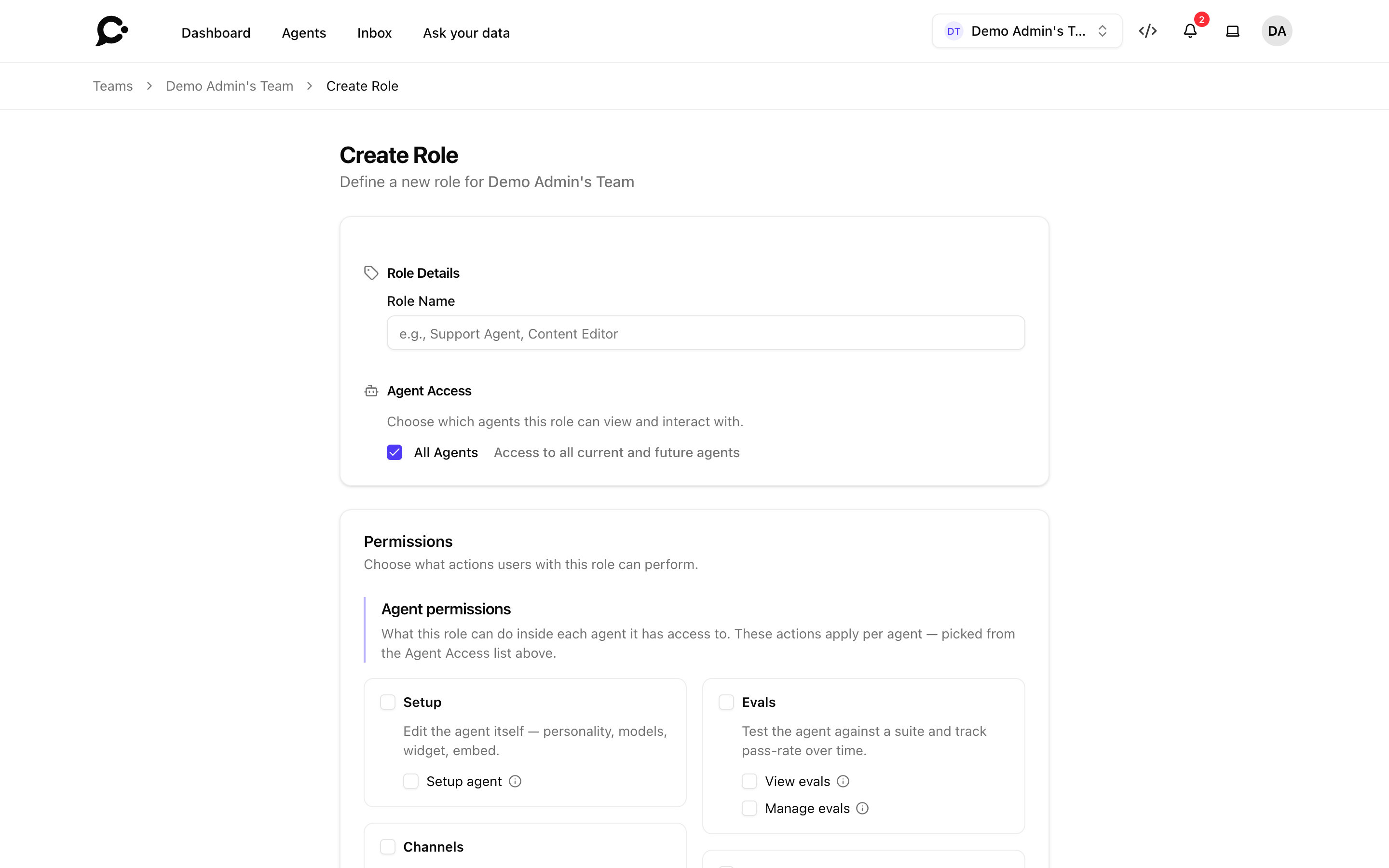
The role builder lets you grant:
- Agent Access: specific agents, or All Agents (current and future).
- Agent permissions: what the role can do inside those agents, such as Setup agent, Train Files, View conversations, Take over, Delete sources or Manage guardrails.
- Account permissions: workspace-wide tools: API keys, Connectors, Functions, Prompts, Members (under People), Governance and Security.
Example: "Support Engineer" gets the Support and Docs agents, with Setup agent, the Train permissions and View conversations, but no Delete sources.
Assigning roles
From a team, click Change Role on a teammate to change their role. From a role, you can also add teammates in bulk. This is useful when you create a new role and want to assign it to a dozen people.
Permissions matrix
| Action | Owner | Custom role |
|---|---|---|
| Create agent | ✓ | No |
| Edit agent settings | ✓ | ✓ with Setup agent |
| Manage sources | ✓ | ✓ with the Train permissions and Delete sources |
| View Chatlog | ✓ | ✓ with View conversations |
| View Analytics | ✓ | ✓ with the analytics permissions |
| Take over a chat (handoff) | ✓ | ✓ with Take over |
| Grant chatter access (per agent) | ✓ | ✓ with Agent Chatters |
| Manage chatters workspace-wide, and set a chatter's monthly message limit | ✓ | ✓ with Members |
| Manage Connectors / Functions (workspace-level) | ✓ | ✓ with Connectors / Functions |
| Add / remove teammates, change roles | ✓ | No |
Multiple teams
You can belong to many teams inside a workspace. The team switcher swaps the context: agents, settings, and member lists all scope to the active team. Connectors and the workspace's message limit stay at the workspace level.
Credentials don't change with the team
API keys belong to the person who generated them, and each agent has its own signing secret. Switching teams in the dashboard doesn't switch credentials.
Leaving a team
In Teams, open the ⋯ menu of a team and click Leave. The item only shows on a team you don't own. You lose access to that team. The team carries on with its remaining members, and you stay in the workspace if you belong to other teams.
You can't leave a team you own. Delete it instead.
Deleting a team
Owners can delete a team from the ⋯ menu in Teams, after a confirmation. A team can only be deleted when it is empty:
- It has no agents left.
- It has no other members left.
- It is not your primary team, or your only team.
Teams via API
Teams, roles, and memberships are available in the public API. See the API reference at yoursite.com/docs/api, under Teams.